Multi-label Mask
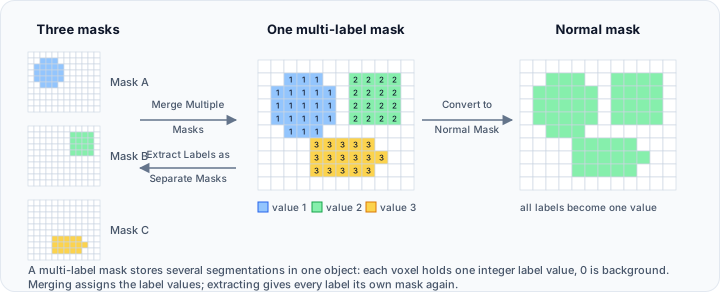
The Multi-label Mask tools manage masks that contain multiple labeled regions within a single mask object. Multi-label masks efficiently store multiple segmentations using different integer values to identify each region.
Accessing the Tool
- Navigate to the Segmentation tab in the ribbon.
- Click Multi-label Mask in the Operations section.
- Select the desired operation from the dropdown menu.
Operations
Merge Multiple Masks
Combine several individual mask objects into a single multi-label mask:
| Parameter | Description |
|---|---|
| Input | Select the masks to merge. |
| Target | Target mask to merge into (optional - creates new if not specified). |
| Remove input objects | If enabled, input mask objects will be removed after a successful merge operation. |
Each source mask becomes a separate label in the result. Label values are assigned automatically.
Extract Labels as Separate Masks
Create individual mask objects from each label in a multi-label mask:
Information:
- Number of labels: Displays the total number of labels present in the active mask
Options:
- Separate only the largest labels: When enabled, specify the number of largest labels to separate based on their volume
- Remove active mask: If enabled, the active mask will be removed after a successful split operation
Each extracted label becomes an independent mask object.
Convert to Normal Mask(s)
Remove label information from a multi-label mask, converting it to a standard binary mask:
| Parameter | Description |
|---|---|
| Target mask(s) | Select the multi-label mask(s) to convert. |
Multi-Label Mask Editor
Interactively manage labels within a multi-label mask:
| Feature | Description |
|---|---|
| Active mask labels | Table view displaying all labels in the active mask. |
| Show interactive annotation | When enabled, picking in the 3D view and table row will be active, and an annotation will be shown in all views, positioned at the selected label's first voxel. |
| Show all labels annotations | When enabled, annotations for all labels are displayed simultaneously, each positioned at the label's first voxel and automatically repositioned to avoid overlap. Use the view selector to choose between 3D View or All Views. |
| Copy Annotation to Measurement | Copy the active label annotation to the Measurement tool. |
| Create new mask object from selected label(s) | Extract selected labels to a new mask object. |
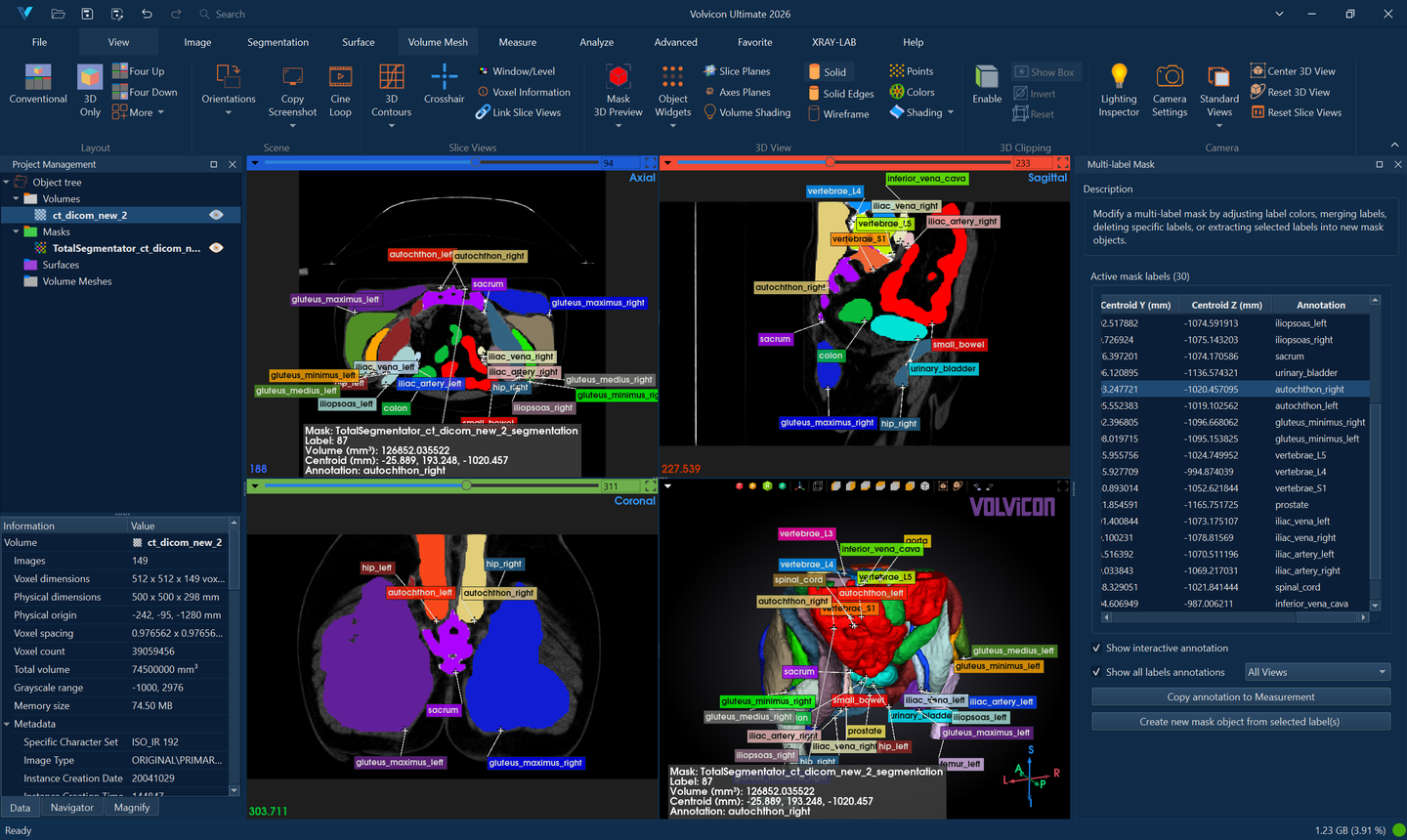 Visualization of label annotations: AI segmentation using TotalSegmentator.
Label Management
Labels Table
The editor displays a table of all labels in the mask:
| Column | Description |
|---|---|
| Value | The integer label value. |
| Name | User-assigned label name. |
| Color | Display color for the label. |
| Voxel Count | Number of voxels with this label. |
| Volume | Physical volume of the label. |
Label Operations
| Operation | Description |
|---|---|
| Random Colors | Assign random colors to selected labels. |
| Select Color | Choose a specific color for a label. |
| Combine Selected | Merge selected labels into one. |
| Remove Selected | Delete selected labels. |
| Create Mask from Selected | Extract labels to a new mask. |
Workflow Examples
Creating a Multi-label Mask
- Segment multiple structures as individual masks.
- Open Multi-label Mask → Merge Multiple Masks.
- Select the masks to combine.
- Enter a name for the result.
- Click Apply to create the multi-label mask.
Editing Label Properties
- Select the multi-label mask.
- Open Multi-label Mask → Multi-Label Mask Editor.
- In the labels table, select labels to modify.
- Use the editing buttons to rename, recolor, or combine labels.
- Click Apply to save changes.
Extracting Specific Labels
- Select the multi-label mask.
- Open Multi-label Mask → Extract Labels as Separate Masks.
- Select the labels to extract.
- Click Apply to create individual masks.
Use Cases
- AI Segmentation Results: Import multi-label results from AI frameworks.
- Efficient Storage: Store multiple structures in a single file.
- Batch Processing: Process all labels simultaneously.
- Label Editing: Correct or refine labels from automatic segmentation.
Multi-label masks are commonly used with AI segmentation frameworks like TotalSegmentator, which output all anatomical structures as a single multi-label mask.
Scripting
Multi-label operations are available via the Python scripting API:
import ScriptingApi as api

app = api.Application()
mask_operations = app.get_mask_operations()

# Check if a mask is multi-label
is_multilabel = mask_operations.is_multilabel_mask("Segmentation")

# Get label information
mask_label_info_list = mask_operations.get_mask_labels("Segmentation")
for mask_label_info in mask_label_info_list:
    print(f"Label {mask_label_info.value}: {mask_label_info.annotation}")
See the MaskOperations API Reference for details.
See Also
- Boolean: combine masks with set operations.
- Split Mask: separate disconnected regions.
- AI Segmentation: automated multi-label segmentation.
- Segmentation Tab Overview: overview of all segmentation tools.