Filter Regions
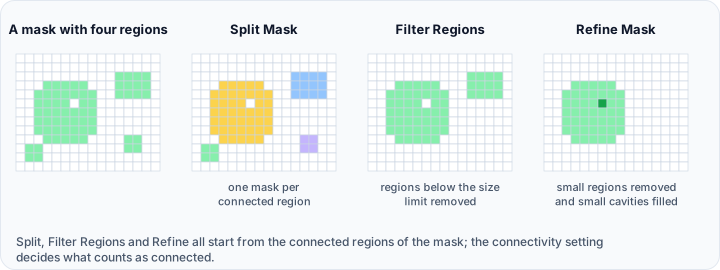
The Filter Regions tool removes mask regions based on their size. Use it to eliminate small noise fragments or filter out regions that don't meet size requirements for your analysis.
Accessing the Tool
- Navigate to the Segmentation tab in the ribbon.
- Click Filter Regions in the Operations section.
Parameters
Active Mask Information
| Display | Description |
|---|---|
| Connected regions | Shows the total number of regions present in the active mask (read-only). |
Connectivity Mode
| Option | Description |
|---|---|
| 6-connectivity | Voxels connected only to directly adjacent neighbors sharing a face (up to 6 connections). |
| 26-connectivity | Voxels connected to all surrounding neighbors including edges and corners (up to 26 connections). |
Options
Filter Mode (mutually exclusive radio buttons):
| Mode | Description |
|---|---|
| Keep only the largest regions | Keep the specified number of largest regions by volume. |
| Remove regions | Remove regions smaller than the specified minimum size. |
Mode-Specific Parameters:
| Parameter | Available When | Description |
|---|---|---|
| Number of largest regions | "Keep only the largest regions" selected | Specify how many of the largest regions to keep (1 to total regions). |
| Minimum region size (voxels) | "Remove regions" selected | Set the minimum size in voxels. Regions smaller than this will be removed. Default: 512. |
Workflow
- Activate the mask you want to filter.
- Open the Filter Regions tool from the Segmentation tab.
- View the Connected regions count displayed for the active mask.
- Choose the Connectivity mode (6-connectivity or 26-connectivity).
- Changing connectivity updates the region count automatically.
- Select the filtering operation:
- Keep only the largest regions: Specify the number to keep.
- Remove regions: Specify the minimum size threshold in voxels.
- Click Apply to perform the filtering operation on the active mask.
Use Cases
Noise Removal
Remove small isolated voxels from thresholding results:
- Select "Remove regions"
- Set minimum region size (e.g., 512 voxels)
- Apply to clean up the segmentation
Isolating Primary Structure
Keep only the main structure when multiple regions exist:
- Select "Keep only the largest regions"
- Set number to 1
- Apply to remove all but the largest region
Keeping Multiple Large Structures
Retain several main structures while removing noise:
- Select "Keep only the largest regions"
- Set the desired count (e.g., 3 for top 3 regions)
- Apply to keep only those regions
Tips
- The tool displays the total region count in real-time based on connectivity mode.
- The filter operation is only enabled when the mask contains more than one region.
- For noise removal, start with a small minimum size (e.g., 100-500 voxels) and increase if needed.
- Use 6-connectivity to identify more regions as separate (stricter criterion).
- Use 26-connectivity if diagonal connections should keep regions together.
- The "Keep only the largest regions" mode is sorted by volume, keeping the N largest.
tip
For datasets with many small noise regions, setting "Number of largest regions" to 1 is the fastest way to isolate the primary structure.
Technical Notes
Region size is measured in voxels (not physical units). The number of voxels in each connected component determines its size for filtering purposes.
See Also
- Split Mask: separate regions before filtering.
- Refine Mask: combined cleanup operations.
- Smooth Mask: smooth mask boundaries.
- Segmentation Tab Overview: overview of all segmentation tools.