View Tab Overview
The View tab provides tools for customizing the visualization environment. Use it to arrange workspace layouts, configure slice view behavior, adjust 3D rendering options, apply clipping regions, and control camera positioning.
Changes made in the View tab affect how data is displayed but do not modify the underlying project data.
Ribbon Sections
The View tab is organized into six sections:
| Section | Purpose |
|---|---|
| Layout | Switch between predefined workspace arrangements |
| Scene | Set view orientations, copy screenshots, and enable cine loop playback |
| Slice Views | Configure 2D slice display options and interactions |
| 3D View | Control 3D rendering, representations, and shading |
| 3D Clipping | Define visible regions using a clipping box |
| Camera | Adjust lighting, camera settings, and view angles |
The docked panels are opened from the Panels button in the title bar, which keeps them within reach from every tab. See The Interface.
Layout
The Layout section arranges the 3D view and the three slice views. Four layouts sit on the ribbon; the remaining thirteen are under More.
Layouts on the ribbon
| Layout | Arrangement |
|---|---|
| Conventional | 3D view across the top, the three slice views in a row underneath. This is the layout Volvicon starts in the first time it runs |
| 3D Only | The 3D view fills the workspace; slice views are hidden |
| Four Up | Even 2 x 2 grid with the 3D view in the top-right quadrant |
| Four Down | Even 2 x 2 grid with the 3D view in the bottom-right quadrant |

More layouts
Click More for the rest, with the layout in effect marked in the menu:
- Four Up Left / Four Down Left - grid variants that put the 3D view on the left
- Slice Views Right / Slice Views Left - the three slice views stacked in a column beside the 3D view
- Horizontal Slice Views Only / Vertical Slice Views Only - the three slice views without the 3D view
- Single slice layouts - one slice view filling the workspace
- Two-view layouts - one slice view beside another slice view or beside the 3D view
The exact panel of every layout is listed in Layouts.
Give a view focus and press Ctrl+Space to maximize it without leaving the current layout, F11 to detach it into its own window, or Ctrl+Alt+Space for full screen.
Scene
The Scene section controls view orientation presets, clipboard screenshots, and cine loop playback.
Orientations
An orientation preset sets the direction each slice view looks from and the vocabulary the interface uses for views and directions. The volume itself is never moved or resampled, so switching presets changes only how the data is presented.
| Preset | Plane 1 (YZ) looks from | Plane 2 (XZ) looks from | Plane 3 (XY) looks from | Naming |
|---|---|---|---|---|
| Standard | Right | Posterior | Superior | Engineering |
| Classic | Left | Posterior | Inferior | Engineering |
| Medical 1 | Left | Anterior | Inferior | Medical |
| Medical 2 | Left | Posterior | Superior | Medical |
| Orientation 1 | Right | Anterior | Inferior | Medical |
| Orientation 2 | Right | Posterior | Superior | Medical |
| Orientation 3 | Right | Posterior | Inferior | Medical |
| Orientation 4 | Right | Anterior | Superior | Medical |
The naming column decides what the rest of the interface calls things:
| Engineering naming | Medical naming | |
|---|---|---|
| Slice views | Right, Front, Top | Plane 1 (YZ), Plane 2 (XZ), Plane 3 (XY) |
| Standard Views menu | -X, +X, -Y, +Y, -Z, +Z | Left, Right, Posterior, Anterior, Inferior, Superior |
| Slice view corner labels | Engineering axis labels | L, R, A, P, S, I |

The names follow through to the layout menu, the Copy Screenshot menu, the snapshot list of the PDF report, and the view titles.
Standard is the preset Volvicon starts with. Importing a DICOM series while an engineering preset is active switches the scene to Medical 1 automatically, because DICOM data carries a patient orientation. Presets are never switched back automatically, and the choice is remembered between sessions.
Copy Screenshot
Copy Screenshot copies an image of a single target to the system clipboard, ready to be pasted into another application:
| Target | Description |
|---|---|
| Application | The entire application window |
| Scene | The current scene layout with all visible views |
| 3D View | The 3D view only |
| 2D slice views | Each of the three slice views, listed by its current name |
Each image is captured at the current on-screen size of the target. Slice views can also be copied from their own right-click menu, see the slice view right-click menu. To save an image to a file or send it to a printer instead, use Save Screenshot.
Cine Loop
Cine Loop opens a playback panel for the stored 4D frames of the active volume object:
- Use Play/Pause to start or stop automatic playback
- Navigate with First, Previous, Next, and Last buttons
- Adjust playback speed using the FPS control
- Drag the frame slider to jump to a specific position
Cine Loop is useful for reviewing imported 4D DICOM datasets and presenting time-resolved volumetric data.
In the current release, 4D playback is limited to volume objects. Masks, surfaces, and volume meshes do not provide synchronized 4D playback.
For full workflow details and current limitations, see Cine Loop.
Slice Views
The Slice Views section configures display options for 2D orthogonal views (Plane 1 (YZ), Plane 2 (XZ), Plane 3 (XY)).
3D Contours
Toggle the visibility of object intersection contours in slice views:
| Option | Description |
|---|---|
| Mask(s) Preview | Show contours where mask 3D previews intersect slices |
| Surface(s) | Show contours where surface models intersect slices |
| Volume Mesh(es) | Show contours where volume meshes intersect slices |
3D contours help visualize spatial relationships between 3D objects and the current slice plane.
Crosshair
Enable the crosshair to display intersection lines across all views:
- Press the middle mouse button in any view to set the crosshair center
- Hold Alt and move the mouse in a slice view to dynamically update the crosshair position
The crosshair synchronizes navigation across all views, indicating the current position in each orthogonal plane.
Window/Level
Opens the Window / Level panel to adjust the brightness and contrast of the slice views:
- Select from predefined presets or adjust window and level values manually
- Use Auto to calculate values from the image content
- Use Full Range to display the complete gray value range
- Choose from multiple lookup tables (color maps) for different visualization needs
Window defines the gray value range width; Level defines the center. Together they control which values map to visible grayscale or color.
See Window/Level for the full description of the panel.
Slice Display
Selects how the slice views map the gray values of the active volume to colors:
- Standard uses the brightness, contrast, and color of the volume itself
- Gray Value Intervals uses the colors assigned to the gray value intervals, at full strength
- Gray Value Intervals with Opacity weights those colors by their opacity curves
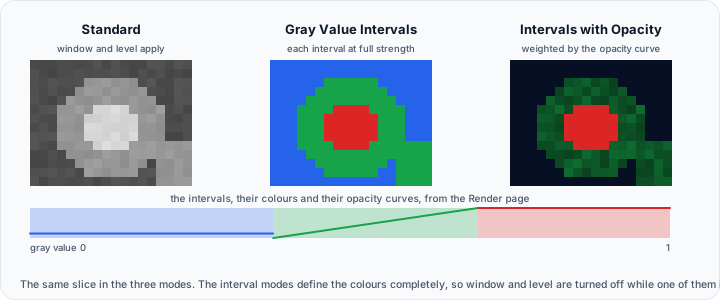
The interval modes use the intervals defined on the Render page of Render Properties and turn the window and level settings off while they are active. The mode is stored with each volume.
Opening Window/Level or Render Properties while the slice views are in a mode that tool cannot work in asks whether the mode should be changed. See Mode Change Prompts.
Voxel Information
Lets you choose how real-time voxel data is shown while you move the mouse over slice views:
- None hides the information completely
- Status Bar shows it in the status bar
- Mouse Hover shows it next to the cursor
- Both shows it in both places
When the cursor is over a visible mask, the voxel readout also includes the mask name; multi-label masks add the active label number and any annotation attached to that label.
Link Slice Views
Synchronizes camera movements across all slice views. When enabled, panning or zooming in one slice view applies the same transformation to the others.
3D View
The 3D View section controls rendering options for the three-dimensional display.
Mask 3D Preview (Mesh)
Generate surface previews for visible masks in the 3D view:
- Click Mask 3D Preview (Mesh) to generate previews at the current quality setting
- Use the Mask 3D Preview (Mesh) dropdown to select quality: Optimal, High, Medium, or Low
- Select Remove All Previews to clear generated previews
- If Mask 3D Preview (Direct) is active, generating a mesh preview turns it off first
High, Medium, and Low quality modes use downsampled data and may show slight geometric shifts. Use Optimal quality for accurate measurements.
Mask 3D Preview (Direct)
Enable Mask 3D Preview (Direct) to render visible masks directly as GPU volumes in the 3D view:
- No surface mesh generation is required
- Mask edits appear in 3D immediately
- Works for both binary and multi-label masks
- The selected state is stored with the project and becomes the default mode for newly created masks in that project
Direct mode is mutually exclusive with mesh preview generation. Using any Mask 3D Preview (Mesh) quality option turns direct mode off.
Automatic regeneration in Preferences only applies to mesh previews. Direct mode shows mask edits immediately without rebuilding a mesh preview.
The two preview modes and the ways a mask moves between them:
Running a mask-based analysis also rebuilds the mesh preview, at the Surface Quality stored with that analysis, and the quality shown here follows. See Mask vs. Surface Analysis.
Slice Planes
Display slice plane representations in the 3D view, showing where the 2D slice views intersect the volume. Hold Shift and drag a plane with the middle mouse button to move it through the volume.
The menu holds Show All Slice Planes or Hide All Slice Planes, which acts on every volume at once, followed by one submenu per plane of the active volume. Each submenu is named after the slice view it belongs to, so the names follow the orientation preset, and carries:
| Entry | Description |
|---|---|
| Show in 3D View | Shows or hides this plane of the active volume in the 3D view |
| Use as Clip Plane → Off | The plane does not cut the objects of the 3D view |
| Use as Clip Plane → Keep Front | Cuts the objects open at this slice and keeps one of the two halves |
| Use as Clip Plane → Keep Back | Cuts them open at this slice and keeps the other half |
The entries are unavailable until a volume is loaded, since there is no plane to show and nothing to cut with. The same entries appear in the right-click menu of a slice view under 3D Slice Plane, and in the plane settings of Render Properties, and all three stay in step.
Axes Planes
Display semi-transparent reference planes along the principal axes in the 3D view.
Volume Shading
Toggle shading on volume rendering. When enabled, lighting calculations create depth perception and surface definition for volume-rendered data.
Surface Representation
Set the display mode for surface models, mask previews, and volume meshes:
| Mode | Description |
|---|---|
| Solid | Render filled surfaces |
| Solid Edges | Render filled surfaces with visible edge lines |
| Wireframe | Display only edge lines |
| Points | Render vertices as points |
Surface Shading
Select the shading algorithm for surface rendering:
| Algorithm | Description |
|---|---|
| None | No lighting calculations; flat appearance |
| Flat | Uniform shading per face |
| Gouraud | Smooth shading interpolated across vertices |
| Phong | Per-pixel lighting for smoother highlights |
| Physically Based Rendering | Realistic material appearance |
Additional
The last button of the section. Its menu holds the rendering entries that act on every visible object of the 3D view at once:
| Entry | Description |
|---|---|
| Colors | Draws surface objects with their own colour data. When it is off, each object is drawn in its single assigned colour; when it is on, per-vertex or per-cell colours are used instead, which is how colorized surfaces, analysis colour maps, and imported colour attributes become visible |
| Object Widgets | Visual helpers that show where the objects of the 3D view are, with a submenu for Volume, Surface, and Volume Mesh |
Object Widgets offers the same two entries for each object type:
| Entry | Description |
|---|---|
| Toggle Outline | Shows or hides the bounding box around the visible objects of that type |
| Toggle Corner Outline | Shows or hides corner-only bounding box indicators for that type |
3D Clipping
The 3D Clipping section defines a region of interest to limit what is displayed in the 3D view.
Enable
Activates the clipping box. Only geometry inside (or outside, if inverted) the box is rendered.
Show Box
Toggles visibility of the clipping box outline and handles. When visible, you can drag the handles to resize the clipping region.
Invert
Reverses the clipped region. By default, content inside the box is shown; when inverted, content outside the box is shown.
Reset
Resets the clipping box to the bounding box of all visible objects.
Use 3D clipping to isolate structures, remove occluding geometry, or focus on specific anatomical regions.
Camera
The Camera section provides controls for lighting, camera configuration, and view positioning.
Light Studio
Opens Light Studio, the unified lighting workspace for the 3D view. It manages the default headlight and up to eight total lights:
- Add, duplicate, and remove lights with full control over type, colors, position, and spotlight parameters
- Position lights interactively with manipulators in the 3D view
- Apply multi-light studio presets with one deliberate shadow-casting light
- Export and import complete light setups as JSON files
If the list would otherwise become empty, Volvicon restores the default headlight automatically.

Camera Settings
Opens the camera panel for the 3D view, where the projection type, view angle, focal point, position, view-up direction, parallel scale, stereo parameters, and the centre of rotation can be read and edited directly, and named camera presets saved and recalled.
The slice views are deliberately kept orthographic and locked to their slice planes so cross-sections stay undistorted for measurement, so they have no camera panel of their own. See Camera for the full reference.

Standard Views
Quickly orient the 3D camera to predefined directions:
| Entry (engineering naming) | Entry (medical naming) | Camera looks from |
|---|---|---|
| -X | Left | The left of the scene |
| +X | Right | The right of the scene |
| -Y | Posterior | Behind the scene |
| +Y | Anterior | In front of the scene |
| -Z | Inferior | Below the scene |
| +Z | Superior | Above the scene |
| Isometric View | Isometric View | A diagonal angle that shows all three axes, oriented to suit the active preset |
Keyboard shortcuts while the 3D view has focus
| Key | Action |
|---|---|
X, Y, Z | Look from +X, +Y, +Z |
Shift+X, Shift+Y, Shift+Z | Look from -X, -Y, -Z |
I | Isometric view |
V | Toggle perspective and parallel projection |
R | Reset the 3D view |
C | Set the centre of rotation to the point under the cursor and centre it on screen |
S, E, W, Q | Solid, Solid Edges, Wireframe, and Points representation |
View Controls
| Button | Action |
|---|---|
| Center 3D View | Reset the focal point to the scene center |
| Reset 3D View | Fit all visible objects in the 3D view |
| Reset Slice Views | Set slice index to the image middle and reset all slice view cameras |
In slice views, press R to reset the current slice view and Shift+R to reset all slice views.
Quick Start Workflows
Setting Up a Multi-Planar Review Session
- Open View → Layout → Conventional for the standard four-panel arrangement
- Click Window/Level in the Slice Views section to open contrast controls
- Select a preset or adjust the window/level sliders for optimal visibility
- Enable Crosshair to synchronize navigation across all views
- Use the middle mouse button to set the crosshair position on a point of interest
Generating 3D Mask Previews
- Ensure at least one mask is visible in the project
- In the 3D View section, select a quality level from the Mask 3D Preview (Mesh) dropdown
- Click Mask 3D Preview (Mesh) to generate the surface representation
- Use Surface Representation buttons to switch between Solid, Wireframe, or Points display
Creating a Focused Clipping View
- Navigate to the region of interest using slice views
- In 3D Clipping, click Enable to activate the clipping box
- Click Show Box to display the interactive handles
- Drag the face handles to isolate the desired region
- Click Show Box again to hide the box while keeping clipping active
Configuring Standard Camera Orientations
- In the Camera section, click Standard Views to access the view menu
- Select an axis-aligned view (e.g., +Z for top view) or Isometric for an overview
- Click Reset 3D View to fit all objects in the view
- Use Light Studio to adjust scene illumination for better depth perception
Related Topics
- Layouts – Detailed layout options and use cases
- Slice Views – In-depth slice view configuration
- 3D View – Advanced 3D rendering controls
- 3D Clipping – Clipping box usage and workflows
- Light Studio – Complete 3D lighting and floor-shadow guide
- Camera – Camera and lighting configuration