Split Mask
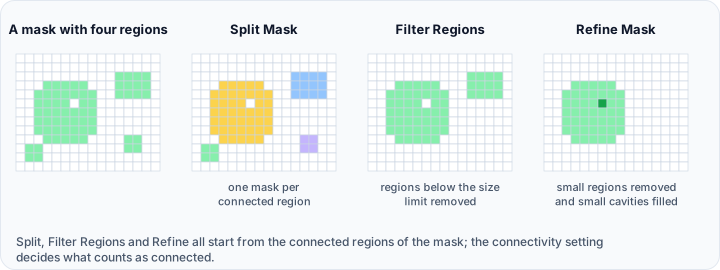
The Split Mask tool automatically identifies and separates disconnected regions within a mask into individual mask objects. Each isolated component becomes a separate mask, making it easier to analyze or process individual structures.
Accessing the Tool
- Navigate to the Segmentation tab in the ribbon.
- Click Split Mask in the Operations section.
Parameters
Active Mask Information
| Display | Description |
|---|---|
| Connected regions | Shows the total number of regions present in the active mask (read-only). |
Connectivity Mode
| Option | Description |
|---|---|
| 6-connectivity | Voxels connected only to directly adjacent neighbors sharing a face (up to 6 connections). More regions identified. |
| 26-connectivity | Voxels connected to all surrounding neighbors including edges and corners (up to 26 connections). Fewer regions. |
Options
| Option | Description |
|---|---|
| Separate only the largest regions | Enable to split only the N largest regions by volume. When disabled, all regions are split. |
| Number of largest regions | Specify how many of the largest regions to separate (enabled when checkbox above is checked). |
| Create a mask with multiple labels as the output | When enabled, creates a single multi-label mask. When disabled, each region becomes a separate mask object. |
| Remove active mask | If enabled, the original active mask is removed after successful split operation. |
Workflow
- Activate the mask you want to split.
- Open the Split Mask tool from the Segmentation tab.
- View the Connected regions count displayed for the active mask.
- Choose the Connectivity mode (6-connectivity or 26-connectivity).
- Changing connectivity updates the region count automatically.
- Configure Options:
- Optionally enable "Separate only the largest regions" and specify the count.
- Choose output format: individual masks or multi-label mask.
- Optionally enable "Remove active mask".
- Click Apply to perform the split operation.
How It Works
The algorithm performs connected component labeling:
- Scans the mask for labeled voxels.
- Groups connected voxels based on the connectivity setting.
- Assigns a unique identifier to each connected component.
- Creates output masks or labels for each component.
Use Cases
- Object Counting: Separate and count individual objects in a segmentation.
- Component Analysis: Analyze each region independently.
- Quality Control: Identify and review isolated fragments.
- Preprocessing: Prepare for further processing of individual structures.
Tips
- Use lower connectivity (6-connected) if you want to identify more separate regions.
- Use higher connectivity (26-connected) if thin connections should keep regions together.
- Combine with Filter Regions to remove small fragments before splitting.
note
If the mask contains thousands of small disconnected regions, the split operation may create many mask objects. Consider using Filter Regions first to remove noise.
Scripting
Split operations are available via the Python scripting API:
import ScriptingApi as api

app = api.Application()
mask_operations = app.get_mask_operations()

# Split mask into separate regions
result_masks = mask_operations.split_mask(
    "Combined_Mask",     # mask name
    2,                   # number of largest regions
    False                # create a multi-label mask as a result
)

print(f"Created {len(result_masks)} separate masks")
See the MaskOperations API Reference for details.
See Also
- Region Grow: extract single connected regions.
- Watershed: separate touching objects.
- Filter Regions: remove regions by size.
- Multi-label Mask: work with multi-label results.
- Segmentation Tab Overview: overview of all segmentation tools.