Image Tab Overview
The Image tab contains tools for working with 3D volume image data. Use this tab to create new volumes, adjust rendering properties, apply geometric transformations, perform image processing operations, and convert volumes to masks.
Most operations in this tab affect volume and mask datasets together. Transformations applied to volumes are automatically applied to associated masks to maintain spatial alignment.
Tab Sections
The Image tab is organized into the following sections:
General
Tools for creating and configuring volume objects:
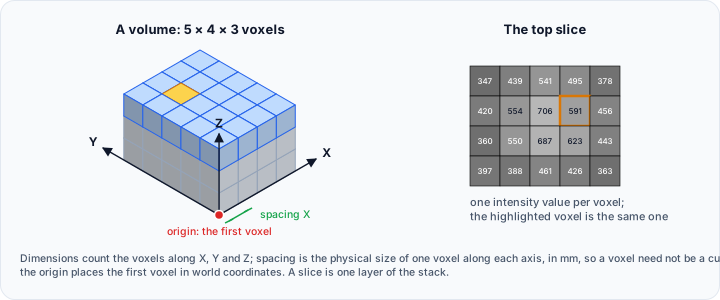
- Create: Create a new blank volume object by specifying dimensions, spacing, and voxel data type.
- Render Properties: Adjust the visualization settings of the active volume on its gray value histogram, including opacity, color, renderer, isosurface, and shading, and set up masking, slice planes, and bounds in the 3D view.
Transform
Geometric transformation tools that modify the spatial properties of image data:
- Transform: Reorient volumes by rotation, rescale physical dimensions or pixel spacing, translate the origin, or center volumes at the scene origin.
- Crop: Remove regions outside a defined bounding box to reduce data size and focus on a region of interest.
- Shrink: Reduce the image extent to tightly fit the boundaries of existing objects.
- Landmark Registration: Align datasets using manually placed corresponding landmark points.
- Global Registration: Automatically align datasets using surface-based or image-based registration algorithms.
- Pad: Add padding voxels around the volume borders to extend the image extent.
- Surface-Guided Pad: Automatically calculate and apply padding to ensure surface objects remain within the volume bounds.
- Resample: Change the voxel dimensions and spacing by upsampling or downsampling the image data.
- Flip: Mirror the image data along the X, Y, or Z axis.
- Swap Axes: Permute the spatial axes of the image data, for example turning an XYZ grid into a ZXY one.
- Reslice: Resample the image data along an arbitrary plane, producing a new axis-aligned volume from an oblique cut.
Operations
Image processing and filtering tools:
- Smooth/Denoise: Apply smoothing or denoising filters to reduce noise while preserving important features.
- Morphology Operations: Apply morphological operations (erode, dilate, open, close) to volume or mask objects.
- Combine: Perform arithmetic operations (add, subtract, multiply, divide, mean, min, max) on two volumes.
- Masking: Apply a mask to a volume, setting voxels outside the mask region to a specified intensity value.
- Additional: A menu holding Invert (negate intensities), Sharpen (enhance edges), Advanced Filters, and Correction Filters (artefact correction for CT data).
Advanced
Specialized processing tools:
- Curved Planar Reformat: Create straightened views of curved anatomical structures by slicing along a defined path.
Convert
Tools for converting between data types:
- Volume To Mask: Convert volume images into mask objects, either by direct copying or by extracting labels from pre-segmented data.
Common Concepts
Target Objects
Many tools allow you to select which objects the operation applies to:
- Active volume/mask object: The currently selected object in the project.
- Selected volume/mask objects: All objects currently selected in the Scene Tree.
- All volume/mask objects: Every object of that type in the project.
- Visible mask object(s): Only masks currently visible in the views.
Interpolation Methods
When resampling or transforming image data, you can choose an interpolation method:
| Method | Description | Use Case |
|---|---|---|
| Nearest | Uses the value of the nearest voxel. Fast but may produce blocky results. | Masks and label maps where exact values must be preserved. |
| Linear | Averages values from neighboring voxels. Good balance of speed and quality. | General-purpose volume transformations. |
| Cubic | Uses cubic interpolation for smoother results. Slower but higher quality. | When smooth gradients are important. |
Use Nearest interpolation for mask objects to avoid introducing intermediate label values. Use Linear or Cubic for grayscale volume images.
Metadata Considerations
Geometric transformations (reorient, crop, resample, flip, pad) may cause the image metadata to become desynchronized with the modified data. If your workflow depends on DICOM metadata or precise coordinate systems, verify alignment after applying transformations.
Workflow Examples
Preparing Data for Analysis
- Import your volume data via the File tab.
- Use Crop to remove empty regions and reduce file size.
- Apply Smooth/Denoise to reduce acquisition noise.
- Adjust Render Properties to optimize visualization.
Aligning Multiple Datasets
- Load both the fixed (reference) and moving datasets.
- If approximate alignment is known, place Landmark Registration points on corresponding anatomical features.
- Use Global Registration for automatic fine-tuning.
- Verify alignment in orthogonal slice views.
Creating Masks from Pre-Segmented Data
- Import a pre-segmented volume (e.g., from AI segmentation).
- Use Volume To Mask with Segmentation mode.
- Set threshold values to extract the desired labels.
- Choose whether to create a multi-label mask or separate masks per label.
Scripting Support
Volume and image operations can be automated using Python scripting. See the Volume Operations API for available functions.
Related Resources
- Understanding Volume Data - Fundamental concepts about volume images
- Volume to Mask - Converting volumes to masks
- Mask Operations - Working with segmentation masks