Binarize
The Binarize tool converts mask objects to strict binary format, where each voxel is either fully on (inside) or fully off (outside). This effectively removes any partially masked voxel values that may exist at mask boundaries.
Accessing the Tool
- Navigate to the Segmentation tab in the ribbon.
- Click Binarize in the Operations section.
How It Works
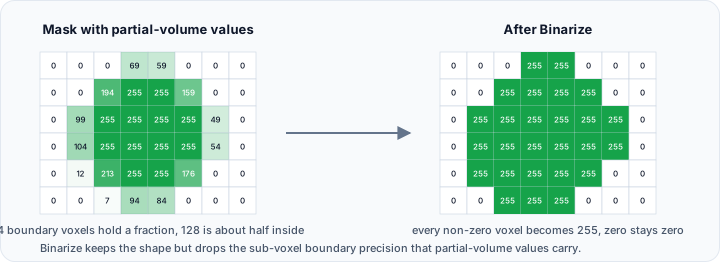
Masks can store fractional values (0–255 or 0–65535) to represent partial volume at boundaries. Binarization converts these to strict binary values (0 or maximum):
The operation uses a simple threshold where any non-zero voxel value becomes the maximum value (255 for 8-bit masks, 65535 for 16-bit masks), and zero values remain zero.
Parameters
Target Object(s)
| Option | Description |
|---|---|
| Active mask | Binarize the active mask only. |
| Selected masks | Binarize all selected masks. |
| Visible masks | Binarize all visible masks. |
| All masks | Binarize every mask in the project. |
Workflow
- Open the Binarize tool from the Segmentation tab.
- Select the Target Object(s).
- Click Apply to convert to binary.
When to Binarize
After Smoothing
Smoothing operations create fractional boundary values. Binarize to restore strict on/off representation:
- Apply smoothing to the mask.
- Binarize to restore binary values.
After Boolean Operations
Some Boolean operations may produce fractional results depending on the input masks.
For Analysis
Certain analysis tools require strictly binary masks.
Before Export
Some external applications expect binary mask formats.
Partial Volume Representation
Partial volume values represent the fraction of each voxel occupied by the object. A value of 128 (in an 8-bit mask) indicates approximately 50% of the voxel is inside the object. This provides sub-voxel boundary precision but may not be compatible with all workflows.
Use Cases
- Clean Binary Masks: Remove fractional boundary values.
- Format Compatibility: Prepare masks for tools requiring binary input.
- Consistent Values: Ensure all mask voxels are either 0 or maximum value.
Tips
- The tool automatically converts any non-zero voxel to the maximum mask value.
- Use this tool after operations that create partial volume values (smoothing, partial volume calculation).
- Preview the result before applying to large datasets.
- For more control over the threshold value, use volume thresholding tools instead.
See Also
- Smooth Mask: creates fractional boundary values.
- Threshold: create binary masks from volumes.
- Segmentation Tab Overview: overview of all segmentation tools.