LiveWire
The LiveWire tool (also known as Intelligent Scissors) provides semi-automatic boundary tracing for segmentation. You draw contours around regions of interest in the 2D view, and the tool automatically snaps to edges based on curvature and edge length weights. By clicking to create contour nodes along an object's boundary, the tool finds the optimal path between points following edges in the image.
Accessing the Tool
- Navigate to the Segmentation tab in the ribbon.
- Click Additional in the Create Mask section.
- Select LiveWire from the menu.
How It Works
LiveWire uses an intelligent path-finding algorithm that considers:
- Edge strength: Strong intensity gradients indicate likely boundaries.
- Curvature: The curvature weight parameter controls the influence of path curvature on the optimal path.
- Edge length: The edge length weight parameter controls the influence of path length on the optimal path.
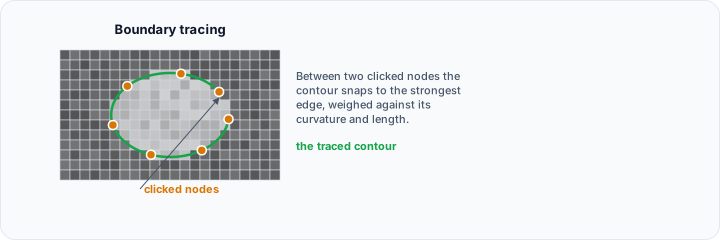
- Path cost: The optimal path minimizes cost based on these weighted factors.
As you move the cursor, the tool displays a preview of the path from the last anchor point to the current position. Clicking sets a new anchor point, and the path is locked in. Parameters
Curvature Weight
- Range: 0.0 to 1.0
- Default: 0.15
- Step: 0.01
- Description: Controls the influence of path curvature on the optimal path calculation.
- Effect: Higher values prefer paths with less curvature (straighter paths).
Edge Length Weight
- Range: 0.0 to 1.0
- Default: 0.8
- Step: 0.01
- Description: Controls the influence of path length on the optimal path calculation.
- Effect: Higher values prefer shorter paths.
Threshold (Optional)
-
Description: Collapsible group box to restrict segmentation to a specific intensity range (unchecked by default).
-
Threshold adjustment: Use the histogram to set minimum and maximum threshold values.
The distribution is drawn in the Interactive Histogram Chart, with the two thresholds shown as lines on it. Drag a line to move that threshold directly on the distribution. Drag the shaded area between the two lines to move the whole range without changing its width. Right-click the chart to reach its display options. This histogram is a preview for setting the threshold, not measurement data, so the chart's CSV export is not offered here; copying it to the clipboard or saving it as a picture still is.
-
Effect: When enabled, LiveWire only considers pixels within the specified intensity range.
Options
- Multiple layer: If checked, the operation will be applied to all slices of the dataset. If unchecked, it will only be applied to the current slice (default: unchecked).
Result
- Target mask: Select the mask object where the segmentation result will be stored.
- Replace: Replace the selected mask with the segmentation calculated by this operation (default).
- Merge: Merge the segmentation calculated by this operation into the selected mask object. edges (higher = stricter edge following). | | Smoothing | Amount of path smoothing to apply. |
Workflow
- Open the LiveWire tool from the Segmentation tab.
- Ensure you have an active volume object.
- Navigate to a slice containing the structure to segment in a 2D view.
- Configure Parameters:
- Adjust Curvature weight (higher values prefer straighter paths, default: 0.15).
- Adjust Edge length weight (higher values prefer shorter paths, default: 0.8).
- Optionally enable Threshold and set intensity range using the histogram.
- Enable Multiple layer if segmenting across all slices (default: unchecked).
- Configure target mask and Replace/Merge mode.
- Draw Contour:
- Left-click in the 2D view to place the first node on the boundary.
- Move the mouse along the boundary. The LiveWire path automatically snaps to edges.
- Single clicks: Place individual control points to anchor the path.
- Click and hold left mouse button: Continuously create contour nodes as you drag.
- Complete Contour:
- Continue adding nodes around the region of interest.
- Right-click (press and release) to close the contour and complete the segmentation.
- The enclosed area will be added to the target mask.
- Edit if Needed:
- Press Backspace or Delete keys to remove the most recently added node.
- Adjust Curvature weight and Edge length weight parameters to change path behavior.
- Draw new contours for additional regions.
- Repeat on other slices as needed (or use Multiple layer mode).
Keyboard Shortcuts
| Shortcut | Action |
|---|---|
| Left Click | Place single contour node |
| Left Click and Hold | Continuously create contour nodes while dragging |
| Right Click (press and release) | Close contour and complete segmentation |
| Backspace / Delete | Remove the most recently added contour node |
Use Cases
- Organ Segmentation: Trace organ boundaries where edges are visible but intensity-based methods are insufficient.
- Tumor Delineation: Carefully trace irregular lesion boundaries.
- Quality Control: Manually correct automatic segmentation results.
Tips
- Edge Visibility: Works best on images with clear, visible edges.
- Weight Tuning: Start with default weights (Curvature: 0.15, Edge length: 0.8) and adjust based on results:
- High Edge Length Weight: Useful when you want the shortest path between nodes.
- High Curvature Weight: Useful when you want straighter paths with less curvature.
- Threshold Option: Enable threshold to restrict segmentation to specific intensity ranges, reducing false paths.
- Continuous Mode: Hold left mouse button for faster contour creation on smooth boundaries.
- Node Removal: Use Backspace/Delete frequently to adjust the path as you trace.
- Multiple Layer: Enable for 3D segmentation across all slices, or work slice-by-slice for more control.
- Adjust the window/level settings to maximize contrast at the object boundary before using LiveWire.
- Place anchor points at locations where the boundary direction changes significantly.
- Combine with the Interpolate 3D tool to fill gaps between segmented slices.
Use Cases
- Organ Segmentation: Trace organ boundaries where edges are visible but intensity-based methods are insufficient.
- Tumor Delineation: Carefully trace irregular lesion boundaries.
- Quality Control: Manually correct automatic segmentation results.