The Interface
This page provides a comprehensive overview of the Volvicon user interface and its main components—from the title bar where you'll find quick-access tools, to the status bar that keeps you informed about memory usage and coordinate tracking.
Interface Overview
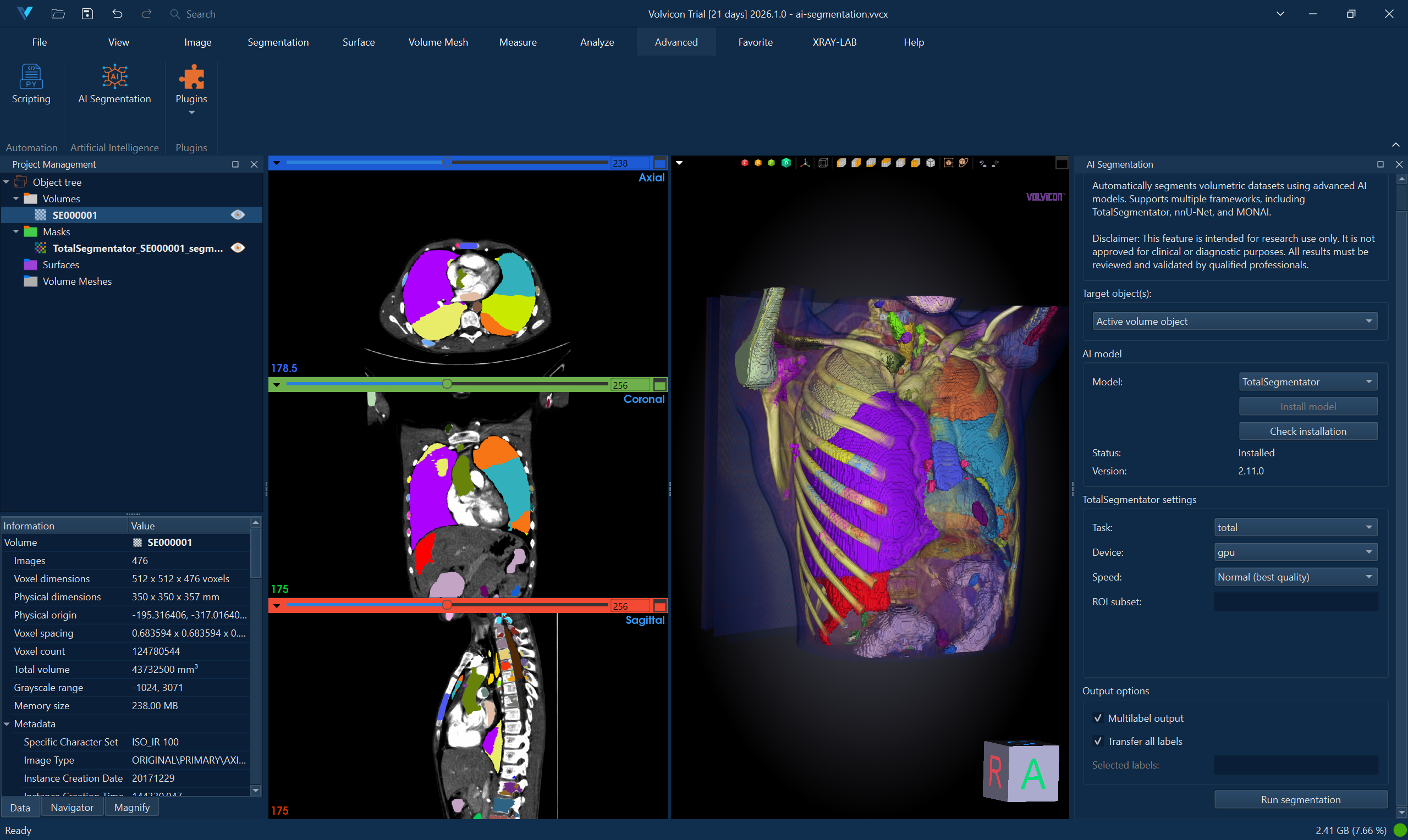
The Volvicon interface consists of these main areas:
| Component | Where | Description |
|---|---|---|
| Title Bar | Top | Quick access buttons, the Panels menu, the command search bar, the AI Assistant toggle, the theme selector, and the window controls |
| Ribbon | Below the title bar | Tabbed toolbar holding every command, organized by function |
| 3D View | Centre | Volume renderings, surface meshes, and volume meshes |
| 2D Views | Centre | The three orthogonal slice views |
| Project Management dock | Left | The Scene Tree, plus the Data, Navigator, and Magnify tabs |
| Task dock | Right | Holds the controls of whichever tool is open. Appears when a tool is opened and closes with it |
| AI Assistant dock | Right | The AI Assistant, opened with its title bar button, from Panels in the title bar, or with Ctrl+Alt+A |
| Messages dock | Bottom | The messages of the current session: operation results, warnings, errors, and message boxes. Opened from Panels in the title bar or with Ctrl+Alt+M |
| Operation Log dock | Bottom | The record of what was done to the project. Opened from Panels in the title bar or with Ctrl+Alt+L |
| Video Recorder dock | Bottom | The video recorder, opened from File → Record Video, from Panels in the title bar, or with Ctrl+Alt+R |
| Status Bar | Bottom | Voxel readout, memory usage indicator, and status messages |
Main Components
Title Bar
The title bar sits at the very top of the Volvicon window and provides immediate access to frequently-used commands without navigating through ribbon tabs. Think of it as your productivity shortcut zone.
Quick Access Buttons
On the left side of the title bar, you'll find a set of quick access buttons that let you perform common actions with a single click:
| Button | Shortcut | Description |
|---|---|---|
| Open Project | Ctrl+O | Opens an existing project |
| Save Project | Ctrl+S | Saves the current project immediately |
| Save Project As | Ctrl+Shift+S | Saves the current project to a new file |
| Undo | Ctrl+Z | Reverses the last action performed |
| Redo | Ctrl+Y | Restores an action that was undone |
| Panels | None | Shows or hides a docked panel |
The Undo and Redo buttons are context-aware: they enable and disable according to whether there is anything to undo or redo. When a button is greyed out, that direction of the history is empty.
The arrow on the right of the Undo button opens the undo history, a list of up to the ten most recent actions. Picking an entry reverses every action from the most recent one down to it, so you can step back several actions in one go. See Undoing Several Actions at Once.
On the right of the title bar, beside the theme selector, the AI Assistant button (Ctrl+Alt+A) shows and hides the assistant panel.
When working on complex segmentation tasks, use Ctrl+Z liberally to undo brush strokes or threshold adjustments that don't look right. The undo history maintains multiple levels, so you can step back through several operations if needed, either one at a time or in one go from the list on the Undo button.
Panels
The Panels button sits after Redo and lists the docked panels in this order: Project Management, Task, Messages, Operation Log, Video Recorder, and AI Assistant. A tick marks each panel that is open. Choose a panel to open it and bring it forward, or choose a ticked panel to hide it.
The menu shows no shortcuts beside its entries. Point at an entry to see what it does and the shortcut that reaches that panel:
| Panel | Shortcut |
|---|---|
| Messages | Ctrl+Alt+M |
| Operation Log | Ctrl+Alt+L |
| Video Recorder | Ctrl+Alt+R |
| AI Assistant | Ctrl+Alt+A |
Ctrl+Alt+M and Ctrl+Alt+L work while the menu is closed. Each opens a hidden panel, hides the panel in front, and brings forward a panel that another tab covers. Ctrl+Alt+R opens the Video Recorder, and Ctrl+Alt+A shows and hides the AI Assistant.
Operation Log is listed only while operation recording is on. The Video Recorder stays open while a recording or preview is running.
Because the button sits in the title bar, a panel can be opened from any ribbon tab, and before a project is open.
See Messages Dock and Operation Log Dock for what the two log panels hold.
Command Search Bar
The search bar is your fastest path to any command in Volvicon. Rather than navigating through multiple ribbon tabs, simply type what you're looking for:
How to use the search bar:
- Click in the search field or start typing when it has focus
- Type keywords related to the command you need (e.g., "threshold", "smooth", "export")
- As you type, matching commands appear in a dropdown list
- Click a result or use arrow keys and
Enterto select
The search uses intelligent matching—it searches through command names, tooltips, and related keywords. For example, searching for "denoise" will find the smoothing filter even though "denoise" isn't in the button name.
The search bar becomes active once you open a project. On the startup backstage view, search functionality is disabled until you create or open a project.
Theme Selector
On the right side of the title bar, you'll find the theme button (represented by an down-chevron icon). Volvicon offers extensive visual customization through a variety of color themes.
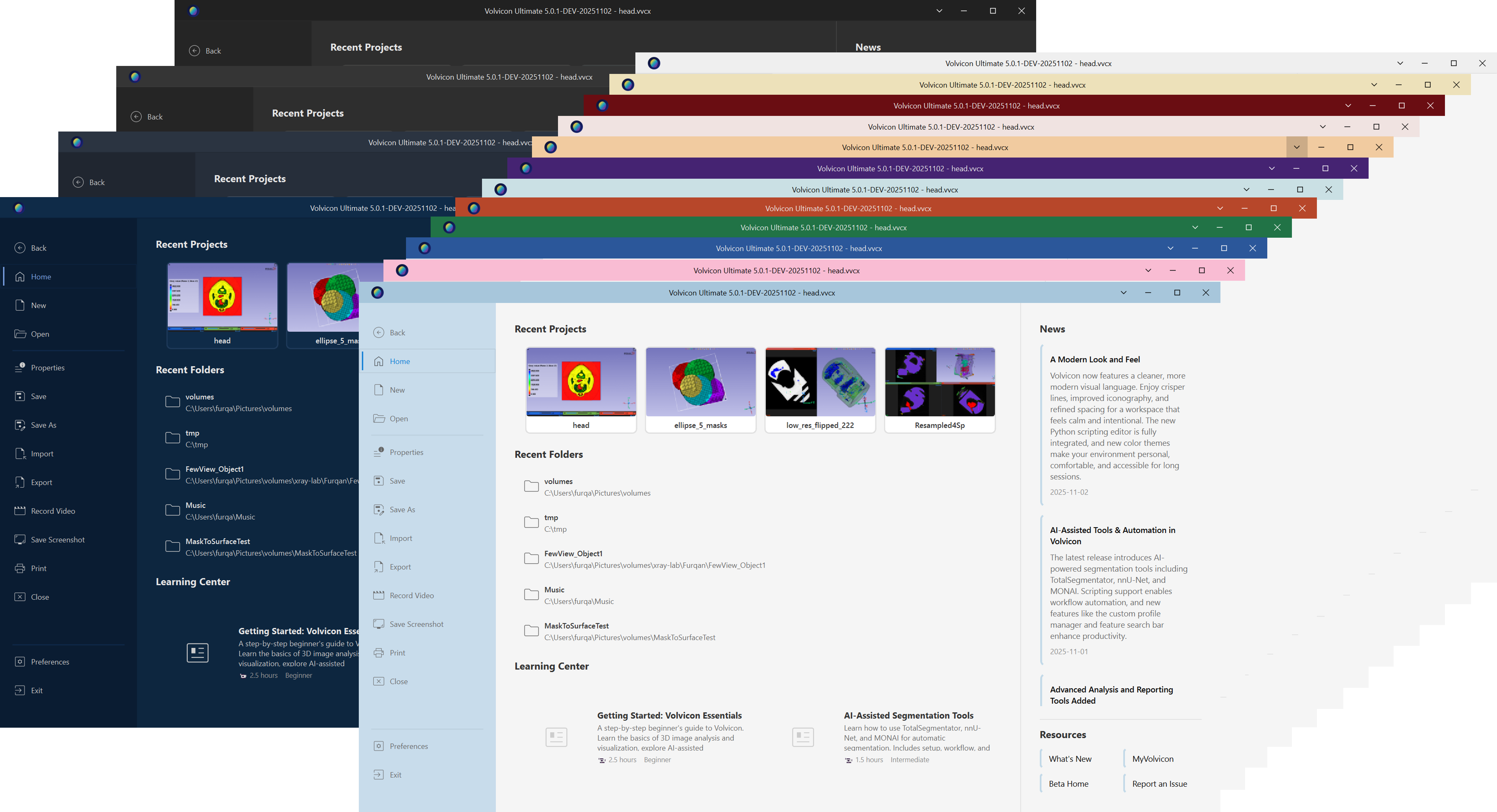
Available themes include:
| Category | Themes |
|---|---|
| Light themes | Light, Blue, Green, Red, Bubblegum, Cool Breeze, Cool Slate, Ice Mint, Juicy Plum, Mango Paradise, Moonlight Glow, Mystical Forest, Silk Pink, Spicy Red, Sunny Day |
| Dark themes | Dark, Dark+, Midnight Slate, Starlit Moonlight |
To change the theme:
- Click the theme button in the title bar (down-chevron icon on the right)
- Select your preferred theme from the dropdown menu
- The interface updates immediately with the new color scheme
Your theme preference is saved automatically and persists across sessions.
If you work in varying lighting conditions, consider using a light theme during the day and switching to a dark theme for evening work sessions. Dark themes can reduce eye strain in low-light environments.
The Ribbon
The ribbon is the main toolbar located at the top of the window. It organizes commands into tabs based on function:
- File – Project management, import/export, media capture
- View – View layouts, camera controls, display options
- Image – Volume image operations and filters
- Segmentation – Mask creation and editing tools
- Surface – Surface mesh generation and processing
- Volume Mesh – Volume mesh generation and operations
- Measure – Measurements, primitives, and statistics
- Analyze – Analysis tools (wall thickness, deviation, curvature)
- Advanced – Scripting, AI segmentation, plugins
- Favorite – User-customizable shortcuts
- Help – Documentation and support
See The Ribbon for details.
3D View
The 3D view displays:
- Volume renderings of image data
- Surface mesh models
- Volume mesh models
- Measurements and primitives
See The 3D View for details.
2D Views
The 2D views display slice cross-sections through volume data:
- XY plane — named Top under the engineering presets, Plane 3 (XY) under the medical ones
- XZ plane — named Front, or Plane 2 (XZ)
- YZ plane — named Right, or Plane 1 (YZ)
The names follow the orientation preset chosen in View → Scene → Orientations.
See 2D Views for details.
Project Management Dock
The Project Management dock holds the Scene Tree on top, listing every object in the project under four fixed sections:
- Volumes
- Masks
- Surfaces
- Volume Meshes
Underneath sit three tabs: Data for the properties of the selected object, Navigator for moving the slice views to a slice, and Magnify for a magnifier over the slice views.
Measurements, primitives, and analyses are not listed here; they have their own editors on the Measure and Analyze tabs.
See Project Management Dock for details.
Status Bar
The status bar runs along the bottom of the Volvicon window and serves as your real-time information dashboard. It provides continuous feedback about where you're pointing in your data and how your system resources are being utilized.
Voxel Information Display
The Voxel Information control in the View ribbon tab lets you choose None, Status Bar, Mouse Hover, or Both.
When the selected mode includes Status Bar, the status bar displays detailed coordinate, intensity, and mask-label information:
| Information | Description |
|---|---|
| Gray Value | The intensity value at the cursor position (displayed as GV for gray value or HU for Hounsfield units in medical CT data) |
| I, J, K | The voxel indices (discrete coordinates within the volume grid) |
| X, Y, Z | The world coordinates in the current unit system (typically millimeters) |
Example status bar reading:
XYZ (50.00, 50.00, 25.00) | IJK (256, 256, 128) | 65535 GV
This tells you that at voxel position (256, 256, 128), which corresponds to world position (50, 50, 25), the gray value is 65535.
When the cursor is over a visible mask, the readout also includes the mask name; multi-label masks add the active label number and any annotation attached to that label.
The voxel information display is invaluable when you need to:
- Verify threshold ranges by checking gray values at specific locations
- Document precise coordinates for measurements or regions of interest
- Compare intensity values between different regions of your scan
- Navigate to specific voxel locations for detailed analysis
When the cursor moves outside the volume data or leaves the view, the display shows "No data or out of view" to indicate that coordinate tracking is not available in that area.
Memory Usage Indicator
On the right side of the status bar, the memory usage indicator provides real-time monitoring of how much system RAM Volvicon is currently using.
Display format:
2.45 GB (32.50 %)
This shows the absolute memory consumption (2.45 GB) and the percentage of your total system RAM being used.
LED indicator colors:
| LED Color | Memory Usage | Meaning |
|---|---|---|
| 🟢 Green | Below 50% | Normal operation, plenty of headroom |
| 🟡 Yellow | 50% – 65% | Elevated usage, monitor if loading more data |
| 🟠 Orange | 65% – 80% | High usage, consider closing unused objects |
| 🔴 Red | Above 80% | Critical usage, risk of performance degradation |
When the indicator turns orange or red, performance may degrade as your system begins using virtual memory (disk swap). Consider:
- Closing unused projects or objects
- Using lower resolution preview modes
- Cropping your volume to the region of interest
- Saving your work to prevent data loss if memory becomes exhausted
The memory indicator updates automatically every 1.5 seconds, so you'll see real-time feedback as you load data or perform memory-intensive operations.
Status Messages
The left portion of the status bar shows Ready while the application is idle, and is replaced by a short message whenever a tool reports the result of an operation, such as a completed export or the number of triangles a check found. Messages clear themselves after a few seconds and the bar returns to Ready.
The messages tools show on the status bar are also listed in the Messages dock, which keeps them until Volvicon closes, together with warnings, errors, and the text of message boxes.
A progress bar appears in the status bar during long-running operations, so the completion percentage is visible without a modal dialog blocking the views.
View Layouts
The Layout section of the View tab holds Conventional, 3D Only, Four Up, and Four Down, with thirteen further arrangements under More. The layout you choose is remembered between sessions.

See Layouts for what each one puts where.
Customizing the Interface
Docks
- Panels in the title bar lists every dock, with a tick beside each open one. Choose a dock to open it and bring it forward, or choose a ticked dock to hide it
Ctrl+Alt+Mshows or hides the Messages dock andCtrl+Alt+Lthe Operation Log dock. When another dock covers one of them, its shortcut brings it forward instead- Drag a dock's title bar to move it to another edge
- Double-click a dock's title bar to float it as a separate window, and again to dock it back
- Drag the splitter between a dock and the views to resize it
- Docks that share an edge become tabs; click a tab to bring that dock forward
Views
| Action | How |
|---|---|
| Resize two neighbouring views | Drag the splitter handle between them |
| Maximize or restore a view | Click the maximize button in its top bar, or give it focus and press Ctrl+Space |
| Detach a view into its own window | Give it focus and press F11 |
| Show a view full screen | Give it focus and press Ctrl+Alt+Space |
Maximizing a view does not change the layout: the view returns to its place when restored.
Related Topics
- The Ribbon – Detailed ribbon tab reference
- The 3D View – 3D visualization controls
- 2D Views – Slice view navigation
- Project Management Dock – Object management
- Messages Dock – The messages of the current session
- Operation Log Dock – The record of what was done to a project