Cavity Fill
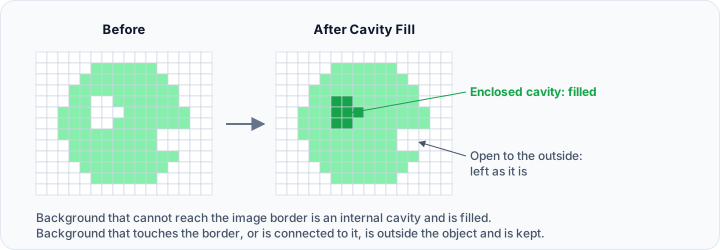
The Cavity Fill tool removes holes that are not connected to the boundary of the target mask(s). This operation fills internal cavities and enclosed voids within mask objects.
Accessing the Tool
- Navigate to the Segmentation tab in the ribbon.
- Click Cavity Fill in the Operations section.
How It Works
The algorithm identifies and fills holes using grayscale filling:
- Identifies all empty (background) regions within the mask.
- Determines which regions are not connected to the boundary.
- Fills these internal holes by converting them to mask voxels.
Regions connected to the image boundary are considered external and are not filled. The connectivity mode determines how voxels are considered connected.
Parameters
Target Object(s)
| Option | Description |
|---|---|
| Active mask | Fill cavities in the active mask only. |
| Selected masks | Fill cavities in all selected masks. |
| Visible masks | Fill cavities in all visible masks. |
| All masks | Fill cavities in every mask. |
Connectivity Mode
| Option | Description |
|---|---|
| 6-connectivity (default) | A voxel is considered connected only to its directly adjacent neighbors that share a face, excluding connections along edges or corners, resulting in up to 6 possible connections in a 3D grid. |
| 26-connectivity | A voxel is considered connected to all of its surrounding neighbors, including those along edges and corners (diagonal connections), resulting in a total of 26 possible connections in a 3D grid. |
Workflow
- Open the Cavity Fill tool from the Segmentation tab.
- Select the Target Object(s).
- Choose the Connectivity Mode (6-connectivity or 26-connectivity).
- Click Apply to fill the cavities.
Use Cases
Solid Object Creation
Convert hollow segmentations to solid for volume calculation or 3D printing:
- Fill all internal cavities
- Result is a watertight solid mask
Anatomical Segmentation
Fill internal anatomical spaces when segmenting an organ as a solid structure:
- Air spaces within tissue
- Blood vessels within organs
Quality Control
Identify and fill unintended holes in segmentation results.
Comparison with Fill Holes
| Feature | Cavity Fill | Fill Holes |
|---|---|---|
| Target | Holes not connected to boundary | Medium-sized holes and cavities |
| Detection | Uses grayscale hole filling | Uses voting binary iterative hole filling |
| Typical Use | Create solid objects | Close surface holes |
| Requirements | Works with any mask | Requires binary masks only |
Use Cavity Fill for internal voids and Fill Holes for more controlled hole filling with size parameters. For complete sealing, apply both operations.
Tips
- Use 6-connectivity for more conservative filling (only face-adjacent voxels).
- Use 26-connectivity for more aggressive filling (includes edge and corner connections).
- Preview the result to verify only unwanted cavities are filled.
- For masks with complex internal anatomy, consider which cavities should be preserved.
See Also
- Fill Holes: fill surface holes.
- Refine Mask: combined cleanup operations.
- Manipulate Mask: hollow masks.
- Segmentation Tab Overview: overview of all segmentation tools.