Mask To Surface
The Mask To Surface tool calculates surface meshes from target masks and creates new surface objects. The tool uses the marching cubes algorithm to extract triangle mesh surfaces that can be used for visualization, 3D printing, CAD applications, and further mesh processing.
Accessing the Tool
- Navigate to the Segmentation tab in the ribbon.
- Click Mask To Surface in the Convert section.
Parameters
Target Object(s)
| Option | Description |
|---|---|
| Active mask | Convert the active mask only. |
| Selected masks | Convert all selected masks. |
| Visible masks | Convert all visible masks. |
| All masks | Convert every mask in the project. |
| 3D preview of visible mask object(s) | Convert from existing 3D preview instead of recalculating. |
Quality
| Option | Description |
|---|---|
| Optimal | Best quality with full resolution. |
| High | High quality with minimal optimization. |
| Medium | Balanced quality and performance. |
| Low | Lower quality with faster processing. |
| Custom | Manual control over all parameters. |
Options
The Options section is visible when converting from mask data (not from 3D preview). Some options are only editable when Quality is set to Custom.
Resolution Reduction (Checkable)
| Parameter | Description |
|---|---|
| XY resolution | Resolution reduction factor in XY plane (1× to 999999999×). |
| Z resolution | Resolution reduction factor in Z direction (1× to 999999999×). |
Filter Shells (Checkable)
| Parameter | Description |
|---|---|
| Number of largest shells | Retain only the specified number of largest shells by area (1 to 999999999). |

Smoothing (Checkable)
| Parameter | Description |
|---|---|
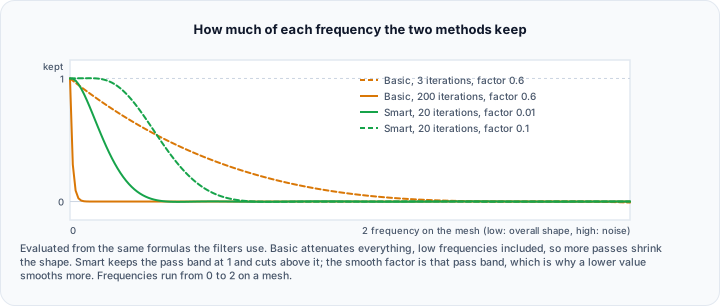
| Iterations | Number of smoothing iterations (10 to 9999, default: 20). |
| Smooth factor | Smoothing strength where lower values produce more smoothing (0.000 to 1.000, default: 0.010). |
| Feature angle (°) | Angle for sharp edge identification; small values preserve features, higher values produce more smoothing (0.000° to 90.000°, default: 85.000°). |

Triangle Reduction (Checkable)
| Parameter | Description |
|---|---|
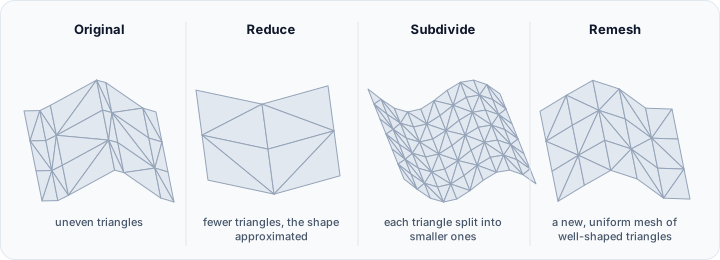
| Reduction percent (%) | Percentage of triangles to reduce (1% to 99%, default: 50%). |
Workflow
- Open the Mask To Surface tool from the Segmentation tab.
- Select the Target Object(s) to convert.
- Choose the Quality preset or select Custom for manual control.
- If using Custom quality, configure the Options:
- Enable/disable Resolution reduction and set factors
- Enable/disable Filter shells and set count
- Enable/disable Smoothing and adjust parameters
- Enable/disable Triangle reduction and set percentage
- Click Apply to generate the surface mesh(es).
The new surface object(s) appear in the Scene Tree.
Algorithm: Marching Cubes
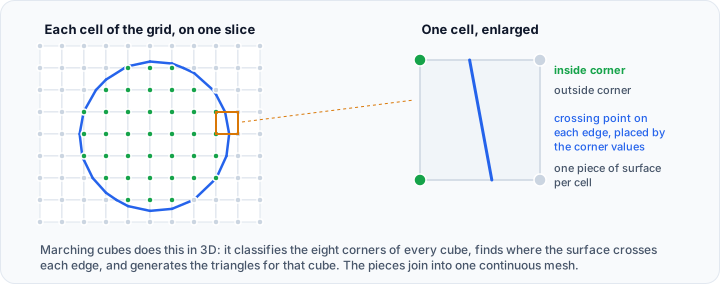
The marching cubes algorithm:
- Divides the volume into a grid of cubes.
- Evaluates mask values at cube corners.
- Determines which cube edges intersect the iso-surface.
- Generates triangles to approximate the surface within each cube.
- Connects triangles to form a continuous mesh.
Post-Processing Options
After surface generation, consider applying:
- Smooth (Surface tab): Additional surface smoothing.
- Reduce (Surface tab): Further polygon reduction.
- Remesh (Surface tab): Improve triangle quality.
- Fill Holes (Surface tab): Close any surface gaps.
Use Cases
3D Printing
Prepare models for additive manufacturing:
- Complete and refine the mask segmentation.
- Convert to surface with appropriate decimation.
- Export as STL or OBJ format.
CAD Integration
Create surfaces for engineering applications:
- Generate high-quality surface mesh.
- Apply smoothing and optimization.
- Export in CAD-compatible formats.
Visualization
Create lightweight 3D models for presentations:
- Use higher decimation for smaller file sizes.
- Apply smoothing for visual quality.
Simulation Preprocessing
Prepare geometry for finite element analysis:
- Generate surface mesh.
- Convert to volume mesh using Mask To Volume Mesh or Surface To Volume Mesh.
Tips
- Use Optimal quality for final output and Low for quick previews.
- Apply mask smoothing before conversion for smoother surfaces.
- Enable Filter shells to remove small disconnected components.
- Use Resolution reduction for very large masks to improve performance.
- The 3D preview option is faster as it uses pre-calculated preview meshes.
- For Custom quality, start with a preset and adjust individual parameters.
When Quality is set to Optimal, High, Medium, or Low, the Resolution reduction, Smoothing, and Triangle reduction options are automatically configured and cannot be edited.
Very large masks may generate surfaces with millions of triangles. Use resolution reduction or triangle reduction if performance is an issue.
Scripting
import ScriptingApi as api

app = api.Application()
mask_operations = app.get_mask_operations()

mask_to_surface_params = api.MaskToSurfaceParams()
mask_to_surface_params.triangle_reduction = True
mask_to_surface_params.triangle_reduction_percent = 80

# Convert mask to surface object
mask_operations.convert_to_surface_objects(["Segmentation_Mask"], mask_to_surface_params)
See Also
- Mask To Volume Mesh: create tetrahedral meshes.
- Surface Tab: surface processing tools.
- Smooth Mask: pre-smooth masks before conversion.
- Segmentation Tab Overview: overview of all segmentation tools.