Crop Mask
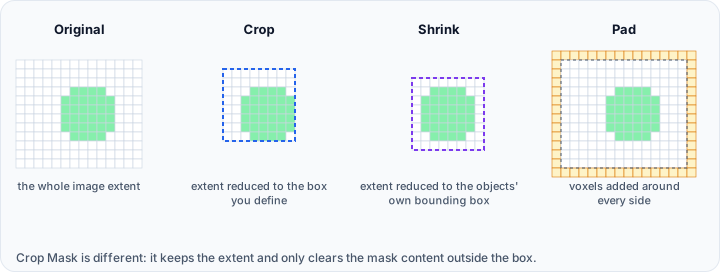
The Crop Mask tool zeros out (sets to zero) mask data outside a user-defined region of interest (ROI). This operation preserves the original mask dimensions but removes all mask content outside the cropping region, effectively focusing on a specific anatomical area.
Accessing the Tool
- Navigate to the Segmentation tab in the ribbon.
- Click Crop Mask in the Operations section.
Parameters
Enable/Show Controls
| Control | Description |
|---|---|
| Enable | Toggle the crop box widget on/off. |
| Show | Toggle visibility of the crop box in the 3D view. |
Region of Interest (ROI)
Define the cropping region using the interactive 3D box widget in the 3D and 2D views, or by adjusting range sliders:
| Parameter | Description |
|---|---|
| Left-Right Range | Minimum and maximum X coordinates (voxel indices). |
| Top-Bottom Range | Minimum and maximum Y coordinates (voxel indices). |
| Front-Back Range | Minimum and maximum Z coordinates (voxel indices). |
| Reset | Reset the crop box to the full mask bounds. |
Interactive Box Widget
- 3D View: Drag box handles to adjust all dimensions.
- 2D Slice Views: Drag handles to adjust the ROI on each plane.
- Center Point: Drag to reposition the entire crop box.
Workflow
- Open the Crop Mask tool from the Segmentation tab.
- Select or verify the active mask object.
- Check Enable to activate the crop box widget.
- Adjust the crop box:
- Drag handles in the 3D or 2D views.
- Use range sliders for precise voxel-level control.
- Preview the cropping region (clipping planes show the result).
- Click Apply to execute the crop operation.
- Click Reset to restore the crop box to the full mask bounds.
Cropping zeros out mask data outside the ROI permanently. The mask dimensions (extents) remain unchanged. Consider duplicating the mask before cropping if you need to preserve the original data.
Use Cases
- Focus on ROI: Zero out irrelevant regions to concentrate on specific anatomy.
- Isolate Regions: Remove unwanted mask content while maintaining spatial context.
- Preparation for Export: Clean up masks before conversion to other formats.
While cropping zeros out voxels outside the ROI, it does not change the mask's dimensions or physical extents. For actual dimension reduction, use subsequent operations or export with tight bounds.
See Also
- Crop (Image Tab): crop volume images (reduces dimensions).
- Edit Mask: manually edit mask content with ROI tools.
- Filter Regions: remove disconnected regions by size.
- Segmentation Tab Overview: overview of all segmentation tools.