Region Grow
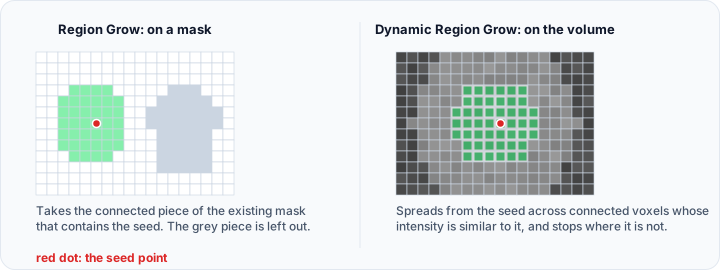
The Region Grow tool performs region growing on the active mask to split the segmentation into separate objects based on connectivity. Starting from a user-specified seed point within the mask, it identifies and extracts all connected voxels as a new segment. This is useful for isolating individual structures from a combined segmentation.
Accessing the Tool
- Navigate to the Segmentation tab in the ribbon.
- Click Region Grow in the Create Mask section.
Parameters
Connectivity
| Option | Description |
|---|---|
| 6-connectivity | Only the neighboring faces of the selected voxel are considered (default). |
| 26-connectivity | The neighboring faces, nodes, and vertices of the selected voxel are considered. |
Options
- Multiple layer: If checked, the operation will be applied to all slices of the dataset. If unchecked, it will only be applied to the current slice (default: checked).
- Keep original mask: If checked, preserves the original mask while creating a new segment.
Result
- Target mask: Select the mask object where the segmentation result will be stored.
- Replace: Replace the selected mask with the segmentation calculated by this operation (default).
- Merge: Merge the segmentation calculated by this operation into the selected mask object. n active mask that contains multiple disconnected or separable regions.
- Open the Region Grow tool from the Segmentation tab.
- Choose the appropriate Connectivity setting (6-connectivity or 26-connectivity).
- Enable/disable Multiple layer option as needed.
- Enable Keep original mask if you want to preserve the original.
- Select the Target mask where results will be stored.
- Choose Replace or Merge mode.
- Left-click on the desired region in either the 2D or 3D view to place the seed point.
- Use Ctrl+drag in the 3D view to rotate while selecting.
- Press P key for quick selection mode.
- The connected region is automatically extracted based on the selected connectivity mode.
- Repeat for additional regions as need
- Choose the appropriate Connectivity setting.
- Click on the desired region in a slice view to place the seed point.
- The connected region is automatically extracted and displayed.
How It Works
Region growing operates on binary mask data:
- The algorithm starts at the seed point.
- It examines neighboring voxels based on the connectivity setting.
- If a neighbor is part of the mask (non-zero), it is added to the region.
- The process repeats until no more connected voxels are found.
- The result is a new mask containing only the connected region.
info
This tool operates on existing mask data, not directly on grayscale volume intensities. For intensity-based region growing, use the Dynamic Region Grow tool.
Use Cases
- Isolating Objects: Extract a single bone from a skeleton segmentation.
- Separating Organs: Isolate individual organs from a combined tissue mask.
- Component Analysis: Identify and separate disconnected regions within a mask.
Tips
- Use 6-connectivity for more conservative separation (only face-adjacent voxels are connected).
- Use 26-connectivity for more inclusive separation (face, edge, and corner-adjacent voxels are connected).
- Enable Multiple layer to process all slices simultaneously.
- Enable Keep original mask when experimenting to preserve your original segmentation.
- Use P key as a shortcut for quick point selection mode.
- Combine with the Split Mask tool to automatically separate all disconnected regions.
See Also
- Dynamic Region Grow: grow regions based on grayscale intensity.
- Split Mask: automatically separate all disconnected regions.
- Watershed: separate touching objects.
- Segmentation Tab Overview: overview of all segmentation tools.