AI Segmentation
Disclaimer: The AI Segmentation functionality is intended for research purposes only and is not approved for clinical or diagnostic use by any regulatory body (e.g., FDA, CE). Results must always be reviewed and validated by qualified professionals.
Overview
Volvicon integrates four AI segmentation frameworks for automated image analysis:
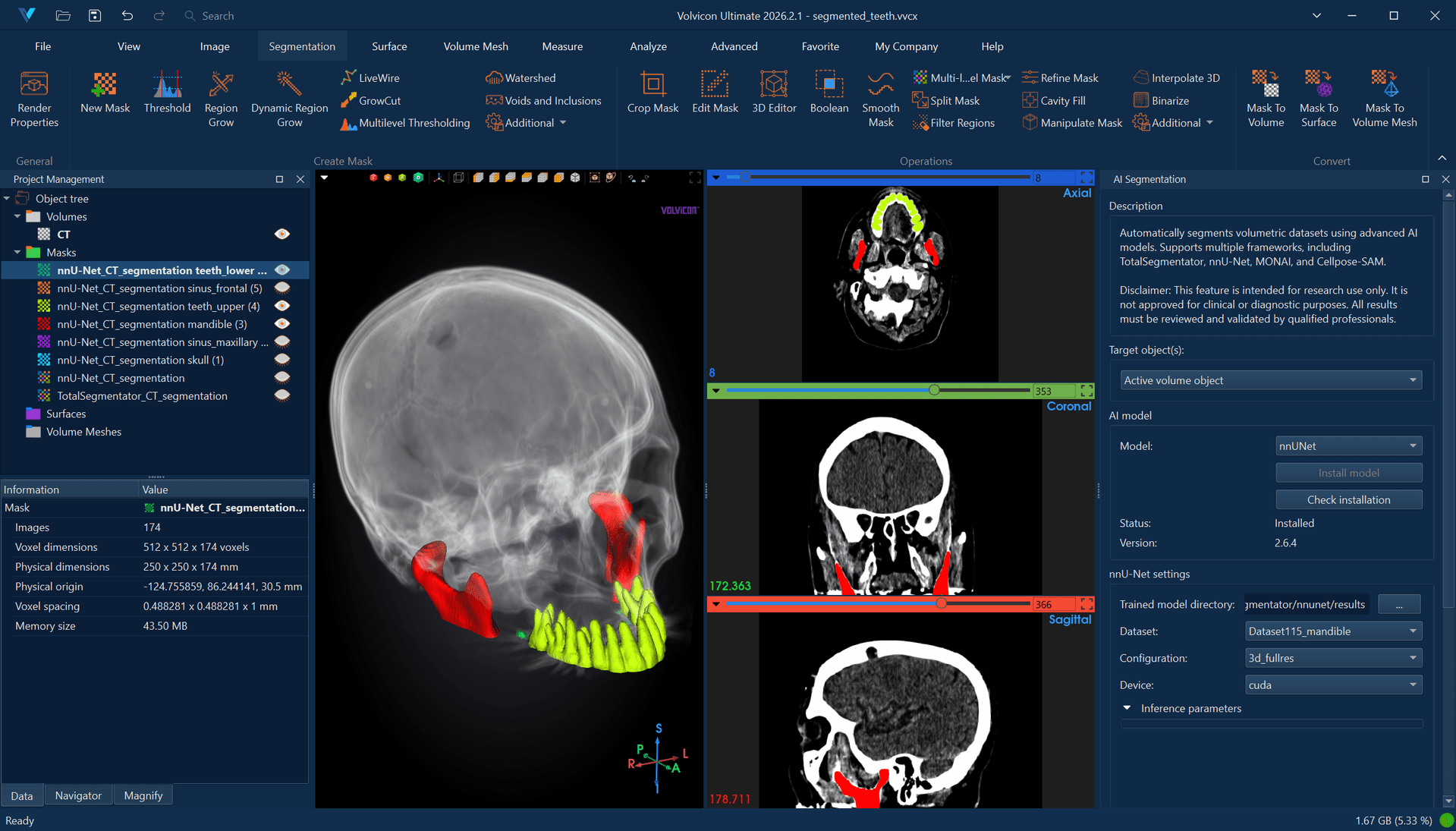
- TotalSegmentator: Whole-body CT segmentation covering 117 anatomical structures.
- nnU-Net: Self-configuring deep learning framework for medical image segmentation.
- MONAI: Medical Open Network for AI, providing access to pre-trained models.
- Cellpose-SAM: General-purpose instance segmentation for cells, nuclei, and densely packed objects.
The four differ in what they expect as input and what they are trained on, so the choice usually follows from the data rather than from the framework:
- TotalSegmentator covers 117 anatomical structures in whole-body CT.
- nnU-Net configures itself to the task, but needs a pre-trained model you supply for that task.
- MONAI gives access to a collection of pre-trained medical models across regions and modalities.
- Cellpose-SAM is general-purpose instance segmentation for cells, nuclei, and densely packed objects.
This guide details the installation, configuration, and execution of these frameworks within Volvicon.
Framework and Model Licensing
Read this before you use AI Segmentation for commercial work.
Volvicon provides the user interface only. The AI frameworks and their model weights are not part of Volvicon, are not bundled with it, and are not redistributed or sublicensed by Volvicon. When you click Install, Volvicon downloads the framework and its dependencies from their publishers onto your computer at your request. TotalSegmentator and Cellpose-SAM download their model weights separately on first use; you supply nnU-Net models and MONAI bundles yourself.
Every one of these components carries its own license, and some of them restrict commercial use. Reviewing and complying with those licenses is your responsibility. Your Volvicon license covers Volvicon and grants you no rights in any framework, model, or set of weights.
License summary
| Component | Software license | Model weights |
|---|---|---|
| TotalSegmentator | Apache-2.0 | Mixed. Most are Apache-2.0; several subtasks need a separate key; one is non-commercial only. See below |
| nnU-Net | Apache-2.0 | None supplied. You provide the trained model, and it carries its own license |
| MONAI | Apache-2.0 | Per bundle. Each Model Zoo bundle has its own license, and some are non-commercial |
| Cellpose-SAM | BSD 3-Clause | Downloaded on first use; trained on CC BY-NC data |
TotalSegmentator model licensing
TotalSegmentator is not uniformly Apache-2.0. Its models fall into three groups:
- Open (Apache-2.0). The general-purpose tasks, including
totalandtotal_mr, and most other tasks. Free for any use, commercial included. No key needed. - License key required. A set of specialised subtask models is gated behind a key issued by the TotalSegmentator project. A free key covers non-commercial use only. Commercial use requires a paid license from the project. These tasks are marked
[license required]in Volvicon's Task list. - Non-commercial only. The
brain_aneurysmmodel is published under CC BY-NC 4.0, and the TotalSegmentator project offers no commercial license for it at all. It must never be used for commercial work, and no payment can change that. It is marked[non-commercial only]in the Task list.
Tasks currently in group 2 are heartchambers_highres, appendicular_bones (and _mr), tissue_types (and _mr), tissue_4_types, vertebrae_body, brain_structures, face (and _mr), thigh_shoulder_muscles (and _mr), coronary_arteries (including _LEGACY), and aortic_sinuses. This list is set by the TotalSegmentator project and can change between versions. Volvicon marks the tasks it knows about, but a newer TotalSegmentator than your Volvicon release may offer restricted tasks that carry no marker, so the TotalSegmentator repository is always the authority.
Getting and activating a key
Request a free non-commercial key from the TotalSegmentator academic license portal. For commercial use, contact the TotalSegmentator project directly at jakob.wasserthal@usb.ch.
Activate the key inside Volvicon's TotalSegmentator environment:
<Volvicon Installation Directory>\ai\frameworks\venvs\totalsegmentator-env\Scripts\totalseg_set_license -l aca_12345678910
Volvicon does not issue, hold, or validate these keys.
nnU-Net and MONAI model licensing
These two frameworks are the ones most likely to catch you out, because the framework license tells you nothing about the model:
- nnU-Net ships no weights. Every model you point Volvicon at is one you trained yourself or obtained elsewhere. Published nnU-Net models are frequently released under non-commercial terms such as CC BY-NC-SA, and a permissively licensed framework does not make a restrictively licensed checkpoint usable. Check the license of each model, and of the dataset it was trained on, before relying on its output.
- MONAI bundles are individually licensed. Each bundle in the MONAI Model Zoo carries its own terms, and some restrict commercial use. Check the bundle's own license file.
What this means in practice
- Volvicon running a model does not grant you the right to use that model.
- Interactive runs of a restricted TotalSegmentator task show a confirmation before starting. Every run of any framework records which model, dataset, or bundle was used in the application log.
- If you are producing commercial deliverables, confirm the terms of each framework and each model before the work begins.
- The frameworks' own license texts shipped alongside Volvicon are listed in
thirdparty_licenses.txtin the installation directory, and are also reachable from the About dialog. See also Section 4.3 of the Volvicon License Agreement.
DICOM Orientation and AI Inference
DICOM volumes are imported as-is — no modification is made to the image data or spatial metadata during import.
TotalSegmentator and nnU-Net require RAS (Right-Anterior-Superior) orientation. When Make image orientation compatible is enabled (the default), Volvicon provides the orientation information these frameworks need without changing the image data.
The Output options panel exposes a Make image orientation compatible checkbox (default: enabled) for TotalSegmentator and nnU-Net. Leave it enabled for standard DICOM-imported volumes. Disable it if you have already manually converted the volume to RAS — for example, by flipping both X and Y axes about the origin — before running inference. Leaving it enabled after a manual conversion would apply the orientation correction twice and produce incorrect results.
MONAI and Cellpose-SAM use the volume's current orientation. Volvicon does not add orientation information for these frameworks.
If you need the displayed Volvicon views to match a 3D Slicer layout (which uses RAS), you can flip the X and Y axes about origin via Image → Flip. This changes the underlying voxel data. If you apply this flip before running inference, uncheck Make image orientation compatible in the Output options panel, since the image is now in RAS orientation.
If the issue is an exchanged axis order rather than an inverted direction, use Swap Axes or Transform instead of a flip.
Output options
The Output options panel sits below the framework settings and decides how the segmentation comes back into your project. It applies to every framework, except where noted.
| Option | Default | Description |
|---|---|---|
| Make image orientation compatible | Enabled | Writes spatial orientation information into the file handed to the framework, so TotalSegmentator and nnU-Net read the geometry correctly. Applies to those two frameworks only |
| Multilabel output | Enabled | Returns one mask object carrying every structure as a separate label. When disabled, each structure comes back as its own mask object |
| Transfer all labels | Enabled | Imports every structure the framework produced. When disabled, only the structures named in Selected labels are imported |
| Selected labels | Empty | The structures to import, as comma-separated names or label numbers, for example liver, kidney_left, kidney_right. Partial names match, so kidney brings in both kidneys. Only used while Transfer all labels is off |
Leave Multilabel output enabled for whole-body tasks. One multi-label mask is far easier to work with than a hundred separate mask objects, and the Multi-Label Mask Editor can split it later if you need the parts on their own.
Your choices are remembered between sessions, so a routine you run often does not have to be set up again each time.
Installation
Prerequisites
Before you begin, ensure you have:
- Volvicon application installed
- Administrator privileges for initial setup
- Stable internet connection for framework downloads
Installing a framework downloads third-party software from its publisher onto your computer. Volvicon does not bundle or redistribute any of it, and grants you no rights in it. Volvicon asks you to confirm this before the download starts. Read Framework and Model Licensing first, particularly if you intend to use the results commercially.
Installation Methods
Method 1: Application-Based Installation (Recommended)
This is the easiest and most reliable way to install AI frameworks in Volvicon.
-
Run Volvicon as Administrator
- Right-click on Volvicon executable
- Select "Run as administrator"
-
Access AI Segmentation Settings
- Navigate to the AI segmentation module
- Select the framework you want to install
- Click the "Install" button
-
Follow Installation Prompts
- The application will automatically download and configure the selected framework
- Installation progress will be displayed
- Restart Volvicon after installation completes
Method 2: Manual Batch File Installation
If application-based installation fails or for advanced users, use the manual method below:
-
Navigate to Scripts Directory
<Volvicon Installation Directory>\scripts\Python\ -
Run Installation Batch Files as Administrator
- For TotalSegmentator:
totalsegmentator_venv_windows_setup.bat - For nnU-Net:
nnunet_venv_windows_setup.bat - For MONAI:
monai_venv_windows_setup.bat - For Cellpose-SAM:
cellpose_venv_windows_setup.bat
- For TotalSegmentator:
-
Wait for Completion
- Installation may take 10-30 minutes depending on internet speed
- Do not close the command window during installation
Troubleshooting Installation
Common Issues
Installation Fails or Corrupted Environment
- Solution: Delete the virtual environment and reinstall
- Location:
<Volvicon Installation Directory>\ai\frameworks\venvs\ - Delete the specific framework folder (e.g.,
totalsegmentator-env,nnunet-env,monai-env,cellpose-env) - Run installation again as administrator
Permission Errors
- Ensure Volvicon is running as administrator
- Check that Windows User Account Control (UAC) allows the installation
Network/Download Errors
- Verify internet connection
- Check firewall settings allow Python package downloads
- Retry installation after resolving network issues
TotalSegmentator
TotalSegmentator Overview
TotalSegmentator provides automatic segmentation of 117 anatomical structures in whole-body CT scans. It's particularly effective for comprehensive anatomical analysis.
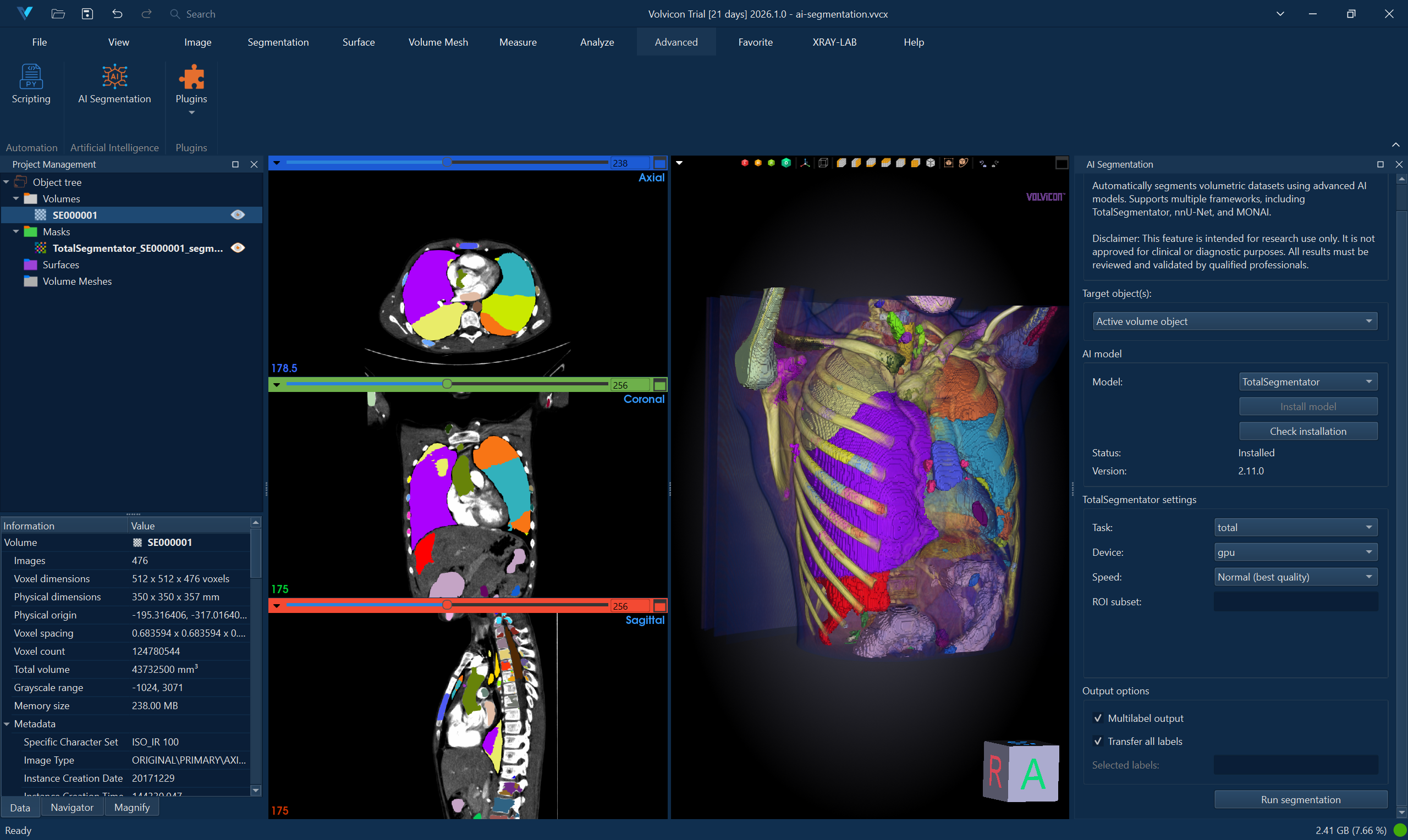
Supported Input
- Image Format: Loaded volume in Volvicon (commonly DICOM or NIfTI; exported internally as NIfTI for inference)
- Modality: CT scans
- Anatomy: Whole-body, thorax, or specific anatomical regions
Orientation
TotalSegmentator uses the orientation information in the NIfTI file written by Volvicon to correctly handle image axes internally. Keep Make image orientation compatible enabled (the default) in the Output options panel. If you have already manually reoriented the volume to RAS before running, disable this option — otherwise the orientation would be applied twice, causing a mismatch and incorrect segmentation results. See DICOM Orientation and AI Inference above.
Usage
-
Load CT Image
- Open your CT scan in Volvicon
- Ensure image is in NIfTI format
-
Select TotalSegmentator
- Navigate to AI Segmentation module
- Choose "TotalSegmentator" from framework dropdown
-
Configure Settings
- Task: Select appropriate segmentation task (e.g., "total", "lung_vessels", "body")
- Device: Choose CPU or GPU (if CUDA available)
- Fast Mode: Enable for quicker processing with slightly reduced accuracy
-
Run Segmentation
- Click "Run Segmentation"
- Monitor progress in the output log
- Results will automatically load as segmentation masks
Tasks
The Task list is read from the TotalSegmentator installation on your machine, so it always reflects what the installed version can actually run. Until TotalSegmentator is installed, Volvicon offers this built-in list of stable tasks:
| Task | Segments | Model license |
|---|---|---|
total | The full set of structures in a CT scan | Apache-2.0, free for any use |
total_mr | The full set of structures in an MR scan | Apache-2.0, free for any use |
body | The body outline | Apache-2.0, free for any use |
cerebral_bleed | Intracranial haemorrhage | Apache-2.0, free for any use |
hip_implant | Hip implants | Apache-2.0, free for any use |
coronary_arteries | Coronary arteries | License key required |
pleural_pericard_effusion | Pleural and pericardial effusion | Apache-2.0, free for any use |
lung_vessels | Lung vessels and airways | Apache-2.0, free for any use |
lung_nodules | Lung nodules | Apache-2.0, free for any use |
appendicular_bones | Bones of the limbs | License key required |
tissue_types | Tissue classes such as fat and muscle | License key required |
heartchambers_highres | Heart chambers at high resolution | License key required |
face | The facial region, for de-identification | License key required |
brain_structures | Brain structures | License key required |
liver_vessels | Liver vessels and tumours | Apache-2.0, free for any use |
kidney_cysts | Kidney cysts | Apache-2.0, free for any use |
Use total for CT data and total_mr for MR data. The other tasks are trained for one purpose each and expect an image that contains the region they were built for.
Tasks marked License key required use model weights that fall outside the Apache-2.0 license covering the rest of TotalSegmentator. They need a key issued by the TotalSegmentator project: a free key covers non-commercial use only, and commercial use requires a paid license. Once TotalSegmentator is installed, the Task list is read from your installation and may offer further restricted tasks, including brain_aneurysm, which is non-commercial only with no commercial license available at any price.
Volvicon marks these tasks in the Task list and asks you to confirm before running one. That is a reminder, not a grant of rights: obtaining the correct license is a matter between you and the TotalSegmentator project, and your Volvicon license covers none of it. See Framework and Model Licensing.
Performance Notes
- CPU processing: 5-15 minutes depending on image size
- GPU processing: 2-5 minutes (requires CUDA-compatible GPU)
- Memory requirement: 8-16 GB RAM recommended
nnU-Net
Description
nnU-Net is a self-configuring deep learning framework that automatically adapts to different medical segmentation tasks. It requires pre-trained models specific to your segmentation task.
Model Requirements
Model Directory Structure
nnU-Net models must be organized in the following structure:
<model_directory>/
├── nnUNetTrainer__nnUNetPlans__3d_fullres/
│   ├── fold_0/
│   │   ├── checkpoint_best.pth
│   │   └── checkpoint_final.pth
│   ├── fold_1/
│   ├── fold_2/
│   ├── fold_3/
│   ├── fold_4/
│   ├── dataset.json
│   ├── plans.json
│   └── predict_from_raw_data_args.json
Obtaining Models
- Download pre-trained models from nnU-Net model repository
- Train custom models using nnU-Net framework
- Ensure model compatibility with your data type
Check the license of every model you use. The nnU-Net framework is Apache-2.0, but it supplies no weights. Each pre-trained model you obtain carries its own license, independent of the framework, and many published nnU-Net models are released for non-commercial use only (CC BY-NC-SA is common). A permissive framework license does not make a restricted checkpoint usable for commercial work.
Check the terms of the model and of the dataset it was trained on before you rely on its output. Volvicon supplies no nnU-Net models, redistributes none, and grants no rights in any of them. See Framework and Model Licensing.
nnU-Net Orientation
nnU-Net uses the orientation information in the NIfTI file written by Volvicon to correctly handle image axes internally. Keep Make image orientation compatible enabled (the default) in the Output options panel. If you have already manually reoriented the volume to RAS before running, disable this option — otherwise the orientation would be applied twice, causing a mismatch and anatomically implausible results. See DICOM Orientation and AI Inference above.
nnU-Net Usage
-
Prepare Model Directory
- Place nnU-Net model in accessible directory
- Verify directory structure matches requirements
-
Load Image
- Open medical image in Volvicon
- Supported formats: NIfTI (.nii, .nii.gz)
-
Configure nnU-Net Settings
- Model Directory: Browse to your nnU-Net model folder
- Configuration: Usually "3d_fullres" for 3D images
- Device: Select CPU or GPU
- Folds: Choose specific fold or "all" for ensemble
- Preprocessing/Segmentation processes (npp/nps): Defaults to
0/0(sequential mode). Increasing these values enables parallel workers but can cause multiprocessing IPC failures on Windows — keep at0/0unless you have confirmed stability with the specific model.
-
Run Segmentation
- Click "Run Segmentation"
- Processing time varies by model complexity
- Results load automatically as segmentation overlay
Model Configuration Types
2d- For 2D slice-based processing3d_fullres- Full resolution 3D processing3d_lowres- Lower resolution 3D for faster processing3d_lowres_high- A model-defined custom configuration used by certain pre-trained models (for example, ToothFairy dental segmentation). Not a standard nnU-Net configuration; availability depends on the installed model. ToothFairy is named here only as an example of a model that defines a custom configuration; like every third-party nnU-Net model it has its own license terms, which you must check before use.3d_cascade_fullres- Two-stage processing for improved accuracy
nnU-Net Best Practices
npp=0 and nps=0 (sequential mode) are the default in Volvicon and the recommended setting on Windows. Higher values enable parallel preprocessing and export workers, but can produce intermittent multiprocessing IPC failures — particularly with models such as ToothFairy. Increase only when you have confirmed stability on the target system.
- Validate that dataset, trainer, plans, and configuration belong to the same model folder.
- Keep fold selection simple (
fold 0) unless you specifically need multi-fold ensembling. - Prefer GPU for inference speed, but expect fallback to CPU arrays when GPU memory is insufficient.
Troubleshooting nnU-Net
Model Loading Errors
- Verify model directory structure
- Check that
plans.jsonanddataset.jsonexist - Ensure model was trained with compatible nnU-Net version
Memory Issues
- Use
3d_lowresconfiguration for large images - Reduce batch size in model configuration
- Consider using CPU if GPU memory insufficient
Windows Export Worker Errors (WinError 87, SpawnPoolWorker)
- Symptom: Inference computation finishes, but export fails in multiprocessing workers.
- Mitigation: Run with
npp=0andnps=0(sequential mode). - In Volvicon’s nnU-Net runner, this fallback is applied automatically when the known error signature is detected.
See also AI-Powered Segmentation Tutorial and Batch Processing and Automation for scripted and multi-dataset workflows.
MONAI
MONAI Overview
MONAI (Medical Open Network for AI) provides access to a comprehensive collection of pre-trained medical AI models. It supports various segmentation tasks across different anatomical regions and imaging modalities.
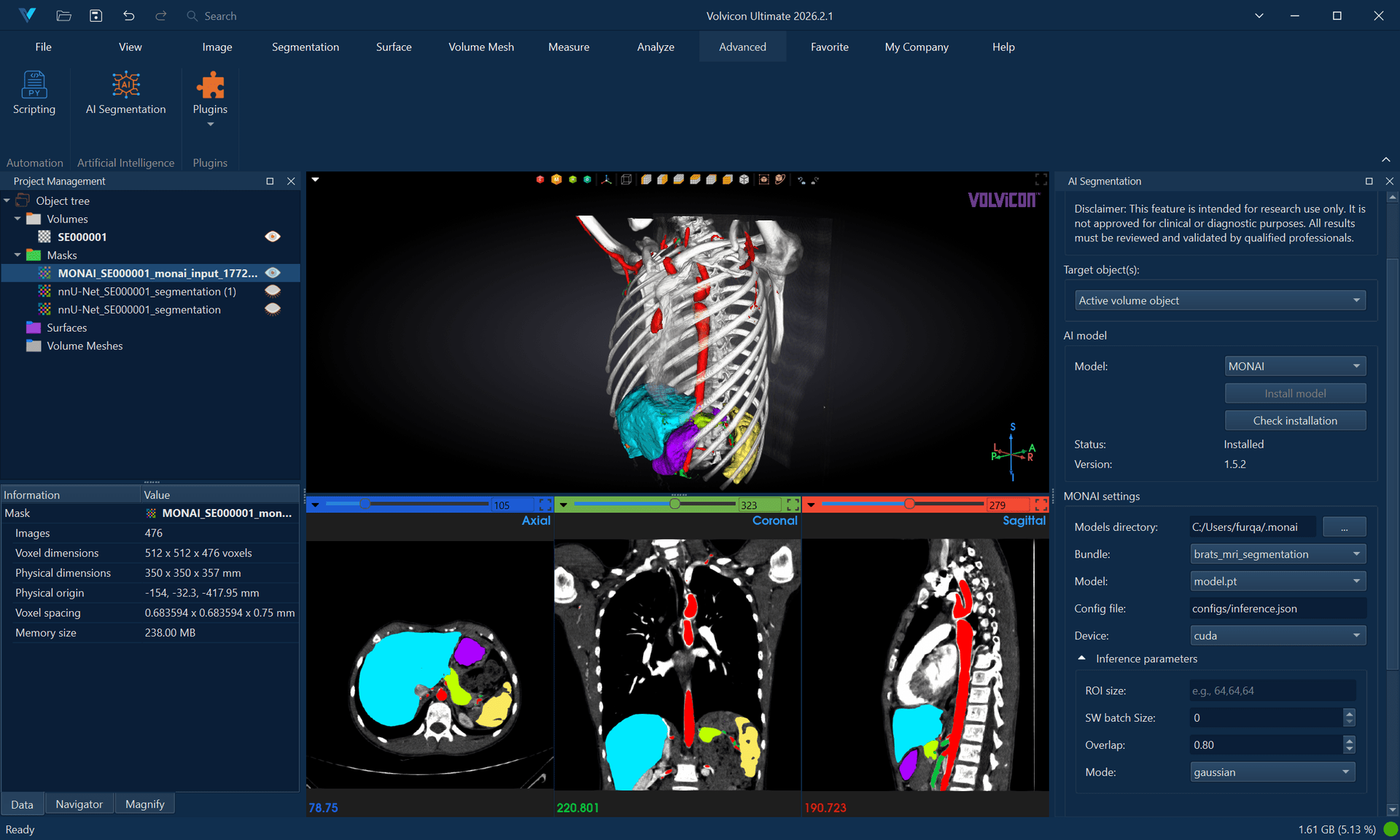
Supported Models
MONAI bundles are pre-packaged models that include:
- Pre-trained neural networks
- Preprocessing pipelines
- Model metadata and configuration
Popular MONAI Bundles
✅ Example Supported (Single-Channel) Bundles:
wholeBody_ct_segmentation- Multi-organ CT segmentationwholeBrainSeg_Large_UNEST_segmentation- Brain tissue segmentationprostate_mri_anatomy- Prostate MRI segmentation
❌ Example Unsupported Bundle Types:
lung_nodule_ct_detection- Detection models not supportedventricular_short_axis_3label- 2D models not supported- BraTS bundles - Multi-channel models requiring multiple MRI sequences
- Any bundles requiring >1 input channel
Bundle Requirements
Bundle Directory Structure
<bundle_directory>/
├── configs/
│   ├── inference.json
│   ├── metadata.json
│   └── train.json
├── models/
│   └── model.pt
├── scripts/
│   └── (custom Python modules if any)
└── docs/
    └── README.md
Obtaining Bundles
- Download from MONAI Model Zoo
- Use MONAI Bundle CLI tools
- Custom bundles following MONAI specifications
Each bundle is licensed separately. The MONAI framework is Apache-2.0, but that license does not extend to the bundles. Every Model Zoo bundle carries its own terms, set by whoever trained it, and some restrict commercial use. The bundle's license file and its metadata.json record those terms.
Check them before you rely on a bundle's output for commercial work. Volvicon supplies no bundles, redistributes none, and grants no rights in any of them. See Framework and Model Licensing.
MONAI Usage
-
Prepare MONAI Bundle
- Download or prepare MONAI bundle
- Verify bundle structure and completeness
-
Load Medical Image
- Open image in Volvicon
- Supported formats: NIfTI (.nii, .nii.gz)
-
Configure MONAI Settings
- Bundle Directory: Select path to MONAI bundle
- Config File: Usually "configs/inference.json"
- Model File: Usually "models/model.pt"
- Device: Choose CPU or GPU
- ROI Size: Inference patch size (auto-detected from bundle)
-
Advanced Options
- Sliding Window Batch Size: Adjust for memory constraints
- Overlap: Control inference overlap (0.0-1.0)
- Mode: Inference blending mode ("gaussian" or "constant")
-
Run Inference
- Click "Run Segmentation"
- Monitor progress and debug output
- Results appear as segmentation overlay
Model Compatibility
Supported Model Types
-
3D Segmentation Models: ✅ Fully supported
- UNet, SegResNet, SwinUNETR, etc. with 3D spatial dimensions
- Multi-class and binary segmentation for volumetric data
- CT and MRI volume models
-
2D Models: ❌ Not supported
- Models designed for slice-by-slice processing
- 2D UNet, 2D SegResNet variants
- These models expect 2D input but Volvicon processes 3D volumes
-
Multi-Channel Models: ❌ Not supported
- BraTS bundles requiring multiple MRI sequences
- Multi-modal imaging bundles
- Bundles requiring >1 input channel
-
Detection Models: ❌ Not supported
- RetinaNet, YOLO, R-CNN variants
- These models output bounding boxes, not segmentation masks
Custom Networks
MONAI runner supports bundles with custom network architectures:
- Custom Python modules in bundle's
scripts/directory - Automatic path resolution for custom imports
- SwinUNETR and other advanced architectures
Troubleshooting MONAI
Bundle Loading Errors
- Verify bundle directory structure
- Check
inference.jsonandmetadata.jsonexist - Ensure model file
model.ptis present
Network Instantiation Failures
- Check bundle's Python dependencies
- Verify custom network modules are properly structured
- Review error logs for missing parameters
Memory Issues
- Reduce ROI size for large images
- Lower sliding window batch size
- Use CPU if GPU memory insufficient
Detection Model Errors
- MONAI runner only supports segmentation models
- Detection models (bounding box outputs) are rejected
- Use segmentation-specific bundles instead
2D Model Errors
- Error: "2D segmentation model detected"
- Cause: Bundle contains a 2D model designed for slice-by-slice processing, but Volvicon requires 3D volumetric models
- Solutions:
- Use 3D volumetric segmentation bundles instead
- Look for bundles with
spatial_dims: 3in their configuration - For cardiac segmentation: Use 3D cardiac bundles instead of 2D short-axis models
- Check bundle metadata for spatial dimensions before selection
Channel Compatibility Errors
- Error: "Multi-channel bundle detected" or "requires X-channel input"
- Cause: Bundle requires multiple input channels, but Volvicon only supports single-channel images
- Solutions:
- Use single-channel compatible bundles instead
- For brain segmentation: Use
wholeBrainSeg_Large_UNEST_segmentationinstead of BraTS bundles - For multi-organ: Use
wholeBody_ct_segmentationfor CT scans - Check bundle compatibility before selection
Cellpose-SAM
Cellpose-SAM Overview
Cellpose-SAM is a general-purpose instance segmentation model combining the Cellpose architecture with the Segment Anything Model (SAM) backbone. Unlike semantic segmentation frameworks that assign class labels to each voxel, Cellpose-SAM performs instance segmentation—identifying and separating individual objects by assigning a unique integer label to each detected instance.
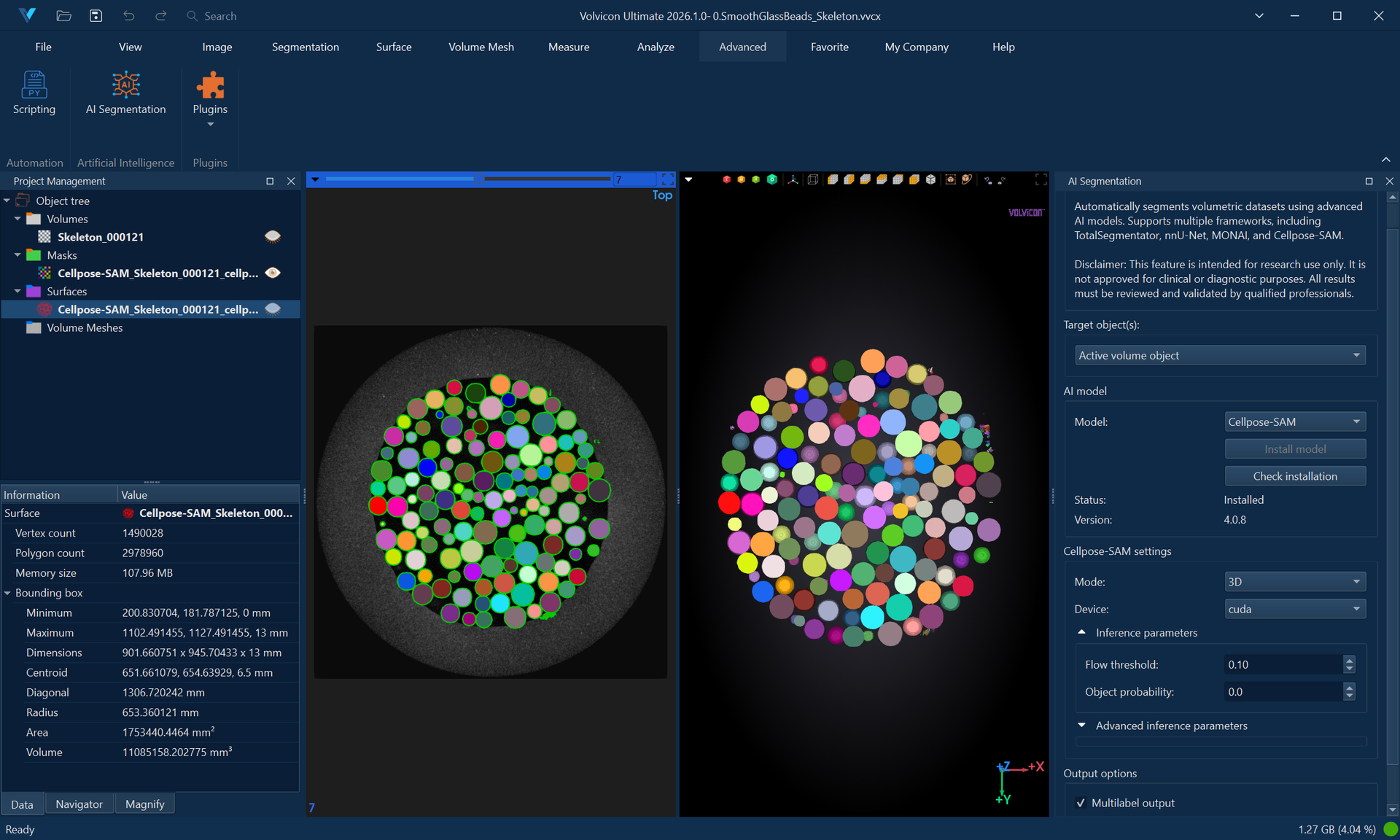
This approach is highly effective for:
- Cell and nuclei segmentation in microscopy images (fluorescence, brightfield, phase contrast).
- Densely packed objects where adjacent instances must be individually distinguished.
- Organoid and particle analysis requiring object counting and morphometric measurement.
- General-purpose object detection in biomedical and industrial imaging contexts.
Cellpose-SAM operates in two modes: 2D mode for single-slice segmentation and 3D mode for volumetric instance segmentation, featuring optional anisotropy correction and slice stitching.
Cellpose-SAM automatically downloads the weights for the selected model (the default cpsam_v2 model is approximately 1.14 GB) upon first use. Each model is cached in ~/.cellpose/models/ and requires no manual preparation. Switching to a different model downloads its weights the first time it is used.
If needed, the cpsam model weights can be manually downloaded from cpsam file on Hugging Face. Place the downloaded file in your home directory under C:\Users\UserName\.cellpose\models to enable local use without automatic download.
The Cellpose-SAM software is published under the BSD 3-Clause license. The weights are downloaded directly from the publisher on first use, and Cellpose states that its models were trained on CC BY-NC data. Review that restriction before commercial use. Volvicon neither redistributes nor sublicenses the software or weights. See Framework and Model Licensing.
Cellpose-SAM Supported Input
- Image Format: NIfTI (.nii, .nii.gz)
- Modality: Modality-agnostic — works with CT, MRI, microscopy, and other imaging types
- Dimensionality: 2D slices or 3D volumes
- Channels: Single-channel (grayscale) images. Multichannel (RGB) images are auto-detected and treated as 2D
Cellpose-SAM Usage
2D Mode
-
Load Image
- Open the image in Volvicon.
- Navigate to the target slice.
-
Select Cellpose-SAM
- Navigate to the AI Segmentation module.
- Select "Cellpose-SAM" from the framework dropdown.
-
Configure 2D Settings
- Model: Select the built-in Cellpose model (default
cpsam_v2). - Mode: Select "2D".
- Slice Index: Set to
-1to process the currently active slice, or specify an exact slice number. - Device: Choose CPU or GPU (CUDA).
- Adjust detection thresholds as necessary (refer to Parameters below).
- Model: Select the built-in Cellpose model (default
-
Run Segmentation
- Click "Run Segmentation".
- Only the first of the selected volumes is segmented, on the axial plane.
- The result is written to the active mask. If there is no active mask, or it is empty, a new mask is created and the detected instances appear on the selected slice alone, with every other slice left at 0. If the active mask already holds data, the selected slice of that mask is replaced by the result and the other slices are left unchanged: in a binary mask the detected instances become foreground, and in a multilabel mask they receive label values above the existing ones. Anything already segmented on the selected slice is overwritten.
Multilabel Outputis not applied in 2D mode. Whether the result is multilabel follows the mask it is written into and how many instances were detected.- The run is one undo step. Undo removes a mask the run created, or restores the active mask exactly as it was before the run.
3D Mode
-
Load Volumetric Image
- Open the 3D volume in Volvicon.
-
Select Cellpose-SAM
- Navigate to the AI Segmentation module.
- Select "Cellpose-SAM" from the framework dropdown.
-
Configure 3D Settings
- Model: Select the built-in Cellpose model (default
cpsam_v2). - Mode: Select "3D".
- Device: Choose CPU or GPU (CUDA).
- Anisotropy: Define the Z-to-XY spacing ratio for non-isotropic volumes (e.g.,
2.5if Z-spacing is 2.5× the XY-spacing). - Stitch Threshold: Set to
0.0for native 3D segmentation, or approximately0.9for 2D-to-3D slice stitching. - Adjust detection thresholds as necessary (refer to Parameters below).
- Model: Select the built-in Cellpose model (default
-
Run Segmentation
- Click "Run Segmentation".
- The result is a volumetric instance mask where each detected object is assigned a unique label.
Native 3D vs. Stitch Mode: When Stitch Threshold is 0.0, Cellpose utilizes native 3D convolutions for volumetric segmentation. When set to a nonzero value (e.g., 0.9), Cellpose segments each Z-slice independently in 2D and subsequently stitches masks across slices using Intersection over Union (IoU) matching. Stitch mode is computationally faster and requires less memory, though it may yield less spatially coherent results.
Parameters
| Parameter | Default | Range | Description |
|---|---|---|---|
| Model | cpsam_v2 | cpsam_v2, cpsam | Built-in Cellpose model. cpsam_v2 is the latest CellposeSAM model with improved low-contrast results; cpsam is the original CellposeSAM model. The selected model is downloaded automatically on first use. |
| Mode | 3D | 2D, 3D | Segmentation dimensionality. Use 2D for single-slice segmentation or 3D for volumetric processing. |
| Device | cpu | cpu, gpu | Processing device. GPU execution requires a CUDA-compatible NVIDIA GPU. |
| Flow Threshold | 0.4 | 0.0–5.0 | Controls mask quality filtering. Lower values (0.1–0.3) accept only high-confidence masks; higher values (0.5–1.0) include uncertain detections. |
| Cell Probability Threshold | 0.0 | −6.0–6.0 | Minimum probability for a pixel to be considered part of an object. Negative values detect larger/more objects; positive values detect smaller/fewer objects. |
| Diameter | 0 (auto) | ≥ 0 | Expected object diameter in pixels. Set to 0 for automatic size estimation. Manual specification improves accuracy when object size is known. |
| Min Size | 15 | ≥ −1 | Minimum object area in pixels. Objects smaller than this threshold are discarded. Set to -1 to disable size filtering. |
| Exclude on Edges | false | true, false | When enabled, discards any mask touching the image boundary. Useful for excluding incomplete objects at the periphery. |
| Batch Size | 8 | ≥ 1 | Number of 256×256 image tiles processed simultaneously on the GPU. Higher values increase throughput but require more VRAM. |
| Anisotropy | 1.0 | > 0 | Z-to-XY voxel spacing ratio for 3D mode. Set to the ratio of Z-spacing to XY-spacing (e.g., 2.0 if Z is 2× coarser). Applicable only in 3D mode. |
| Stitch Threshold | 0.0 | 0.0–1.0 | IoU threshold for stitching 2D masks into 3D objects. 0.0 utilizes native 3D segmentation; values around 0.9 enable slice stitching. Applicable only in 3D mode. |
| Slice Index | -1 | ≥ −1 | Target slice for 2D mode, on the axial plane. -1 processes the currently active slice, or the middle slice when no slice view is open. Applicable only in 2D mode. |
Parameter Tuning Guide
Insufficient object detection?
- Lower
Cell Probability Threshold(e.g., from0.0to-2.0). - Increase
Flow Threshold(e.g., from0.4to0.8). - Reduce
Min Sizeto retain smaller objects.
Excessive false positives?
- Raise
Cell Probability Threshold(e.g., from0.0to2.0). - Lower
Flow Threshold(e.g., from0.4to0.2). - Increase
Min Sizeto filter out spurious detections.
Objects merging together?
- Specify
Diametermanually if auto-estimation overestimates size. - Lower
Flow Thresholdto enforce stricter mask boundaries.
Incomplete objects at boundaries?
- Enable
Exclude on Edgesto discard truncated objects at the image periphery.
3D segmentation performance or memory issues?
- Utilize Stitch Mode (
Stitch Threshold ≈ 0.9) instead of native 3D processing. - Reduce
Batch Sizeto lower GPU memory consumption. - Switch to CPU processing if GPU memory is insufficient.
Cellpose-SAM Performance Notes
- CPU Processing (3D): 5–30 minutes, depending on volume size and object density.
- GPU Processing (3D): 1–10 minutes with a CUDA-compatible GPU.
- 2D Processing: Typically completes within seconds.
- System Memory: 8–16 GB RAM recommended; large 3D volumes may require 32 GB.
- GPU Memory: 4–8 GB VRAM recommended; reduce
Batch Sizeif out-of-memory errors occur. - Initial Execution: The first run downloads the model (~1.14 GB), requiring additional time based on network speed.
Troubleshooting Cellpose-SAM
No Masks Produced
- Lower
Cell Probability Threshold(e.g., −2.0) to increase detection sensitivity. - Increase
Flow Thresholdto accept lower-confidence masks. - Verify that the input image contains visible objects with sufficient contrast.
- Ensure
Diameteris appropriate for the target objects (or set to0for auto-detection).
All Masks Removed by Edge Exclusion
- Error: "Segmentation produced masks, but all were removed by the exclude-on-edges filter."
- Cause:
Exclude on Edgesis enabled, and every detected object touches the image boundary. - Solution: Disable
Exclude on Edges, or crop the image to ensure complete objects are within the field of view.
CUDA / GPU Errors
- Verify the presence of a CUDA-compatible NVIDIA GPU.
- Update GPU drivers to the latest version.
- Switch to CPU processing if a compatible GPU is unavailable.
- Reduce
Batch Sizeif encountering GPU out-of-memory (OOM) errors.
Memory Issues in 3D Mode
- Enable Stitch Mode (
Stitch Threshold ≈ 0.9) to reduce peak memory usage. - Lower
Batch Sizeduring GPU processing. - Process a smaller region of interest (ROI) or utilize 2D mode for individual slices.
- Switch to CPU processing to leverage system RAM instead of GPU VRAM.
Model Download on First Run
- Cellpose-SAM automatically downloads the selected model during its initial execution (the default
cpsam_v2model is approximately 1.14 GB). - Each model is cached in
~/.cellpose/models/and reused for subsequent runs. - Ensure stable internet connectivity for the initial download.
General Usage Guidelines
Input Requirements
Image Format
- Primary: NIfTI format (.nii, .nii.gz)
- Quality: Medical-grade DICOM converted to NIfTI
- Orientation: Standard radiological orientation preferred
Image Properties
- Resolution: Appropriate for chosen model
- Contrast: Adequate tissue contrast for segmentation
- Artifacts: Minimal motion or metal artifacts
- Dimensions: 3D volumetric data required (except Cellpose-SAM, which also supports 2D)
- Supported: 3D CT volumes, 3D MRI volumes, 2D slices (Cellpose-SAM only)
- Unsupported: 2D slices for TotalSegmentator, nnU-Net, and MONAI
- Channels: Single-channel (grayscale) images only
- Supported: CT scans, individual MRI sequences (T1, T2, FLAIR, etc.)
- Unsupported: Multi-channel bundles requiring multiple imaging sequences
Performance Optimization
Hardware Recommendations
- CPU: Multi-core processor (8+ cores recommended)
- RAM: 16-32 GB for complex segmentations
- GPU: CUDA-compatible GPU with 8+ GB VRAM (optional but recommended)
- Storage: SSD recommended for faster I/O
Processing Tips
- GPU Acceleration: Use GPU when available for significantly faster processing
- Batch Processing: Process multiple similar images with same settings
- Memory Management: Close unnecessary applications during processing
Output and Results
Segmentation Output
- Results appear as overlay on original image
- Multiple tissue classes shown in different colors
- Segmentation masks saved in project workspace
Result Validation
- Review segmentation accuracy visually
- Adjust visualization settings for better inspection
- Manual correction tools available for refinement
Support and Troubleshooting
Common AI Framework Issues
Installation Problems
- Run as Administrator: Most installation issues resolve with admin privileges
- Clean Installation: Delete virtual environment and reinstall
- Network Issues: Verify internet connectivity and firewall settings
Runtime Errors
- Memory Errors: Reduce processing parameters or use CPU
- Model Errors: Verify model/bundle integrity and compatibility
- Format Errors: Ensure input images are in NIfTI format
- 2D Model Errors: Use 3D volumetric models instead of 2D slice-based models
- Detection Model Errors: Use segmentation models instead of detection/classification models
- No Masks (Cellpose): Adjust flow threshold and cell probability threshold for sensitivity
- Edge Exclusion Removed All Masks (Cellpose): Disable exclude-on-edges or ensure objects are fully within the field of view
Performance Issues
- Slow Processing: Enable GPU acceleration if available
- High Memory Usage: Reduce batch sizes and ROI dimensions
- Long Wait Times: Consider using fast modes where available
Empty or poor segmentation output
Actions:
- Verify input modality/model compatibility.
- Confirm model resources are valid (bundle/model folder/task).
- For Cellpose-SAM, tune
cellprob_threshold,flow_threshold, anddiameter.
Operational recommendations
- Keep framework versions and project workflows stable within a release cycle.
- Validate each new model/task combination on reference cases before batch processing.
- Save parameter presets for repeatability across teams.
Getting Help
Log Files
- Check Volvicon application logs for detailed error information
- AI framework logs provide specific model execution details
- Save relevant log sections when reporting issues
Documentation Resources
-
Framework-specific documentation:
-
Framework licensing (the publishers are the authority on their own terms):
Technical Support
- Contact Volvicon technical support with specific error messages
- Include system specifications and framework versions
- Provide sample data and model information when possible
Version Information
This documentation covers:
- Volvicon AI Segmentation Module v2026.3+
- TotalSegmentator v2.14+
- nnU-Net v2.8+
- MONAI v1.5.2+
- Cellpose-SAM v4.2+
For the latest updates and version compatibility, refer to the Volvicon release notes and framework documentation.
References and Citation
TotalSegmentator Citation
Wasserthal, J., Breit, H.-C., Meyer, M. T., Pradella, M., Hinck, D., Sauter, A. W., Heye, T., Boll, D. T., Cyriac, J., Yang, S., Bach, M., & Segeroth, M. (2023). TotalSegmentator: Robust segmentation of 104 anatomic structures in CT images. Radiology: Artificial Intelligence, 5(5). DOI: 10.1148/ryai.230024
Authors:
- Jakob Wasserthal, PhD (ORCID)
- Hanns-Christian Breit, MD (ORCID)
- Manfred T. Meyer, MD (ORCID)
- Daniel Hinck (ORCID)
- Alexander W. Sauter, MD (ORCID)
- Tobias Heye, MD (ORCID)
- Daniel T. Boll, MD (ORCID)
- Joshy Cyriac, MSc (ORCID)
- Martin Segeroth, MD (ORCID)
Publication Date: July 5, 2023
Access: Free access — Original Research
nnU-Net Citation
Isensee, F., Jaeger, P. F., Kohl, S. A. A., Petersen, J., & Maier-Hein, K. H. (2021). nnU-Net: A self-configuring method for deep learning-based biomedical image segmentation. Nature Methods, 18(2), 203–211.
DOI: 10.1038/s41592-020-01008-z
MONAI Citation
Cardoso, M. J., Li, W., Brown, R., Ma, N., Kerfoot, E., Wang, Y., Murrey, B., Myronenko, A., Zhao, C., Yang, D., Nath, V., He, Y., Xu, Z., Hatamizadeh, A., Zhu, W., Liu, Y., Zheng, M., Tang, Y., Yang, I., ... Zhou, S. K. (2022). MONAI: An open-source framework for deep learning in healthcare. arXiv Preprint.
DOI: 10.48550/arXiv.2211.02701
Citation Key: arXiv:2211.02701 [cs.LG]
Submission Date: November 4, 2022
Categories: Machine Learning (cs.LG), Artificial Intelligence (cs.AI), Computer Vision and Pattern Recognition (cs.CV)
Cellpose-SAM Citation
Pachitariu, M., Rariden, M., & Stringer, C. (2025). Cellpose-SAM: Superhuman generalization for cellular segmentation. BioRxiv.
DOI: 10.1101/2025.04.28.651001