Threshold Segmentation
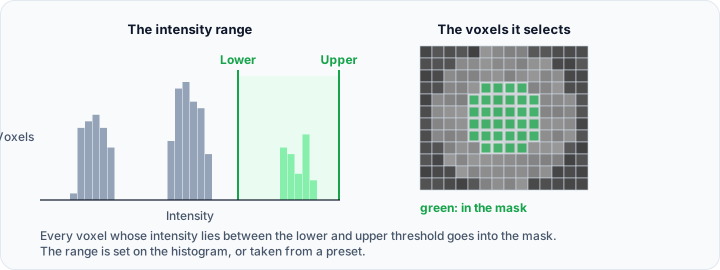
The Threshold tool segments voxels from volume data based on their grayscale intensity values. Voxels within the specified range are included in the mask; voxels outside the range are excluded. This is one of the most fundamental and widely used segmentation techniques.
Accessing the Tool
- Navigate to the Segmentation tab in the ribbon.
- Click Threshold in the Create Mask section.
Parameters
Presets
A preset stores a lower and an upper threshold. Selecting one applies both immediately, and each entry shows a thumbnail rendered from the current volume so the list can be compared at a glance.
These presets are supplied by default:
| Preset | Lower | Upper |
|---|---|---|
| Bone | 226 | 10000 |
| Muscle | -5 | 135 |
| Fat | -205 | -51 |
| Skin | -718 | -177 |
| Tooth | 1200 | 10000 |

The preset tool button opens the preset operations menu:
| Entry | Function |
|---|---|
| Save a New Preset... | Store the current thresholds under a new name |
| Save Settings to Selected Preset | Overwrite the selected preset with the current thresholds |
| Save Presets As... | Write the whole list to a file |
| Load Presets... | Replace the list with the presets from a file |
| Remove Selected Preset | Delete the selected preset |
| Restore to Default Presets | Discard the list and bring back the presets above |
The list is stored per user, so it is kept across projects and sessions.
The supplied values are calibrated for CT data in Hounsfield units, where air is about -1000 and water is 0. They are meaningless on an industrial CT reconstruction or any other volume with an uncalibrated gray value scale. On such data, set the thresholds from the histogram or the Profile line, then save your own preset.
Threshold Adjustment
The histogram widget displays the intensity distribution of the volume data with interactive threshold controls:
| Control | Description |
|---|---|
| Lower Threshold | Minimum intensity value to include. |
| Upper Threshold | Maximum intensity value to include. |
| Histogram | Visual representation of intensity distribution. |
Drag the thresholds on the histogram or enter numeric values directly to adjust the range. The preview updates in real-time in the slice views.
The distribution is drawn in the Interactive Histogram Chart, with the two thresholds shown as lines on it. Drag a line to move that threshold directly on the distribution. Drag the shaded area between the two lines to move the whole range without changing its width. Scroll to zoom into a narrow band of gray values, and right-click to reach the display options. This histogram is a preview for setting the threshold, not measurement data, so the chart's CSV export is not offered here; copying it to the clipboard or saving it as a picture still is.
Profile line
The Profile line group helps identify appropriate threshold values by analyzing intensity values along a path:
- Expand the Profile line group.
- Draw a line across the region of interest in a slice view.
- The profile chart displays intensity values along the line.
- Use this information to identify appropriate threshold boundaries.
Options
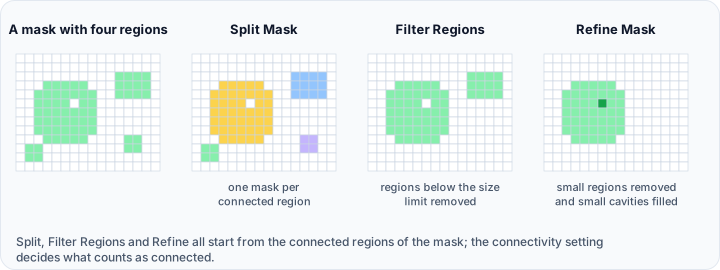
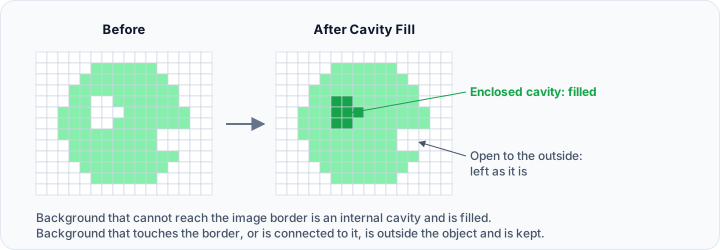
The Options group cleans up the result while it is created, which saves a separate pass with the region tools afterwards:
| Option | Description | Default |
|---|---|---|
| Fill cavities | Fill internal gaps enclosed by the thresholded region, so the mask represents a solid body | Off |
| Filter regions | Enable region filtering, then choose one of the two modes below | Off |
| Keep the largest region | Retain only the largest connected region by volume | Selected |
| Remove regions | Remove every region smaller than Minimum region size (voxels) | |
| Minimum region size (voxels) | Size limit used by Remove regions (1 to 9,999,999) | 2 |
Result
| Option | Description |
|---|---|
| Target mask | Select an existing mask, or leave <New mask object> to create one. |
| Replace | Replace the content of the selected mask with the thresholded result (default). |
| Merge | Add the thresholded region to the existing content of the selected mask. |
Workflow
- Open the Threshold tool from the Segmentation tab.
- Optionally select a Preset matching your target material.
- Adjust the lower and upper threshold using the histogram, or type exact values.
- Observe the preview overlay in the slice views.
- Use the Profile line group if you need to analyze a specific intensity transition.
- Set Fill cavities and Filter regions in Options if the result needs cleaning up.
- Select the target mask and the Replace or Merge mode.
- Click Apply to create or update the mask.
Technical Background
Thresholding is a pixel-wise classification method that assigns each voxel to the foreground (inside the mask) or background based solely on its intensity value:
Where:
- is the output mask
- is the input volume intensity
- and are the threshold bounds
Thresholding works well when the target structure has distinct intensity values from surrounding tissues. For structures with overlapping intensities, consider using region growing or more advanced segmentation methods.
Tips
- Start with a wide threshold range and narrow it gradually.
- Use the histogram to identify peaks corresponding to different tissue types.
- Combine thresholding with region growing to isolate connected objects.
- For noisy data, consider smoothing the volume before thresholding.
Scripting
Threshold segmentation is available via the Python scripting API:
import ScriptingApi as api

app = api.Application()
mask_operations = app.get_mask_operations()

threshold_params = api.ThresholdParams()
threshold_params.lower_threshold = 200
threshold_params.upper_threshold = 3000
threshold_params.filter_regions = True
threshold_params.remove_regions = True
threshold_params.min_region_size = 27
threshold_params.keep_largest = False

# Apply threshold segmentation
result_mask = mask_operations.threshold('CT_Volume', threshold_params)
See the MaskOperations API Reference for details.
See Also
- Multilevel Thresholding: automatic multi-threshold segmentation.
- Surface Determination: surface determination with a single isovalue, ISO50, histogram methods or advanced local refinement, and a sub-voxel mask surface.
- Region Grow: grow regions from seed points.
- Segmentation Tab Overview: overview of all segmentation tools.