Volvicon License Registration Guide
Overview
Volvicon supports two license deployment models:
| License model | Best suited for | Usage limit |
|---|---|---|
| Node-locked | One person or one dedicated workstation | The license is bound to one computer's hardware |
| Floating (network) | Teams, laboratories, classrooms, and shared workstations | The purchased number of concurrent seats |
Both models use a signed Volvicon license file (.lic). The important difference is how that file is authorized:
- A node-locked license is created for one computer using that computer's hardware key (
.dat). - A floating license is not bound to one computer. The same license file can be deployed to authorized workstations, while Volvicon's hosted license service controls how many computers may run the application at the same time.
Review Licensing Options to compare license tiers, subscription terms, and deployment models.
Common Prerequisites
- Windows 10 or later
- Administrative privileges to install Volvicon
- A Volvicon account and access to the license portal
- Email access for license notifications
- A secure location for the issued
.licfile
Network requirements differ by license model. Node-locked licenses use the network for portal access and periodic validation. Floating licenses require access to the hosted licensing service when securing and maintaining a concurrent seat.
Node-Locked Licenses
A node-locked license is tied to a specific computer. Generate the hardware key, submit it with the license request, and apply the issued license file on that same computer.
Node-locked activation summary
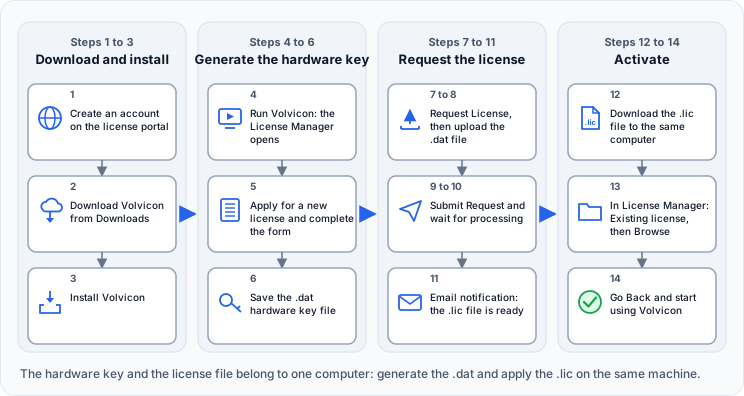
Follow these steps to request and activate a node-locked license:
- Create an account on the Volvicon license portal.
- Click Downloads in the portal's left sidebar, open the Downloads page, and download the required version of Volvicon. The download is large, and its exact size varies by version and selected installer package.
- After the download is complete, install Volvicon.
- After installation, run Volvicon for the first time. If no valid license is configured, the License Manager dialog appears automatically.
- Select Apply for a new license in the License Manager to open the registration form.
- Complete the required fields and click Save to generate and save the
.dathardware-key file. - Sign in to the license portal, open Licenses, and click Request License.
- Complete the required fields and upload the
.datfile saved from the License Manager using the Drag & Drop or Click to Upload area. - After the
.datfile is uploaded and all required fields are complete, click Submit Request. - Allow up to 24 hours for the request to be processed.
- When the license is ready, it is added to your portal account and you receive an email notification. The issued license file uses the
.licextension. - Download the
.licfile and save it in a secure, permanent location on the same computer where the hardware key was generated. - Run Volvicon again. In the License Manager, select Existing license, click Browse, and select the
.licfile. Verify that the license information is correct, then click Go Back. - Close the License Manager and start using Volvicon. The node-locked license is now configured.
The same fourteen steps, grouped by where they happen:
Part 1: Generate the hardware key
Step 1: Download and install Volvicon
- Sign in to the license portal.
- Open Downloads and download the required Volvicon version.
- Run the installer and complete the installation.
Step 2: Open the License Manager
- Launch Volvicon.
- If no valid license is configured, the License Manager appears automatically.
You can also open it later using Help > Register Volvicon.
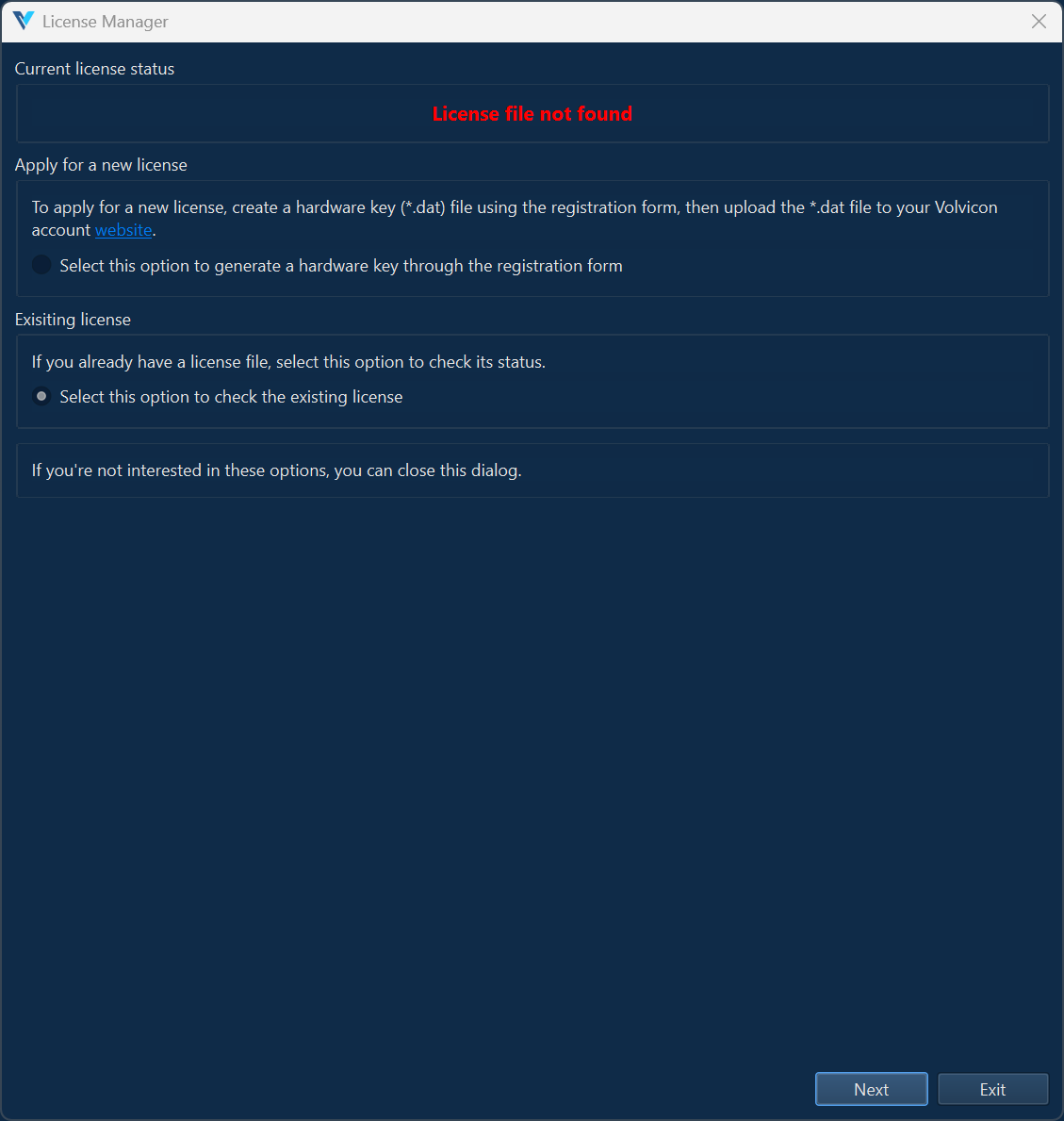
The License Manager provides two options:
| Option | Description |
|---|---|
| Apply for a new license | Open the registration form and generate a hardware key |
| Existing license | Select and inspect a license file you have already received |
Step 3: Complete the registration form
- Select Apply for a new license.
- Click Next.
- Complete the registration form.
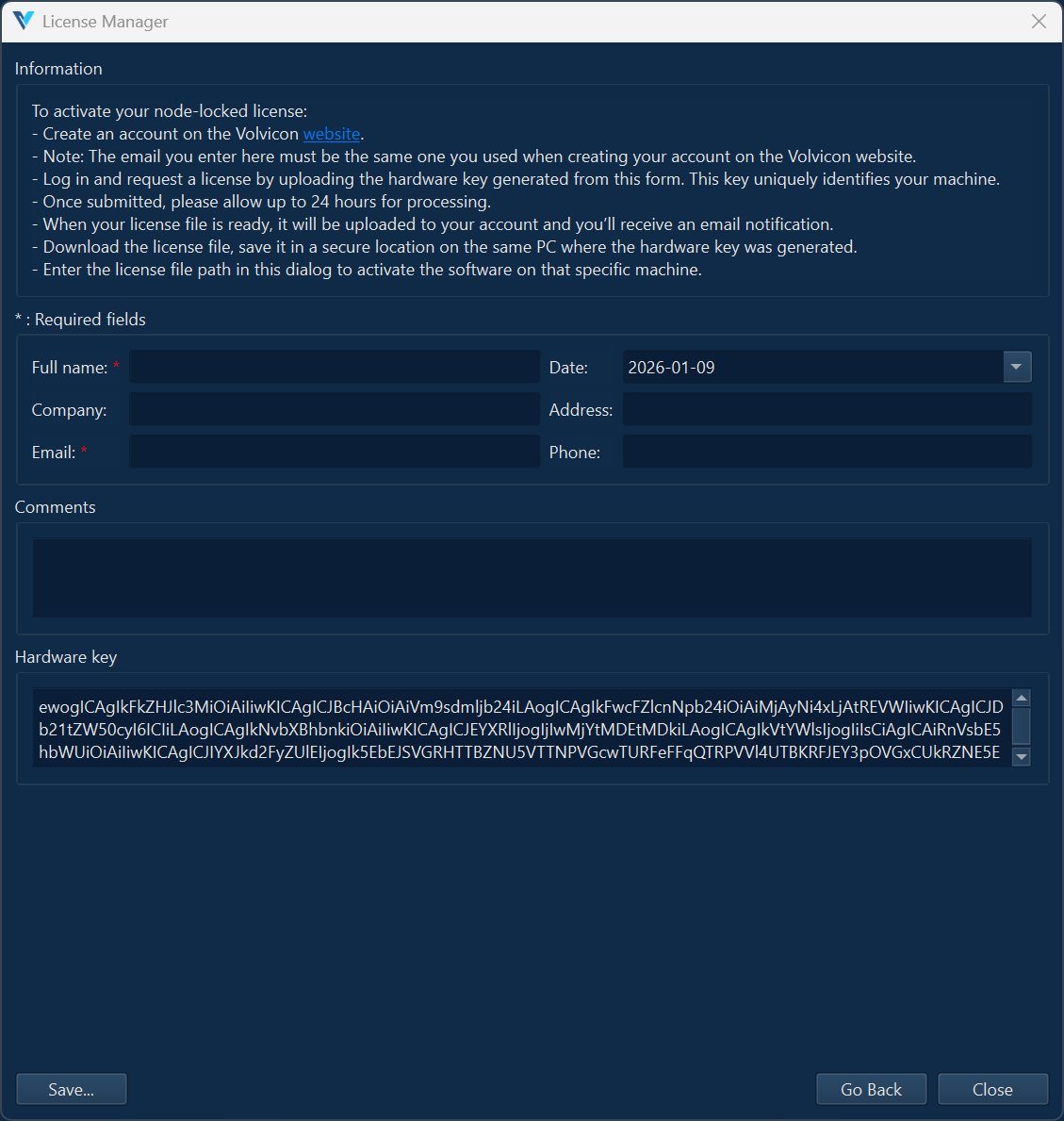
| Field | Description |
|---|---|
| Full name | Your full name |
| Company | Your organization's name |
| Address used for license notifications | |
| Date | Current date, populated automatically |
| Address | Your business or institutional address |
| Phone | Contact telephone number |
| Comments | Optional requirements or notes |
The Hardware key field is generated from the current computer and cannot be edited.
Step 4: Save the hardware key
- Click Save.
- Choose a secure location.
- Confirm that the generated file has a
.datextension.
The hardware key identifies this computer. Generate it on the computer where the node-locked license will be used.
Part 2: Request the node-locked license
Step 1: Submit the request
- Sign in to the license portal.
- Open Licenses.
- Click Request License.
- Select the required software version, license tier, and Node Lock license type.
- Upload the
.dathardware key generated on the target computer. - Complete the remaining fields and click Submit Request.
Step 2: Wait for approval
- Requests are normally processed within 24 hours.
- You will receive an email when the license is ready.
- The
.licfile will also be available from the license detail page in the portal.
Part 3: Apply the node-locked license
Step 1: Download the license file
- Sign in to the license portal.
- Download the issued
.licfile. - Save it in a secure, permanent location on the same computer that generated the hardware key.
A node-locked license file will not work on a different computer. If the computer changes, request a license transfer and generate a new hardware key.
Step 2: Select the license file
- Launch Volvicon.
- In the License Manager, select Existing license.
- Click Browse and select the
.licfile.
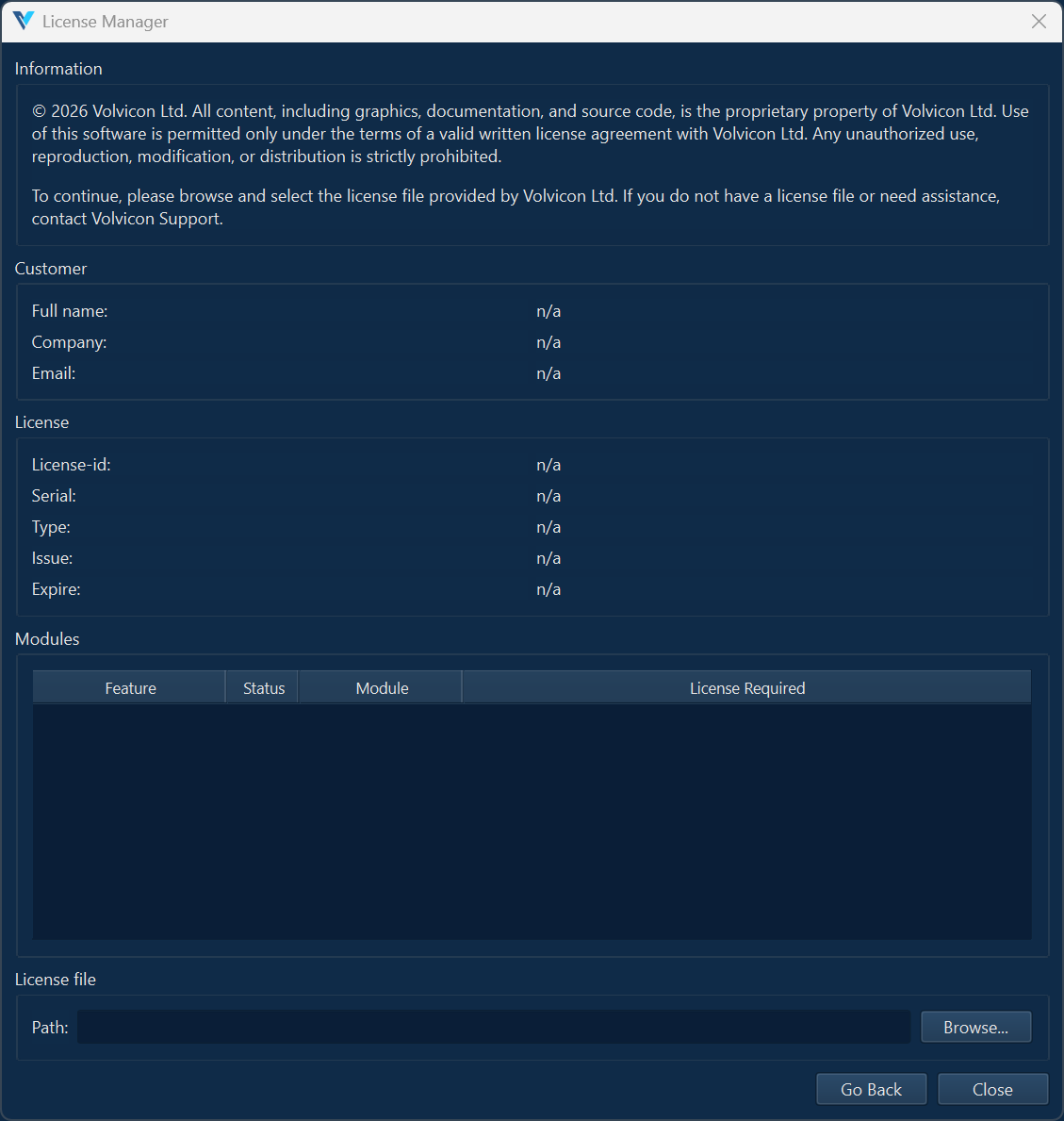
- Confirm that the status shows License available.
- Verify the license information.
- Click Go Back or close the License Manager to continue.
Step 3: Verify the license
The License Manager displays:
- Type: License tier, such as Standard, Professional, or Ultimate
- Serial: License serial number
- License-id: Unique license identifier
- Issue: Issue date
- Expire: Expiration date, or Never for a perpetual license
- Modules and features: Capabilities enabled by the license
Your license tier determines which features are available. See Licensing Options for the feature comparison.
Floating (Network) Licenses
A floating license provides a shared pool of concurrent seats. It is useful when Volvicon is installed on more workstations than will be used at the same time.
For example, a laboratory may install Volvicon on 50 authorized workstations and purchase 10 floating seats. Any of those workstations can run Volvicon, but no more than 10 Volvicon sessions can hold seats simultaneously.

Floating activation summary
Setting up a floating license involves an administrator (who arranges and deploys the license) and the end users (who run Volvicon on each workstation).
Administrator
- Decide the Volvicon tier, the number of workstations, and the maximum number of users who must run Volvicon at the same time. The number of simultaneous users determines the seat count.
- Contact sales@volvicon.com or licensing@volvicon.com to arrange the floating license and concurrent seat count. If instructed, submit a request through the license portal and select Floating as the license type. No per-workstation hardware key (
.dat) is required. - When the license is approved, sign in to the portal, open the floating license, and download the issued
.licfile. Keep a secure administrative backup. - Allow each workstation outbound HTTPS access to
api.volvicon.comon port 443, and confirm DNS, TLS trust, and a synchronized system clock. - Deploy the same
.licfile to a protected local path on each workstation, or to a protected UNC network share that is always reachable when Volvicon starts.
End user (on each workstation)
- Install the same supported Volvicon release. See Installation.
- Launch Volvicon. In the License Manager, select Existing license, click Browse, and select the deployed
.licpath. - Confirm the license type shows (Floating) and the status shows License available, then click Go Back or close the License Manager.
- Use Volvicon normally. A seat is secured automatically at startup and returned when Volvicon closes. If every seat is in use, wait and click Retry after another user closes Volvicon.
The following sections describe each part in detail.
How Volvicon floating licensing works
Volvicon uses a cloud-served floating license:
- Each workstation reads the same signed
.licfile. - At startup, Volvicon contacts the hosted licensing service and requests a seat.
- If a seat is available, Volvicon starts and periodically renews the seat.
- When Volvicon closes normally, the seat is returned to the pool.
- If a workstation crashes or loses power, the server reclaims the seat after its lease expires.
The whole life of one seat, including the paths that are covered in more detail in When all seats are in use and Network interruptions and seat recovery:
While Volvicon waits for a seat, the Floating License dialog also offers Change License, which selects a different license file instead of waiting. A seat request can also be refused because the licensing service cannot be reached, or because the license is restricted to approved networks. Both are covered in Troubleshooting and are not drawn here.
Your organization does not install a Volvicon license-server application. Each workstation connects directly to Volvicon's hosted licensing service over HTTPS.
A file server may be used to store the .lic file, but that file server does not manage or count seats.
Node-locked and floating comparison
| Requirement | Node-locked | Floating |
|---|---|---|
Hardware key (.dat) | Required for the licensed computer | Not used to bind each workstation |
License file (.lic) | Created for one computer | The same file is deployed to authorized workstations |
| Usage limit | One licensed computer | Purchased number of simultaneous seats |
| Hardware changes | May require re-issuance | Do not bind the license to a replacement workstation |
| Network access | Portal access and periodic validation | Required to secure and maintain a seat |
| License service | Volvicon hosted service | Volvicon hosted service; no customer-hosted daemon |
| Planned offline use | Subject to the license's validation policy | No offline borrowing; only a brief connection interruption is tolerated |
Part 1: Request a floating license
Step 1: Determine the deployment
Before requesting the license, identify:
- The Volvicon tier required: Standard, Professional, or Ultimate
- The number of workstations where Volvicon will be installed
- The maximum number of users who need to run Volvicon simultaneously
- Whether the
.licfile will be copied locally or stored on a protected network share
The number of concurrent users determines the required seat count. The number of installations and the number of seats are not the same.
Step 2: Arrange the license and seat count
- Contact sales@volvicon.com or licensing@volvicon.com.
- Specify the required tier, license term (annual or perpetual), and concurrent seat count.
- If instructed, submit a request through the license portal and select Floating as the license type.
- Wait for the request to be approved and activated.
A floating license is not bound to the hardware key of each workstation. You do not generate a separate .dat file for every computer in the deployment.
Step 3: Download the license file
- Sign in to the license portal.
- Open the approved floating license.
- Download the
.licfile. - Keep an original backup in a secure administrative location.
One issued file represents the shared entitlement. Copying the file does not create additional seats; the hosted licensing service enforces the purchased concurrent limit.
Part 2: Prepare the workstations and network
Step 1: Allow access to the licensing service
Each workstation must have:
- Outbound HTTPS access to
api.volvicon.comon TCP port 443 - Working DNS resolution
- A trusted TLS certificate chain
- A correctly synchronized system date and time
- Read access to the configured
.licfile whenever Volvicon starts
Test corporate firewalls, proxies, VPNs, and TLS inspection rules before a large rollout.
A floating license can optionally be limited to specific networks. When this restriction is applied to your license, Volvicon can secure or renew a seat only when the workstation connects from an approved public IP address or range; attempts from any other network are refused. Use it only when your workstations connect through static, known IP addresses (for example, a fixed office gateway or corporate VPN), and make sure the approved networks match the public addresses those connections actually use. The restriction is optional and off by default, so existing deployments are unaffected. To request or change it, contact licensing@volvicon.com.
Step 2: Choose where to store the license file
Recommended: local copy on each workstation
Copy the same .lic file to a protected path on each computer, for example:
C:\ProgramData\Volvicon\Licenses\organization-floating.lic
This is the most reliable arrangement because Volvicon can still read the entitlement if a separate file server is temporarily unavailable.
Use your normal deployment system, such as Microsoft Intune, Configuration Manager, Group Policy, or a login script, to distribute updates to the same path.
Alternative: one file on a network share
The same .lic file may be stored on a protected UNC path, for example:
\\fileserver\VolviconLicenses\organization-floating.lic
Use a UNC path rather than a mapped drive, because drive letters can differ between user accounts.
Every workstation must be able to reach the share when Volvicon starts. If the share is unavailable, Volvicon cannot read the license file even if a concurrent seat is free.
Step 3: Protect the file
- Grant read access only to authorized users and workstations.
- Do not allow ordinary users to modify or replace the license file.
- Do not share the file outside the licensed organization.
- Replace deployed copies when Volvicon issues an updated
.licfile.
Part 3: Apply the floating license on each workstation
Step 1: Install Volvicon
Install the same supported Volvicon release on each authorized workstation. See Installation.
Step 2: Select the license file
On each Windows user profile that will run Volvicon:
- Launch Volvicon.
- When the License Manager appears, select Existing license.
- Click Browse.
- Select the local or UNC
.licpath prepared by your administrator. - Verify that the license type includes (Floating).
- Confirm that the status shows License available.
- Click Go Back or close the License Manager.
Volvicon saves the selected path in the current Windows user's settings and reuses it on later starts.
The license path is currently stored per Windows user profile. If several Windows accounts use the same workstation, each account must select the file once or be configured by the organization's deployment tools.
Step 3: Start Volvicon and obtain a seat
After the floating license is selected:
- Volvicon contacts the hosted licensing service.
- If a seat is available, the main application window opens.
- The session remains counted while Volvicon is running.
- Closing Volvicon normally returns the seat for another user.
No user action is required for routine seat checkout or renewal.
Part 4: Monitor floating seat usage
- Sign in to the license portal.
- Open Licenses.
- Select the floating license.
- Review the Floating Seats panel.
The panel shows:
- Seats currently in use and the purchased seat limit
- The machine name for each active session
- The Volvicon version
- The most recent heartbeat time
Reload the license detail page to refresh the displayed session list.
When all seats are in use
If every seat is occupied, Volvicon displays the Floating License dialog and does not open the main application window.
You can:
- Click Retry after another user closes Volvicon. If a seat is free, Volvicon starts; otherwise the dialog appears again.
- Click Change License to select a different license file.
- Click Close to exit Volvicon.
Closing another user's project is not enough—their Volvicon application must close or release its seat.
Network interruptions and seat recovery
- A brief interruption is tolerated while an existing lease remains valid.
- If connectivity is not restored before the lease expires, Volvicon blocks continued use and the seat becomes available to the pool.
- After a normal shutdown, the seat is normally returned immediately.
- After a crash, forced termination, or power loss, the seat can remain visible until the server lease expires.
- If a stale seat must be released sooner, contact your license administrator or Volvicon support.
Floating licenses do not currently support seat borrowing or planned disconnected use. A workstation must be able to contact the hosted licensing service to start and continue beyond the temporary lease window.
Example: 50-workstation laboratory
Suppose a laboratory has 50 authorized workstations and purchases 10 floating seats:
- The administrator deploys the same
.licfile to all 50 workstations. - Each Windows user profile selects the deployed license path once.
- The first 10 Volvicon sessions obtain seats.
- The 11th session waits at the Floating License dialog.
- When one of the first 10 users closes Volvicon, the waiting user clicks Retry.
- The released seat is assigned and Volvicon opens.
If the laboratory needs all 50 workstations running simultaneously, it needs 50 concurrent seats.
Troubleshooting
Common issues
| Issue | Applies to | Solution |
|---|---|---|
| Invalid Hardware Key | Node-locked | Apply the license on the computer that generated the .dat file. After major hardware changes, generate a new key and request re-issuance. |
| License File Not Found | Both | Confirm that the saved local or UNC path exists and that the current Windows user has read permission. |
| License Shows as Expired | Both | Verify the system date and time, then contact licensing for renewal. |
| Floating License: all seats in use | Floating | Close Volvicon on another workstation, then click Retry. Check the portal's Floating Seats panel. |
| Floating License: server cannot be reached | Floating | Check internet access, DNS, proxy/firewall rules, TLS inspection, and outbound HTTPS to api.volvicon.com. |
| This license may only be used from an approved network | Floating | The license has a network restriction and the workstation's current public IP address is not on the approved list. Connect from an approved network (for example, the office network or corporate VPN), or ask your license administrator to add the network. See the Optional network restriction note under Part 2, Step 1. |
| Seat remains after a crash | Floating | Wait for the lease to expire or contact your license administrator or support for assistance. |
| License works for one Windows account only | Floating | Select the .lic file once for each Windows user profile. |
| Shared license file works on some machines only | Floating | Use a UNC path, verify share permissions, and confirm the share is reachable before Volvicon starts. |
| Feature Not Available | Both | Check the license tier and enabled modules. See Licensing Options. |
Hardware changes
Major hardware changes can invalidate a node-locked license. Before replacing a motherboard, CPU, or licensed workstation:
- Contact licensing@volvicon.com.
- Generate a new hardware key after the change.
- Request an updated node-locked license file.
Floating licenses are not bound to a particular workstation, so replacing one authorized workstation does not require a hardware transfer. The replacement still needs the floating .lic path and network access.
Important Notes
Backup recommendations
- Keep an administrative backup of every issued
.licfile. - Keep node-locked
.datfiles for reference. - Record license serial numbers, expiration dates, and floating seat counts.
- Keep deployment instructions for local and network-share license paths.
Security considerations
- Treat
.licfiles as confidential entitlement files. - Grant access only to users covered by the license agreement.
- Do not modify, rename unnecessarily, or distribute the file outside the licensed organization.
- A node-locked license is limited by hardware binding.
- A floating license is limited by concurrent seats and still requires an authorized deployment.
Support
For licensing assistance, provide:
- License serial number, license ID, or order number
- License model: node-locked or floating
- Volvicon version
- Computer name and Windows user account
- Screenshot or exact text of the error
- For node-locked issues, the hardware key (
.dat) - For floating issues, the seat usage shown in the portal and whether
api.volvicon.comis reachable
Email: support@volvicon.com
Related Topics
- Licensing Options – Feature tiers and deployment model comparison
- Installation – Install Volvicon on individual or managed workstations
- System Requirements – Hardware, software, and network requirements
- Sales Conditions – Pricing and purchase information
- License Agreements – EULA and legal terms