Mask Render Properties
The Render Properties tool provides comprehensive control over how mask objects are displayed in the 3D preview. Configure rendering style, material properties, lighting, shading, and additional visualization widgets through three organized tabs.
Accessing the Tool
- Navigate to the Segmentation tab in the ribbon.
- Click Render Properties in the General section.
- Select a mask object to view and modify its 3D preview properties.
Tabs
Render Tab
Controls the geometric representation and rendering options for the mask's 3D preview.
Draw
| Property | Description |
|---|---|
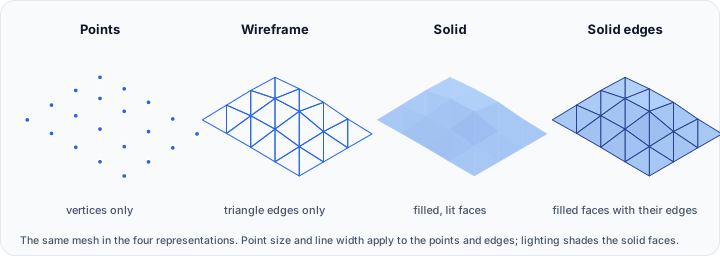
| Representation | Display mode: Points, Wireframe, Solid, or Solid edges. |
| Point size | Size of points when using Points representation (1–16). |
| Line width | Width of lines when using Wireframe or Solid edges representation (1–16). |
Other options
| Property | Description |
|---|---|
| Visible sides | Control polygon culling: All, Front-facing, or Back-facing. |
| Colors | Toggle mask point colors on/off. |
| Lighting | Enable or disable lighting calculations. |
| Clipping | Toggle 3D clipping on/off. |
| Point normals | Show or hide point normal vectors. |
Material Tab
Configures material appearance and lighting characteristics for the mask's 3D preview.
Material color
| Property | Description |
|---|---|
| Type | Select material color from presets. |
| Ambient color | Color reflected by ambient light. |
| Diffuse color | Primary mask color under direct light. |
| Specular color | Color of specular highlights (shiny spots). |
Material lighting coefficient
Controls how the mask 3D preview responds to lighting:
| Property | Description | Range | Default |
|---|---|---|---|
| Ambient | Ambient light intensity (%) | 0–100 | 0 |
| Diffuse | Diffuse reflection intensity (%) | 0–100 | 100 |
| Specular | Specular highlight intensity (%) | 0–100 | 10 |
| Shininess | Specular highlight sharpness | 0–128 | 70 |
Opacity
| Property | Description |
|---|---|
| Opacity | Mask transparency (0–100%). 100% is fully opaque, 0% is fully transparent. |
Shade
| Property | Description |
|---|---|
| Shading interpolation | Rendering quality: None, Flat, Gouraud, Phong, or Physically-based rendering. |
Shading Modes:
- None: No shading applied
- Flat: Uniform color per polygon
- Gouraud: Smooth color interpolation across polygons
- Phong: High-quality smooth shading with per-pixel lighting
- Physically-based rendering (PBR): Realistic material rendering using physical light models
Physically-based rendering settings
Available when PBR shading is selected:
| Property | Description | Range | Default |
|---|---|---|---|
| Metallic | How metallic the mask appears (%) | 0–100 | 0 |
| Roughness | Mask surface roughness (%) | 0–100 | 50 |
Widgets Tab
Visualization helpers for displaying mask bounds and measurements in the 3D preview.
Bounds
| Property | Description |
|---|---|
| Scale axes | Display scale axes with color customization. |
| Outline bounding box | Show outline bounding box with color customization. |
| Corner bounding box | Display corner bounding box markers with color customization. |
| Axes labels | Show axes labels with color customization. |
Each widget option includes a color button to customize its appearance in the 3D view.
Common Workflows
Setting up Basic Solid Rendering
- Switch to the Render tab.
- Set Representation to "Solid".
- Enable Lighting for depth perception.
- Adjust Visible sides if needed (typically "All").
Creating a Transparent Glass Effect
- Go to the Material tab.
- Set Opacity to 30–50%.
- Increase Specular coefficient to 80–100%.
- Set Shininess to 100–128.
- Choose Phong shading interpolation.
Applying Physically-Based Rendering
- In the Material tab, select Physically-based rendering from the shading interpolation dropdown.
- Adjust Metallic (0% for non-metals like plastic, 100% for metals).
- Set Roughness (0% for polished surfaces, 100% for rough/matte surfaces).
- Fine-tune material colors as needed.
Displaying Measurement Widgets
- Navigate to the Widgets tab.
- Enable Scale axes to show dimensional reference.
- Enable Axes labels for coordinate orientation.
- Customize widget colors using the color buttons.
These properties control the 3D preview rendering of mask objects in the viewer. For permanent surface meshes, use the Mask To Surface conversion tool.
See Also
- Segmentation Tab Overview: overview of all segmentation tools.
- Mask To Surface: convert masks to surface objects for permanent 3D representation.