Refine Mask
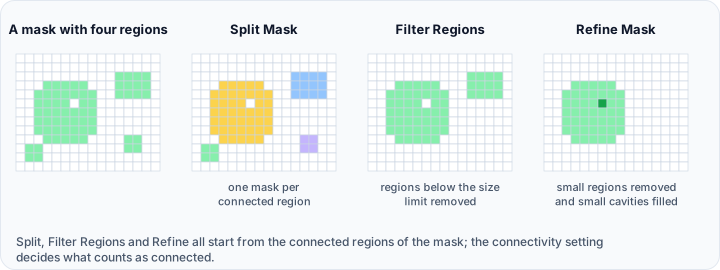
The Refine Mask tool provides automated cleanup for the active mask by removing small disconnected components (regions/particles) and filling small internal cavities (voids/pores). Use the Update button to preview detected removals and fillings in 2D and 3D views before applying changes.
Accessing the Tool
- Navigate to the Segmentation tab in the ribbon.
- Click Refine Mask in the Operations section.
Connectivity Mode
| Option | Description |
|---|---|
| 6-connectivity | Voxels connected only to directly adjacent neighbors sharing a face (up to 6 connections). |
| 26-connectivity | Voxels connected to all surrounding neighbors including edges and corners (up to 26 connections). |
Options
Min. Region Size (voxels)
| Parameter | Description |
|---|---|
| Value | The minimum size (in voxels) for a connected region to be retained. Smaller regions (particles) will be removed. Set to 0 to disable region removal. Default: 10. |
| Count | Read-only display showing the number of regions below the threshold that will be removed upon applying. |
Preview: Regions to be removed are shown in yellow in the preview visualization.
Max. Cavity Size (voxels)
| Parameter | Description |
|---|---|
| Value | The maximum size (in voxels) of an internal cavity (enclosed hole) that will be filled. Larger cavities remain unfilled. Set to 0 to disable cavity filling. Default: 10. |
| Count | Read-only display showing the number of cavities with sizes ≤ threshold that will be filled upon applying. |
Preview: Cavities to be filled are shown in cyan in the preview visualization.
Workflow
- Activate the mask you want to refine.
- Open the Refine Mask tool from the Segmentation tab.
- Choose the Connectivity mode (6-connectivity or 26-connectivity).
- Set the Min. region size threshold (in voxels).
- Regions smaller than this will be identified for removal.
- Set the Max. cavity size threshold (in voxels).
- Internal cavities smaller than or equal to this will be identified for filling.
- Click Update to preview:
- Regions to be removed appear in yellow.
- Cavities to be filled appear in cyan.
- The Count fields update to show how many will be affected.
- Adjust thresholds as needed and click Update again.
- Click Apply to perform the refinement operation on the active mask.
- The preview masks (yellow and cyan) are automatically removed after applying or closing the tool.
Use Cases
- Post-Thresholding Cleanup: Remove noise particles and fill internal voids after basic thresholding.
- Pre-Surface Generation: Prepare masks for clean surface mesh creation by removing artifacts and filling holes.
- Quality Assurance: Preview and verify which small regions and cavities will be affected before applying changes.
Tips
- Use Update for Preview: Always click Update first to see yellow (regions to remove) and cyan (cavities to fill) previews before applying.
- Start Conservative: Begin with small threshold values (e.g., 10 voxels) and increase gradually while previewing.
- Check the Counts: The read-only count fields show exactly how many regions/cavities will be affected.
- Connectivity Matters: Try both 6-connectivity and 26-connectivity to see which better identifies your target regions/cavities.
- Set to 0 to Disable: Set either threshold to 0 to disable that operation (e.g., only remove regions without filling cavities).
- Preview in 2D and 3D: The preview shows in both slice views and 3D view for complete visualization.
tip
The Update button is key to this tool's workflow. It lets you experiment with different threshold values and see exactly what will be removed or filled before committing changes.
Related Tools
For more targeted control over specific operations:
- Filter Regions: advanced region filtering with multiple modes
- Cavity Fill: fill all internal cavities regardless of size
- Split Mask: separate regions into individual masks
See Also
- Filter Regions: size-based region filtering.
- Cavity Fill: fill internal cavities.
- Smooth Mask: boundary smoothing.
- Segmentation Tab Overview: overview of all segmentation tools.