Mask To Volume
The Mask To Volume tool creates new volume object(s) from the target mask(s). This converts mask representations into grayscale volume objects that can be used for volume-based processing and analysis.
Accessing the Tool
- Navigate to the Segmentation tab in the ribbon.
- Click Mask To Volume in the Convert section.
Parameters
Target Object(s)
| Option | Description |
|---|---|
| Active mask | Convert the active mask only. |
| Selected masks | Convert all selected masks. |
| Visible masks | Convert all visible masks. |
| All masks | Convert every mask in the project. |
Workflow
- Open the Mask To Volume tool from the Segmentation tab.
- Select the Target Object(s).
- Click Apply to create the volume object(s).
The new volume object(s) appear in the Scene Tree with the same name as the source mask(s).
How It Works
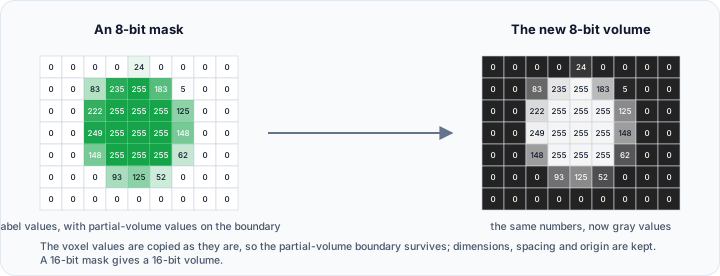
The tool performs a direct conversion of mask data to volume format:
- Mask voxel values are copied directly to the volume
- 8-bit masks → 8-bit volumes (values 0–255)
- 16-bit masks → 16-bit volumes (values 0–65535)
- Spatial information (dimensions, spacing, origin) is preserved
- Partial volume information at boundaries is maintained
Use Cases
Volume-Based Processing
Apply volume filters and operations:
- Use volume smoothing algorithms
- Apply intensity-based analyses
- Perform volume rendering
Data Export
Convert masks to volume formats for external applications:
- Export as DICOM, NIfTI, or other volume formats
- Maintain compatibility with non-mask-aware software
Visualization
Use volume rendering techniques:
- Apply transfer functions
- Create volumetric visualizations
- Combine with other volume data
Scripting
import ScriptingApi as api

app = api.Application()
mask_operations = app.get_mask_operations()

# Convert mask to volume object
mask_operations.convert_to_volume_objects(["Segmentation_Mask"])
See Also
- Volume To Mask: convert volumes to masks.
- Mask To Surface: convert masks to surface meshes.
- Segmentation Tab Overview: overview of all segmentation tools.