Smooth Mask
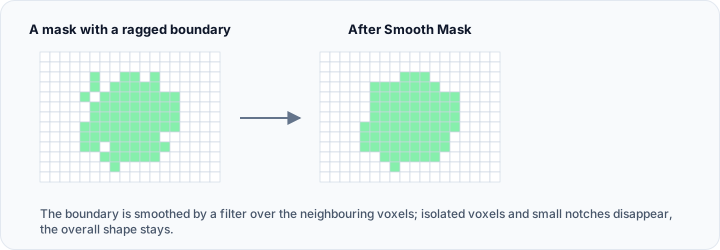
The Smooth Mask tool applies smoothing filters to mask objects to improve boundary quality and reduce noise artifacts. Smoothing helps create cleaner masks for visualization and downstream processing such as surface generation.
Accessing the Tool
- Navigate to the Segmentation tab in the ribbon.
- Click Smooth Mask in the Operations section.
Smoothing Filters
Discrete gaussian
Applies a Gaussian blur using discrete kernel approximation:
| Parameter | Description |
|---|---|
| Sigma X (pixels) | Standard deviation in X direction (default: 1.0, decimals: 1). |
| Sigma Y (pixels) | Standard deviation in Y direction (default: 1.0, decimals: 1). |
| Sigma Z (pixels) | Standard deviation in Z direction (default: 1.0, decimals: 1). |
| Isotropic | Use the same sigma for all directions. |
Larger sigma values produce more smoothing but may erode fine details.
Recursive gaussian
Efficient Gaussian smoothing using recursive implementation:
| Parameter | Description |
|---|---|
| Sigma X (pixels) | Standard deviation in X direction (default: 1.0, decimals: 1). |
| Sigma Y (pixels) | Standard deviation in Y direction (default: 1.0, decimals: 1). |
| Sigma Z (pixels) | Standard deviation in Z direction (default: 1.0, decimals: 1). |
| Isotropic | Use the same sigma for all directions. |
Faster for large sigma values compared to discrete Gaussian.
Mean
Replaces each voxel with the average of its neighborhood:
| Parameter | Description |
|---|---|
| Radius X (pixels) | Neighborhood radius in X direction (default: 1, max: 99). |
| Radius Y (pixels) | Neighborhood radius in Y direction (default: 1, max: 99). |
| Radius Z (pixels) | Neighborhood radius in Z direction (default: 1, max: 99). |
| Isotropic | Use the same radius for all directions. |
Median
Replaces each voxel with the median of its neighborhood:
| Parameter | Description |
|---|---|
| Radius X (pixels) | Neighborhood radius in X direction (default: 1). |
| Radius Y (pixels) | Neighborhood radius in Y direction (default: 1). |
| Radius Z (pixels) | Neighborhood radius in Z direction (default: 1). |
| Isotropic | Use the same radius for all directions. |
Effective for removing salt-and-pepper noise while preserving edges.
Parameters
Target Objects
| Option | Description |
|---|---|
| Active mask | Apply to the currently active mask only. |
| Selected masks | Apply to all selected masks. |
| All masks | Apply to every mask in the project. |
| Visible masks | Apply to all visible masks. |
Workflow
- Open the Smooth Mask tool from the Segmentation tab.
- Select the Target Objects to smooth.
- Choose a Smoothing Filter type.
- Configure the filter parameters (sigma, radius, etc.).
- Click Apply to execute the smoothing operation.
Filter Selection Guide
| Filter | Best For | Edge Preservation |
|---|---|---|
| Discrete Gaussian | General smoothing | Low |
| Recursive Gaussian | Large-scale smoothing | Low |
| Mean | Uniform noise reduction | Low |
| Median | Salt-and-pepper noise | High |
Use median filtering when you need to remove isolated noisy voxels while maintaining edge sharpness. Use Gaussian filters for overall boundary smoothing.
Technical Notes
Smoothing operations on binary masks produce fractional values at boundaries. After smoothing, you may need to:
- Binarize the mask to restore strict on/off values.
- Accept partial volume representation for more accurate boundary modeling.
Use Cases
- Pre-Surface Generation: Smooth masks before converting to surface meshes.
- Noise Reduction: Remove segmentation artifacts and isolated voxels.
- Boundary Refinement: Create smoother object boundaries.
See Also
- Binarize: convert to binary after smoothing.
- Refine Mask: automatic mask cleanup.
- Morphology Operations: dilate/erode operations.
- Segmentation Tab Overview: overview of all segmentation tools.