3D Editor
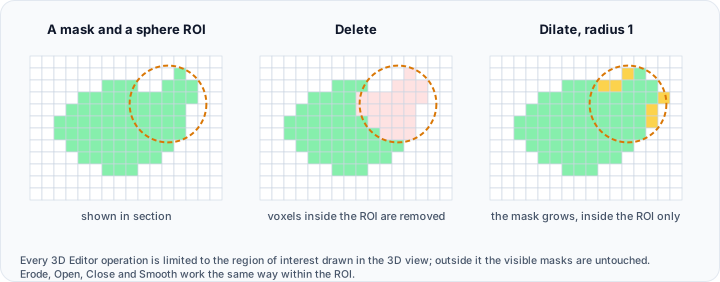
The 3D Editor tool performs morphological and editing operations on visible mask objects using ROI selection tools in the 3D view. Define regions using Basic or Advanced ROI tools, then apply operations like Delete, Smooth, Erode, Dilate, Open, or Close.
Accessing the Tool
- Navigate to the Segmentation tab in the ribbon.
- Click 3D Editor in the Operations section.
Operations
Select the operation to apply within the defined ROI:
| Operation | Description |
|---|---|
| Delete | Remove mask voxels within the ROI. |
| Smooth | Apply smoothing to mask voxels within the ROI. |
| Erode | Erode (shrink) the mask within the ROI. |
| Dilate | Dilate (expand) the mask within the ROI. |
| Open | Morphological opening (erode then dilate) within the ROI. |
| Close | Morphological closing (dilate then erode) within the ROI. |
Neighborhood Radius
| Parameter | Description |
|---|---|
| Neighborhood radius | Size in pixels (1-50) for morphological operations. Larger values have stronger effects. |
ROI Tools Mode
Choose between Basic and Advanced ROI selection modes.
Basic Mode ROI Tools
Screen-space selection tools for 3D editing:
| Tool | Description | Usage |
|---|---|---|
| Rectangle | Draw a rectangular region. | Left-click and drag in 3D view. Release to complete. Hold Alt to enable 3D spinning. |
| Polygon | Draw a freeform polygon. | Left-click to add vertices. Middle-click to close polygon. Hold Alt to enable 3D spinning. |
| Sphere | Draw a spherical region. | Left-click and drag to set radius. Release to complete. Hold Alt to enable 3D spinning. |
| Plane | Draw a cutting plane. | Left-click and drag to define plane orientation. Release to complete. Hold Alt to enable 3D spinning. |
| Cylinder | Draw a cylindrical region. | Left-click and drag to draw circle. Extrudes perpendicular to view. Hold Alt to enable 3D spinning. |
| Lasso | Draw a freehand lasso. | Left-click and drag to draw. Release to complete. Hold Alt to enable 3D spinning. |
Advanced Mode ROI Tools
Implicit function widgets with adjustable parameters:
| Tool | Description | Parameters |
|---|---|---|
| Box | Oriented bounding box. | Position (X, Y, Z), Rotation (X, Y, Z), Size (X, Y, Z) |
| Sphere | Spherical region. | Center (X, Y, Z), Radius |
| Cylinder | Cylindrical region. | Center (X, Y, Z), Axis (X, Y, Z), Radius |
| Plane | Half-space defined by plane. | Origin (X, Y, Z), Normal (X, Y, Z) |
Advanced Mode Features:
- Interactive 3D widget visualization
- Precise numeric parameter control
- Show/hide widget checkbox
- Press P key to pick points for positioning widgets
Workflow
- Ensure the target mask(s) are visible in the 3D view. The editor works with either mesh preview or direct preview; in direct mode the 3D result updates immediately.
- Open the 3D Editor tool from the Segmentation tab.
- Select the Operation (Delete, Smooth, Erode, Dilate, Open, or Close).
- Adjust Neighborhood radius if using morphological operations.
- Choose Basic or Advanced ROI tools mode.
- Select an ROI tool and define the region:
- Basic: Draw directly in 3D view with mouse.
- Advanced: Enable widget, adjust parameters, optionally use P key for point picking.
- Click Apply to execute the operation on visible masks within the ROI.
- Click Reset to restore ROI to the bounding box of visible masks.
- The operation is applied to all visible mask objects.
Target Masks
The 3D Editor operates on all visible mask objects in the 3D view. Ensure only the masks you want to edit are visible before applying operations.
Tips
- Basic vs. Advanced: Use Basic mode for quick screen-space selections. Use Advanced mode for precise geometric regions with exact parameters.
- Use Mask 3D Preview (Direct) while editing when you want instant 3D feedback. Generate a mesh preview afterward if you need surface-based analysis or export workflows.
- Sphere ROI: Ideal for removing isolated artifacts or protruding regions.
- Plane ROI: Excellent for trimming flat surfaces or creating planar cuts.
- Cylinder ROI: Useful for tubular or cylindrical structures.
- Advanced Mode Point Picking: Press P key and click in the 3D view to position Box, Sphere, Cylinder, or Plane widgets at specific locations.
- Morphological Operations: Use larger neighborhood radius for stronger effects. Open operation removes small protrusions; Close operation fills small holes.
- ROI Visibility: In Advanced mode, toggle the Show checkbox to hide/show the ROI widget while adjusting parameters.
The Reset button repositions the Advanced mode ROI widget to the bounding box of all visible masks, useful for restarting ROI placement.
Use Cases
Delete Operation
- Remove floating artifacts or unwanted regions visible in 3D
- Cut away portions of masks using plane ROI
- Delete specific anatomical regions
Smoothing Operation
- Smooth rough mask surfaces before surface generation
- Reduce staircase artifacts from slice-based segmentation
- Prepare masks for 3D printing
Morphological Operations
- Erode: Remove thin connections or small protrusions
- Dilate: Fill small gaps or expand mask boundaries
- Open: Remove small protrusions while preserving overall shape
- Close: Fill small holes or gaps while preserving overall shape
Keyboard Shortcuts
| Shortcut | Action |
|---|---|
| P | Point picking mode (Advanced mode only). Click in 3D view to position ROI widget. |
| Alt | Hold to enable 3D spinning while using Basic mode ROI tools. |
| Middle Mouse Button | Close polygon (Polygon ROI tool in Basic mode). |
| Backspace / Delete | Delete most recent node (LiveWire tool - not applicable in 3D Editor). |
See Also
- Edit Mask: 2D slice-based editing with ROI tools.
- Smooth Mask: apply global smoothing filters to entire masks.
- Manipulate Mask: global erode, dilate, and hollow operations.
- Refine Mask: automatic mask cleanup operations.
- Segmentation Tab Overview: overview of all segmentation tools.