Additional Operations
The Additional menu provides access to supplementary mask operations that don't appear as primary tools on the ribbon. These operations handle specialized tasks like partial volume recalculation, mask inversion, hole filling, and flipping.
Accessing the Tools
- Navigate to the Segmentation tab in the ribbon.
- Click Additional in the Operations section.
- Select the desired operation from the dropdown menu.
Partial Volume Calculation
Recalculates the partial volume fractions at mask boundaries to minimize the influence of mixed background voxels. This adjustment enhances surface contour accuracy, resulting in more precise definitions for improved segmentation and analysis.
Parameters
| Parameter | Description |
|---|---|
| Target Object(s) | Active mask, Selected masks, Visible masks, or All masks. |
| Mode | Auto (default): automatic calculation. Use grayscale values: uses the active volume's grayscale data for calculation. |
When to Use
- After creating a binary mask that needs sub-voxel boundary precision.
- When preparing masks for accurate volume measurement.
- Before surface generation for smoother boundaries.
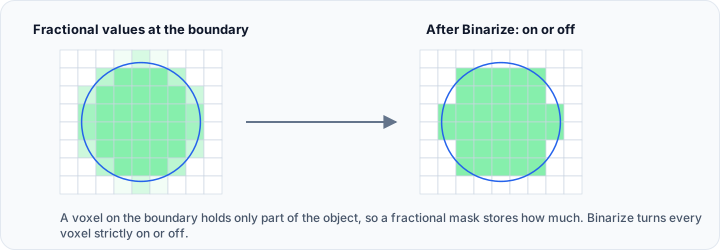
This tool does not support multi-label masks.
Invert Mask
Inverts the mask values, effectively flipping its voxel values. Voxels that were inside the mask become outside, and previously empty voxels become part of the mask.
Parameters
| Parameter | Description |
|---|---|
| Target Object(s) | Active mask, Selected masks, Visible masks, or All masks. |
Use Cases
- Creating a mask of everything except a specific structure.
- Generating background masks for analysis.
- Preparing masks for subtraction operations.
This tool does not support multi-label masks.
Fill Holes
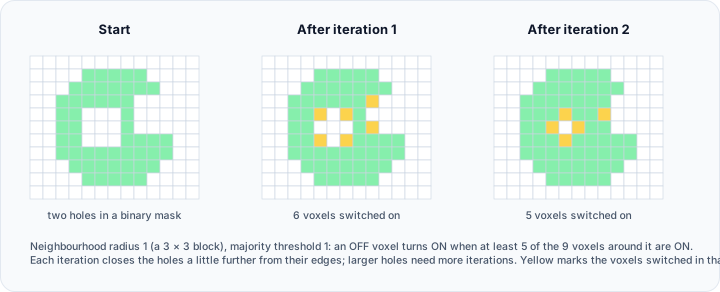
Fills in medium-sized holes and cavities in the target mask(s) using voting binary iterative hole filling. This tool requires binary masks and uses a neighborhood-based algorithm to close holes.
Parameters
| Parameter | Description |
|---|---|
| Target Object(s) | Active mask, Selected masks, Visible masks, or All masks. |
| Number of iterations | Range: 1-999 (default: 2). The number of iterations needed depends on the hole size, with larger holes requiring more iterations for complete filling. |
| Neighborhood radius (pixels) | Range: 1+ (default: 1). Radius of the neighborhood used to compute the median. |
| Majority threshold | Range: 1-65535. The majority threshold determines the minimum number of pixels that need to be over 50% for an OFF pixel to become ON. For instance, if a pixel's surrounding neighborhood contains 124 pixels (excluding itself), then 50% of that would be 62. If you set the majority threshold to 5, it means that the filter will only switch the current OFF pixel to ON if 67 or more neighboring pixels are ON. |
How It Works
The algorithm uses voting binary iterative hole filling:
- For each OFF (background) pixel, examines the neighborhood within the specified radius.
- Counts how many neighboring pixels are ON (foreground).
- Switches the pixel to ON if the count exceeds the majority threshold.
- Repeats for the specified number of iterations.
Comparison with Cavity Fill
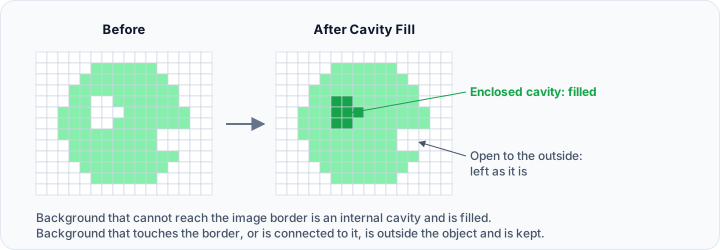
| Fill Holes | Cavity Fill |
|---|---|
| Uses voting binary iterative hole filling | Uses grayscale fill holes |
| Requires binary masks only | Works with any mask |
| Controlled by iterations, radius, and threshold | Controlled by connectivity mode |
| More granular control over hole size | Simpler operation |
- This tool does not support multi-label masks.
- This tool only supports binary masks. The masks can be converted to binary using the Binarize tool.
Flip Mask
Performs the flipping operation on the mask object(s), mirroring the mask data along one or more axes.
Parameters
| Parameter | Description |
|---|---|
| Target Object(s) | Active mask, Selected masks, Visible masks, or All masks. |
| Flip along | The axes to flip along: X, Y, and Z. Each axis has its own check box, so several axes can be combined and applied in one step. At least one axis must be selected. |
| Flip mode | About origin (default): flip around the origin point. About center: flip around the mask's center. |
Use Cases
- Correcting orientation errors.
- Creating mirrored anatomical models.
- Matching left/right structures.
Flipping changes the spatial relationship between the mask and the underlying volume. Ensure the corresponding volume is also flipped if alignment must be maintained.
See Flip Mask for the full description of this tool, including its scripting usage.
See Also
- Flip Mask: dedicated page for the flip mask tool.
- Cavity Fill: fill internal cavities.
- Refine Mask: combined cleanup operations.
- Boolean: mask combination operations.
- Segmentation Tab Overview: overview of all segmentation tools.