GrowCut
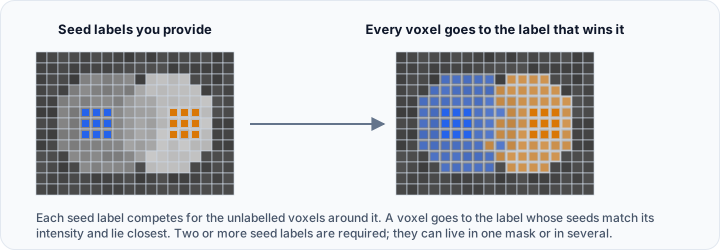
The GrowCut tool implements a cellular automata-based segmentation algorithm that segments the active volume object from specified seed masks. You select existing mask objects to use as seeds for each separate segment (minimum 2 labels required). The algorithm uses a competitive approach where different labels compete for pixels based on the seed regions and intensity similarity. Optionally, you can select a masking object to restrict segmentation to a specific area.
Accessing the Tool
- Navigate to the Segmentation tab in the ribbon.
- Click Additional in the Create Mask section.
- Select GrowCut from the menu.
How It Works
GrowCut uses a competitive region growing approach based on cellular automata:
- Seed Initialization: You create and select existing mask objects containing seed regions for each segment (minimum 2 labels required).
- Iterative Growth: Each seed voxel attempts to "attack" neighboring voxels based on intensity similarity and distance.
- Competition: Different seed labels compete for unlabeled voxels.
- Localization: The seed locality parameter controls how localized the effect of seeds is (helps reduce leaks).
- Convergence: The process continues until no more changes occur or equilibrium is reached.
The algorithm assigns each voxel to the label whose seeds have the strongest match based on intensity and spatial proximity.
 Parameters
Seeds
-
Seed mask object(s): Select one or more existing mask objects to use as seeds.
- Use the checklist dropdown to select multiple mask objects.
- Seeds can have multiple labels, and each label represents a different segment to grow.
- Minimum 2 labels required.
- Paint mask objects beforehand using the Paint tool to create seed regions.
-
Seed locality: 0.0 to 10.0 (default: 0.0, step: 0.1)
- Increasing this value localizes the effect of the seeds, which helps in reducing leaks.
- Higher values necessitate a more even distribution of seed regions throughout the image.
- The value is defined as an additional intensity level difference per unit distance.
Masking (Optional)
- Description: Checkable group box to restrict segmentation to a specific region (unchecked by default).
- Mask object: Select a mask object to segment within.
- Effect: When enabled, GrowCut only segments pixels within the specified masking object.
Threshold (Optional)
-
Description: Collapsible group box to restrict segmentation to a specific intensity range (unchecked by default).
-
Threshold adjustment: Use the histogram to set minimum and maximum threshold values.
The distribution is drawn in the Interactive Histogram Chart, with the two thresholds shown as lines on it. Drag a line to move that threshold directly on the distribution. Drag the shaded area between the two lines to move the whole range without changing its width. Right-click the chart to reach its display options. This histogram is a preview for setting the threshold, not measurement data, so the chart's CSV export is not offered here; copying it to the clipboard or saving it as a picture still is.
-
Effect: When enabled, GrowCut only considers pixels within the specified intensity range.
Options
- Multiple layer: If checked, the operation will be applied to all slices of the dataset. If unchecked, it will only be applied to the current slice (default: checked).
###Workflow
-
Create Seed Masks (Before using GrowCut):
- Use the Paint tool to create mask objects with seed regions.
- Paint different seed regions for each segment you want to grow:
- Create mask 1 and paint region 1 (e.g., object of interest).
- Create mask 2 and paint region 2 (e.g., background or second object).
- Each seed should be representative of its corresponding region's intensity.
- You need at least 2 different seed labels (can be in the same mask or different masks).
-
Configure GrowCut Parameters:
- Set the active volume object to segment.
- Open the GrowCut tool from the Segmentation tab.
- Select seed mask object(s): Use the checklist to select one or more mask objects containing your seeds.
- Adjust seed locality (optional): Increase from 0.0 to reduce leaks if needed.
- Enable masking (optional): Select a mask object to segment within a specific region.
- Enable threshold (optional): Use the histogram to restrict segmentation to specific intensity range.
- Configure target mask and Replace/Merge mode.
-
Apply Segmentation:
- Click the Apply button to run the GrowCut algorithm.
- The algorithm processes the seeds using cellular automata.
- Different labels compete to claim pixels based on:
- Distance from seeds
- Intensity similarity
- Seed locality parameter
- Strength of competing labels
-
Review Results:
- Check the segmentation in all views.
- Each seed region should have grown to fill its corresponding object.
- Boundaries appear where different regions meet.
-
Refine if Needed:
- Go back and add more seed regions to existing masks if under-segmented.
- Increase seed locality to reduce leaks.
- Adjust seed placement for better representation.
- Enable masking or threshold to restrict segmentation.
- Click Apply again to re-run the segmentation.
-
Finalize:
- Clean up boundaries using editing tools.
- Use other segmentation tools for further refinement
- Replace: Replace the selected mask with the segmentation calculated by this operation (default).
- Merge: Merge the segmentation calculated by this operation into the selected mask object. | Result Mask | Target mask for the segmentation result. |
Tips
- Seed Quality: Create seed masks that are representative of each region's intensity characteristics.
- Minimum Seeds: Ensure you have at least 2 different seed labels (can be in one mask or multiple masks).
- Multiple Seed Objects: Use the checklist to select multiple mask objects if seeds are in different masks.
- Seed Locality: Start with 0.0; increase this value if you experience leaking into unwanted regions.
- Even Distribution: Higher seed locality values work better when seeds are evenly distributed throughout the image.
- Masking Option: Use masking to restrict segmentation to a specific region of interest.
- Threshold Option: Use threshold to restrict segmentation to specific intensity ranges.
- Apply Button: Remember to click Apply after adjusting parameters. This tool is not automatic.
- Interactive Refinement: Add more seeds to existing masks and click Apply again for iterative improvement.
- Boundary Cases: Add seeds near challenging boundary areas to guide the algorithm.
For elongated structures, place seeds along the full length rather than clustering them in one area. This helps the algorithm understand the object's extent.
Use Cases
- Complex Boundaries: Segment objects where intensity thresholding alone is insufficient.
- Low Contrast Regions: Distinguish objects from background with similar intensities.
- Interactive Editing: Quickly correct segmentation by adding targeted seeds.
Technical Background
GrowCut is based on cellular automata theory. Each voxel has a "strength" value indicating confidence in its label assignment. Voxels with higher strength can convert neighboring voxels with lower strength if their intensity similarity is high enough. The seed locality parameter adds a distance penalty to reduce leaks.
Attack strength is influenced by:
- Intensity similarity between voxels
- Distance from seed points (controlled by seed locality)
- Current strength values of competing labels
See Also
- Dynamic Region Grow: single-seed region growing.
- Watershed: marker-based watershed segmentation.
- Edit Mask: manual mask painting tools.
- Segmentation Tab Overview: overview of all segmentation tools.