Edit Mask
The Edit Mask tool provides interactive 2D editing capabilities for mask objects. Use brush tools, polygon selection, and other drawing modes to add or remove voxels from masks directly in the slice views.
Accessing the Tool
- Navigate to the Segmentation tab in the ribbon.
- Click Edit Mask in the Operations section.
Drawing Tools
Brush Tool
Paint directly on masks using a circular or rectangular brush:
| Parameter | Description |
|---|---|
| Brush Size | Radius of the brush in pixels (1-1024). |
| Brush Type | Circle or Rectangle. |
Shortcuts:
- + / -: Increase or decrease brush size.
- Ctrl + Shift + B: Toggle between circular and rectangular brushes.
ROI Selection Tools
Draw regions using these selection tools:
| Tool | Description | Usage |
|---|---|---|
| Rectangle | Draw rectangular regions. | Left-click and drag. Release to apply. |
| Polygon | Draw freeform polygon regions. | Left-click to add vertices. Middle-click to close and apply. |
| Circle | Draw circular (cylindrical) regions. | Left-click and drag. Release to apply. |
| Lasso | Draw freehand contours. | Left-click and drag to draw. Release to apply. |
| Brush | Paint with brush strokes. | Left-click and drag to paint continuously. |
| LiveWire | Semi-automatic edge tracing. | See LiveWire for details. |
| Level Tracing | Intensity-based boundary tracing. | Left-click and drag to trace boundaries. |
Note: Hold Shift while using any ROI tool to switch between Draw and Erase operations.
Edit Options
| Option | Description |
|---|---|
| Draw | Add voxels within the ROI to the active mask. |
| Erase | Remove voxels within the ROI from the active mask. |
| Multiple Layer | Apply the operation to all slices (unchecked: current slice only). |
Shortcuts:
- Shift: Toggle between Draw and Erase modes while using ROI tools.
Threshold Mode
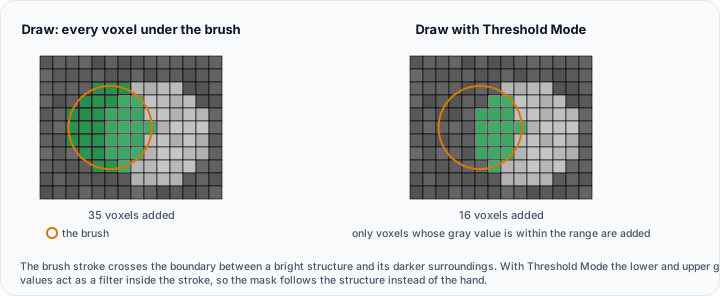
When enabled with Draw mode, the specified threshold range is applied to the painted area:
| Parameter | Description |
|---|---|
| Lower Grayvalue | Minimum intensity value to include in the mask. |
| Upper Grayvalue | Maximum intensity value to include in the mask. |
Voxels within the drawn ROI are included in the mask only if their intensity falls within the threshold range.
The gray value distribution above the two values is drawn in the Interactive Histogram Chart, with the thresholds shown as lines on it. Drag a line to move that threshold directly on the distribution. Drag the shaded area between the two lines to move the whole range without changing its width. Right-click the chart to reach its display options. This histogram is a preview for setting the threshold, not measurement data, so the chart's CSV export is not offered here; copying it to the clipboard or saving it as a picture still is.
LiveWire Parameters
When using the LiveWire ROI tool:
| Parameter | Description |
|---|---|
| Curvature Weight | Influence of path curvature (0.0-1.0). Higher values favor smoother paths. |
| Edge Length Weight | Influence of path length (0.0-1.0). Higher values favor shorter paths. |
Workflow
- Open the Edit Mask tool from the Segmentation tab.
- The active mask is automatically selected as the target.
- Choose a drawing tool by clicking the corresponding ROI button.
- Set Draw or Erase mode in the Edit options.
- Optionally enable Multiple Layer to apply edits to all slices.
- Draw in the 2D slice views to modify the mask:
- For Brush: Left-click and drag to paint.
- For Rectangle/Circle/Lasso: Left-click and drag, release to apply.
- For Polygon: Left-click to add points, middle-click to close.
- Use Shift to temporarily toggle between Draw and Erase.
- Click Clear Mask to erase all content from the active mask.
- The tool remains active until you switch to another tool or tab.
Keyboard and Mouse Shortcuts
| Shortcut | Action |
|---|---|
| Shift | Toggle between Draw and Erase modes (while using ROI tools). |
| + / - | Increase or decrease brush size. |
| Ctrl + Shift + B | Toggle between circular and rectangular brushes. |
| Left Mouse Button | Draw/paint with the active ROI tool. |
| Middle Mouse Button | Close polygon (Polygon ROI tool only). |
| Left Click + Drag | Paint continuously (Brush tool) or define region (other tools). |
Tips
- Use a large brush for rough initial painting, then refine with a smaller brush.
- Hold Shift while using ROI tools to temporarily switch between Draw and Erase.
- Use the Polygon tool for precise boundary following.
- Enable Threshold mode (with Draw) to add only voxels within a specific intensity range.
- The LiveWire tool automatically snaps to edges based on image gradients.
- Use Multiple Layer to apply the same edit across all slices simultaneously.
- Click Clear Mask to completely erase the active mask content.
Combine threshold mode with brush painting to selectively add only specific intensity ranges within your painted region, useful for intensity-based segmentation refinement.
Use Cases
- Manual Segmentation: Create segmentations slice-by-slice using Draw mode.
- Correction: Fix errors in automatic segmentation results using Erase mode.
- Refinement: Adjust boundaries with threshold-based painting.
- Cleanup: Remove small artifacts with Erase mode and small brush.
See Also
- 3D Editor: edit masks interactively in 3D.
- LiveWire: dedicated LiveWire segmentation tool.
- Crop Mask: zero out mask regions outside an ROI.
- Interpolate 3D: fill gaps between edited slices.
- Segmentation Tab Overview: overview of all segmentation tools.