Volume Mesh Tab Overview
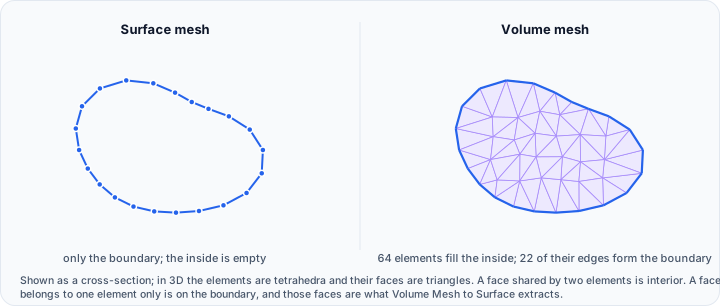
The Volume Mesh ribbon tab provides tools for working with volumetric meshes: three-dimensional discretizations of solid objects used for finite element analysis, computational simulation, and engineering analysis. Unlike surface meshes, which represent only the outer boundary of an object, volume meshes fill the entire interior with solid elements, so structural behaviour, heat transfer, and fluid flow can be simulated.
Understanding Volume Meshes
A volume mesh fills a three-dimensional domain with solid elements that share faces with their neighbours, so the whole interior of an object is discretized rather than just its shell.
Volume meshes are generated from closed surface meshes or directly from masks. The quality of simulation results depends critically on mesh characteristics: well-shaped elements, appropriate sizing, and proper gradation from coarse to fine regions.
Meshes that Volvicon generates are tetrahedral, in either of two element types:
- Linear tetrahedra (4-node): nodes at each vertex, first-order shape functions
- Quadratic tetrahedra (10-node): additional nodes at the edge midpoints, giving better accuracy for stress analysis and curved boundaries
Meshes that Volvicon imports may also contain hexahedra, wedges, and pyramids, and those element types are kept as they are. See Import FEM Mesh for how each element type is handled.
Volume Mesh Tab Structure
The Volume Mesh tab organizes its functionality into four main sections:
General
| Tool | Description |
|---|---|
| Render Properties | Modify visualization settings for volume mesh display |
Transform
| Tool | Description |
|---|---|
| Transform | Apply rotation, translation, scaling, or mirroring operations |
| Interactive Transform | Transform volume meshes interactively using 3D gizmo widgets |
Convert
| Tool | Description |
|---|---|
| Volume Mesh to Surface | Extract surface representation from volume mesh |
FEM
| Tool | Description |
|---|---|
| Configure FEM Model | Inspect and visualise the node sets, element sets, surfaces, and parts a mesh carries |
| Export FEM Mesh | Define materials, sets, surfaces, and parts, then write the mesh in a solver format |
Importing a mesh from an FEA solver file is not a button in this section. Use File ▸ Import ▸ Volume Mesh Models, or drag the solver file onto the 3D view. See Import FEM Mesh.
Working with Volume Meshes
Creating Volume Meshes
Volume meshes are typically created from surface meshes using the Surface to Volume Mesh tool in the Surface tab. This process requires:
- A clean, watertight surface mesh
- Specification of element type (linear or quadratic)
- Mesh quality parameters (element size, grading)
Importing Volume Meshes
Volvicon imports volume meshes from VTK grids and from common FEM/CFD solver formats:
- VTK unstructured grids (.vtu, .vtk)
- Abaqus / CalculiX (.inp)
- Nastran (.bdf, .nas)
- LS-DYNA (.k, .dyn, .key)
- ANSYS (.cdb)
- Gmsh (.msh)
- Fluent (.msh)
- OpenFOAM (.foam)
Use File > Import to load external volume mesh files, or drag and drop a file onto the 3D view. Where the solver file provides them, materials, node/element sets, surfaces, and parts are imported with the mesh. See Import FEM Mesh for solver-file import details and how each element type is handled.
Visualization
Volume meshes can be displayed in several representation modes:
- Points: Show only vertex positions
- Wireframe: Display element edges
- Solid: Render element faces as opaque surfaces
- Solid edges: Combine solid rendering with visible edges
The Render Properties tool provides control over these visualization options.
Transformation
Volume mesh transformation operations modify the physical coordinates of all vertices. The Transform tool provides precise numerical control, while Interactive Transform enables intuitive manipulation using 3D gizmo widgets.
FEM Workflow
A volume mesh reaches the project along one of three routes, from three different ribbon tabs. From there the FEM path is the same whichever route it came in by.
For finite element analysis, the typical workflow is:
- Create or import a volume mesh.
- Check its quality with Mesh Quality Analyzer, so problems are caught before the solver finds them.
- Open Configure FEM Model to see what the mesh already carries: how many nodes, elements, materials, and parts it has, and which node sets, element sets, and surfaces came in with it. Highlight any of them in the 3D view to confirm they cover the region you expect.
- Open Export FEM Mesh to build the rest of the model: assign materials, create node sets, element sets, and surfaces (including straight from a visible ROI), group elements into parts, and set the options your solver expects.
- Export to your solver format.
Constraints and loads themselves are not defined in Volvicon. What Volvicon produces is the mesh together with the named sets, surfaces, parts, and materials your solver needs in order to have something to apply those constraints and loads to.
Scripting Support
Volume mesh operations can be automated using Python scripting. See the Volume Mesh Operations API for available functions.
Related Resources
- Understanding Volume Mesh - Fundamental concepts about volume meshes
- Surface to Volume Mesh - Creating volume meshes from surfaces
- Mask to Volume Mesh - Creating volume meshes from segmentation masks