Volume To Mask
The Volume To Mask tool converts volume image data into mask objects. This is useful for creating masks from pre-segmented data, threshold-based volumes, or for direct data type conversion.
Accessing the Tool
- Navigate to the Image tab in the ribbon.
- Click Volume To Mask in the Convert section.
Conversion Modes
The tool offers two conversion modes:
Direct Copy Mode
Creates a mask by directly copying volume voxel values.
| Behavior | Description |
|---|---|
| 8-bit data | Copied directly to the mask |
| Non-8-bit data | Rescaled to 0–255 range before copying |
Use case: Quick conversion when the volume already contains label-like data.
Segmentation Mode
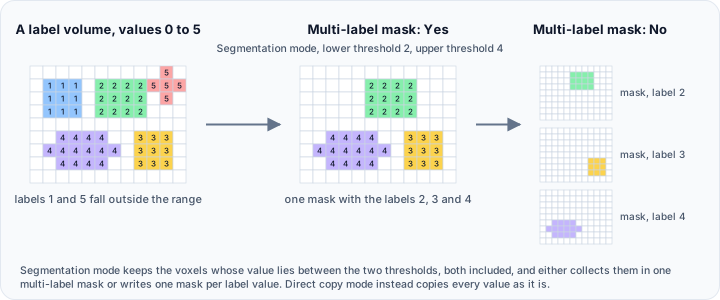
Creates masks from pre-segmented volumes by extracting labels within a threshold range.
| Parameter | Description |
|---|---|
| Lower threshold | Minimum intensity value to include |
| Upper threshold | Maximum intensity value to include |
| Multi-label mask | Create one mask with multiple labels or separate masks |
Use case: Extracting specific labels from AI-segmented or atlas data.
Parameters
Target Objects
Select which volumes to convert:
- Active volume object
- Selected volume object(s)
- Visible volume object(s)
- All volume objects
Mode Selection
| Mode | Description |
|---|---|
| Direct copy | Copy volume values directly to mask |
| Segmentation | Extract labels using threshold range |
Segmentation Options
When using Segmentation mode:
| Parameter | Description |
|---|---|
| Lower threshold | Include voxels with values ≥ this threshold |
| Upper threshold | Include voxels with values ≤ this threshold |
| Multi-label mask | Yes: Create single mask with all labels; No: Create separate mask per label |
Workflow
Direct Copy
- Open the Volume To Mask tool.
- Select target volume(s).
- Set Mode to Direct copy.
- Click Apply.
- New mask objects are created in the Scene Tree.
Extracting Labels from Segmentation
- Open the Volume To Mask tool.
- Select the pre-segmented volume.
- Set Mode to Segmentation.
- Set Lower threshold and Upper threshold to define the label range.
- Choose Multi-label mask:
- Yes: All labels in one mask object
- No: Separate mask for each unique label value
- Click Apply.
Use Cases
Converting AI Segmentation Results
AI segmentation tools (TotalSegmentator, nnU-Net, MONAI) often output volumes where each anatomical structure has a unique integer label:
- Import the segmentation result volume.
- Use Segmentation mode with threshold range covering all labels (e.g., 1–117).
- Create a multi-label mask for unified analysis, or separate masks for individual structures.
Creating Masks from Thresholded Data
For volumes already processed with threshold operations:
- Use Direct copy mode.
- Non-zero voxels become mask regions.
- Fast conversion without additional processing.
Extracting Specific Structures
To isolate specific labels from a multi-label volume:
- Set threshold range to the specific label value (e.g., lower=5, upper=5).
- Only voxels with that label are included.
- Creates a mask for just that structure.
Multi-Label vs. Separate Masks
| Option | Result | Use Case |
|---|---|---|
| Multi-label (Yes) | One mask with multiple label values | Unified segmentation analysis, export as single file |
| Separate masks (No) | Individual mask per label | Independent editing, per-structure analysis |
Multi-label masks preserve the original label values from the volume. Separate masks each contain only their respective label as the foreground value.
Output
Created masks appear in the Scene Tree under the Masks category:
- Direct copy: Named based on source volume
- Multi-label mask: Single mask with all extracted labels
- Separate masks: Multiple masks, typically named with label indices
Data Type Considerations
Direct Copy Behavior
| Source Data Type | Mask Result |
|---|---|
| Unsigned 8-bit | Direct copy (identical values) |
| Signed/Unsigned 16-bit | Rescaled to 0–255 |
| 32-bit integer | Rescaled to 0–255 |
| Float/Double | Rescaled to 0–255 |
Rescaling may lose precision for non-8-bit data. If exact values are important, use Segmentation mode with appropriate thresholds.
Segmentation Mode
Segmentation mode preserves label values within the mask (for multi-label) or uses the label value as the foreground (for separate masks).
Scripting
The Volume To Mask operations are available via the Python scripting API.
import ScriptingApi as api

app = api.Application()
volume_operations = app.get_volume_operations()

# Direct copy
mask_names = volume_operations.create_mask_by_direct_copying(["Volume1"])

# Segmentation - multi-label mask
mask_names = volume_operations.create_masks_by_segmentation(
    ["SegmentedVolume"],
    1,      # lower_threshold
    255,    # upper_threshold
    True    # create_multilabel_mask
)

# Segmentation - separate masks per label
mask_names = volume_operations.create_masks_by_segmentation(
    ["SegmentedVolume"],
    1,      # lower_threshold
    117,    # upper_threshold
    False   # create_multilabel_mask
)
See the VolumeOperations API Reference for details.
Related Tools
| Tool | Direction | Description |
|---|---|---|
| Volume To Mask | Volume → Mask | Convert volume data to masks |
| Mask To Surface | Mask → Surface | Generate surface meshes from masks |
| Thresholding | Volume → Mask | Create masks using interactive thresholding |