Morphology Operations
The Morphology Operations tool applies mathematical morphology operations to volume or mask objects. These operations modify object shapes based on a structuring element and are fundamental for shape analysis, noise removal, and object separation.
Accessing the Tool
- Navigate to the Image tab in the ribbon.
- Click Morphology Operations in the Operations section.
Parameters
Target Objects
Select objects to process. The list covers volumes and masks alike, because morphology works on either:
- Active volume object, Selected volume object(s), Visible volume object(s), All volume objects
- Active mask object, Selected mask object(s), Visible mask object(s), All mask objects
Operation Type
| Operation | Description |
|---|---|
| Erode | Shrinks objects by removing pixels from boundaries |
| Dilate | Expands objects by adding pixels to boundaries |
| Open | Erosion followed by dilation; removes small protrusions |
| Close | Dilation followed by erosion; fills small holes and gaps |
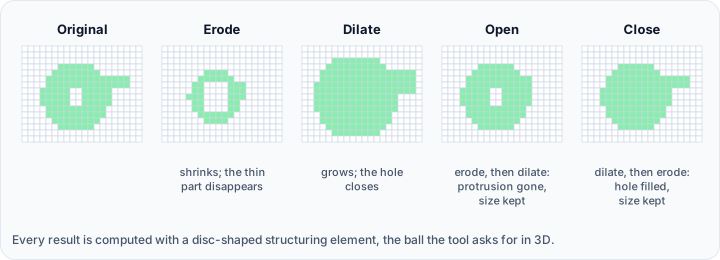
Structuring Element
Define the kernel (structuring element) size for the operation:
The group is titled Structuring element ball radius, and the element is a ball with the radii you give it:
| Parameter | Range | Default | Description |
|---|---|---|---|
| X (pixels) | 1 to 50 | 7 | Radius of the neighbourhood along X |
| Y (pixels) | 1 to 50 | 7 | Radius of the neighbourhood along Y |
| Z (pixels) | 1 to 50 | 1 | Radius of the neighbourhood along Z |
| Isotropic | Ties the three radii together, so changing one changes all three |
The default Z radius of 1 makes the operation almost in-plane, which suits data whose slice spacing is much larger than its in-plane spacing. For an isotropic volume, tick Isotropic so the structuring element is a true sphere and the result is direction independent.
Operation Details
Erode
Erosion removes pixels at object boundaries:
- Objects shrink inward
- Small objects may disappear entirely
- Connections between objects may break
- Useful for separating touching objects
Effect: A pixel is eroded (set to background) if any part of the structuring element extends outside the object.
Dilate
Dilation adds pixels at object boundaries:
- Objects grow outward
- Small gaps between objects may close
- Useful for filling small holes
- Can connect nearby objects
Effect: A pixel is dilated (set to foreground) if any part of the structuring element touches the object.
Open (Erosion → Dilation)
Opening removes small bright features and thin connections:
- Smooths object contours
- Removes small protrusions (spurs)
- Breaks thin bridges between objects
- Preserves overall object shape
Use case: Cleaning up noisy segmentations by removing small artifacts.
Close (Dilation → Erosion)
Closing fills small dark features and gaps:
- Smooths object contours
- Fills small holes
- Connects nearby objects
- Bridges narrow breaks
Use case: Completing segmentations by filling internal holes.
Workflow
- Open the Morphology Operations tool.
- Select target objects from the dropdown.
- Choose the operation type (Erode, Dilate, Open, Close).
- Set the structuring element radii.
- Enable Isotropic for uniform processing in all directions.
- Click Apply to perform the operation.
Use Cases
Separating Touching Objects
When segmented objects touch and need to be separated:
- Apply Erode with appropriate radius.
- Objects shrink and separate.
- Use connected component analysis to label individual objects.
- Optionally Dilate to restore approximate original size.
Filling Holes in Segmentation
When segmentation contains unwanted internal holes:
- Apply Close with radius larger than the holes.
- Holes are filled while outer boundaries remain similar.
Removing Small Artifacts
When segmentation contains small noise spots:
- Apply Open with radius larger than the artifacts.
- Small isolated regions disappear.
- Larger objects remain with smoothed boundaries.
Smoothing Jagged Boundaries
For cleaner segmentation edges:
- Apply Close followed by Open, or vice versa.
- Jagged edges become smoother.
- Adjust radii to control smoothing strength.
Parameter Guidelines
| Scenario | Operation | Suggested Radius |
|---|---|---|
| Remove small spots | Open | 2–5 pixels |
| Fill small holes | Close | 2–5 pixels |
| Separate objects | Erode | Depends on gap needed |
| Smooth boundaries | Open + Close | 1–3 pixels |
Use smaller radii for subtle adjustments and larger radii for more aggressive modifications. Preview results before applying to large datasets.
2D vs 3D Processing
The structuring element operates in 3D when Z radius > 0:
| Z Radius | Processing Mode |
|---|---|
| 1 (or more) | Full 3D morphology |
| Very small | Approximately slice-by-slice |
For consistent 3D objects, use similar radii in all directions (isotropic). For slice-based data, you may want smaller Z radius.
Scripting
Morphological operations are available via the Python scripting API.
import ScriptingApi as api

app = api.Application()
volume_operations = app.get_volume_operations()

# Erode with ball radius [7, 7, 1] pixels
volume_operations.morphological_operation(
    ["Volume1"],
    api.MorphologicalOperation.Erode,
    [7, 7, 1]  # radius [x, y, z]
)

# Dilate
volume_operations.morphological_operation(["Volume1"], api.MorphologicalOperation.Dilate, [5, 5, 5])

# Open
volume_operations.morphological_operation(["Volume1"], api.MorphologicalOperation.Open, [3, 3, 3])

# Close
volume_operations.morphological_operation(["Volume1"], api.MorphologicalOperation.Close, [3, 3, 3])
See the VolumeOperations API Reference for details.
Morphological operations modify data directly. Excessive erosion may remove important structures; excessive dilation may merge separate objects.