Poisson Remesh
The Poisson Remesh tool reconstructs a new, watertight triangle mesh from a surface or a set of oriented 3D points using Poisson surface reconstruction. It is useful for scans, noisy data, and point clouds because it uses the full set of input points and normals to estimate a continuous closed surface.
The tool provides two reconstruction methods: Screened and Unscreened.
Overview
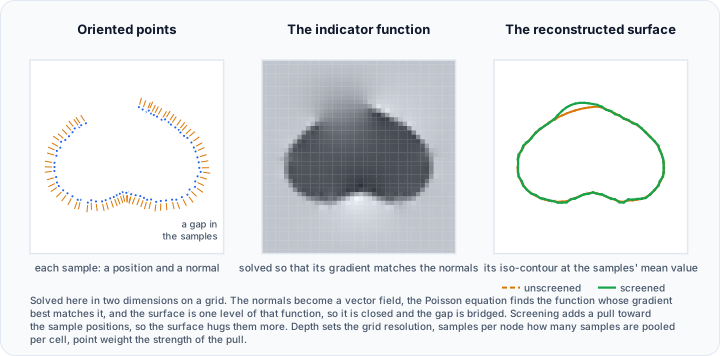
Poisson surface reconstruction uses input positions and normals to estimate a smooth, closed surface. This gives the method several practical advantages:
- Watertight output: The reconstructed mesh is closed, making it well suited for 3D printing, volume calculation, and simulation.
- Noise resilience: Because the solution is global, scanner noise and small registration errors are smoothed out rather than reproduced.
- Point cloud support: The tool works both on triangle meshes and on point clouds without any connectivity.
Because the algorithm reconstructs a closed surface, open boundaries in the input are closed over, and thin or disconnected structures may be merged. If preserving open boundaries or sharp feature edges is a requirement, consider the Remesh tool instead.
Reconstruction Methods
Screened (recommended)
The screened method adds a soft positional constraint so the reconstructed surface stays close to the input points while still smoothing noise.
In practice this means the screened method:
- Preserves details and the overall shape of the input more accurately
- Reduces the shrinking and over-smoothing that the original formulation can exhibit
- Balances data fidelity and smoothness, producing high-quality surfaces even from noisy or sparse point clouds
The strength of this positional constraint is controlled by the Point weight parameter; setting it to 0 disables the extra point-fitting effect.
Unscreened
The unscreened method fits the surface from the point normals without the additional point-fitting constraint. It yields very smooth surfaces that robustly approximate noisy data. The trade-off is that fine details may be smoothed away and the reconstruction may shrink slightly relative to the input, especially at higher noise levels or lower detail settings.
Choose Screened when closer shape fidelity and detail preservation matter. Validate dimension-critical results against the source data because any reconstructive remesh can smooth, close, or shift geometry. Choose Unscreened when a maximally smooth, simplified representation of noisy data is the goal and fidelity to individual input points is less important.
Accessing the Tool
- Navigate to the Surface ribbon tab.
- Locate the Edit section.
- Click the Additional dropdown menu.
- Select Poisson Remesh.
Target Object(s) Specification
Select the desired scope from the Target object(s) dropdown:
| Target Scope | Description |
|---|---|
| Active Surface | Remesh only the active surface. |
| Selected Surfaces | Remesh all selected surfaces. |
| Visible Surfaces | Remesh all surfaces visible in the 3D view. |
| All Surfaces | Remesh all surfaces in the project. |
The tool replaces the mesh of the target objects. Use undo or duplicate objects first if you need the original geometry.
Parameters
Select the reconstruction method from the Method dropdown; the parameter panel switches to the controls of the selected method. The Default button resets the parameters of the selected method to their default values.
Common Parameters
| Parameter | Range | Description |
|---|---|---|
| Depth | 4 – 14 | Controls the maximum reconstruction detail. Higher values capture more detail but significantly increase computation time and memory usage. |
| Scale | 1.0 – 2.0 | Ratio between the diameter of the cube used for reconstruction and the diameter of the bounding cube of the input samples. |
| Samples per node | 1.0 – 30.0 | Controls smoothing for noisy inputs. For clean data, use small values (1.0 – 5.0); for noisy data, larger values (15.0 – 20.0) provide smoother, noise-reduced reconstructions. |
| Use normal magnitudes as confidence | on/off | When enabled, the magnitude of each input normal is used as a confidence weight for its sample. This has no effect when the input normals are unit length — for example, when they are computed automatically by the tool. |
Depth is the primary quality control for both methods: each increment roughly doubles the effective resolution of the reconstruction. Start at the default of 8 and increase it only if the result misses detail you need.
Screened Method Parameters
| Parameter | Range | Default | Description |
|---|---|---|---|
| Point weight | 0.0 – 20.0 | 2.0 | Strength of fitting the reconstructed surface to the input points. Higher values fit more tightly; 0 disables the extra point-fitting effect. |
The screened method defaults to Scale 1.1 and Samples per node 1.5.
Unscreened Method Parameters
| Parameter | Range | Default | Description |
|---|---|---|---|
| Solver divide | 6 – 12 | 8 | Controls how the reconstruction work is split to reduce memory usage, at the cost of a small increase in reconstruction time. |
| Iso divide | 6 – 12 | 8 | Controls how the final surface extraction is split to reduce memory usage, at the cost of a small increase in extraction time. |
The unscreened method defaults to Scale 1.25 and Samples per node 1.0.
How It Works
- Input preparation: Triangle meshes are cleaned and triangulated. Point clouds are passed through unchanged.
- Normal handling: The reconstruction requires consistently oriented point normals. If the input does not provide them, they are computed automatically from the mesh triangles or estimated from nearby points in a point cloud.
- Reconstruction: The selected method reconstructs a closed mesh. The screened method adds soft point-fitting constraints so the result stays closer to the input points.
- Normal recomputation: Face and point normals of the reconstructed mesh are recomputed with automatic orientation so the result renders and measures correctly.
Remeshing Point Clouds
Poisson Remesh is the recommended way to turn an imported point cloud (for example, from an .xyz file) into a triangle mesh.
A point cloud has no faces, so until it is reconstructed it can only be viewed and positioned. Surface area and closed volume measurement, boolean operations, mesh repair, and export to formats that store triangles all require a mesh.
- Import the point cloud as a surface object. See Import.
- Open Poisson Remesh from the Additional menu of the Surface tab.
- Choose the target scope so the point cloud object is included.
- Use the Screened method; increase Samples per node if the scan is noisy.
- Click Apply.
The quality of the reconstruction depends on the quality of the estimated normals. For very sparse, very noisy, or strongly non-uniform point clouds, automatic normal estimation may orient some regions incorrectly, which can produce blobs or holes in the reconstruction.
Workflow Recommendations
- Accurate remeshing of scans: Use the screened method with the default point weight (2.0). Increase the point weight (4.0 – 10.0) if the result still drifts from the input points.
- Smoothing very noisy data: Use the screened method with a higher samples-per-node value (10 – 20), or the unscreened method when maximum smoothness is preferred over fidelity.
- Preserving detail: Increase the depth to 10 – 12 for high-resolution inputs; expect substantially longer computation and higher memory usage.
- Preparing for 3D printing: The watertight output usually needs no hole filling; follow up with Remesh if you also require uniform triangle quality.
Technical Considerations
- Closed output: Open boundaries in the input are closed over. The tool is not suitable when open boundaries must be preserved.
- Topology changes: The output mesh has entirely new vertices and triangles; any associated data arrays (colors, scalars) are not transferred.
- Bounding region: Geometry is reconstructed within the scaled bounding cube of the input samples; the Scale parameter controls the margin.
- Undo support: The operation is undoable, so you can always revert to the original mesh.
Scripting API
The Poisson remeshing functionality is exposed via the Python Scripting API as two methods, one per reconstruction method:
import ScriptingApi as api

app = api.Application()
surface_operations = app.get_surface_operations()

# Screened Poisson surface reconstruction (recommended)
params = api.SurfaceScreenedPoissonRemeshParams()
params.depth = 8              # detail level, 4-14 (higher = more detail)
params.scale = 1.1            # reconstruction region / input bounds ratio, 1.0-2.0
params.samples_per_node = 1.5 # smoothing control, 1.0-30.0 (larger = smoother)
params.point_weight = 2.0     # point fitting strength, 0-20
params.confidence = False     # use normal magnitudes as confidence weights
surface_operations.poisson_remesh_screened(['Surface_1'], params)

# Unscreened (original) Poisson surface reconstruction
params = api.SurfaceUnscreenedPoissonRemeshParams()
params.depth = 8              # detail level, 4-14 (higher = more detail)
params.scale = 1.25           # reconstruction region / input bounds ratio, 1.0-2.0
params.samples_per_node = 1.0 # smoothing control, 1.0-30.0 (larger = smoother)
params.solver_divide = 8      # 6-12 (reduces memory usage)
params.iso_divide = 8         # 6-12 (reduces extraction memory usage)
params.confidence = False     # use normal magnitudes as confidence weights
surface_operations.poisson_remesh_unscreened(['Surface_1'], params)
Related Tools
- Remesh: Improve triangle quality while preserving the original topology, open boundaries, and sharp edges.
- Voxel Remesh: Remesh by voxelizing the surface and converting it back to a mesh.
- Smooth: Reduce surface noise without reconstructing the mesh.
References
- Michael Kazhdan, Matthew Bolitho, and Hugues Hoppe, Poisson Surface Reconstruction, Eurographics Symposium on Geometry Processing (2006). Available at: https://hhoppe.com/poissonrecon.pdf.
- Michael Kazhdan and Hugues Hoppe, Screened Poisson Surface Reconstruction, ACM Transactions on Graphics 32(3), 2013. Available at: https://hhoppe.com/screenedpoisson.pdf.