Surface Distance
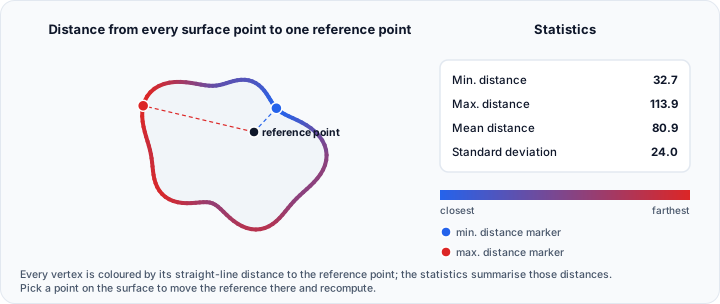
The Surface Distance tool analyzes the Euclidean distance from every point on a surface to a specified reference point. The results are visualized as a color map and presented with comprehensive statistics, enabling distance-based surface analysis and measurement.
Overview
Distance analysis calculates the straight-line distance from each surface vertex to a reference point in 3D space. This creates a distance map that reveals:
- Radial relationships: How far surface regions are from a center point
- Proximity analysis: Identifying nearest and farthest regions
- Geometric relationships: Understanding spatial distribution around a reference
- Measurement verification: Checking distances against specifications
The tool provides both visual feedback through color mapping and numerical statistics for quantitative analysis.
Accessing the Tool
Navigate to the Surface ribbon tab and locate Surface Distance in the Analyze section. Select a surface object before activating the tool.
Reference Point Configuration
The reference point defines the origin from which all distances are measured:
| Parameter | Description |
|---|---|
| X | X-coordinate of reference point (mm) |
| Y | Y-coordinate of reference point (mm) |
| Z | Z-coordinate of reference point (mm) |
Setting the Reference Point
You can set the reference point by:
- Direct entry: Type coordinates into the X, Y, Z fields
- Interactive picking: Enable Pick point on surface to update distances and click on the surface
Interactive picking is particularly useful for measuring distances from a specific surface location rather than an arbitrary point in space.
Statistics
The Statistics panel is a two-column table, headed Name and Value, filled in when you click Update:
| Row | Description |
|---|---|
| Surface name | The surface the results belong to |
| Reference point (mm) | The reference point the distances were measured from |
| Min. distance (mm) | Shortest distance to the reference point |
| Max. distance (mm) | Longest distance to the reference point |
| Mean distance (mm) | Average distance across all points |
| Standard deviation | Spread of the distance values |
Together these summarise how the surface sits relative to the reference point.
Visualization Options
Range Adjustment
The range slider controls the color mapping limits:
- Lower bound: Distances below this value appear as the minimum color
- Upper bound: Distances above this value appear as the maximum color
Adjusting the range allows you to:
- Focus on a specific distance range of interest
- Increase color contrast for detailed analysis
- Highlight regions at particular distances
Show Max Distance
Enable Show max. distance to display a marker at the point farthest from the reference point. This helps identify the most distant location on the surface.
Show Min Distance
Enable Show min. distance to display a marker at the point closest to the reference point. This helps identify the nearest location on the surface.
Pick Point on Surface
Enable Pick point on surface to update distances to interactively set the reference point. When active, clicking on the surface:
- Sets the clicked location as the new reference point
- Automatically recalculates all distances
- Updates the visualization and statistics
This mode is useful for exploring distance relationships from different reference locations.
Actions
Update
Click Update to recalculate the distance analysis with current settings. Use this after modifying the reference point coordinates manually.
Export...
Export... is only available once distances have been calculated. It opens a save dialog with three formats; the one you pick decides what is written:
| Format | Contents |
|---|---|
PDF Report (.pdf) | A formatted report with the analysis description, the settings used, the statistics table, and any snapshots you add in the report dialog |
Distance Data (.csv) | One row per measured point, with the coordinates of both endpoints and the distance |
Statistics (.txt) | The Statistics table as plain text |
Choosing the PDF format opens the report dialog before the file is written, so the report can be reviewed and completed first.
Copy to Measurements
Copy to Measurements hands the distance markers that are currently visible - the minimum marker, the maximum marker, and the picked point - to the Measurements tool, where they become permanent project objects that survive closing this tool.
Only visible markers are copied. If none is visible, Volvicon says so and copies nothing.
Practical Applications
Sphericity Analysis
To assess how well a surface approximates a sphere:
- Set the reference point at the expected sphere center
- Calculate distances
- Review the range (max - min) and standard deviation
- Small values indicate good sphericity; large values indicate deviation
Radial Tolerance Verification
For verifying radial dimensions:
- Position the reference point at the center axis
- Calculate distances
- Compare min/max distances against nominal radius
- Adjust visualization range to tolerance limits for visual inspection
Proximity Mapping
To understand surface proximity to a critical point:
- Set the reference point at the location of interest
- Calculate distances
- Use the color map to identify close and distant regions
- Enable min/max markers to locate extremes
Feature Location
To find specific geometric features:
- Calculate distances from a known reference
- Enable pick mode to query specific locations
- Use statistics to characterize feature positions
- Export data for detailed analysis
Technical Considerations
Distance Calculation
The Euclidean distance from point to reference point is:
All distances are positive (unsigned) values representing absolute distance regardless of direction.
Coordinate System
Distances are calculated in the global coordinate system using the surface's current world position. If the surface has been transformed, distances reflect its current location.
Vertex-Based Calculation
Distances are calculated at each vertex. For surfaces with large triangles, the actual closest point to the reference might be on a triangle face rather than at a vertex. For high precision requirements, consider remeshing to add more vertices.
Performance
Distance calculation is computationally efficient (linear in vertex count) and should complete quickly for most meshes. Very large meshes (millions of vertices) may take a few seconds.
Use Case Examples
Example 1: Checking Hole Concentricity
- Position reference point at the nominal hole center
- Calculate distances to the hole edge surface
- If the hole is perfectly centered, all distances should be equal (the radius)
- Range value indicates concentricity error
Example 2: Surface Deviation from Center
- Calculate the surface centroid (average of all points)
- Set this as the reference point
- Calculate distances
- The distribution shows how far points vary from the center
Example 3: Clearance Analysis
- Set reference point at a critical location (e.g., insertion point)
- Calculate distances
- Minimum distance indicates closest approach
- Verify minimum meets clearance requirements
Operation Log
No scripting method measures the distance to a reference point, so the Operation Log is where a run is kept. Each run is listed with the surface it read, the reference point it measured from, and the smallest, largest and mean distance it found. The panel measures again when you pick a point on the surface or edit the reference point, and each of those is listed as well. The colour map it leaves on the surface is display, so the entry carries no undo step and offers no Python call.
Common Issues and Solutions
| Issue | Likely Cause | Solution |
|---|---|---|
| All points same color | Reference point very far away | Move reference closer to surface |
| Very large distances | Reference point outside expected range | Verify reference point coordinates |
| Results not updating | Manual entry without Update | Click Update after changing coordinates |
| No color gradient | Range too wide | Adjust range slider to actual data range |
| Markers not visible | Show options disabled | Enable Show max. distance or Show min. distance |
| Export... does nothing | No distances calculated yet | Click Update first; the export reports that no data was found |