Elevation
The Elevation tool analyzes surface geometry by calculating the elevation (height) of each point along a specified axis direction. The results are visualized as a color map and presented with statistical analysis, enabling quantitative assessment of surface height distribution.
Overview
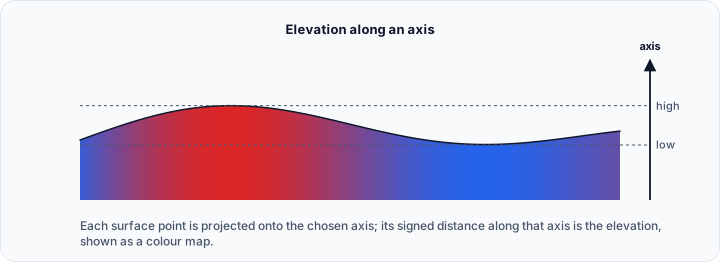
Elevation analysis projects each surface point onto a specified axis direction and calculates the signed distance along that direction. This creates a height map that reveals:
- Surface topology: Hills, valleys, and gradients
- Manufacturing deviations: Flatness or uniformity analysis
- Dimensional analysis: Height measurements relative to a reference direction
- Quality inspection: Identifying high and low regions
The tool provides both visual feedback through color mapping and numerical statistics for quantitative analysis.
Accessing the Tool
Navigate to the Surface ribbon tab and locate Elevation in the Analyze section. Select a surface object before activating the tool.
Axis Configuration
The elevation is calculated as the projection of each point's position onto a specified axis direction.
Preset Axis Options
For convenience, three preset axis directions are available:
| Axis | Direction Vector | Description |
|---|---|---|
| X-axis | (1, 0, 0) | Elevation along the X direction |
| Y-axis | (0, 1, 0) | Elevation along the Y direction |
| Z-axis | (0, 0, 1) | Elevation along the Z direction (default) |
Arbitrary Direction
Select Arbitrary direction to specify a custom axis direction using X, Y, and Z components:
| Parameter | Description | Range |
|---|---|---|
| X | X-component of direction | -1.0 to 1.0 |
| Y | Y-component of direction | -1.0 to 1.0 |
| Z | Z-component of direction | -1.0 to 1.0 |
The direction vector is normalized internally, so you only need to specify the relative proportions of each component. For example, (1, 1, 0) represents a diagonal direction in the XY plane.
Choosing the Right Axis
Select the axis based on your analysis goals:
- Z-axis: Traditional height analysis; elevation above a horizontal reference
- X or Y-axis: Lateral position analysis
- Arbitrary: Custom orientations for angled surfaces or specific measurement requirements
Statistics
The Statistics panel is a two-column table, headed Name and Value, filled in when you click Update:
| Row | Description |
|---|---|
| Surface name | The surface the results belong to |
| Axis | The direction used, as a normalized vector |
| Min. elevation (mm) | Lowest elevation value on the surface |
| Max. elevation (mm) | Highest elevation value on the surface |
| Mean elevation (mm) | Average elevation across all points |
| Standard deviation | Spread of the elevation values |
The panel stays empty until the first Update, and the rows are recalculated on every later Update.
Visualization Options
Range Adjustment
The range slider controls the color mapping limits:
- Lower bound: Elevations below this value appear as the minimum color
- Upper bound: Elevations above this value appear as the maximum color
Adjusting the range allows you to:
- Focus on a specific elevation range of interest
- Increase color contrast in regions of interest
- Exclude outliers from the visualization
Show max. elevation
Displays a marker labelled Max. elevation (mm) at the point with the highest elevation value, so the peak of a complex surface is easy to find.
Show min. elevation
Displays a marker labelled Min. elevation (mm) at the point with the lowest elevation value.
Pick point on surface to show elevation
Turns on interactive querying. Click anywhere on the surface and a marker labelled Elevation (mm) is placed there, carrying the elevation of that point. Each click moves the marker to the new location.
Actions
Update
Click Update to recalculate the elevation analysis with current settings. Use this after:
- Changing the axis direction
- Modifying the surface geometry
- Switching to a different surface
Export...
Export... is only available once elevations have been calculated. It opens a save dialog with three formats; the one you pick decides what is written:
| Format | Contents |
|---|---|
PDF Report (.pdf) | A formatted report with the analysis description, the settings used, the statistics table, and any snapshots you add in the report dialog |
Elevation Data (.csv) | One row per measured point, with the columns X1, Y1, Z1, X2, Y2, Z2, Elevation value (mm) |
Statistics (.txt) | The Statistics table as plain text |
Choosing the PDF format opens the report dialog before the file is written, so the report can be reviewed and completed first.
Copy to Measurements
Copy to Measurements hands the elevation markers that are currently visible - the minimum marker, the maximum marker, and the picked point - to the Measurements tool, where they become permanent project objects that survive closing this tool.
Each copied marker produces two measurements: a distance measurement spanning the elevation difference between the two points along the selected axis, and a point measurement at the relevant location carrying the elevation value.
Only visible markers are copied. If none of the three is visible, Volvicon says so and copies nothing, so turn on Show min. elevation, Show max. elevation, or pick a point first.
Practical Applications
Flatness Analysis
To assess surface flatness:
- Align the axis perpendicular to the expected flat surface
- Calculate elevation
- Review the range (max - min) as a flatness indicator
- Small range indicates good flatness; large range indicates warping or curvature
Manufacturing Tolerance Verification
For height tolerance checking:
- Set the appropriate axis direction
- Calculate elevation
- Adjust the visualization range to the tolerance limits
- Colors outside the nominal range indicate out-of-tolerance regions
Surface Feature Identification
To identify raised or recessed features:
- Calculate elevation along the relevant axis
- Enable both min and max markers
- Use the range slider to highlight features of interest
- Click on specific areas to query exact elevation values
Comparison Analysis
For comparing surfaces:
- Calculate elevation on each surface with the same axis settings
- Compare statistics between surfaces
- Export data for detailed comparison in external tools
Technical Considerations
Elevation Calculation
The elevation value for a point along direction is calculated as:
where is the normalized axis direction vector and represents the dot product.
This produces a signed value—points in the positive direction have positive elevation, and points in the negative direction have negative elevation.
Coordinate System
Elevation is calculated in the global coordinate system. If your surface has been transformed, the elevation reflects its current world position, not its original orientation.
Performance
Elevation calculation is computationally inexpensive (linear in the number of vertices) and should complete quickly even for large meshes.
Color Map
Elevation is written onto the surface as scalar data and drawn through the surface's colour map, so the colours follow the map assigned to the object in Render Properties rather than a map fixed by this tool.
Operation Log
No scripting method measures elevation, so the Operation Log is where a run is kept. Each Update is listed with the surface it read, the axis it measured along, and the smallest, largest and mean elevation it found. The colour map it leaves on the surface is display, so the entry carries no undo step and offers no Python call.
Common Issues and Solutions
| Issue | Likely Cause | Solution |
|---|---|---|
| All same color | Range too wide | Adjust range slider to tighter bounds |
| No color variation | Uniform surface | Expected behavior for flat surfaces |
| Wrong direction | Incorrect axis | Choose different preset or adjust arbitrary direction |
| Markers not visible | Show options disabled | Enable Show max. elevation or Show min. elevation |
| Outdated results | Surface modified | Click Update to recalculate |
| Export... does nothing | No elevations calculated yet | Click Update first; the export reports that no data was found |