Global Registration
The Global Registration tool automatically aligns surface objects by minimizing the distance between movable and fixed reference objects. Use this tool to register scanned data, align multiple surface acquisitions, or fit surfaces to reference geometry.
Accessing the Tool
- Navigate to the Surface tab in the ribbon.
- Click Global Registration in the Transform section.
Description
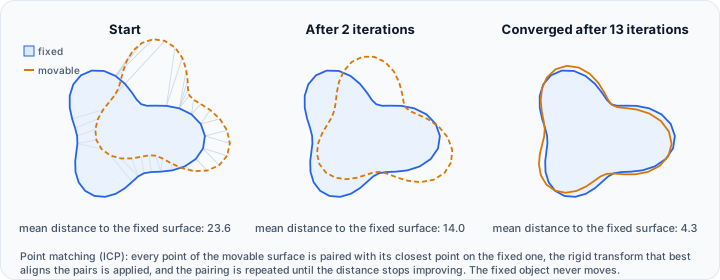
Perform global registration to automatically minimize the distance field among selected 3D objects. The algorithm transforms movable object(s) to best align with a fixed reference object using iterative optimization techniques.
Registration Type
Select the type of objects to register:
| Option | Description |
|---|---|
| Register movable objects on surfaces | Align movable surface objects to a fixed reference surface. |
| Register movable objects on masks | Align movable surface objects to a fixed reference mask (voxel data). |
Objects
Specify the source and target objects for registration:
| Parameter | Description |
|---|---|
| Movable surface(s) | Select one or more surface objects that will be transformed to align with the fixed object. |
| Fixed surface/mask | Select the reference object that remains stationary. Movable objects will be aligned to this target. |
The fixed object is not modified during registration. Only the movable object(s) are transformed.
Algorithm
Choose the registration algorithm:
| Algorithm | Description |
|---|---|
| Point matching | Uses Iterative Closest Point (ICP) algorithm to minimize point-to-point distances. Fast and suitable for initial alignment when objects are reasonably close. |
| Feature matching | Uses surface curvature and geometric features for alignment. Better for surfaces with distinctive features but may be slower. |
| Point + Feature matching | Combines ICP with feature-based refinement. Provides robust alignment by using point matching for initial alignment followed by feature-based fine-tuning. |
Parameters
Click the Parameters checkbox to expand algorithm-specific settings.
Point Matching (ICP) Parameters
| Parameter | Description |
|---|---|
| Mode | Transformation type: Rigid (rotation + translation only), Similarity (rigid + uniform scale), or Affine (rigid + non-uniform scale + shear). |
| Maximum landmarks | Maximum number of points sampled from the surface for matching (default: 1000). Higher values improve accuracy but increase computation time. |
| Match centroids | When enabled, the registration begins by translating the movable object's centroid to match the fixed object's centroid. Recommended for faster convergence. |

Feature Matching Parameters
| Parameter | Description |
|---|---|
| Global iterations | Number of times the feature matching algorithm runs (default: 3). More iterations may improve alignment but increase processing time. |
| Overlap radius (mm) | The search radius around each point for finding correspondences. Surfaces farther apart than this distance may not align properly. Should exceed the smallest distance between surfaces. |
| Curvature threshold | Threshold for surface curvature comparison. Smaller values result in higher accuracy but may require surfaces with well-defined features. |
Point + Feature Matching Parameters
Combines parameters from both algorithms:
| Parameter | Description |
|---|---|
| Mode | Transformation type for ICP phase: Rigid, Similarity, or Affine. |
| Maximum landmarks | Maximum points for ICP matching. |
| Global iterations | Iterations for feature matching refinement. |
| Overlap radius (mm) | Search radius for feature matching. |
| Curvature threshold | Curvature comparison threshold. |
| Match centroids | Pre-align centroids before ICP. |
Additional Options
| Option | Description |
|---|---|
| Show RMSE | When enabled, displays the Root Mean Square Error after registration completes. Lower RMSE indicates better alignment. |
| Default | Reset parameters to default values. |
Registration Modes
The transformation mode determines what geometric changes are allowed during registration:
| Mode | Description |
|---|---|
| Rigid | Allows only rotation and translation. Preserves object size and shape. Best for aligning identical objects in different poses. |
| Similarity | Allows rotation, translation, and uniform scaling. Useful when objects may differ in overall size but have the same proportions. |
| Affine | Allows rotation, translation, scaling, and shearing. Most flexible but may distort shape. Use when significant deformation is expected. |
Use Affine mode with caution as it can introduce distortions. For anatomical data, Rigid mode typically produces the most reliable results.
Workflow
- Open the Global Registration tool from the Surface tab.
- Select the Registration type (surfaces or masks).
- Choose the Movable surface(s) that will be aligned.
- Select the Fixed surface that serves as the reference.
- Choose the Algorithm based on your requirements.
- Optionally expand Parameters to adjust algorithm settings.
- Optionally enable Show RMSE to see the alignment quality metric.
- Click Apply to execute the registration.
The movable object(s) are transformed to align with the fixed reference.
Use Cases
Multi-Scan Alignment
Align multiple partial surface scans captured from different angles into a unified coordinate system.
Pre-Operative Planning
Register patient-specific anatomical surfaces to template or reference geometries for surgical planning.
Quality Inspection
Align scanned manufacturing parts to CAD reference models to evaluate deviations and quality.
Time-Series Analysis
Register surfaces acquired at different time points to track changes or deformations.
Atlas-Based Analysis
Align patient anatomy to standardized atlas surfaces for population studies.
Tips
- Start with centered objects: Enable Match centroids for faster convergence, especially when objects are far apart.
- Use Point matching first: For initial rough alignment, Point matching (ICP) is faster. Follow with Feature matching for refinement.
- Adjust overlap radius: If surfaces don't align, increase the overlap radius. If alignment is noisy, decrease it.
- Check RMSE: Enable Show RMSE to quantify alignment quality. RMSE values close to zero indicate excellent alignment.
- Prepare surfaces: Ensure surfaces are reasonably clean and complete. Large holes or noise may affect registration accuracy.
- Use Rigid mode for anatomy: For medical imaging applications, Rigid registration preserves anatomical accuracy.
Related Tools
- Transform: Apply manual transformations to surfaces.
- Interactive Transform: Manually position surfaces before automatic registration.