Surface to Mask
The Surface to Mask tool converts surface models into binary mask representations, enabling seamless integration between mesh-based geometry and volumetric image data. This conversion is essential when you need to perform voxel-based operations on structures that were originally defined as surface meshes, or when transferring geometry from mesh domain back into the segmentation workflow.
Understanding the Conversion Process
Surface-to-mask conversion involves voxelizing a surface mesh—transforming a continuous triangular representation into a discrete volumetric image where each voxel is classified as either inside or outside the surface boundary. This process, sometimes called "rasterization" in 3D, creates a binary mask that can be used for volumetric measurements, Boolean operations with other masks, or as input for image-based analysis algorithms.
The fundamental challenge in this conversion is determining which voxels lie inside versus outside the surface. Volvicon addresses this through multiple algorithms optimized for different use cases, from rapid boundary detection to accurate volumetric filling.
Accessing the Tool
Navigate to the Surface ribbon tab and locate Surface to Mask in the Convert section. Select one or more surface models to convert before activating the tool.
Conversion Methods
The tool provides four distinct conversion algorithms, each producing different mask characteristics:
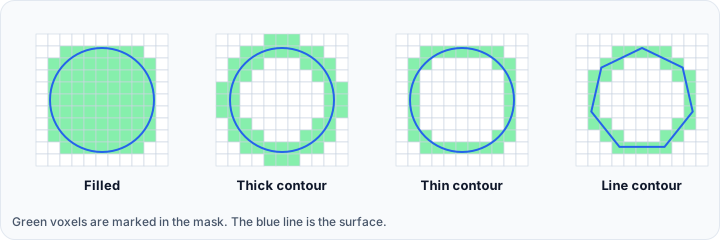
Filled
The Filled method creates a solid volumetric mask where all voxels inside the surface boundary are marked as foreground, along with the boundary voxels themselves. This is the most accurate method for capturing the complete volume enclosed by a surface.
This method employs ray-casting algorithms to determine inside/outside classification for every voxel in the output volume. While computationally more intensive than boundary-only methods, the result is a true volumetric representation suitable for volume measurements, density analysis, or Boolean operations with other masks.
Use this method when:
- You need accurate volume measurements
- The mask will participate in Boolean operations
- You plan to perform region-based analysis on the converted structure
- The surface represents a solid object (bone, organ, implant)
Thick Contour
The Thick contour method generates a mask representing only the surface boundary with a substantial thickness. Rather than filling the interior, this approach marks voxels that intersect with or lie close to the surface mesh, creating a shell-like mask.
The resulting mask has non-zero values at the surface boundary while the interior remains empty. This is useful when you're interested in the surface shell rather than the enclosed volume—for example, when analyzing cortical bone thickness or vessel walls.
Thin Contour
The Thin contour method produces a minimal-thickness boundary representation—essentially a single-voxel-thick shell at the surface location. This creates the most compact boundary representation possible while still capturing the surface geometry.
This method is efficient for:
- Creating boundary conditions for image processing operations
- Generating surface landmarks for registration algorithms
- Producing minimal data representations when interior detail is unnecessary
Line Contour
The Line contour method provides the fastest conversion by marking only the voxels that directly intersect with surface triangles. This produces a sparse representation consisting of discrete line-like structures following the mesh edges.
While less suitable for volumetric analysis, this method excels when:
- Speed is the primary concern
- You only need approximate boundary location
- The mask serves as a visualization overlay rather than an analytical input
Voxel Spacing Configuration
The conversion requires specifying the voxel dimensions for the output mask image:
| Parameter | Description | Default | Range |
|---|---|---|---|
| Voxel X (mm) | Voxel dimension in the X direction | 1.0 | 0.001 - 1000 |
| Voxel Y (mm) | Voxel dimension in the Y direction | 1.0 | 0.001 - 1000 |
| Voxel Z (mm) | Voxel dimension in the Z direction | 1.0 | 0.001 - 1000 |
These spacing values directly control the output resolution. Smaller voxel sizes produce higher-resolution masks that more accurately represent fine surface details, but require proportionally more memory and computation time. The relationship is cubic—halving the voxel size in all three dimensions increases memory requirements by a factor of eight.
Choosing Appropriate Resolution
When selecting voxel spacing:
Match existing image data: If the mask will be combined with existing CT or MRI data, use the same voxel spacing to ensure proper alignment and avoid interpolation artifacts.
Consider the application: For visualization purposes, coarser resolutions (1-2 mm) are often sufficient. For precise measurements or finite element preprocessing, finer resolutions (0.2-0.5 mm) may be necessary.
Evaluate surface detail: Examine the smallest features in your surface model. The voxel size should be at least 2-3 times smaller than the smallest features you need to preserve.
Post-Processing Options
Smooth
Enable the Smooth checkbox to apply post-processing smoothing to the generated mask. This can help reduce voxelization artifacts—the stair-stepping effect that occurs when converting continuous geometry to discrete voxels.
Smoothing is particularly beneficial when:
- Converting surfaces with curved or organic geometry
- The output voxel size is coarse relative to surface detail
- The mask will be used for visualization or further surface extraction
Note that smoothing slightly modifies boundary positions and may reduce the sharpness of geometric features. For applications requiring precise boundary fidelity, consider using finer voxel spacing instead of smoothing.
Project Image Data Considerations
Converting a surface to a mask may add padding to the project's image data bounds. This occurs when the surface extends beyond the current image volume, requiring expansion to accommodate the complete geometry.
Practical Workflow Examples
Converting an Implant Design to Mask
When evaluating implant placement, you may need to convert an STL implant model to a mask for visualization alongside CT data:
- Import the implant STL file into the project
- Position the implant using Transform tools
- Select the implant surface
- Open Surface to Mask
- Set voxel spacing to match the CT image resolution
- Select Filled method for solid representation
- Enable Smooth if the implant has curved surfaces
- Execute the conversion
- Overlay the resulting mask on CT images for evaluation
Creating a Vessel Wall Mask
To analyze blood vessel wall characteristics:
- Select the vessel lumen surface
- Open Surface to Mask
- Choose Thick contour method
- Set voxel spacing appropriate for wall thickness measurements
- Convert to obtain a wall-thickness representation
Rapid Boundary Visualization
For quick boundary overlay without volumetric detail:
- Select the surface model
- Open Surface to Mask
- Choose Line contour for fastest processing
- Accept default or coarse voxel spacing
- Convert for rapid boundary visualization
Best Practices
-
Verify surface quality first: Surfaces with holes, self-intersections, or inverted normals may produce incorrect inside/outside classification. Run Diagnostics and Fixes before conversion if quality is uncertain.
-
Plan voxel spacing strategically: Consider the downstream use of the mask. Over-resolution wastes resources; under-resolution loses detail. Match existing image data when possible.
-
Test with coarse resolution first: When converting complex surfaces, test with larger voxel sizes (2-5 mm) to verify correct conversion before committing to high-resolution output.
-
Consider memory constraints: Large surfaces converted at fine resolution can produce very large mask volumes. A 200 mm cubic region at 0.1 mm spacing produces 8 billion voxels—likely impractical for most systems.
-
Use appropriate methods: Don't use Filled method when only boundary location is needed, as it requires significantly more computation than contour methods.
Related Tools
- Create - Generate surfaces from masks (the reverse operation)
- Voxel Boolean - Boolean operations in voxel space using converted masks
- Diagnostics and Fixes - Ensure surface quality before conversion