Render Properties
The Render Properties tool allows you to configure how surface objects are displayed in the 3D view. Adjust representation modes, material properties, lighting settings, and auxiliary visualization widgets to customize the appearance of your surface meshes.
Accessing the Tool
- Navigate to the Surface tab in the ribbon.
- Click Render Properties in the General section.
Description
Edit the render properties of the active surface object. Changes apply to the currently selected surface(s) and affect their visual appearance in the 3D view. These settings do not modify the underlying mesh geometry.
Tabs
The Render Properties panel is organized into three tabs:
Render Tab
Configure the basic drawing settings for the surface.
Draw Options
| Parameter | Description |
|---|---|
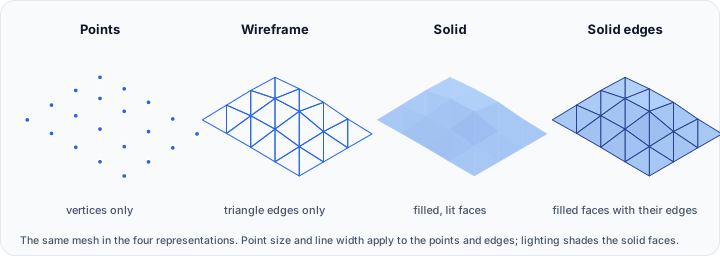
| Representation | Choose how the surface is rendered: Points (vertices only), Wireframe (edges only), Solid (filled triangles), or Solid edges (filled triangles with visible edges). |
| Point size | Adjust the size of rendered points (1-16). Applicable when representation includes points. |
| Line width | Adjust the thickness of rendered edges (1-16). Applicable for wireframe or solid edges modes. |
Other Options
| Parameter | Description |
|---|---|
| Visible sides | Control polygon culling: All (render both sides), Front-facing (cull back faces), or Back-facing (cull front faces). |
| Colors | Toggle surface point colors on/off. When enabled, displays per-vertex color data if present. |
| Lighting | Toggle lighting calculations on/off. Disabling lighting shows flat colors without shading. |
| Clipping | Toggle 3D clipping on/off. When enabled, the surface respects the 3D clipping planes. |
| Point normals | Toggle point normals visualization on/off. Displays normal vectors at each vertex for debugging. |
Material Tab
Configure the material and shading properties of the surface.
The Material tab provides access to color, opacity, and advanced material properties such as ambient, diffuse, and specular components. These settings control how the surface interacts with scene lighting.
Material settings affect the visual appearance for rendering purposes. Adjust these settings to achieve the desired look for screenshots, presentations, or visual analysis.
Widgets Tab
Configure auxiliary visualization widgets displayed around the surface.
Bounds Options
| Widget | Description |
|---|---|
| Scale axes | Display a scale reference axes widget around the surface. Click the color button to customize the axes color. |
| Outline bounding box | Display an outline box showing the surface extents. Click the color button to customize the box color. |
| Corner bounding box | Display corner markers at the bounding box corners. Click the color button to customize the marker color. |
| Axes labels | Display dimensional labels on the bounding box axes. Click the color button to customize the label color. |
Workflow
- Select the surface object you want to configure in the Scene Tree.
- Open the Render Properties tool from the Surface tab.
- Navigate to the appropriate tab:
- Render: For basic display mode settings.
- Material: For color and shading properties.
- Widgets: For auxiliary visualization elements.
- Adjust the settings as needed.
Changes are applied immediately and are visible in the 3D view.
Use Cases
Mesh Inspection
Switch to Wireframe or Solid edges mode to inspect the mesh topology and triangle distribution.
Presentation Quality
Use the Material tab to configure attractive shading for screenshots and presentations. Enable Lighting for realistic appearance.
Debugging
Enable Point normals to visualize vertex normals for debugging mesh orientation issues. Use Back-facing culling to identify inverted triangles.
Dimensional Reference
Enable Outline bounding box and Axes labels to display dimensional information directly in the 3D view.
Tips
- Use Solid edges representation to see both the filled surface and the mesh structure simultaneously.
- Disable Lighting when you need to see uniform colors without shading effects.
- The Visible sides option helps identify mesh orientation issues—back-facing polygons may indicate inverted normals.
- Enable Clipping to see inside hollow structures when using the 3D clipping planes.
- Bounding box widgets are helpful for understanding object dimensions and position in 3D space.
Related Tools
- Create: Generate primitive surface objects.
- Diagnostics and Fixes: Repair mesh issues identified through visual inspection.