Import
The Import page allows you to add new data into an existing project. Unlike creating a new project, import operations are additive—existing project content remains available, enabling you to combine datasets for comparative analysis, multi-modality studies, or progressive workflows.
Import vs. New Project
| Action | Behavior |
|---|---|
| New | Clears the current project and creates a fresh project from imported data |
| Import | Adds data to the current project alongside existing content |
Use Import when you need to:
- Combine multiple scans or datasets in a single project
- Add reference surfaces or meshes to volumetric data
- Merge data from another Volvicon project
- Load additional data during an ongoing analysis
Available Import Types
| Import Type | Description |
|---|---|
| 3D Images | Volume formats (MHD, NIfTI) with embedded metadata |
| 3D Raw Image | Raw voxel data requiring manual parameter specification |
| Image Stack | Ordered 2D image sequences (BMP, JPG, PNG, TIF) |
| DICOM Images | Medical imaging series with DICOM metadata |
| 3D Images as Masks | Import volume files directly as mask objects |
| Surface CAD/STL Models | Triangle mesh and CAD geometry (IGES, STEP, STL, PLY) |
| Volume Mesh Models | Tetrahedral/hexahedral meshes for simulation |
| Another Volvicon Project | Merge content from a second project file |
| Recent Files | Quick access to recently imported data files |
Importing from the Scene Tree
The import dialogs are also reachable from the scene tree in the Project Management dock. Right-click a section root and choose the import entry for that object type:
| Section root | Entry |
|---|---|
| Volumes | Import Volume, with 3D Images, 3D Raw Image, Image Stack, and DICOM Images |
| Masks | Import Mask |
| Surfaces | Import Surface |
| Volume Meshes | Import Volume Mesh |
Each entry opens the same dialog as the matching entry of File > Import and behaves the same way.
Importing 3D Images
Add structured volume files with embedded spacing and orientation metadata.
Workflow
- Navigate to File > Import
- Select 3D Images from the left panel
- Click the large icon to open the file browser
- Select one or more volume files
- The data imports and appears in the Scene Tree
Supported Formats
| Format | Extensions |
|---|---|
| Meta Image | .mha, .mhd |
| NIfTI | .nii, .nii.gz |
| NRRD | .nrrd, .nhdr |
| Analyze | .hdr, .img.gz |
| GIPL | .gipl |
| LSM | .lsm |
| VTK Image | .vti |
Headerless files such as .raw, .vol, .bin, and .img are not read here because they carry no description of their contents. Use 3D Raw Image for those. An Analyze pair is opened through its .hdr file, not its .img file.
Volvicon works on an axis aligned grid. A file that stores an orientation or direction matrix is imported as if that matrix were the identity, so an obliquely acquired volume is placed along the scanner axes rather than in its stored orientation. DICOM series are reoriented to the closest axis aligned frame during import, so they are unaffected. If orientation matters for a .mha, .nii, or .nrrd file, resample it to an axis aligned grid before importing.
Patient and study metadata is imported from DICOM series only. Metadata stored inside a 3D image file is not carried into the project.
Geometry Matching
When importing volumes into a project with existing data, Volvicon compares dimensions, spacing, and origin to ensure spatial consistency.
If geometry matches (within configured tolerance):
- Import proceeds automatically
If geometry differs:
- Import is blocked by default, with a message listing the dimensions, spacing, and origin of both the imported image and the active volume
- Enable Allow import of images with mismatched geometry in File > Preferences > Import to proceed
- With that option on and Resample mismatched images to match the project's active volume off, the image is imported unchanged and keeps its own geometry
- Enable Resample mismatched images to match the project's active volume as well to resample the imported data onto the active volume. Volvicon shows a resampling warning first, because resampling can introduce interpolation artifacts
See Preferences > Import Settings for geometry comparison and resampling configuration.
Two preference settings decide what happens when the geometry does not match, and the second one only applies once the first is on:
The NIfTI format stores voxel spacing and origin as single precision numbers. Exporting to .nii or .nii.gz therefore rounds those values, and re-importing the file gives geometry that differs slightly from the original. With the default origin comparison of six decimal places, that difference is enough to report a geometry mismatch when the file is imported back into the same project.
This is a property of the format and cannot be corrected on import. To work around it:
- Use Meta Image (
.mha,.mhd) or NRRD when the geometry has to round-trip exactly. Both store spacing and origin as text at full precision. - If NIfTI is required, lower Origin comparison precision in File > Preferences > Import to three decimal places, which is well inside what NIfTI can represent for typical patient coordinates.
Importing 3D Raw Images
Add raw voxel data that lacks embedded metadata.
Workflow
- Navigate to File > Import > 3D Raw Image
- Click the large icon to open the Raw Image Import dialog
- Select the raw data file
- Configure parameters:
| Parameter | Description |
|---|---|
| Dimensions (X, Y, Z) | Number of voxels in each direction |
| Voxel Spacing (mm) | Physical size of each voxel |
| Origin (mm) | Position of the volume origin in world coordinates |
| Data Type | Signed/Unsigned 8/16/32-bit, Float32, Double64 |
| Endianness | Little or Big endian byte order |
| Components | Number of components per voxel (1-3) |
| Header Size | Bytes to skip at the beginning of the file |
| Use Compression | Enable for compressed raw files (ZRAW) |
- Apply axis or intensity inversion if needed
- Click OK to import
Selecting a .vol file fills the dimensions, voxel spacing, data type, header size, and component count automatically when the reconstruction parameter file that the scanner wrote alongside it is still in the same folder. Check the values as usual and adjust anything the scanner did not record. Nothing is filled in when no matching parameter file is present, or when its volume size does not agree with the size of the file on disk.
Verify that the specified dimensions match your file size. The dialog displays expected vs. actual byte counts to help identify configuration errors.
The import is refused when the file is smaller than the described layout needs, and the message reports both byte counts. Data beyond the described grid is ignored, so a file that is larger than needed still imports.
Dimensions must all be greater than zero, spacing must be finite and greater than zero, origin must be finite, header size must not be negative, and the component count must be at least one. A raw file carries no way to verify any of these, so an incorrect value produces a volume that looks wrong rather than an error.
Importing Image Stacks
Assemble a 3D volume from ordered 2D image sequences.
Workflow
- Navigate to File > Import > Image Stack
- Click the large icon to open the Image Stack Import dialog
- Add images using:
- Select Files: Individual file selection
- Select Directory: Load all images from a folder
- Drag and drop files directly into the dialog
- Arrange slice order:
- Use Move Up/Down to adjust individual file positions
- Use Reverse Order to flip the entire sequence
- Configure spacing:
- Voxel Spacing X/Y/Z (mm)
- Origin X/Y/Z (mm)
- Enable Show file preview to verify correct ordering
- Apply transforms if needed (Invert X/Y/Z Axis, Invert Intensity)
- Click OK to import
Supported Image Formats
- BMP, JPG/JPEG, PNG, TIF/TIFF
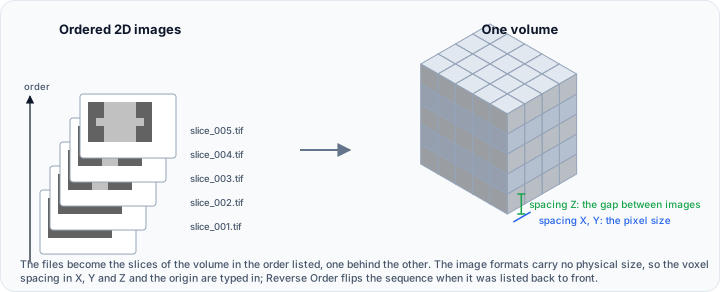
Name image files with consistent numbering (e.g., slice_001.tif, slice_002.tif) to ensure correct automatic ordering when loading from a directory.
Importing DICOM Images
Add medical imaging data with full DICOM metadata support.
Workflow
- Navigate to File > Import > DICOM Images
- Click the large icon to open the DICOM Import dialog
- Browse to the directory containing DICOM files
- Click Load to scan for DICOM series
- Select the series to import from the table
- Configure options:
- Anonymize DICOM tags to remove identifying information
- Do not import DICOM tags to import pixel data without metadata
- Use DICOM window and level to apply display values from the selected series
- Use Subrefine series when mixed acquisitions need additional separation criteria
- Click Open to import
For detailed DICOM import guidance, see DICOM Import.
Importing 3D Images as Masks
Import volume files directly as mask objects instead of image volumes. This is useful when you have pre-segmented data or label maps from external sources.
Workflow
- Navigate to File > Import > 3D Images as Masks
- Select the volume file containing mask/label data
- The data imports as a mask object in the project
Supported Formats
| Format | Extensions |
|---|---|
| Meta Image | .mha, .mhd |
| NIfTI | .nii, .nii.gz |
| VTK Image | .vti |
What the File Must Contain
A mask is a label image, not a grayscale image. The file has to meet all of the following:
| Requirement | Detail |
|---|---|
| A volume is already open | A mask is defined against a volume, so import is refused when the project has no volume image |
| One value per voxel | Colour images with several components per voxel are rejected |
| Label values from 0 to 65535 | Values are read as whole numbers in the unsigned 16-bit range, with 0 as background |
| No negative values | A file containing negative values is rejected |
A CT scan in Hounsfield units contains negative values and a range far beyond the label range, so importing it here fails with a message saying the file could not be read. Import it through 3D Images instead, then segment it, or convert it to a label image in the application that produced it.
Files stored as floating point, 8-bit signed, or 8-bit character values are an exception: they are rescaled to the range 0 to 255 before their labels are read. Such a file imports, but its intensities become arbitrary label values rather than measurements.
See Masks for more on label values and mask behaviour.
Geometry Matching for Masks
Mask imports follow the same geometry checking as volume imports. When importing masks with different geometry:
- Nearest neighbor interpolation is used by default to preserve label integrity
- Configure tolerance and resampling options in Preferences > Import Settings
When resampling masks, use Nearest interpolation to prevent fractional label values that would corrupt segmentation data. This is the default setting.
Importing Surface Models
Add triangle mesh geometry from CAD or 3D scanning sources.
Workflow
- Navigate to File > Import > Surface CAD/STL Models
- Click the large icon to open the file browser
- Select one or more surface files
- The surfaces import and appear in the Scene Tree
Supported Formats
| Format | Extensions |
|---|---|
| STL | .stl (ASCII and binary) |
| PLY | .ply (ASCII and binary) |
| OBJ | .obj |
| VRML 2.0 | .wrl, .vrml |
| glTF | .gltf, .glb |
| AMF | .amf |
| STEP | .step, .stp |
| IGES | .iges, .igs |
| VTP | .vtp |
| Points | .xyz |
Surface import reads geometry. Scene structure, animation, cameras, and lights are not carried over. A material colour is kept where the format stores one. If a texture image sits next to the mesh file and shares its name, that image is applied to the imported surface.
Importing Point Clouds
An .xyz file holds 3D point positions with no edges and no faces. Volvicon imports it as a surface object so the points can be viewed, positioned, and compared against other data, but the object has no surface until it is reconstructed.
Until then, tools that need faces are unavailable, including surface area and closed volume measurement, boolean operations, mesh repair, and export to formats that store triangles.
Use Poisson Remesh to build a watertight triangle mesh from the imported points. Normals are estimated from the points, so nothing beyond the positions is needed in the file. The reconstructed mesh is a new surface object and behaves like any other mesh.
CAD Import Configuration
For CAD formats (STEP, IGES), import behavior is controlled by preferences:
| Option | Description | Configure In |
|---|---|---|
| Geometry handling | Preserve non-manifold features, fix defects | File > Preferences > Import |
| Tessellation quality | Linear and angular deflection values | File > Preferences > Import |
| Solid construction | Boolean operations, intersection handling | File > Preferences > Import |
| Multi-part behavior | Merge parts or import separately | File > Preferences > Import |
See Preferences > Surface and CAD File Import Options for detailed configuration.
Lower deflection values produce higher quality surfaces but increase triangle count and processing time. Adjust in File > Preferences > Import based on your accuracy requirements.
Importing Volume Meshes
Add tetrahedral, hexahedral, or mixed volume meshes for simulation workflows. In addition to native VTK grids, Volvicon reads meshes saved from common FEM and CFD solvers, recovering nodes, elements, and—where present in the file—node sets, element sets, boundary surfaces, parts, and materials.
Workflow
- Navigate to File > Import > Volume Mesh Models
- Select one or more mesh files
- The mesh imports and appears in the Scene Tree
Supported Formats
| Format | Extensions |
|---|---|
| VTK Unstructured Grid | .vtu, .vtk |
| Abaqus / CalculiX | .inp |
| Nastran | .bdf, .nas |
| LS-DYNA | .k, .dyn, .key |
| ANSYS | .cdb |
| Gmsh | .msh |
| Fluent | .msh |
| OpenFOAM | .foam |
Each of these formats can also be written from File > Export, so meshes round-trip through Volvicon. For details on the matching export options, see Export and the FEM Mesh Export tools.
Volume mesh import keeps the solid and shell cells that define the mesh geometry, including non-tetrahedral solids (hexahedra, wedges, pyramids). Higher-order (quadratic) elements are imported as their linear equivalents, keeping the corner nodes, so they display and measure consistently with the rest of the volume mesh pipeline. The following are not imported as mesh elements: 1D elements (beams, trusses, rods, springs), which are structural connectors rather than volume cells; and solver helper entities such as contact, target, and surface-effect elements, which would otherwise appear as stray, degenerate cells. Unused nodes left after this filtering are removed so node counts reflect the imported mesh.
Importing Another Volvicon Project
Merge content from a separate Volvicon project into the current project.
Workflow
- Navigate to File > Import > Another Volvicon Project
- Select the source project file
- All objects from the source project import into the current project
Imported objects retain their original names. Rename objects after import if naming conflicts occur.
Post-Import Considerations
After importing data:
- Verify alignment: For multi-dataset projects, confirm data is properly registered using orthogonal views
- Check spacing consistency: Ensure voxel spacing matches across datasets for accurate measurements
- Rename objects: Assign meaningful names to imported objects for project organization
- Save the project: Commit imported data to the project file
Use Properties to monitor memory usage when importing multiple large datasets. Close unnecessary objects or reduce resolution if memory becomes constrained.
Troubleshooting
Imported Data Appears Misaligned
Symptom: An imported volume or mask does not line up with existing project data in the orthogonal views.
Cause: The geometry does not match, or the file stored an orientation that Volvicon does not apply.
Solution:
- Check the detailed message for the specific geometry differences
- Navigate to File > Preferences > Import
- Enable Allow import of images with mismatched geometry
- Enable Resample mismatched images to match the project's active volume
- Verify the interpolation method suits the data type, using Nearest for masks
- Re-import the data
If the file was acquired obliquely, resample it to an axis aligned grid before importing. Volvicon does not apply a stored orientation matrix.
Import Blocked: Geometry Mismatch
Symptom: A message lists dimension, spacing, or origin differences.
Cause: The imported geometry differs from the active volume by more than the configured tolerance.
Solution:
Option 1, adjust tolerance (when the differences are small):
- Open File > Preferences > Import
- Decrease Spacing comparison precision or Origin comparison precision
- Retry the import
This is the option to use when the file was exported from Volvicon as NIfTI, because that format rounds spacing and origin to single precision.
Option 2, allow and resample:
- Open File > Preferences > Import
- Enable Allow import of images with mismatched geometry
- Enable Resample mismatched images to match the project's active volume
- Retry the import
Option 3, prepare the data externally:
- Resample the data to match the project geometry before importing
File Format Not Recognized
- Verify the file has a supported extension
- Check that the file is not corrupted
- For raw data, ensure you are using the correct import type
- Headerless volumes must be opened through 3D Raw Image, not 3D Images
The File Is Reported as Damaged
Symptom: A message says the file is damaged, or that it does not contain readable image or mesh data.
Cause: The file is truncated, or its header describes more data than the file holds. Volvicon checks the header of a mesh or raw volume file against the file size before reading it, so a file that would otherwise cause an unpredictable failure is refused instead.
Solution:
- Re-export or re-download the file and confirm its size matches the source
- For a raw volume, check the dimensions, voxel data type, component count, and header size against the actual file size shown in the import dialog
Mask Import Fails
- Confirm a volume image is already open in the project
- Confirm the file holds label values from 0 to 65535 with a single value per voxel
- A grayscale image cannot be imported as a mask, see Importing 3D Images as Masks
Memory Errors During Import
- Close other applications to free system memory
- Import fewer datasets at a time
- Consider importing at reduced resolution if supported
Related Topics
- DICOM Import - Detailed DICOM import options
- New Project - Creating projects from data sources
- Export - Writing project data to external formats
- Preferences - Configure import settings