Surface to Volume Mesh
The Surface to Volume Mesh tool converts closed surface meshes into tetrahedral volume meshes suitable for finite element analysis (FEA), computational fluid dynamics (CFD), and other simulation applications. This conversion transforms hollow shell geometry into solid volumetric representations discretized by tetrahedral elements, enabling computational analysis of structural behavior, heat transfer, fluid flow, and other physical phenomena.
Understanding Volume Mesh Generation
Surface meshes represent only the boundary of a geometric object—they define the outer shell but contain no information about the interior. Volume meshes, in contrast, fill the entire interior with volumetric elements, typically tetrahedra. Each tetrahedral element connects to its neighbors, forming a continuous mesh that discretizes the complete 3D domain.
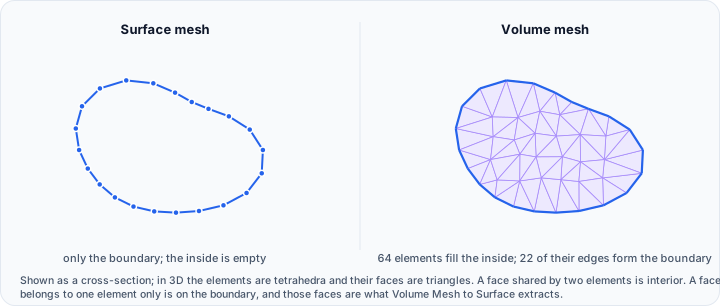
This discretization is fundamental to finite element methods, where the governing equations of physics are solved at discrete points throughout the volume. The quality of simulation results depends critically on mesh quality—elements should be well-shaped, appropriately sized, and properly graded from coarse regions to fine regions where detail is required.
Volvicon offers two meshing algorithms, each with its own settings, so element size, grading, and quality can be controlled to suit the simulation the mesh is destined for.
Prerequisites for Successful Meshing
Volume mesh generation requires clean, watertight input surfaces:
- Closed surfaces: The surface must completely enclose a volume with no gaps or holes
- Consistent normals: Triangle normals should consistently point outward
- No self-intersections: The surface must not intersect itself
- No inverted triangles: All triangles must have positive area
- Manifold geometry: Each edge should be shared by exactly two triangles
The tetrahedralization algorithm requires clean, watertight surfaces free of topological defects. Before running Surface to Volume Mesh, it is strongly recommended to execute the Diagnostics and Fixes tool to identify and correct any surface quality issues.
Accessing the Tool
Navigate to the Surface ribbon tab and locate Surface to Volume Mesh in the Convert section. Select one or more surface models to convert before activating the tool.
Algorithm Methods
Auto3D
Auto3D generates tetrahedral meshes with automatic control over element size and quality. This is the method to reach for in most cases, providing:
- Adaptive mesh refinement based on surface curvature
- Graded element sizing from surface to interior
- Extensive optimization for element quality
- Robust handling of complex geometry
Grid3D
Grid3D builds the mesh on a background grid instead of working directly from the surface triangulation. It may suit:
- Multi-material meshes where conformity at interfaces is critical
- Lattice-based mesh requirements
- Specific applications requiring structured underlying grids
Output Element Types
Tetra 4-Node (Linear)
Standard tetrahedral elements with 4 nodes—one at each vertex. Linear tetrahedra use first-order shape functions, representing displacement (or other field variables) as varying linearly across the element.

Linear elements are computationally efficient and sufficient for many applications:
- Preliminary analysis and rapid prototyping
- Large-scale models where computational cost is a concern
- Applications where quadratic elements provide diminishing returns
Quadratic 10-Node
Higher-order tetrahedral elements with 10 nodes—one at each vertex plus one at the midpoint of each edge. Quadratic tetrahedra use second-order shape functions, capturing curved boundaries and stress gradients more accurately.
Quadratic elements are preferred for:
- Stress analysis requiring high accuracy
- Problems with curved boundaries or complex loading
- Situations where coarser meshes are desired without sacrificing accuracy
- Contact problems and other nonlinear analyses
Quadratic elements contain more than twice the degrees of freedom of linear elements. A mesh with 100,000 quadratic tetrahedra has similar computational cost to one with over 200,000 linear tetrahedra. Choose element order based on analysis requirements and available computational resources.
Multi-Surface Meshing Options
Maintain Conformity
When converting multiple surfaces simultaneously, the Maintain conformity option controls how shared boundaries are handled:
Yes (Maintain Conformity): Surfaces that share boundaries or contact regions will have matching node positions at their interfaces. This is essential for:
- Multi-part assemblies that will be bonded or tied together
- Contact analysis between components
- Coupled simulations requiring nodal compatibility
No (Combine into One Mesh): Surfaces are tetrahedralized independently and combined into a single mesh without enforcing nodal matching at interfaces. Use this when:
- Surfaces are spatially separated with no shared boundaries
- Independent analysis of each component is intended
- Faster processing is preferred and conformity is unnecessary
Auto3D Meshing Settings
When using the Auto3D method, extensive control over mesh generation is available:
Quality Presets
Quick configuration through predefined settings:
| Preset | Description | Use Case |
|---|---|---|
| Very coarse | Minimal element count, fastest generation | Initial testing, visualization |
| Coarse | Reduced element density | Preliminary analysis |
| Moderate | Balanced quality and performance | General purpose meshing |
| Fine | Higher element density | Accurate stress analysis |
| Very fine | Maximum element density | High-fidelity simulations |
| Custom | Manual parameter specification | Specialized requirements |
Element Size Control
| Parameter | Description | Default | Range |
|---|---|---|---|
| Max. element size (mm) | Upper limit on tetrahedral edge length | 1.0 | 0.000001 - 999999999 |
| Min. element size (mm) | Lower limit on tetrahedral edge length | 0.0 | 0.0 - 999999998 |
The maximum element size sets an upper bound—no element edge will exceed this length. Smaller values produce finer meshes with more elements. Set this based on:
- The smallest features that must be captured
- Required solution accuracy
- Available computational resources
The minimum element size prevents excessive refinement. This is useful to:
- Avoid tiny elements near sharp features
- Maintain reasonable element counts
- Ensure manageable time step in dynamic analyses
Growth Rate
| Parameter | Description | Default | Range |
|---|---|---|---|
| Growth rate (%) | Rate of element size transition from surface to interior | 30 | 1 - 100 |
Controls how rapidly element size increases as the mesh progresses from the surface into the interior volume. Lower values create more gradual transitions with more elements; higher values allow faster size growth with fewer elements.
A growth rate of 30% means elements can increase in size by approximately 30% from one layer to the next. For stress analysis where accurate surface stresses are needed but interior detail is less critical, moderate growth rates (20-40%) provide good efficiency. For uniform meshes, use lower rates (5-15%).
Optimization Controls
| Parameter | Description | Default |
|---|---|---|
| Keep elements at or above min edge length | Prevents elements smaller than minimum surface edge length | Enabled |
| Optimize | Enable adaptive surface remeshing before volume mesh generation | Enabled |
| Surface optimization steps | Iterations for surface mesh optimization (0-10) | 3 |
| Volume optimization steps | Iterations for volume mesh optimization (0-10) | 3 |
Optimization improves element quality by adjusting node positions and, in some cases, modifying mesh topology. Higher optimization step counts produce better element quality at the cost of longer generation time.
Grid3D Meshing Settings
When Grid3D is selected, the Meshing settings group offers:
| Parameter | Description | Default | Range |
|---|---|---|---|
| Sampling rate | Base sampling density | 1.0 | 0.1 - 100 |
| Feature scaling | Scaling factor for feature detection | 1.0 | 0.1 - 100 |
| Rate of change of element size | How quickly element size may vary between neighbouring elements | 0.2 | 0.001 - 1000 |
| Sigma | Smoothing parameter for material interface | 1.0 | 0.0 - 100 |
Together these control the resolution of the background grid and how closely the mesh adapts to the geometry.
Workflow Best Practices
Pre-Meshing Preparation
- Run Diagnostics and Fixes on all surfaces to ensure watertight, valid geometry
- Simplify surfaces if possible—remove unnecessary geometric complexity that won't affect analysis
- Ensure appropriate surface mesh density using Remesh if needed
- Fill holes in surfaces that should be closed
Parameter Selection Strategy
For initial meshing:
- Start with a coarse preset to verify successful tetrahedralization
- Examine the resulting mesh for overall structure
- Gradually increase quality settings as needed
- Fine-tune specific parameters only after establishing baseline meshes
Quality Verification
After mesh generation:
- Verify element count is reasonable for your solver
- Check for highly distorted elements that may cause convergence issues
- Confirm mesh density is adequate in regions of interest
- Verify conforming interfaces if multi-material meshing was used
Practical Examples
Single Part Structural Analysis
Converting a mechanical component for stress analysis:
- Import or create the surface model
- Run Diagnostics and Fixes to ensure watertight geometry
- Select the surface
- Open Surface to Volume Mesh
- Choose Auto3D method
- Select Quadratic 10-node for accurate stress results
- Set Fine preset or configure max element size based on feature detail
- Execute and export for FEA software
Multi-Component Assembly
Creating a conforming mesh for an assembly:
- Position all surface components in their assembled configuration
- Run Diagnostics and Fixes on each surface
- Select all surfaces simultaneously
- Open Surface to Volume Mesh
- Set Maintain conformity to Yes
- Configure meshing parameters appropriate for the application
- Generate the volume mesh with matching interfaces
Rapid Prototyping Mesh
Quick mesh for preliminary analysis:
- Select the surface
- Open Surface to Volume Mesh
- Choose Auto3D with Coarse preset
- Select Tetra 4-node for minimal element count
- Generate mesh rapidly for initial evaluation
Troubleshooting
Meshing fails completely:
- Run Diagnostics and Fixes to identify surface defects
- Check for non-manifold edges or vertices
- Ensure the surface is fully closed
Poor element quality:
- Increase optimization steps
- Reduce growth rate for more gradual transitions
- Use finer surface mesh as input
Excessive element count:
- Increase maximum element size
- Increase growth rate
- Use coarser quality preset
- Simplify input surface geometry
Non-conforming interfaces:
- Ensure Maintain conformity is set to Yes
- Verify surfaces actually share boundary geometry
- Check that shared edges have compatible vertex positions
Related Tools
- Diagnostics and Fixes - Prepare surfaces for meshing
- Remesh - Optimize surface mesh before volume meshing
- Fill Holes - Close gaps in surfaces
- Smooth - Improve surface mesh quality
- Reduce - Simplify complex surfaces before meshing