Colorize
The Colorize tool applies color information to surface geometry, enabling visual differentiation of regions, preparation for colored exports, and enhanced visualization. Colors can be applied to selected regions or entire surfaces using various coloring methods.
Overview
Surface colorization adds per-vertex or per-triangle color data to the mesh. This color information:
- Persists with the surface: Colors are stored as part of the mesh data
- Exports with the model: Supported formats (PLY, OBJ, VRML, etc.) include color data
- Enables visualization: Distinguishes regions for analysis and presentation
- Supports selective coloring: Apply colors to specific regions using ROI selection
Common applications include:
- Region marking: Identifying areas of interest with distinct colors
- Export preparation: Adding color for 3D printing or visualization
- Analysis visualization: Permanent color mapping for documentation
- Communication: Highlighting specific features for review
Accessing the Tool
Navigate to the Surface ribbon tab and locate Colorize in the Analyze section. Select a surface object before activating the tool.
Target object(s)
The Target object(s) list decides what is colorized:
| Option | Colorizes |
|---|---|
| Active surface object | The surface currently active in the Scene Tree |
| Selected surface object(s) | Every surface selected in the Scene Tree |
| Visible surface object(s) | Every surface currently shown in the views |
| All surface objects | Every surface in the project |
| Selected triangles on visible surface object(s) | Only the triangles you select in the 3D view |
Choosing the last option reveals the selection tools underneath, so you can pick the region to colour with the brush and ROI tools before applying. That is how a single part of a model is marked out in its own colour while the rest keeps what it had.
Colorization Methods
Three methods are available for applying colors:
Color Selection
Apply a single, user-defined color to the selected region or entire surface.
Parameters:
- Color: Click the color button to open a color picker and select the desired color
This method is ideal for:
- Marking specific regions with identifying colors
- Preparing models with uniform color for export
- Creating visual distinctions between areas
Normal Map
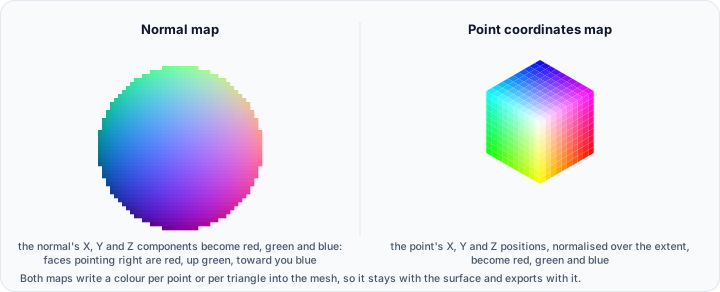
Apply colors based on the surface normal direction at each point or triangle.
The normal map converts the XYZ components of the surface normal to RGB colors:
- X component → Red channel
- Y component → Green channel
- Z component → Blue channel
This visualization reveals:
- Surface orientation patterns
- Normal direction distribution
- Curvature and feature characteristics
Normal map coloring is useful for:
- Visualizing surface orientation
- Quality inspection of normal directions
- Understanding surface topology
Point Coordinates Map
Apply colors based on the spatial position of each point.
The coordinate map converts XYZ positions to RGB colors:
- X position → Red channel
- Y position → Green channel
- Z position → Blue channel
Colors are normalized across the surface extent, creating a gradient that shows spatial distribution.
This visualization helps with:
- Understanding spatial organization
- Identifying position-based patterns
- Debugging coordinate systems
Color Application Target
Choose where colors are stored:
The Colorize apply on setting decides where the colour is stored. Triangles is selected by default.
Points
Colors are assigned to mesh vertices:
- Produces smooth color gradients across triangles
- Interpolates between vertex colors within triangles
- More natural appearance for most applications
- Standard vertex color approach
Triangles
Colors are assigned to individual triangles:
- Each triangle has uniform color
- Produces a faceted color appearance
- Useful when per-triangle identification is needed
- Shows mesh structure through coloring
Actions
Apply
Click Apply to apply the current colorization settings to the surface. The colors are immediately visible and stored with the mesh data.
Clear
Click Clear to remove the colorization from the target surfaces, returning them to their plain assigned colour. This clears both point and triangle colours.
Colour data only shows while Colors is on in View → 3D View → Additional. If a colorized surface still looks plain, that toggle is the first thing to check.
Practical Workflows
Marking Regions of Interest
- Activate the Colorize tool
- Select "Color selection" method
- Choose a distinctive color
- Use ROI tools to select the region of interest
- Click Apply
- Repeat with different colors for additional regions
Preparing for Colored Export
- Apply colors to all desired regions
- Verify appearance in the 3D view
- Export using a format that supports colors (PLY, OBJ, etc.)
- Colors will be included in the exported file
Visualizing Surface Orientation
- Select "Normal map" method
- Choose Points for smooth visualization
- Click Apply
- Analyze the color patterns to understand normal distribution
Creating Multi-Colored Models
- First, apply a base color to the entire surface
- Then select specific regions with ROI tools
- Apply different colors to each selected region
- Build up a multi-colored model progressively
Technical Considerations
Color Data Storage
Colors are stored as RGB values (0-255 per channel) at either:
- Vertices: Each vertex stores one color; triangles interpolate
- Triangles: Each triangle stores one color; uniform per-face
The storage location affects both visualization and export.
Export Compatibility
Color data export depends on format support:
| Format | Vertex Colors | Face Colors |
|---|---|---|
| PLY | ✓ | ✓ |
| OBJ (MTL) | Limited | Via materials |
| STL | ✗ | ✗ |
| VRML | ✓ | ✓ |
| 3MF | ✓ | ✓ |
Check format documentation for specific color support details.
Multiple Color Operations
Colors can be layered or replaced:
- Applying new colors overwrites existing colors in the target region
- Non-selected regions retain their existing colors
- Use Clear to reset before starting fresh
Rendering Interaction
Colorized surfaces interact with rendering settings:
- Lighting affects the perceived color
- Render properties may override or blend with applied colors
- Preview may differ from exported appearance
Common Issues and Solutions
| Issue | Likely Cause | Solution |
|---|---|---|
| Colors not visible | Render properties overriding | Check surface render settings |
| Colors not exporting | Unsupported format | Use PLY or other color-supporting format |
| Unexpected color pattern | Wrong method selected | Verify colorization method selection |
| Only partial surface colored | ROI selection active | Clear selection or select entire surface |
| Colors look different after export | Format color handling | Verify format supports vertex/face colors |
| Clear not removing colors | Multiple color layers | May need to Clear multiple times or re-import |