Correction Filters
The Correction Filters tool groups specialized volume correction workflows for artifact cleanup and contrast balancing on reconstructed 3D volume objects.
Accessing the Tool
- Navigate to the Image tab in the ribbon.
- Click Additional in the Operations section.
- Select Correction Filters.
Available Filters
- Metal artifact reduction: Replaces saturated metal voxels with blended tissue values to reduce hard-threshold streaks near implants.
- Bad pixel correction: Removes isolated hot or cold voxels using a conditional median; safe to apply as a general pre-processing step.
- Scatter correction: Removes the broad low-frequency brightness gradient that makes a volume look unevenly lit or washed out.
- Slice histogram equalization: Equalizes contrast independently per slice along a chosen axis; use when slices have inconsistent brightness.
- Cylindrical histogram equalization: Equalizes contrast radially from the selected axis outward; use when detail fades toward the edges of cone-beam CT volumes.
- Adaptive histogram equalization: Enhances local contrast using a power-law histogram in a sliding neighborhood window; useful for revealing subtle texture or detail that global methods miss.
Parameters
Metal Artifact Reduction
- Metal threshold: Minimum intensity treated as metal. Voxels at or above this value are in-painted from the surrounding tissue.
- In-paint sigma: Gaussian sigma controlling how far surrounding tissue values are blended into the metal regions. The filter uses normalized convolution — each metal voxel is replaced by a Gaussian-weighted average computed only from tissue voxels within range, so even large metal regions are filled with realistic tissue intensities rather than biased-low values. Larger values draw from a wider neighborhood and produce a smoother fill.
- Mask ROI (optional): Restrict the correction to the region defined by a binary mask. Select <None> to apply the correction to the whole volume. This is useful when metal is located only in a subregion and you want to leave the rest of the volume unchanged.
Bad Pixel Correction
- Defect mode: Single-pixel defects targets isolated voxels only; Multi-pixel defects also handles small clusters of adjacent bad voxels.
- Threshold multiplier: Controls how far a voxel must deviate from its neighborhood before it is replaced. Increase to replace only the strongest outliers; decrease to be more aggressive.
Scatter Correction
- Blur sigma: Spatial scale of the broad shading to estimate and remove. Use larger values when the uneven illumination covers a wider area.
- Scatter fraction: Fraction of the estimated shading to subtract. Increase gradually — too high a value can produce dark halos around bright features.
Slice Histogram Equalization
- Slice axis: Direction perpendicular to the slices whose contrast is equalized independently. Use Z when horizontal slices differ in brightness; use X or Y when the volume varies along those directions.
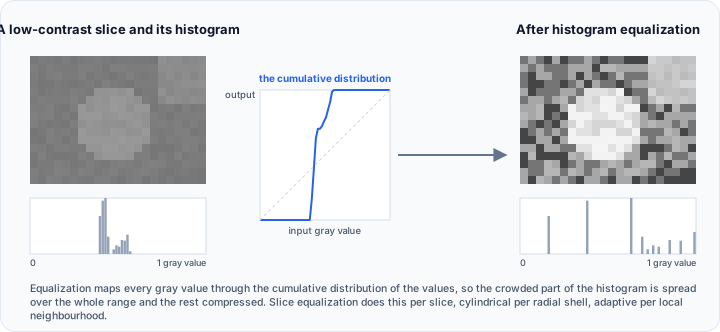
Cylindrical Histogram Equalization
- Cylinder axis: Axis around which cylindrical shells are defined. Equalization is applied radially outward from this axis. Use Z for typical cone-beam CT acquisitions where the beam falls off from the center toward the edges of a circular field of view.
Adaptive Histogram Equalization
- Alpha: Blends between classical local histogram equalization (
0) and unsharp masking (1). Values in between produce a mix of both effects. Default:0.3. - Beta: Blends between full local equalization (
0) and pass-through (1, effective only when alpha is also 1). Default:0.3. - Isotropic: When checked (default), the same radius is applied in all three directions. Uncheck to set X, Y, and Z independently.
- Radius X / Y / Z: Radius in voxels of the local neighborhood along each axis used to compute histogram statistics. Larger values produce smoother, less localized enhancement; smaller values produce sharper, more spatially specific enhancement. Default:
5for each axis.
Workflow
- Open Image → Additional → Correction Filters.
- Select the target volume set.
- Choose the correction filter from the dropdown.
- Adjust the filter parameters.
- Click Apply.
Warnings
All correction filters modify voxel intensities. If downstream analysis depends on a calibrated intensity scale, verify that the result still matches your expectations before proceeding to measurement or segmentation.
tip
Undo is supported for all filters. Apply the filter, inspect the result in the slice views and 3D rendering, and undo if the correction is too strong or not useful for your data.
Scripting
import ScriptingApi as api

app = api.Application()
volume_operations = app.get_volume_operations()

volume_operations.metal_artifact_reduction_filter(["Volume1"], 3000.0, 1.5)
volume_operations.metal_artifact_reduction_filter(["Volume1"], 3000.0, 1.5, "MetalMask")  # restrict to mask ROI
volume_operations.bad_pixel_correction_filter(["Volume1"], api.CBR_SpeckleRemovalMode.SinglePixel, 3.0)
volume_operations.scatter_correction_filter(["Volume1"], 1.0, 0.1)
volume_operations.slice_histogram_equalization_filter(["Volume1"], api.FlipAxis.Z)
volume_operations.cylindrical_histogram_equalization_filter(["Volume1"], api.FlipAxis.Z)
volume_operations.adaptive_histogram_equalization_filter(["Volume1"], 0.3, 0.3, 5, 5, 5)
Use Cases
- Remove hot or cold detector pixels that survived reconstruction and appear as isolated bright or dark speckles.
- In-paint saturated metal voxels before thresholding or segmentation near implants.
- Use a mask ROI on the metal artifact reduction filter to confine the in-painting to the implant region only.
- Correct uneven shading or radial falloff before applying global intensity thresholds.
- Rebalance contrast slice-by-slice or radially when illumination or attenuation varies strongly across the volume.
- Use adaptive histogram equalization to enhance local detail in low-contrast regions before visual inspection or segmentation.