Padding
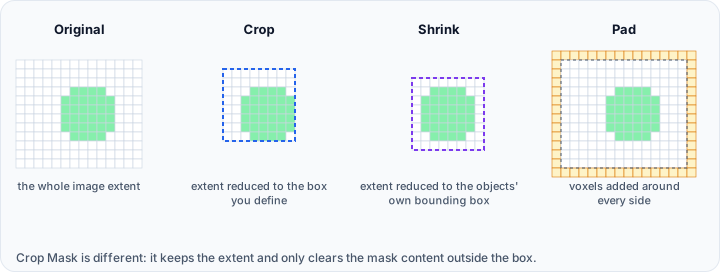
The Pad and Surface-Guided Pad tools add voxels around the borders of volume and mask data, extending the image extent. Padding is useful for ensuring sufficient space around objects for processing operations or to accommodate geometry that extends to the image boundaries.
Pad
The standard Pad tool adds a specified number of voxels to each side of the image.
Accessing the Tool
- Navigate to the Image tab in the ribbon.
- Click Pad in the Transform section.
Parameters
Uniform Padding
Enable Uniform padding to add the same number of voxels on all sides:
| Parameter | Description |
|---|---|
| Pixels | Number of voxels to add uniformly (1–1023) |
Directional Padding
Disable uniform padding to specify padding for each direction independently:
| Parameter | Description |
|---|---|
| -X | Voxels to add at the lower X boundary (0-1023) |
| +X | Voxels to add at the upper X boundary (0-1023) |
| -Y | Voxels to add at the lower Y boundary (0-1023) |
| +Y | Voxels to add at the upper Y boundary (0-1023) |
| -Z | Voxels to add at the lower Z boundary (0-1023) |
| +Z | Voxels to add at the upper Z boundary (0-1023) |
Padding Value
New voxels are initialized to zero (background intensity).
Workflow
- Open the Pad tool from the Image tab.
- Choose between Uniform or Directional padding.
- Enter the desired padding values in pixels.
- Click Apply to add padding.
Surface-Guided Pad
The Surface-Guided Pad tool automatically calculates the padding required to ensure surface objects remain within the volume bounds.
Accessing the Tool
- Navigate to the Image tab in the ribbon.
- Click Surface-Guided Pad in the Transform section.
How It Works
- The tool analyzes the extents of selected surface objects.
- It calculates how much each surface extends beyond the current volume bounds.
- Padding is automatically applied to contain all surfaces.
Parameters
| Parameter | Description |
|---|---|
| Target volume | The volume to which padding will be applied |
| Surface objects | Surfaces used to calculate required padding |
Use Case
When surface meshes extend beyond the volume boundaries (e.g., after smoothing or modification):
- Operations requiring the surface to be within the volume may fail.
- Surface-Guided Pad automatically resolves this issue.
- The volume is expanded minimally to contain all surfaces.
When to Use Padding
Before Morphological Operations
Erosion and dilation operations may produce unexpected results at image boundaries. Add padding to:
- Ensure consistent behavior at edges
- Prevent boundary artifacts
After Surface Modifications
If surface processing (smoothing, subdivision) causes geometry to extend beyond volume bounds:
- Use Surface-Guided Pad to automatically expand the volume
- Maintains proper spatial relationship between surfaces and volumes
For Simulation Boundaries
Finite element or CFD simulations may require buffer zones:
- Add padding to create space for boundary conditions
- Ensure simulation domains don't clip important geometry
Affected Objects
Padding affects:
- All volume objects
- All mask objects
All datasets are padded equally to maintain spatial alignment.
Padding increases memory usage proportionally. A 10-pixel uniform pad on a 500×500×500 volume increases size to 520×520×520, adding approximately 13% more voxels.
Scripting
Padding operations are available via the Python scripting API.
import ScriptingApi as api

app = api.Application()
volume_operations = app.get_volume_operations()

# Add padding (lower and upper bounds in voxels)
volume_operations.pad(
    ["Volume1"],
    [10, 10, 10],    # Lower bound padding [x, y, z]
    [10, 10, 10]     # Upper bound padding [x, y, z]
)

# Surface-guided padding
volume_operations.surface_guided_padding("Volume1", ["Surface1", "Surface2"])
See the VolumeOperations API Reference for details.
Padding modifies image origin and extent metadata. Verify coordinate alignment after padding if precise positioning is required.