Shrink
The Shrink tool reduces the image extent to match the bounding box of objects in the project. Unlike cropping, which uses a user-defined region, shrinking automatically calculates the minimal bounds needed to contain all relevant data.
Accessing the Tool
- Navigate to the Image tab in the ribbon.
- Click Shrink in the Transform section.
How It Works
The Shrink operation:
- Analyzes the spatial extent of objects in the project.
- Calculates the minimal bounding box that contains all object geometry.
- Resizes the volume and mask data to match these bounds.
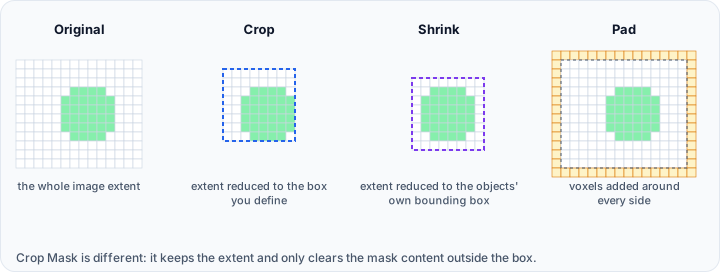 4. The output size exactly matches the calculated bounds.
Difference from Crop
| Feature | Crop | Shrink |
|---|---|---|
| Bounds | User-defined | Automatically calculated |
| Scope | Fixed region | Adapts to object boundaries |
| Use case | Manual region selection | Automatic size optimization |
Parameters
Target Objects
Select which objects to process:
- Active mask
- Selected masks
- Visible masks
- All masks
- Active surface
- Selected surfaces
- Visible surfaces
- All surfaces
- Visible masks and visible surfaces
- All masks and all surfaces
Padding
Optional padding around the calculated bounds:
| Mode | Description |
|---|---|
| Uniform padding | Add same padding to all sides (X-, Y-, Z-, X+, Y+, Z+) |
| Non-uniform padding | Specify individual padding for each direction |
Workflow
- Ensure objects (surfaces, masks, or other geometry) are present in the project.
- Open the Shrink tool from the Image tab.
- Select target objects for boundary calculation from the dropdown.
- Optionally enable Uniform padding and specify padding value (0-1023 pixels).
- For non-uniform padding, disable uniform padding and set individual values:
- X- (left), Y- (bottom), Z- (front)
- X+ (right), Y+ (top), Z+ (back)
- Click Apply to shrink the selected objects to their calculated bounds plus padding.
Use Cases
Optimizing Data After Surface Generation
After creating surface meshes from segmented data:
- The original volume may contain large empty regions.
- Use Shrink to reduce the volume to the extent of the surfaces.
- Reduces memory usage and speeds up visualization.
Preparing Data for Export
Before exporting data for external processing:
- Shrink to remove unnecessary padding.
- Results in smaller file sizes.
- Faster data transfer and processing.
Affected Objects
The Shrink operation affects:
- All volume objects
- All mask objects
All datasets are shrunk to the same bounds to maintain spatial alignment.
Shrinking is a destructive operation. Data outside the calculated bounds is permanently removed. Save your project before shrinking if you need to preserve the original extent.
Scripting
This operation is available via the Python scripting API using shrink().
import ScriptingApi as api

app = api.Application()
volume_operations = app.get_volume_operations()

# Shrink to specified bounds [xMin, xMax, yMin, yMax, zMin, zMax] in millimeters
volume_operations.shrink(["Volume1"], [-25.0, 25.0, -30.0, 30.0, 0.0, 80.0])
See the VolumeOperations API Reference for details.
When shrinking based on surface objects, the bounds are calculated from the surface geometry. If surfaces extend beyond the current volume extent, the operation adjusts accordingly.