Masking
The Masking tool applies a mask to a volume image, setting voxels outside the mask region to a specified intensity value. This allows you to isolate regions of interest and remove background or irrelevant anatomy from the volume data.
Accessing the Tool
- Navigate to the Image tab in the ribbon.
- Click Masking in the Operations section.
Concepts
| Term | Description |
|---|---|
| Mask region | Voxels where the mask has non-zero values (inside the mask) |
| Outside region | Voxels where the mask is zero (background) |
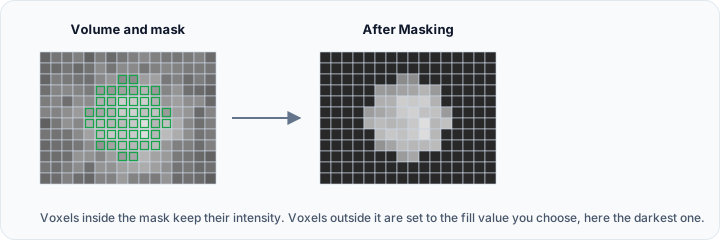 | Masking | Setting voxels outside the mask to a specified value |
Parameters
| Parameter | Description |
|---|---|
| Intensity value | The value assigned to voxels outside the mask region |
Common intensity values:
- 0: Black background (typical for CT display)
- -1000: Air equivalent in Hounsfield Units (CT)
- Minimum intensity: Match the volume's minimum value
How It Works
- The active mask defines the region of interest.
- Voxels where the mask has non-zero values are preserved.
- Voxels where the mask is zero are replaced with the specified intensity value.
Workflow
- Create or import a mask that defines the region of interest.
- Set the mask as the active mask in the Scene Tree.
- Select the volume to be masked as the active volume.
- Open the Masking tool from the Image tab.
- Enter the desired intensity value for outside regions.
- Click Apply to perform the masking operation.
Use Cases
Isolating Anatomy
Focus on specific anatomical structures:
- Segment the structure of interest to create a mask.
- Apply the mask to the volume.
- Background anatomy is replaced with uniform intensity.
- Resulting volume shows only the masked region.
Removing Artifacts
Eliminate artifacts or unwanted features:
- Create a mask that excludes artifact regions.
- Apply the mask to replace artifacts with background intensity.
- Clean volume data for further analysis.
Creating ROI-Focused Datasets
Prepare data for specific analysis:
- Define ROI using segmentation tools.
- Mask the volume to isolate the ROI.
- Export or analyze only the relevant region.
Pre-Processing for AI/ML
Prepare training data:
- Mask irrelevant anatomy.
- Standardize background values.
- Reduce data complexity for model training.
Important Considerations
Masking modifies the original volume data. Voxels outside the mask are permanently changed to the specified intensity value. Save your project or work on a copy if you need to preserve the original data.
Mask Alignment
The mask must be spatially aligned with the volume:
- Same dimensions (voxel count)
- Same spacing
- Same origin
If mask and volume are misaligned, resample or register before masking.
Multi-Label Masks
For multi-label masks (masks with different label values):
- All non-zero labels are treated as "inside" the mask
- Only zero-valued voxels are replaced
- To mask with a specific label, extract that label first
Intensity Value Selection
| Data Type | Suggested Value | Rationale |
|---|---|---|
| CT (HU) | -1000 | Air equivalent, black in standard window |
| CT (positive only) | 0 | Minimum display value |
| MRI | 0 | Background |
| Unsigned data | 0 | Minimum possible value |
Choose an intensity value that provides good visual contrast with the region of interest and does not interfere with downstream analysis.
Scripting
The masking operation is available via the Python scripting API.
import ScriptingApi as api

app = api.Application()
volume_operations = app.get_volume_operations()

# Apply mask to volume with intensity value 0
volume_operations.apply_mask_to_volume(
    "Volume1",      # Volume name
    "Mask1",        # Mask name
    0.0             # Intensity value for outside regions
)

# Apply mask with -1000 HU (CT air)
volume_operations.apply_mask_to_volume("CT_Volume", "BodyMask", -1000.0)
See the VolumeOperations API Reference for details.
Comparison with Related Tools
| Tool | Purpose |
|---|---|
| Masking | Replace voxels outside mask with constant value |
| Crop | Remove voxels outside a rectangular region |
| Volume To Mask | Create mask from volume intensity values |