Resample
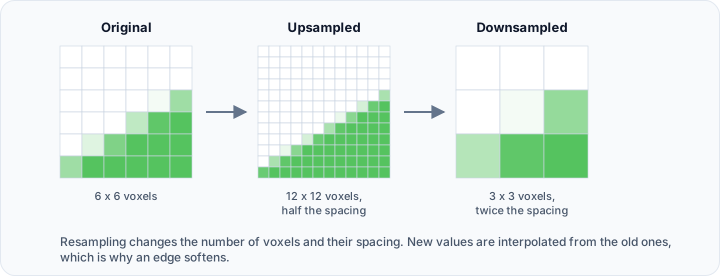
The Resample tool changes the voxel dimensions and spacing of volume and mask data. Use resampling to upsample (increase resolution) or downsample (decrease resolution) images for specific processing requirements.
Accessing the Tool
- Navigate to the Image tab in the ribbon.
- Click Resample in the Transform section.
Concepts
| Term | Description |
|---|---|
| Upsampling | Increasing the number of voxels (smaller voxel size) |
| Downsampling | Decreasing the number of voxels (larger voxel size) |
| Interpolation | Method for calculating new voxel values |
Parameters
Interpolation Method
Select interpolation methods separately for volumes and masks:
| Method | For volumes | For masks |
|---|---|---|
| Nearest | Fast, blocky results | Preserves label values exactly |
| Linear | Smooth gradients | Introduces intermediate values that are not valid labels |
| Cubic | Smoothest results | Not suitable for masks |
The defaults are Linear for volumes and Nearest for masks, which is the right pairing for most work.
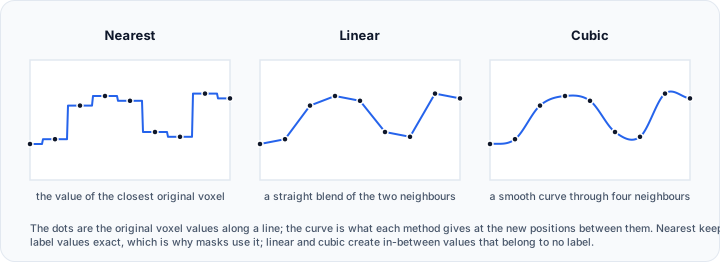
Keep Nearest for masks. Any other method blends neighbouring labels and produces values that belong to no label, which turns a clean segmentation into a fringe of invalid voxels along every boundary.
Resampling Method
Choose the method to define target resolution:
| Method | Description |
|---|---|
| Voxel dimensions (pixels) | Specify the target number of voxels in each direction |
| Pixel spacing (mm) | Specify the target voxel size in millimetres |
Only the parameter group belonging to the selected method is shown.
Parameters (pixels)
| Parameter | Description |
|---|---|
| X | Target number of voxels along X |
| Y | Target number of voxels along Y |
| Z | Target number of voxels along Z |
Parameters (mm)
| Parameter | Description |
|---|---|
| X | Target voxel size along X |
| Y | Target voxel size along Y |
| Z | Target voxel size along Z |
Information
The Information group updates as you type, so the effect of a change is visible before you apply it:
| Row | Description |
|---|---|
| Input physical dimensions (mm) | Size of the volume before resampling |
| Output physical dimensions (mm) | Size after resampling |
| Input pixel spacing (mm) | Voxel size before resampling |
| Output pixel spacing (mm) | Voxel size after resampling |
| Input voxel dimensions (pixels) | Voxel counts before resampling |
| Output voxel dimensions (pixels) | Voxel counts after resampling |
The physical dimensions stay effectively the same through a resample: what changes is how many voxels cover that same physical space, and therefore how large each voxel is.
Workflow
- Open the Resample tool from the Image tab.
- Select the resample method (Voxel dimensions (pixels) or Pixel spacing (mm)).
- Choose interpolation methods for volumes and masks.
- Enter target dimensions or spacing values.
- Review the information display to verify the resampling effect.
- Click Apply to resample the data.
Use Cases
Reducing Memory Usage
Downsample large datasets for:
- Faster visualization and interaction
- Reduced processing time for preliminary analysis
- Lower memory consumption
Matching Resolution Between Datasets
Align resolution when combining datasets:
- Identify the target resolution (usually the coarser dataset).
- Resample finer datasets to match.
- Enables direct comparison and fusion.
Preparing for Specific Algorithms
Some processing algorithms require specific resolutions:
- Neural network inputs may expect fixed dimensions
- Simulation meshes may have element size requirements
- Resample to meet these requirements
Isotropic Resampling
Convert anisotropic data (different spacing in each axis) to isotropic:
- Note the smallest spacing value.
- Set all three spacing values to this minimum.
- Results in cubic voxels for uniform analysis.
Affected Objects
Resampling affects:
- All volume objects
- All mask objects
All datasets are resampled to the same grid to maintain spatial alignment.
Quality Considerations
Upsampling Limitations
Upsampling cannot recover detail that doesn't exist in the original data. Interpolation creates smooth transitions but does not add real information.
Downsampling Information Loss
Downsampling permanently reduces detail. High-frequency features and fine structures may be lost. Consider keeping the original data if full resolution may be needed later.
Memory Impact
Resampling significantly affects memory usage:
Example: Doubling resolution in all dimensions increases memory by 8×.
Scripting
This operation is available via the Python scripting API using resample().
import ScriptingApi as api

app = api.Application()
volume_operations = app.get_volume_operations()

volume_operations.resample(
    ["Volume1"],
    [256, 256, 128],              # Target dimensions [x, y, z]
    [0.5, 0.5, 1.0],              # Target spacing [x, y, z] in mm
    api.Interpolation.Linear,     # Volume interpolation: Nearest, Linear, or Cubic
    api.Interpolation.Nearest     # Mask interpolation: Nearest recommended for masks
)
See the VolumeOperations API Reference for details.