Measurements and Statistics
Quantitative analysis transforms visual observations into numeric data. This tutorial covers distance and angle measurements, statistical analysis of volumes and masks, and geometric primitive fitting for dimensional characterization.
Estimated time: 30 minutes
Prerequisites:
- Completed basic segmentation and visualization tutorials
- A project with volumes, masks, and/or surfaces
Measurements on medical imaging data should be interpreted by qualified professionals. Measurement accuracy depends on image resolution, segmentation quality, and proper calibration.
Understanding Measurements in Volvicon
Volvicon provides several measurement categories:
| Category | Purpose |
|---|---|
| Geometric Measurements | Distances, angles, areas, volumes |
| Primitives | Reference geometry (planes, spheres, cylinders) |
| Statistics | Intensity and shape analysis |
| Analysis | Specialized tools (wall thickness, deviation) |
All measurements use physical units (mm, mm², mm³) based on the volume's spatial calibration.
Point-Based Measurements
Accessing the Measurements Tool
- Navigate to Measure → Measurement Tools → Measurements.
- Select the measurement type from the dropdown.
- Pick points in 2D or 3D views.
Measurement Types
| Type | Points | Result |
|---|---|---|
| Point | 1 | X, Y, Z coordinates |
| Distance | 2 | Linear distance |
| Angle | 3 | Angle at middle point |
| Diameter | 3 | Diameter through three points |
| Contour | Multiple | Perimeter and enclosed area |
| Circle | Center + edges | Radius and area |
| Ellipse | Center + axes | Area and dimensions |
| Rectangle | Center + edges | Area and dimensions |
| Box | Center + edges | Volume and dimensions |
| Caption | 1 | Text annotation at location |
Creating a Distance Measurement
- Select Distance from the Measurements dropdown.
- Left-click to place the first point.
- Left-click to place the second point.
- The distance appears:
- Visually as a line with value label
- In the Measurements panel with coordinates
Creating an Angle Measurement
- Select Angle from the Measurements dropdown.
- Click to place three points.
- The angle is measured at the middle point (vertex).
Contour Measurements
For measuring perimeter and area:
- Select Contour from the dropdown.
- Click to place points around the boundary.
- Close the contour by:
- Clicking near the first point
- Or right-clicking
- Results include:
- Area (for closed contours)
- Perimeter length
- Centroid point [X, Y, Z]
- Lmax
- Mean (GV)
- Std. Dev. (GV)
Managing Measurements
Measurement Panel
All measurements appear in the Measurements panel:
| Column | Information |
|---|---|
| Show | Visibility control icon |
| Lock | Lock/unlock user interaction |
| Name | Measurement identifier |
| Measurement | Numeric result with unit (mm, degrees, mm², etc.) |
| Coordinates | Points in physical coordinates |
Editing Measurements
- Rename — Double-click the name
- Delete — Select and press Delete, or right-click
- Move points — Drag the measurement points in views
- Hide/Show — Toggle visibility in views
Exporting Measurements
- Navigate to Measure → Measurement Tools → Measurements.
- Select measurements to export.
- Press Save button
- Select format:
- TXT — Formatted tables
- INI — Programmatic access
- Click Save.
Intensity Analysis
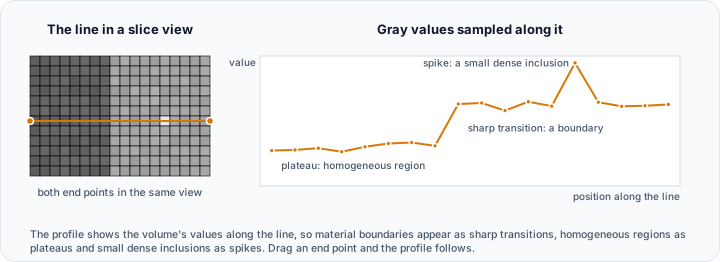
Draw Profile Line
Analyze intensity values along a path:
- Navigate to Measure → Measurement Tools → Draw Profile Line.
- Click to start the line in a slice view.
- Click to end the line.
- The Profile panel shows:
- Intensity values along the path
- Graph of intensity vs. distance
Use cases:
- Identifying threshold boundaries
- Measuring intensity gradients
- Detecting intensity variations across structures
Histogram Analysis
Generate intensity histograms:
- Navigate to Measure → Measurement Tools → Histogram.
- Select the target volume.
- Optionally restrict analysis to a mask region.
- The histogram displays:
- Intensity distribution
- Configurable bin count
- Statistical summary (mean, std, min, max)

Volume and Mask Statistics
Volume Statistics
Analyze grayscale properties:
- Navigate to Measure → Statistics → Volume Statistics.
- Select the volume to analyze.
- Optionally select a mask to restrict analysis region.
- Results include:
| Statistic | Description |
|---|---|
| Mean gray value | Average gray value |
| Median gray value | Middle value |
| Std. dev. of gray values | Gray value variation |
| Min. gray value / Max. gray value | Gray value range |
| Voxel count | Number of analyzed voxels |
| Volume (mm³) / Volume fraction (%) | Size of the analyzed region |

Mask Statistics
Analyze segmentation properties:
- Navigate to Measure → Statistics → Mask Statistics.
- Select the mask to analyze.
- Statistics include:
Whole Mask Statistics:
| Statistic | Description |
|---|---|
| Volume | Total volume (mm³) |
| Surface Area | Boundary area (mm²) |
| Voxel Count | Number of voxels |
| Centroid | Center of mass |
| Bounding Box | Enclosing dimensions |
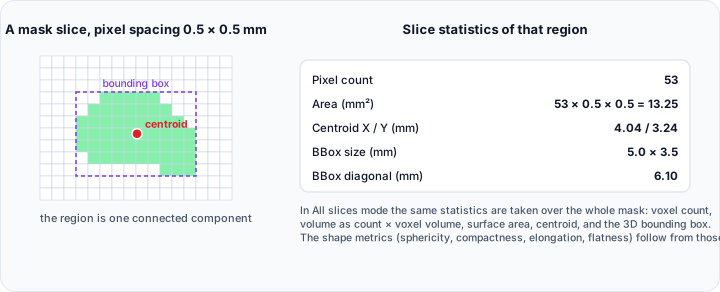
Per-Region Statistics:
- Statistics for each connected component
- Region count
- Individual region volumes
Grayscale Statistics:
- Mean intensity within mask
- Intensity distribution within mask
Compare Masks
Compare two segmentations:
- Navigate to Measure → Statistics → Compare Masks.
- Select the reference mask and test mask.
- Comparison metrics:
| Metric | Description |
|---|---|
| Dice Coefficient | Overlap similarity (0-1) |
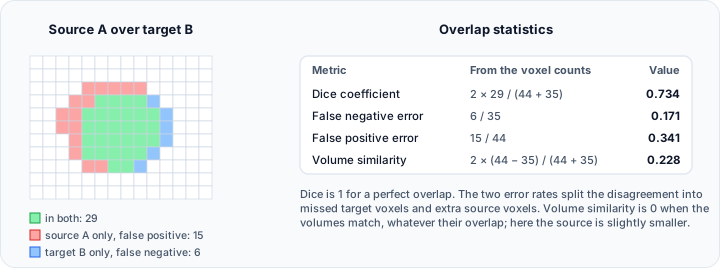
These metrics are useful for:
- Validating segmentation accuracy
- Comparing automatic vs. manual results
- Assessing inter-observer variability
Geometric Primitives
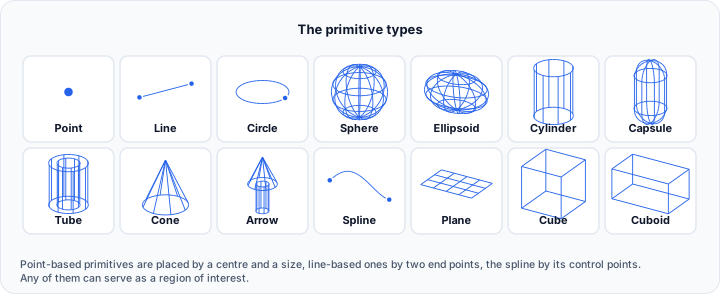
Primitives are idealized geometric shapes for reference, measurement, and CAD integration.
Creating Primitives
- Navigate to Measure → Primitive Tools → Primitives.
- Select primitive type:
| Type | Parameters |
|---|---|
| Plane | Point + normal vector |
| Sphere | Center + radius |
| Cylinder | Axis + radius |
| Cone | Apex + axis + angle |
| Circle | Center + normal + radius |
| Point | X, Y, Z coordinates |
| Line | Two points or point + direction |
- Click Add, then pick points in the target view.
- Right‑click the primitive item and select Properties to configure its parameters.
Primitive Fitting
Automatically fit primitives to geometry:
- Navigate to Measure → Primitive Tools → Primitive Fitting.
- Select the surface to fit.
- Choose the primitive type.
- Click Apply.
The fitted primitive appears in the vews and is added to the Primitives tool.

Measurement Between Primitives
Measure relationships between primitives:
- Navigate to Measure → Primitive Tools → Measurement between Primitives.
- Select two primitives.
- Click Update.
Surface and Mesh Statistics
Surface Statistics
Analyze triangle mesh properties:
- Navigate to Measure → Statistics → Surface Statistics → Whole Surface Mesh Statistics.
- Select the target surface.
- Results include:
| Statistic | Description |
|---|---|
| Vertex Count | Number of vertices |
| Triangle Count | Number of triangles |
| Surface Area | Total area (mm²) |
| Volume | Enclosed volume (mm³) |
| Bounds | Spatial extent |
| Center | Geometric center |
Volume Mesh Statistics
For tetrahedral meshes:
- Navigate to Measure → Statistics → Volume Mesh Statistics.
- Results include element count, volume, and quality metrics.
Mesh Quality Analyzer
Evaluate mesh element quality:
- Navigate to Measure → Analysis → Mesh Quality Analyzer.
- Select the surface or volume mesh.
- Quality metrics visualized:
- Aspect ratio — Element shape quality
- Minimum angle — Smallest triangle angle
- Jacobian — Element distortion
- Color mapping shows quality distribution.
- Statistics identify problematic elements.

Practical Exercise: Complete Measurement Workflow
Part 1: Dimensional Measurements
- Load a project with a segmented bone.
- Navigate to Measurements tool.
- Create three distance measurements at key anatomical points.
- Create an angle measurement.
- Rename measurements descriptively.
Part 2: Statistical Analysis
- Run Mask Statistics on the bone mask.
- Record the volume and surface area.
- Run Volume Statistics on the original CT volume.
- Restrict analysis to the bone mask region.
- Compare mean intensity with literature values.
Part 3: Primitive Fitting
- If you have a cylindrical structure (e.g., femur shaft):
- Navigate to Primitive Fitting.
- Fit a cylinder to the surface.
- Record the fitted radius and axis direction.
- Measure distance from other structures to the cylinder.
Part 4: Export Results
- Export measurements to disk.
- Export statistics using copy-to-clipboard.
- Generate a screenshot with visible measurements.
Best Practices
Measurement Accuracy
- Use appropriate zoom for precise point placement
- Place points on clearly defined features
- Consider image resolution limits
- Validate with known dimensions when possible
Statistical Interpretation
- Report units with all values
- Consider partial volume effects at boundaries
- Document analysis regions (whole mask vs. subset)
- Compare with established reference values
Documentation
- Name measurements descriptively
- Export measurements for records
- Include screenshots showing measurement locations
- Document any manual adjustments
Troubleshooting
Measurements not visible
- Check visibility in Measurements panel
- Verify measurement scale (may be too small to see)
- Ensure you're viewing the correct slice
Statistics seem incorrect
- Verify volume spacing is correct
- Check mask includes intended region
- Confirm units (some displays show mL vs. mm³)
Primitive fitting fails
- Ensure sufficient geometry for fitting
- Try different fitting region
- Check surface quality for defects
Next Steps
Continue with advanced analysis:
- Quality Analysis — Wall thickness and deviation
- Volume Mesh for Simulation — FEA mesh creation
- AI-Powered Segmentation — Automated methods