Working with Volume Data
Volume data forms the foundation of most Volvicon workflows. This tutorial covers importing data from various sources, applying preprocessing operations, and exporting results for downstream use.
Estimated time: 25 minutes
Prerequisites:
- Completed Getting Started and Navigating the Interface
- Access to volumetric data files (DICOM, NIfTI, or image stacks)
Understanding Volume Data
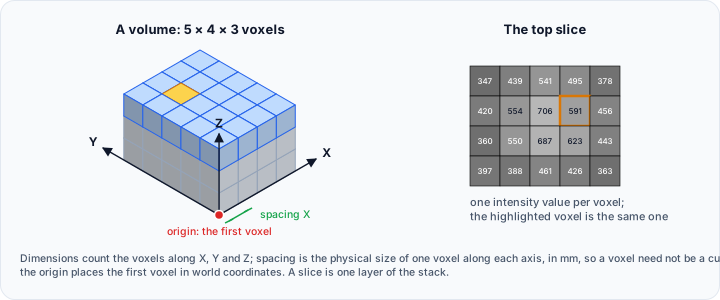
A volume in Volvicon is a three-dimensional grid of voxels (volumetric pixels). Each voxel stores an intensity value representing the measured property at that location—typically X-ray attenuation for CT, signal intensity for MRI, or material density for industrial CT.
Key volume properties include:
| Property | Description |
|---|---|
| Dimensions | Grid size in voxels (X × Y × Z) |
| Spacing | Physical size of each voxel (mm) |
| Origin | Position of the first voxel in world coordinates |
| Data Type | Bit depth and sign (8-bit, 16-bit signed, float, etc.) |
Importing Volume Data
Volume data can be imported from various sources. The import process automatically extracts or requires specification of spatial metadata (dimensions, spacing, origin).
Importing DICOM Data
DICOM (Digital Imaging and Communications in Medicine) is the standard format for medical imaging:
- Click File → New → DICOM.
- Navigate to the folder containing DICOM files.
- Volvicon scans the directory and lists available series, displaying:
- Patient name and ID
- Study and series descriptions
- Number of slices
- Modality (CT, MRI, ultrasound, etc.)
- Select the series to import.
- Click Load.
Key features:
- Volvicon automatically extracts spatial information (pixel spacing, slice thickness, orientation) from DICOM headers
- Ensures correct physical measurements without manual configuration
- Preserves DICOM metadata for export/compliance
Volvicon attempts to use the correct anatomical orientation from DICOM metadata. However, always verify orientation by checking View → Orientations before proceeding with analysis. Different DICOM sources may encode orientation differently.
Importing 3D Image Files
For structured volume formats with embedded metadata (NIfTI, NRRD, MHD/RAW):
- Click File → New → 3D Image.
- Navigate to your file.
- Select the file and click Open.
Supported formats:
- MetaImage (.mha single file, or .mhd + .raw pair)
- NIfTI (.nii, .nii.gz) — Neuroimaging standard format
- NRRD (.nrrd single file, or .nhdr + .raw pair)
- Analyze (.hdr + .img pair, .img.gz)
- GIPL (.gipl), LSM (.lsm), VTK Image (.vti)
No additional configuration is required; spacing and origin are read from the header.
Volvicon places volumes on an axis aligned grid and does not apply an orientation matrix stored in the file. Resample obliquely acquired data to an axis aligned grid before importing. NIfTI stores spacing and origin in single precision, so a NIfTI file exported from Volvicon comes back with slightly different geometry; use MetaImage or NRRD when the geometry has to round-trip exactly.
Importing Image Stacks
Create a 3D volume from a sequence of 2D images:
- Click File → New → Image Stack.
- Navigate to the folder containing the image sequence.
- Select the sequence directory.
- Volvicon automatically detects subsequent images and presents configuration options.
- Configure stack parameters:
- Pixel spacing (X, Y) — Size of each pixel in the image (mm)
- Slice spacing (Z) — Distance between successive slices (mm)
- Review the preview (number of slices, final dimensions).
- Click Load.
Image stack requirements:
- All images must have consistent dimensions (width × height)
- Filenames should sort correctly (use zero-padded numbers: 001, 002, 003 not 1, 2, 3)
- All images must have the same bit depth (8-bit, 16-bit, etc.)
- Recommended: PNG or BMP format (JPEG introduces compression artifacts)
Use zero-padded sequential filenames (001.png, 002.png, ..., 100.png) to ensure correct ordering. Single-digit filenames sort incorrectly (1, 10, 2, 20, 3...).
Importing Raw Binary Data
For raw voxel data without headers or standard format:
- Click File → New → 3D Raw Image.
- Select your raw binary file.
- Manually specify all parameters:
- Dimensions (X, Y, Z) — Number of voxels in each direction
- Spacing — Physical size of each voxel (mm)
- Data type — 8-bit unsigned, 16-bit signed, 32-bit float, etc.
- Byte order — Little-endian or Big-endian (CPU architecture dependent)
- Header offset — Number of bytes to skip before actual data starts
- Review the preview.
- Click Load.
This import method requires you to know exact data specifications. Errors in any parameter will produce corrupted results. Refer to the file documentation for correct values.
Use import_raw_volume_from_disk() and pass the same parameters through api.RawVolumeImportOptions(). The general import_3d_image_from_disk() method does not accept raw, vol, bin, or img files, because their layout cannot be read from the file.
Volume Properties and Visualization
Viewing Volume Properties
To understand your loaded volume data:
- Select the volume in the Scene Tree.
- View its properties in the Properties panel:
- Dimensions — Grid size in voxels (X × Y × Z)
- Spacing — Physical size of each voxel (mm)
- Origin — Position of the first voxel in world coordinates
- Intensity range — Minimum and maximum values in the data
- Memory usage — Total memory occupied
Adjusting Render Properties
Customize how the volume appears in 2D and 3D views:
- Select the volume in the Scene Tree.
- Navigate to Image → General → Render Properties.
- Configure visualization options:
- Presets — Manage presets for 3D volume rendering.
- Volume Rendering — Configure blending mode, interpolation, transfer functions, and shading for 3D volume visualization.
- Masking — Apply masks to the 3D‑rendered volumes.
- Other Settings — Adjust slice planes, outlines, and clipping options for the 3D view.
- Changes appear immediately in the views.
Geometric Transformations
The Image tab provides tools for modifying volume geometry.
Cropping a Volume
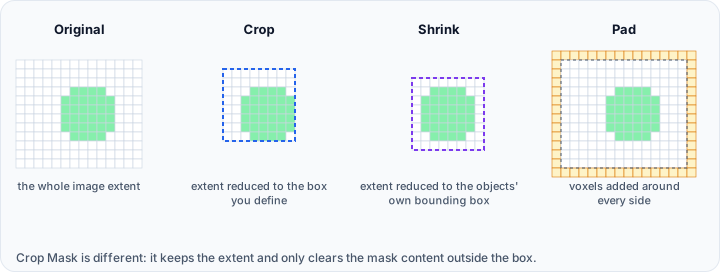
Remove unwanted regions to reduce data size and focus on areas of interest:
- Navigate to Image → Transform → Crop.
- The crop tool provides two methods:
Interactive Cropping:
- Click Enable cropping to enter interactive mode.
- Drag the crop box handles in 2D or 3D views.
- The preview shows the resulting region.
- Click Apply to execute the crop.
Numeric Cropping:
- Enter exact voxel ranges for X, Y, and Z.
- Review the resulting dimensions.
- Click Apply.
Crop early in your workflow to improve performance. Processing smaller volumes is faster and uses less memory.
Resampling a Volume
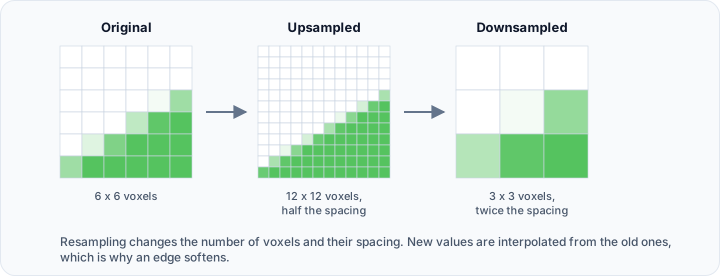
Change voxel dimensions by up-sampling or down-sampling:
- Navigate to Image → Transform → Resample.
- Configure target spacing or dimensions:
- Pixel spacing — Specify desired voxel size
- Voxel dimensions — Specify desired grid size
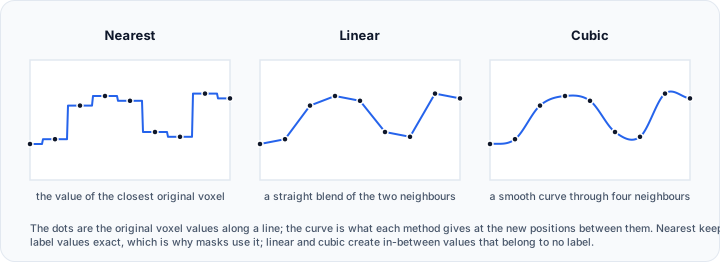
- Select interpolation method:
| Method | Description | Use Case |
|---|---|---|
| Nearest | Copies nearest voxel value | Masks, label maps |
| Linear | Interpolates between neighbors | General volumes |
| Cubic | Smoother interpolation | High-quality images |
- Click Apply.
Always use Nearest interpolation when resampling masks or label maps. Other methods create intermediate values that corrupt discrete labels.
Flipping a Volume
Mirror the volume along an axis:
- Navigate to Image → Transform → Flip.
- Select the axis: X, Y, or Z.
- Select target objects (active, selected, or all volumes).
- Click Apply.
Padding a Volume
Add voxels around the volume borders:
- Navigate to Image → Transform → Pad.
- Specify padding amounts for each face:
- -X / +X — Left and right padding
- -Y / +Y — Back and front padding
- -Z / +Z — Bottom and top padding
- Click Apply.
Padding is useful when:
- Surface generation requires margin around the mask
- Registration algorithms need border space
- Edge effects occur during filtering
Image Processing Operations
Smoothing and Denoising
Reduce noise while preserving important features:
- Navigate to Image → Operations → Smooth/Denoise.
- Select a filter:
| Filter | Effect | Preserves Edges |
|---|---|---|
| Gaussian | Uniform smoothing | No |
| Median | Removes salt-and-pepper noise | Moderate |
| Mean | Averages neighborhood | No |
| Anisotropic Diffusion | Edge-preserving smoothing | Yes |
| Bilateral | Edge-preserving smoothing | Yes |
- Configure filter parameters (kernel size, iterations).
- Click Apply.
Start with mild parameters and increase gradually. Over-smoothing can blur important boundaries needed for segmentation.
Morphological Operations
Apply morphological filters to volumes or masks:
- Navigate to Image → Operations → Morphology Operations.
- Select the operation:
| Operation | Effect |
|---|---|
| Erode | Shrinks bright regions |
| Dilate | Expands bright regions |
| Open | Erode then dilate (removes small bright spots) |
| Close | Dilate then erode (fills small dark gaps) |
- Set the kernel size.
- Click Apply.
Combining Volumes
Perform arithmetic operations between two volumes:
- Navigate to Image → Operations → Combine.
- Select the operation:
- Add — Sum intensities
- Subtract — Difference
- Multiply — Product
- Divide — Ratio
- Mean — Average
- Min/Max — Minimum or maximum
- Select the two input volumes.
- Click Apply.
Intensity Masking
Apply a mask to isolate regions of a volume:
- Navigate to Image → Operations → Masking.
- Select the target volume.
- Select the mask to apply.
- Configure:
- Intensity value — Intensity value to assign to voxels outside the mask.
- Click Apply.
Registration (Alignment)
Align multiple datasets to a common coordinate system.
Landmark Registration
Manual alignment using corresponding points:
- Navigate to Image → Transform → Landmark Registration.
- Select the Fixed (reference) object.
- Select the Moving (to be aligned) object(s).
- Place corresponding landmark points:
- Click in the fixed object to place a fixed point
- Click in the moving object to place the corresponding moving point
- Add at least 3 points for the registration
- Click Apply to compute and apply the transformation.
Global Registration
Automatic alignment using optimization:
- Navigate to Image → Transform → Global Registration.
- Select the fixed and moving objects.
- Configure registration parameters:
- Transform mode — Rigid, Affine, or Deformable
- Click Run to execute the registration.
Exporting Volume Data
Export to Standard Formats
- Click File → Export → Volume Data.
- Select the volumes to export.
- Choose the output format:
| Format | Extension | Features |
|---|---|---|
| MetaImage | .mhd/.raw | VTK-compatible, includes metadata |
| NIfTI | .nii, .nii.gz | Neuroimaging standard, compressed option |
| NRRD | .nrrd | Single file, embedded metadata |
| Raw | .raw | Binary data only |
- Configure format-specific options.
- Choose the destination and click Export.
Export as Image Stack
Create a folder of 2D images:
- Click File → Export → Image Stack.
- Select the volume.
- Configure:
- Slice plane — Direction of slice extraction
- Image — Slice range [From - Until]
- Output format — PNG, JPG, BMP
- Choose the destination folder.
- Click Export.
Export to DICOM
Write volumes back to DICOM format:
- Click File → Export → DICOM.
- Select the volume to export.
- Choose the output directory.
- Click Export.
Exported DICOM files should be validated before clinical use. Some metadata may differ from the original source.
Practical Exercise
Work through this image processing pipeline:
- Import a DICOM dataset or NIfTI volume.
- Crop the volume to focus on your region of interest.
- Apply Gaussian smoothing with a small radius factor (1-2).
- Adjust Window/Level for optimal visualization.
- Export the processed volume as NIfTI.
- Save the project.
Best Practices
Data Management
- Keep original data unchanged; work with copies
- Use descriptive names for processed volumes
- Save projects frequently during long sessions
- Document processing parameters for reproducibility
Performance Optimization
- Crop to region of interest early in the workflow
- Use appropriate bit depth (16-bit is usually sufficient)
- Resample large volumes to manageable sizes for exploration
- Close unused projects to free memory
Quality Assurance
- Verify spacing and orientation after import
- Check that transformations produce expected results
- Compare before/after views when applying filters
- Validate exported data in target applications
Troubleshooting
Import Issues
| Problem | Solution |
|---|---|
| DICOM files not detected | Ensure files have valid DICOM headers; try DICOM validation tools |
| Missing slices | Check for incomplete transfers; verify slice count |
| Incorrect spacing | Manually specify spacing if metadata is missing |
| Wrong orientation | Use the Reorient tools in Image → Transform |
Processing Issues
| Problem | Solution |
|---|---|
| Operation is slow | Work with cropped data; check available memory |
| Unexpected results | Verify input volume selection; check parameter values |
| Out of memory | Close other projects; reduce volume size; resample to lower resolution |
Next Steps
With volume data management mastered, proceed to:
- Threshold Segmentation — Create masks from intensity values
- 3D Visualization Techniques — Advanced rendering options