Manual Mask Editing
Automated segmentation rarely produces perfect results. Manual editing tools allow you to correct errors, add missed regions, remove unwanted inclusions, and refine boundaries. This tutorial covers the essential editing techniques for producing publication-ready segmentations.
Estimated time: 25 minutes
Prerequisites:
- Completed Threshold Segmentation tutorial
- A segmented mask that requires refinement
Segmentation results should be reviewed and validated by qualified professionals. Manual corrections require anatomical knowledge appropriate to the application domain.
The Edit Mask Tool
The primary interface for manual editing is the Edit Mask tool.
Accessing Edit Mask
- Select a mask in the Scene Tree.
- Navigate to Segmentation → Operations → Edit Mask.
- The Edit Mask panel opens with drawing tools and options.
Understanding the Interface
The Edit Mask panel contains:
- ROI Tools — Selection tools for different drawing shapes
- Edit Options — Draw/Erase mode and multi-layer settings
- Brush Settings — Size and type configuration
- Threshold Mode — Intensity-constrained drawing
- LiveWire Parameters — Edge-snapping settings
- Action Buttons — Clear Mask and other operations
Drawing Tools
Brush Tool
Paint directly on masks using freehand strokes:
- Click the Brush button in the ROI tool buttons.
- Configure brush parameters:
- Brush Size — Radius in pixels (1-1024 pixels)
- Brush Type — Circle or Rectangle
- Paint in slice views:
- Left-click + drag — Paint continuously
- Release to stop painting
- The painted region is added to (Draw mode) or removed from (Erase mode) the mask
Keyboard shortcuts:
- + key — Increase brush size
- - key — Decrease brush size
- Ctrl + Shift + B — Toggle between circular and rectangular brushes
Use a large brush (50-200 pixels) for rough initial work, then switch to a smaller brush (5-20 pixels) for precise boundary refinement. Work in zoomed views for better accuracy.
Rectangle Tool
Draw rectangular regions:
- Click the Rectangle button in the ROI tools.
- Left-click and drag to define corners.
- Release to apply the rectangle.
Useful for quickly filling or clearing rectangular areas and for precise alignment-based corrections.
Circle Tool
Draw circular (cylindrical) regions:
- Click the Circle button in the ROI tools.
- Left-click and drag from the center outward to define the radius.
- Release to apply the circle.
Creates a circular region in 2D that extends as a cylinder through all slices when Multiple Layer is enabled.
Polygon Tool
Draw precise multi-point regions:
- Click the Polygon button in the ROI tools.
- Left-click to place vertices around the region.
- Middle-click to close and apply.
Ideal for following irregular boundaries with straight line segments. More precise than freehand tools.
Lasso Tool
Draw freehand contours:
- Click the Lasso button in the ROI tools.
- Left-click and drag to trace around the region (like drawing with a pencil).
- Release to close and apply.
Faster than polygon for organic shapes, but less precise. Good for quick approximate selections.
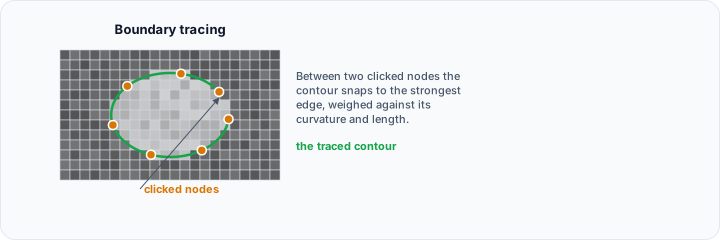
LiveWire Tool
Trace along high-contrast edges automatically:
- Click the LiveWire button in the ROI tools.
- Left-click to place anchor points along the boundary.
- The path automatically snaps to nearby edges based on intensity gradients.
- Middle-click to close and apply.
LiveWire Parameters:
- Curvature Weight (0.0-1.0) — Higher values favor smoother curves
- Edge Length Weight (0.0-1.0) — Higher values favor shorter paths
Useful on high-contrast edges where automatic edge detection works well.
Edit Modes
Draw Mode
Adds voxels to the mask:
- Ensure Draw mode is selected in Edit Options.
- Use any ROI tool to paint.
- Painted regions are added to the mask.
Erase Mode
Removes voxels from the mask:
- Select Erase mode in Edit Options.
- Use any ROI tool to paint.
- Painted regions are removed from the mask.
Quick toggle: Hold Shift while using any ROI tool to temporarily switch between Draw and Erase modes.
Multiple Layer Mode
Controls whether edits apply to one slice or all slices:
- Enabled (checked) — Edits affect all slices (true 3D operation)
- Disabled (unchecked) — Edits apply only to the current slice (2D slice-by-slice)
Use 2D mode for careful per-slice refinement. Use 3D mode for edits that logically span multiple slices.
Threshold-Constrained Drawing
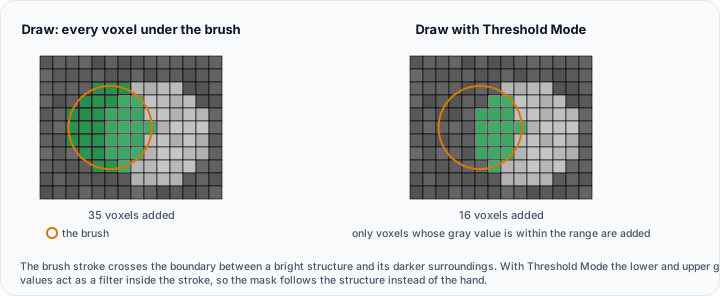
Combine manual painting with intensity thresholding for selective editing:
- Enable the Threshold Mode checkbox in Edit Mask.
- Set Lower Grayvalue and Upper Grayvalue using the histogram.
- Paint in Draw mode.
- Only voxels within the threshold range are added to the mask; other voxels are unaffected.
Practical example:
- Set threshold to bone values (200-3000 HU)
- Paint broadly over a bone region in Draw mode
- Only bone voxels are added; soft tissue and air are excluded
This is very useful for intensity-based refinement without strict geometric boundaries.
LiveWire Parameters
When using the LiveWire tool:
| Parameter | Description |
|---|---|
| Curvature Weight | Controls how much the path prefers smooth curves (0.0-1.0, default varies). Higher values create smoother paths. |
| Edge Length Weight | Controls preference for shorter paths (0.0-1.0, default varies). Higher values favor paths along image edges. |
Interpolate 3D
Fill gaps between segmented slices using interpolation:
- Segment several representative slices (e.g., every 5th slice).
- Navigate to Segmentation → Operations → Interpolate 3D.
- The algorithm fills intermediate slices by interpolating between segmented slices.
- Review and manually correct any errors.
This technique significantly reduces manual effort for large structures by requiring segmentation of only selected slices.
Boolean Operations
Combine multiple masks using set operations:
-
Navigate to Segmentation → Operations → Boolean.
-
Select two input masks.
-
Choose the operation:
Operation Result Union Combines both masks (A ∪ B) Intersection Only overlapping regions (A ∩ B) Difference First mask minus second (A - B) -
Click Apply.
Common use cases:
- Union — Combine separate structure masks into one
- Intersection — Find overlap between two segmentations
- Difference — Remove one structure from another
Practical Exercise: Refining a Bone Segmentation
Part 1: Assess the Initial Segmentation
- Create a threshold segmentation of bone (CT data).
- Scroll through slices to identify problems:
- Holes in cortical bone
- Included metal artifacts
- Missing small bones
Part 2: Fill Internal Holes
- Navigate to Segmentation → Operations → Cavity Fill.
- Apply to close internal gaps in the bone.
- Review results—internal cavities should be filled.
Part 3: Remove Artifacts
- Open Edit Mask.
- Select the Brush tool with medium size.
- Set mode to Erase.
- Navigate to slices with metal artifacts.
- Carefully erase the artifact regions.
- Use small brush for edge refinement.
Part 4: Add Missing Regions
- Set mode to Draw.
- Enable Threshold mode with bone values.
- Paint over missing bone regions.
- Only voxels within threshold range are added.
Part 5: Smooth Boundaries
- Navigate to Segmentation → Operations → Smooth Mask.
- Select Median filter with radius 1.
- Apply to clean up jagged edges.
Editing Best Practices
Workflow Organization
- Save before editing — Create a backup of the original segmentation
- Work systematically — Edit slice-by-slice in one direction
- Use appropriate zoom — Zoom in for detailed work
- Check in 3D — Generate 3D preview to verify changes
Tool Selection
| Task | Recommended Tool |
|---|---|
| Small corrections | Brush (small size) |
| Large region fill | Brush (large) or Rectangle |
| Following edges | Polygon or LiveWire |
| Organic shapes | Lasso |
| Consistent structure | Threshold-constrained brush |
Quality Control
After editing:
- Scroll through all slices to verify completeness.
- Generate a 3D preview to check for surface artifacts.
- Compare with the original volume to verify anatomical accuracy.
- Use mask statistics to verify reasonable volume measurements.
Keyboard Shortcut Reference
| Shortcut | Action |
|---|---|
| + / - | Increase/decrease brush size |
| Ctrl + Shift + B | Toggle brush shape |
| Shift | Toggle Draw/Erase while painting |
| Left-click + drag | Paint/draw with current tool |
| Middle-click | Close polygon |
| Mouse wheel | Scroll slices |
| Ctrl + Z | Undo (if available) |
Troubleshooting
Edits not appearing
- Verify the correct mask is selected
- Check that the tool is in the correct mode (Draw vs Erase)
- Ensure Multiple Layer setting matches your intent
Brush feels laggy
- Reduce brush size
- Disable Multiple Layer for faster 2D edits
- Consider cropping the volume to reduce data size
Threshold mode not working
- Verify threshold values are appropriate for the tissue
- Check that the volume and mask are properly associated
- Try a wider threshold range initially
Next Steps
With editing skills mastered, continue to:
- Creating 3D Surface Models — Generate meshes from refined masks
- Measurements and Statistics — Quantify segmentation results