Threshold Segmentation
Thresholding is the most fundamental segmentation technique, classifying voxels based on their intensity values. This tutorial teaches you to use threshold-based tools effectively for extracting structures from volumetric data.
Estimated time: 25 minutes
Prerequisites:
- Completed previous Fundamentals tutorials
- A volumetric dataset with distinct intensity regions (CT data works well)
Segmentation results should be reviewed and validated by qualified professionals. Automated tools assist the segmentation process but are not a substitute for expert judgment, particularly in clinical or diagnostic applications.
Understanding Thresholding
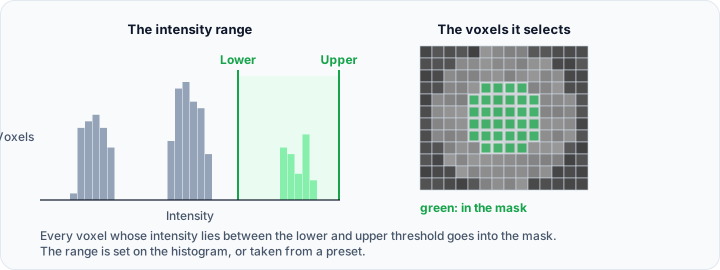
Thresholding segments voxels by comparing their intensity to defined boundaries:
- Voxels with intensity within the range → included in mask (foreground)
- Voxels with intensity outside the range → excluded (background)
Mathematically:
This works well when the target structure has distinct intensity values from surrounding tissues—for example, bone in CT imaging has much higher Hounsfield Unit values than soft tissue.
Basic Threshold Segmentation
Step 1: Open the Threshold Tool
- Load a volumetric dataset (CT recommended for this tutorial).
- Navigate to the Segmentation tab in the ribbon.
- Click Threshold in the Create Mask section.
The Threshold panel opens with:
- Presets dropdown for predefined ranges
- Histogram display with threshold controls
- Lower Threshold and Upper Threshold sliders
- Profile Line tool for intensity analysis
- Result Options for mask configuration
Step 2: Understand the Histogram
The histogram shows how voxel intensities are distributed across your data:
- X-axis — Intensity values (Hounsfield Units for CT)
- Y-axis — Number of voxels at each intensity
- Peaks — Represent distinct tissues or materials
Typical CT histogram peaks:
- Air: around -1000 HU
- Soft tissue: around 0-100 HU
- Bone: above 200-300 HU
Step 3: Set Threshold Values
The Threshold tool provides multiple ways to set your range:
Using Presets:
- Open the preset list at the top of the panel. Each entry shows a thumbnail rendered from the current volume.
- Select a supplied preset. The values are Hounsfield units, so they apply to calibrated CT data:
- Bone — 226 to 10000
- Muscle — -5 to 135
- Fat — -205 to -51
- Skin — -718 to -177
- Tooth — 1200 to 10000
- The thresholds adjust automatically to the preset values.
- Use the preset tool button to save your own preset, or to load and save preset files.
Manual Adjustment:
- Drag the Lower Threshold slider/handle on the histogram.
- Drag the Upper Threshold slider/handle.
- Or enter exact numeric values in the text fields.
Observe the Preview:
- A colored overlay appears in slice views showing selected voxels.
- Adjust until the target structure is cleanly selected.
Start with a preset, then narrow gradually by looking for intensity "valleys" on the histogram—these often represent optimal boundaries between tissues. The histogram peaks represent distinct tissue types.
Step 4: Optional - Use the Profile Line Tool
For precise threshold determination along anatomical boundaries:
- In the Threshold panel, enable the Profile Line group box.
- In a slice view, draw a line across the boundary between structures:
- Click to place the start point
- Click again to place the end point
- The Profile chart displays intensity values along the line.
- Examine the profile to identify:
- Where intensity changes sharply (structural boundaries)
- Peak intensity values for your target structure
- Use this information to refine your lower and upper threshold settings.
Draw profiles across multiple anatomical transitions to understand your data's intensity characteristics. This helps you select thresholds that capture your target structure cleanly.
Step 5: Configure Result Options
Before applying the threshold:
-
Target Mask:
- Select an existing mask to update, or
- Choose "New Mask" to create a new mask object
-
Result Mode:
- Replace — The thresholded voxels replace the existing mask content (default)
- Merge — The thresholded voxels are added to existing mask content
-
Click Apply to create or update the mask.
Step 6: Review the Result
- The new mask appears in the Scene Tree.
- Slice views show the mask overlay on the volume.
- Check multiple slices to verify the segmentation quality.
- If adjustments are needed, modify the threshold values and re-apply.
Refining Threshold Results
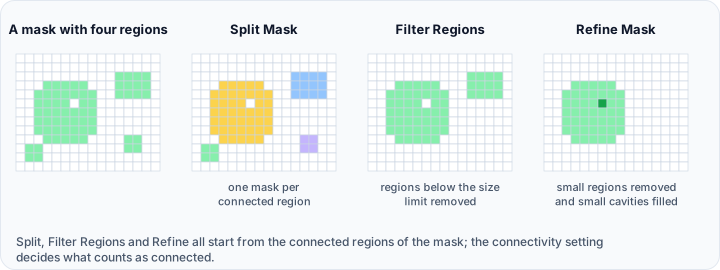
Threshold segmentation often requires post-processing to address:
- False positives — Unwanted regions included in the mask
- False negatives — Regions that should be included but aren't
- Noisy boundaries — Jagged or speckled edges
- Small artifacts — Disconnected fragments to be removed
Filtering Small Regions
Remove small disconnected noise during thresholding:
- In the Threshold panel, enable Filter regions.
- Set the Minimum region size threshold (in voxels).
- Optionally enable Keep largest only to retain only the biggest connected component.
- Apply the threshold.
Small artifacts and noise are automatically removed, leaving only meaningful regions.
Post-Processing with Smoothing
Clean up mask boundaries after thresholding:
- Navigate to Segmentation → Operations → Smooth Mask.
- Select a smoothing filter:
- Median — Removes small isolated voxels (good for noise)
- Gaussian — Smooths boundaries while preserving shape
- Set an appropriate Radius (typically 1-3 pixels).
- Click Apply.
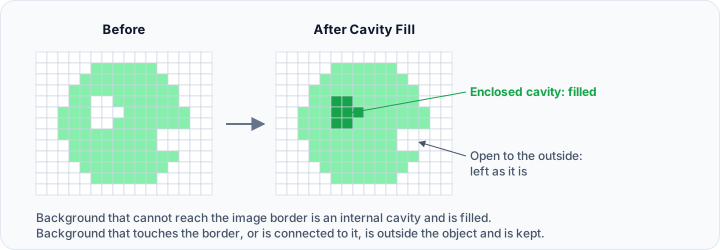
Filling Internal Cavities
To close internal voids or holes in the segmentation:
- Navigate to Segmentation → Operations → Cavity Fill.
- Set the Maximum cavity size (in voxels).
- Click Apply.
Internal cavities smaller than the threshold are automatically filled.
Multilevel Thresholding
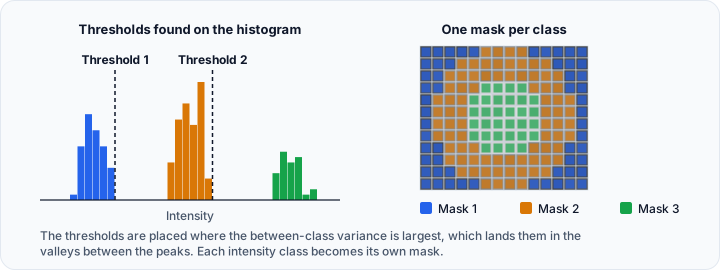
When you need to segment multiple tissue types with different intensity ranges simultaneously:
Using Multilevel Thresholding
- Navigate to Segmentation → Create Mask → Multilevel Thresholding.
- Configure the parameters:
- Number of masks — How many separate intensity classes to create (e.g., 3 for bone, soft tissue, air)
- Method — Otsu's method automatically calculates optimal threshold boundaries
 3. Click Apply.
4. Volvicon creates separate masks for each intensity class.
3. Click Apply.
4. Volvicon creates separate masks for each intensity class.
This approach is useful for:
- Segmenting multiple tissue types in one operation (bone, soft tissue, air)
- Creating initial segmentations when structure intensities don't overlap
- Analyzing the distribution of intensity classes in your data
Working with Multi-Label Masks
For complex segmentations with multiple regions:
Creating a Multi-Label Mask
- Perform individual segmentations for each structure.
- Navigate to Segmentation → Operations → Multi-label Mask.
- Click Merge into Multi-label.
- Select the masks to combine.
- Select the target/result mask.
- Click Apply.
Extracting Labels
To separate a multi-label mask:
- Select the multi-label mask.
- Navigate to Segmentation → Operations → Multi-label Mask.
- Click Extract Labels as Separate Masks.
- Individual masks are created for each label.
Threshold Best Practices
Choosing Thresholds
| Approach | When to Use |
|---|---|
| Presets | Standard materials with known values (bone, air) |
| Histogram peaks | Data with clear intensity separation |
| Profile line | Precise boundary identification |
| Iterative refinement | When boundaries are gradual |
Common Threshold Values (CT)
| Structure | Approximate HU Range |
|---|---|
| Air | -1000 to -900 |
| Lung tissue | -900 to -400 |
| Fat | -150 to -50 |
| Water/Fluid | -20 to +20 |
| Soft tissue | +20 to +100 |
| Muscle | +30 to +60 |
| Contrast-enhanced vessels | +100 to +400 |
| Trabecular bone | +200 to +500 |
| Cortical bone | +500 to +1900 |
| Metal | > +2000 |
These values are approximate and vary based on scanner, protocol, and patient factors. Always verify with your specific data using histogram analysis.
Quality Considerations
-
Partial Volume Effects — Voxels at boundaries contain mixed tissues, creating intermediate intensities. This causes jagged edges in threshold segmentations.
-
Noise — Random intensity variations can cause speckled segmentation results. Apply smoothing before thresholding for noisy data.
-
Inhomogeneity — The same tissue may have different intensities in different regions due to imaging artifacts. Consider region-based segmentation for such cases.
Practical Exercise: Segmenting Bone from CT
Follow this workflow to segment bone structures from a CT dataset:
Part 1: Initial Thresholding
- Load a CT dataset (head, chest, or extremity).
- Navigate to Segmentation → Create Mask → Threshold.
- In the Threshold panel:
- Select the Bone preset from the preset list (226 to 10000 HU).
- Observe the preview in the slice views showing selected bone.
- If needed, fine-tune the lower threshold (typically 200-300 HU for cortical bone, 100-200 for trabecular).
- In Options, enable Filter regions:
- Select Remove regions and set Minimum region size (voxels) to 100 (removes noise).
- Or select Keep the largest region if you want only the main skeleton.
- Configure the Result:
- Leave the target mask on
<New mask object>, then rename the mask afterwards. - Mode: Keep Replace (default).
- Leave the target mask on
- Click Apply to create the mask.
Part 2: Review and Refine
- Scroll through Plane 3 (XY), Plane 1 (YZ), and Plane 2 (XZ) slices to verify segmentation.
- Check for:
- Are all bone regions captured?
- Are there unwanted non-bone structures included?
- Are boundaries smooth or speckled?
- If adjustments are needed:
- To add missing regions: Adjust threshold values lower and re-apply (or use Region Grow).
- To remove extra regions: Adjust threshold values higher and re-apply.
- To smooth noisy boundaries: Use Smooth Mask with Median filter and radius 1-2.
Part 3: Generate 3D Visualization
- With the bone mask selected, navigate to Segmentation → Convert → Mask To Surface.
- Use Optimal quality preset for final output.
- Click Apply to generate the 3D mesh.
- In the 3D view, rotate and inspect the model from multiple angles.
- The surface mesh is now ready for:
- 3D visualization
- Export for 3D printing
- CAD applications
- Further geometric analysis
Troubleshooting
Too many voxels selected
- Lower threshold may be too low
- Upper threshold may be too high
- Try narrowing the range incrementally
Missing parts of the target structure
- Threshold range may be too narrow
- The structure may have varying intensity
- Consider using Region Grow to capture connected regions
Speckled or noisy result
- Data may be noisy—apply smoothing to the volume first
- Use morphological opening (erode then dilate) on the mask
- Enable region filtering to remove small fragments
Separate objects merged together
- Objects may have similar intensities
- Use Region Grow to isolate individual objects
- Use Watershed segmentation to separate touching objects
Scripting Threshold Segmentation
Automate thresholding with Python:
import ScriptingApi as api

app = api.Application()
mask_operations = app.get_mask_operations()

# Configure threshold parameters
threshold_params = api.ThresholdParams()
threshold_params.lower_threshold = 200
threshold_params.upper_threshold = 3000
threshold_params.filter_regions = True
threshold_params.min_region_size = 100
threshold_params.keep_largest = False

# Apply threshold to the active volume
result = mask_operations.threshold("CT_Volume", threshold_params)
print(f"Created mask: {result}")
See the MaskOperations API Reference for additional options.
Next Steps
With threshold segmentation mastered, continue to:
- Region-Based Segmentation — Learn connectivity-based techniques
- Manual Mask Editing — Refine segmentation results
- Creating 3D Surface Models — Generate meshes from masks
See Also
- Segmentation Tab Overview — Complete tool reference
- Threshold Tool Reference — Detailed parameter documentation
- Understanding Masks — Foundational concepts