Volume Mesh for Simulation
Volume meshes extend surface models into three-dimensional discretizations suitable for finite element analysis (FEA), computational fluid dynamics (CFD), and other simulation applications. This tutorial covers the workflow from segmentation to simulation-ready meshes.
Estimated time: 30 minutes
Prerequisites:
- Completed surface generation tutorials
- A clean, watertight surface model
- Understanding of target simulation requirements
Understanding Volume Meshes
While surface meshes represent only the boundary of objects, volume meshes fill the entire interior with volumetric elements—typically tetrahedra. This discretization enables simulation of:
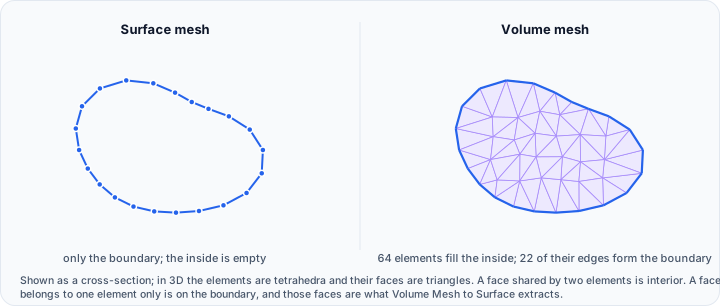
- Structural mechanics (stress, strain, deformation)
- Thermal analysis (heat transfer, temperature distribution)
- Fluid dynamics (flow, pressure)
- Electromagnetic fields
Element Types
| Type | Nodes | Description |
|---|---|---|
| Linear (4-node) | 4 | Nodes at vertices only; linear interpolation |
| Quadratic (10-node) | 10 | Additional nodes at edge midpoints; higher accuracy |
Linear elements are computationally efficient; quadratic elements capture curved boundaries and stress gradients more accurately.

Prerequisites for Volume Meshing
Successful volume mesh generation requires clean input geometry.
Surface Requirements
- Watertight — No holes or gaps
- Manifold — Each edge shared by exactly two triangles
- Consistent normals — All triangles point outward
- No self-intersections — Surface does not cross itself
- Reasonable triangle quality — No extremely thin triangles
Preparing Your Surface
Before meshing:
-
Run Diagnostics and Fixes:
- Navigate to Surface → Edit → Diagnostics and Fixes.
- Identify and repair issues.
- Fill holes, fix non-manifold edges, correct normals.
-
Verify watertightness:
- Check that hole count is zero.
- Verify edge manifold status.
-
Optimize triangle quality (optional):
- Use Remesh for more uniform triangles.
- Smooth away noise that might cause meshing issues.
Volume mesh generation will fail on surfaces with topological defects. Always run diagnostics before attempting tetrahedralization.
Creating Volume Meshes from Surfaces
Step-by-Step Workflow
-
Select the surface in the Scene Tree.
-
Access the tool:
- Navigate to Surface → Convert → Surface to Volume Mesh.
-
Choose the algorithm:
Method Description Auto3D High-quality adaptive meshing Grid3D Background grid-based approach Auto3D is recommended for most applications.
-
Select element type:
- Tetra 4-Node — Linear elements
- Quadratic 10-Node — Higher-order elements
-
Configure quality preset:
Preset Triangle Count Use Case Very coarse Minimal Quick testing Coarse Low Preliminary analysis Moderate Balanced General purpose Fine High Accurate analysis Very fine Maximum High-fidelity simulation Custom User-defined Specific requirements -
Click Apply.
-
Review the result:
- Volume mesh appears in the Scene Tree
- Display in 3D view shows element structure
Custom Meshing Parameters
For precise control, select Custom preset and configure:
| Parameter | Description | Typical Range |
|---|---|---|
| Max element size | Upper limit on edge length | Depends on geometry scale |
| Min element size | Lower limit on edge length | 0 for automatic |
| Growth rate | Size transition rate (%) | 20-40% for gradual |
| Surface optimization steps | Surface mesh refinement | 1-5 |
| Volume optimization steps | Volume mesh optimization | 1-5 |
Element Size Guidelines
| Application | Recommended Size |
|---|---|
| Initial testing | 5-10% of smallest feature |
| Standard analysis | 2-5% of smallest feature |
| High accuracy | 1-2% of smallest feature |
| Stress concentration regions | Much smaller locally |
Creating Volume Meshes from Masks
Direct conversion from segmentation masks:
-
Select the mask in the Scene Tree.
-
Navigate to:
- Segmentation → Convert → Mask To Volume Mesh.
-
Configure parameters (similar to surface method).
-
Click Apply.
This method internally generates a surface and then tetrahedralizes it, combining two steps.
Multi-Part Assemblies
When meshing multiple surfaces that contact each other:
Maintaining Conformity
Ensure nodes match at interfaces for proper load transfer:
- Select all surfaces to mesh together.
- In Surface to Volume Mesh, enable Maintain conformity.
- Run the mesh generation.
- Resulting meshes share nodes at contact surfaces.
Conforming meshes are required for:
- Bonded assemblies
- Contact analysis
- Multi-material models
Non-Conforming Meshes
When surfaces are independent:
- Disable conformity option.
- Mesh each surface separately or together without nodal matching.
- Use tie constraints in the solver to connect parts.
Volume Mesh Quality
Quality Metrics
| Metric | Description | Target |
|---|---|---|
| Aspect ratio | Edge length ratio | < 10 (< 5 preferred) |
| Minimum angle | Smallest dihedral angle | > 10° (> 20° preferred) |
| Jacobian | Element distortion | > 0.2 |

Checking Mesh Quality
- Navigate to Measure → Analysis → Mesh Quality Analyzer.
- Select the volume mesh.
- View quality distribution:
- Color-mapped visualization
- Histogram of quality values
- Statistics summary
- Identify problematic elements for potential refinement.
Improving Mesh Quality
If quality is insufficient:
- Increase optimization steps in meshing parameters.
- Refine the source surface with Remesh or Smooth.
- Reduce maximum element size for finer mesh.
- Fix surface defects that may cause poor elements.
FEM Configuration
Prepare the mesh for finite element analysis:
Configure FEM Model
-
Navigate to Volume Mesh → FEM → Export FEM Mesh.
-
Define material properties:
- Young's modulus
- Poisson's ratio
- Density
- Other material parameters
-
Define element sets:
- Group elements for different materials
- Create sets for output requests
Export FEM Mesh
Export to solver-specific formats:
-
Navigate to Volume Mesh → FEM → Export FEM Mesh.
-
Select format:
Format Solver Abaqus (.inp) Abaqus Nastran (.bdf) Nastran LS-DYNA (.key) LS-DYNA OpenFOAM (.foam) OpenFOAM Fluent (.msh) Fluent Gmsh (.msh) Gmsh -
Configure export options.
-
Click Export.
Practical Exercise: Complete FEA Workflow
Scenario
Create a volume mesh of a bone segment for stress analysis.
Part 1: Prepare the Surface
- Load a bone segmentation mask.
- Generate a surface using Mask to Surface.
- Apply smoothing (Smart, 20 iterations).
- Run Diagnostics and Fixes.
- Fill any holes.
- Verify watertight status.
Part 2: Generate Volume Mesh
- Select the bone surface.
- Navigate to Surface → Convert → Surface to Volume Mesh.
- Select Auto3D method.
- Choose Quadratic 10-Node elements (for stress analysis).
- Select Fine preset.
- Click Apply.
Part 3: Evaluate Mesh Quality
- Navigate to Mesh Quality Analyzer.
- Select the volume mesh.
- Review:
- Minimum angle distribution
- Aspect ratio statistics
- Ensure most elements meet quality criteria.
Part 4: Export for FEA
- Navigate to Configure FEM Model.
- Set bone material properties:
- Young's modulus: 17 GPa (cortical bone)
- Poisson's ratio: 0.3
- Navigate to Export FEM Mesh.
- Select Abaqus format.
- Export the mesh file.
Volume Mesh Transformation
Apply geometric modifications to volume meshes:
Transform Operations
Navigate to Volume Mesh → Transform for:
| Operation | Description |
|---|---|
| Transform | Rotate, translate, scale numerically |
| Interactive Transform | Manipulate with 3D gizmo |
Converting Back to Surface
Extract the boundary surface:
- Navigate to Volume Mesh → Convert → Volume Mesh to Surface.
- The outer surface of the tetrahedral mesh is extracted.
- Useful for visualization or further surface processing.
Best Practices
Mesh Generation
- Start with coarse mesh for initial testing
- Refine only after verifying the workflow
- Document meshing parameters for reproducibility
Quality Assurance
- Always check mesh quality before analysis
- Address elements with very poor quality
- Validate mesh convergence by comparing coarse vs. fine results
Solver Compatibility
- Verify element type compatibility with target solver
- Check unit consistency (mm vs. m)
- Validate material property formats
Troubleshooting
Meshing fails completely
- Surface likely has defects
- Run Diagnostics and Fixes
- Check for self-intersections
- Simplify complex regions
Poor element quality
- Increase optimization steps
- Smooth the source surface
- Reduce maximum element size
- Address sharp features in the geometry
Mesh is too large
- Increase maximum element size
- Use coarser preset
- Consider adaptive meshing for local refinement
Solver import errors
- Verify format compatibility
- Check element type support
- Review node/element numbering
Next Steps
Continue with advanced topics:
- AI-Powered Segmentation — Automated analysis input
- Python Scripting Fundamentals — Automate mesh workflows
- Batch Processing and Automation — Process multiple models