Region-Based Segmentation
Region-based segmentation techniques grow or divide regions based on connectivity and similarity criteria. These methods complement threshold segmentation by considering spatial relationships between voxels, making them effective for isolating connected structures and separating touching objects.
Estimated time: 30 minutes
Prerequisites:
- Completed Threshold Segmentation tutorial
- A volumetric dataset with multiple structures or objects
Segmentation results should be reviewed and validated by qualified professionals. These tools assist the segmentation process but are not a substitute for expert judgment.
Understanding Region-Based Methods
Region-based segmentation uses spatial connectivity to group voxels:
- Region Growing — Starts from seed points and expands to include connected voxels meeting similarity criteria
- Watershed — Treats intensity as elevation and finds boundaries where "water" would collect
- GrowCut — Uses cellular automata to propagate labels from user-defined seeds
These methods are useful when:
- Objects have similar intensity but are spatially separate
- You need to isolate one object from a group
- Threshold results include multiple connected components
Region Grow (Within Mask)
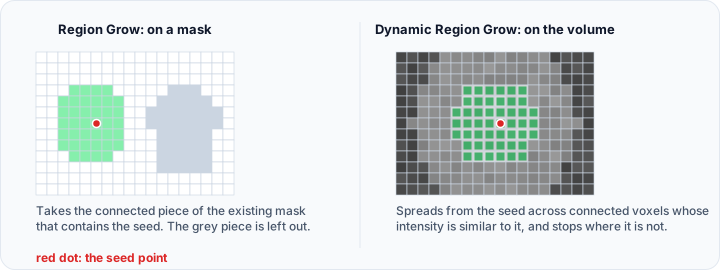
The Region Grow tool performs region growing on an existing mask to isolate connected regions. Starting from a seed point, it identifies and extracts all connected voxels as a new segment.
When to Use
- You have a threshold segmentation containing multiple separate objects
- You want to extract a single object from a combined mask
- You need to verify connectivity between regions
- Objects are disconnected or separable but contained in one mask
Understanding Connectivity
Region growing works on binary mask data using two connectivity modes:
- 6-connectivity (default) — Only voxels sharing faces are considered connected. More conservative for object separation.
- 26-connectivity — Voxels sharing faces, edges, or corners are connected. More inclusive for capturing thin connections.

Step-by-Step Workflow
-
Create initial segmentation:
- Use Threshold to create a mask containing all objects of interest
- The mask may contain multiple disconnected structures
- Apply any necessary filtering to clean the mask
-
Open Region Grow:
- Navigate to Segmentation → Create Mask → Region Grow
-
Configure connectivity settings:
- Connectivity: Choose 6-connected for conservative separation or 26-connected for inclusive segmentation
- Multiple layer: Enable (checked) to process all slices; disable (unchecked) for current slice only
- Keep original mask: Enable to preserve the source mask while creating results
-
Configure result settings:
- Target mask: Select where results will be stored (new mask or existing)
- Mode: Choose Replace (default) to replace target mask or Merge to add to existing
-
Place seed point:
- Left-click on the desired object in either the 2D slice views or 3D view
- Use Ctrl+drag in 3D view to rotate while selecting
- Press P key as a shortcut for quick selection mode
- The algorithm immediately identifies all connected voxels from the seed
-
Review and repeat:
- The isolated object appears in the target mask
- Repeat steps 4-5 to extract additional objects as needed
- Use Replace mode to create separate masks for each object
Use 6-connectivity when you want strict separation—objects must share faces to be connected. Use 26-connectivity when thin diagonal bridges should be preserved as connections.
Practical Example: Isolating Vertebrae
1. Load a CT spine dataset
2. Create a threshold mask of all bone (HU 200-3000)
3. Open Region Grow with 6-connectivity enabled
4. Left-click on L1 vertebra → isolated L1 mask
5. Repeat for L2, L3, etc.
6. Individual vertebra masks ready for analysis
Dynamic Region Grow
Dynamic Region Grow expands regions from a seed point based on grayscale intensity. It offers two methods: Connectivity (statistical intensity matching) or Threshold (intensity range-based).
When to Use
- You're segmenting directly from grayscale volume data (not an existing mask)
- Target structure has relatively uniform or similar intensity
- Object boundaries are defined by intensity gradients
- You want to segment structures with consistent statistical properties
Method Selection
Choose one of two region growing approaches:
Connectivity Method:
- Analyzes statistical properties around the seed point
- Grows by including neighboring voxels with similar intensity statistics
- Multiplier: Controls confidence interval (1.0 to 100.0, default: 1.0)
- Number of iterations: Repetition count (default: 1)
- Initial neighborhood radius: Starting region size in pixels (default: 1)
- Best when intensity varies gradually within the object
Threshold Method:
- Includes voxels within a specific intensity range
- Fixed minimum and maximum intensity thresholds
- Connectivity: 6 or 26 neighborhood
- Best when you know the specific intensity range of your target
Step-by-Step Workflow
-
Load volume data:
- Ensure the target volume is the active object
- No pre-existing mask is required
-
Open Dynamic Region Grow:
- Navigate to Segmentation → Create Mask → Dynamic Region Grow
-
Select region growing method:
- Choose Connectivity for statistical similarity-based growing
- Choose Threshold for fixed intensity range growing
-
Configure method parameters:
- For Connectivity method:
- Adjust Multiplier (default 1.0) to control sensitivity
- Set Number of iterations (default 1)
- Set Initial neighborhood radius in pixels (default 1 pixel)
- For Threshold method:
- Use the histogram to set Minimum threshold value
- Use the histogram to set Maximum threshold value
- Choose Connectivity mode (6 or 26)
- For Connectivity method:
-
Configure options:
- Fill cavities: Enable to automatically fill internal gaps
- Multiple layer: Enable (default) for 3D growth; disable for 2D slice-only
-
Configure result settings:
- Target mask: Select destination (new or existing)
- Mode: Choose Replace (default) or Merge
-
Place seed point:
- Left-click on the target structure in 2D or 3D view
- Use Ctrl+drag to rotate in 3D while selecting
- The region grows automatically from the seed
-
Evaluate and refine:
- If region is too small: increase tolerances/multiplier or widen threshold range
- If region leaks: decrease tolerances/multiplier or narrow threshold range
- Place additional seed points to segment multiple regions
Intensity Range Formula (Threshold Method)
where the voxel must also be connected (6 or 26 neighborhood) to the growing region.
Practical Example: Organ Segmentation
1. Load abdominal CT dataset
2. Open Dynamic Region Grow with Threshold method
3. Set threshold range (liver: 40-80 HU)
4. Left-click inside liver → liver mask created
5. Adjust threshold range and try again if needed
6. Enable Fill cavities to remove internal voids
Watershed Segmentation
Watershed segmentation separates touching or connected objects by treating the grayscale image as a topographic surface. It finds the ridges (watershed lines) where "water" would divide between different basins.

When to Use
- Multiple objects are touching or nearly touching
- Objects have similar intensity but need separation
- You have a mask containing merged/connected objects
- Objects have distinct centers but shared boundaries
How Watershed Works
The algorithm:
- Treats the grayscale image as elevation (intensity = height)
- Identifies local minima as starting points (catchment basins)
- Simulates "water flooding" from these points
- Draws watershed lines where water from different basins meets
- These lines define boundaries between separate objects
Step-by-Step Workflow
-
Create initial segmentation:
- Create a threshold mask containing the touching objects
- Ensure all objects of interest are included in the mask
- Optional: Apply morphological operations for better definition
-
Open Watershed:
- Navigate to Segmentation → Create Mask → Watershed
-
Select target objects:
- Target objects: Choose the mask(s) to process
- Active Mask (current selection)
- Selected Masks (multiple specific masks)
- All Masks (all available masks)
- Target objects: Choose the mask(s) to process
-
Configure connectivity:
- Connectivity mode: Choose 6-connectivity (conservative) or 26-connectivity (inclusive)
-
Adjust separation parameters:
- Level (0.0 to 999.0, default: 1.0):
- Controls the depth of segmentation hierarchy
- Increase level: More aggressive separation (over-segmentation risk)
- Decrease level: More conservative separation (under-segmentation risk)
- Start with default (1.0) and adjust based on results
- Level (0.0 to 999.0, default: 1.0):
-
Optional: Configure output and filtering:
- Create a mask with multiple labels: Enable to get one multi-label mask instead of separate masks
- Minimum object size: Remove fragments smaller than threshold (in voxels)
- Remove objects that touch boundaries: Exclude incomplete objects at volume edges
-
Click Apply:
- The watershed transform processes the mask
- Objects are separated along the watershed lines
-
Review and iterate:
- Check separation in all views
- If over-segmented (too many splits): Decrease level value
- If under-segmented (objects still connected): Increase level value
- Adjust minimum size filter to remove noise
- Re-apply as needed
Parameter Tuning Guide
| Observation | Action |
|---|---|
| Objects still touching | Increase level value |
| Too many small fragments | Decrease level value or increase min size filter |
| Watershed lines in wrong place | Adjust level or apply smoothing before watershed |
| Incomplete objects at edges | Enable "Remove objects that touch boundaries" |
Practical Example: Separating Vertebrae
1. Load CT spine dataset
2. Create bone mask via threshold (HU 200-3000)
3. Open Watershed with level = 1.0
4. Click Apply → vertebrae separated
5. If still touching: increase level to 2.0, re-apply
6. If over-segmented: decrease level to 0.5, re-apply
7. Optional: Enable \"Create multi-label mask\" for single output
GrowCut Segmentation
GrowCut uses a cellular automata approach where user-created seed masks compete to "grow" into unlabeled regions. Different seed labels expand based on intensity similarity and spatial proximity.
When to Use
- You need interactive, fine-grained control over region growth
- Objects have complex boundaries or low contrast
- Multiple regions need simultaneous segmentation
- Standard threshold or region growing produces poor results
- You want to iteratively refine segmentation
Seed Preparation (Before GrowCut)
GrowCut requires existing mask objects with painted seed regions:
-
Create seed masks (typically 2 or more):
- Create Mask 1 (e.g., "Object_seeds")
- Create Mask 2 (e.g., "Background_seeds")
- Optionally create additional masks for multiple objects
-
Paint seed regions using Edit Mask → Paint tool:
- In Mask 1: Paint representative areas of your target structure
- In Mask 2: Paint representative areas of background or other regions
- Paint in key representative areas, not entire objects
- Paint near boundaries to guide the algorithm
- Each different label in the masks represents a separate seed region
-
Key principles:
- Minimum 2 different labels required
- Each label grows independently based on intensity similarity
- Seeds should be representative of their region's intensity
- Place seeds throughout the region for better results
- Avoid clustering all seeds in one area
Step-by-Step Workflow
-
Prepare seed masks (as described above)
- You need at least 2 mask objects with painted seeds
- Each mask can contain multiple labels
- Paint representative seed regions
-
Open GrowCut:
- Navigate to Segmentation → Create Mask → Additional → GrowCut
-
Select seed mask objects:
- Use the Seed mask object(s) checklist dropdown
- Select all masks containing your seed regions
- Multiple masks can be selected if seeds are in different masks
- Each selected mask contributes its labels to the competition
-
Configure seed parameters:
- Seed locality (0.0 to 10.0, default: 0.0):
- Controls how localized seed effects are
- 0.0: Seeds influence throughout the image
- Increase value: Reduces leakage into unwanted regions
- Higher values require more even seed distribution
- Seed locality (0.0 to 10.0, default: 0.0):
-
Optional: Configure masking:
- Enable Masking to restrict segmentation to a specific region
- Select a mask object to segment within
- GrowCut will only process voxels inside the masking object
-
Optional: Configure threshold:
- Enable Threshold to restrict segmentation to intensity range
- Use histogram to set minimum and maximum values
- GrowCut will only consider voxels within this range
-
Configure output:
- Target mask: Select where results will be stored
- Mode: Choose Replace (default) or Merge
- Multiple layer: Enable (default) for 3D; disable for 2D only
-
Click Apply:
- The cellular automata algorithm runs
- Different seed labels compete for unlabeled voxels
- Regions expand based on intensity similarity and distance
-
Review and refine:
- Check the segmentation in all views
- If results are poor:
- Go back and add more seeds to existing masks
- Increase seed locality to reduce leaks
- Adjust seed placement for better representation
- Enable masking/threshold to restrict segmentation
- Click Apply again to re-run with improved seeds
Seed Locality Guidance
| Situation | Action |
|---|---|
| Leaking into adjacent structures | Increase seed locality (0.5-2.0) |
| Seeds too localized, poor growth | Decrease seed locality or add more seeds |
| Uneven seed distribution | Increase seed locality and improve seed spacing |
Practical Example: Segmenting Organs
1. Create "Liver_seeds" mask, paint liver areas
2. Create "Other_tissue_seeds" mask, paint surrounding areas
3. Open GrowCut, select both seed masks
4. Set seed locality = 0.5
5. Click Apply → liver segmented
6. If leaking: increase seed locality to 1.0, re-apply
7. If incomplete: add more seeds to liver_seeds, re-apply
8. Refine iteratively
LiveWire Segmentation
LiveWire provides semi-automatic boundary tracing by snapping to high-contrast edges. It combines user input with edge detection for precise boundary following.
When to Use
- You need precise boundary following with complex shapes
- Objects have clear, well-defined edges
- Fully manual tracing would be too time-consuming
- Automatic methods struggle with boundary definition
Step-by-Step Workflow
-
Open Edit Mask:
- Navigate to Segmentation → Operations → Edit Mask
-
Select the LiveWire tool:
- Click the LiveWire button in the mask editing tools
-
Configure LiveWire parameters:
- Curvature weight: Higher values favor smoother, more curved paths
- Edge length weight: Higher values favor shorter paths
- Adjust based on your image's characteristics
-
Trace the boundary:
- Left-click to set the starting anchor point
- Move the mouse — the path snaps to nearby edges
- Left-click again to place intermediate anchor points along the boundary
- Continue around the object's perimeter
- Right-click to close the contour
- The enclosed region becomes part of the mask
-
Refine the result:
- LiveWire works best on high-contrast edges
- Place anchor points at corners or where auto-path deviates
- The algorithm snaps to nearby edge features
- Multiple passes can refine the boundary
Place anchor points at corners, shape transitions, and wherever the automatic path diverges from the desired boundary. The tool works best on edges with good contrast.
Voids and Inclusions Detection
Voids and Inclusions detection identifies internal features (defects or particles) within objects using grayscale intensity analysis. It finds regions that differ significantly from surrounding material based on contrast analysis.
When to Use
- Detecting manufacturing defects (air bubbles, porosity, cracks)
- Finding foreign particles or contaminants
- Identifying calcifications or dense regions in soft tissue
- Quality control and inspection applications
- Material defect analysis
Detection Methods
Choose a detection mode:
Void Detection:
- Identifies regions with lower intensity than surrounding material
- Examples: air pockets, porosity, internal gaps
Inclusion Detection:
- Identifies regions with higher intensity than surrounding material
- Examples: dense particles, foreign objects, calcifications
Choose a contrast analysis method:
Absolute Method:
- Uses fixed intensity threshold for defect detection
- Best when you know the specific intensity threshold
- Can auto-estimate with "Auto absolute contrast"
Relative Method:
- Uses percentage difference from local mean intensity
- Best for materials with varying baseline intensity
- Expressed as percentage (0-100%)
Step-by-Step Workflow
-
Load volume data:
- Ensure the target volume is active
- Volume should contain the objects to analyze
-
Open Voids and Inclusions:
- Navigate to Segmentation → Create Mask → Voids and Inclusions
-
Select target volumes:
- Target object(s):
- Active Volume (current selection)
- Selected Volumes (specific volumes)
- Visible Volumes (visible in viewport)
- All Volumes (all available)
- Target object(s):
-
Configure analysis type:
- Mode: Choose Void (low intensity) or Inclusion (high intensity)
- Method: Choose Absolute (fixed threshold) or Relative (percentage-based)
-
Set analysis parameters:
- For Absolute method:
- Set Absolute contrast value (intensity threshold)
- Or enable Auto absolute contrast for automatic estimation
- For Relative method:
- Set Relative contrast (%) (default: 20%)
- Air gray value: Reference intensity for background (or enable auto)
- For Absolute method:
-
Optional: Configure ROI masking:
- Enable ROI Mask to analyze within specific region
- Select the Mask object to confine analysis
- Only voxels inside the mask will be analyzed
-
Optional: Configure advanced filtering:
- Expand Filter Result section for advanced options
- Size filters: Set minimum and maximum size (in volume or voxels)
- Shape filters: Compactness and sphericity ranges
- Volume fraction range: Filter by defect percentage
- Equivalent diameter range: Filter by defect sphere size
- Maximum count: Limit number of detected defects
-
Click Apply:
- The algorithm analyzes the volume for defects
- Detected voids/inclusions are marked in output mask
-
Review and refine:
- Examine detected defects in views
- If too many small defects detected: increase minimum size filter
- If missing large defects: adjust contrast settings
- If too many detections: refine shape or size filters
- Re-apply with adjusted parameters
Method Selection Guide
| Scenario | Recommended Method |
|---|---|
| Know exact intensity threshold | Absolute with fixed value |
| Materials with varying baseline | Relative with percentage |
| Want automatic detection | Absolute with auto-contrast |
| Need high sensitivity | Lower absolute contrast value |
| Need to eliminate noise | Increase minimum size filter |
Practical Example: CT Inspection
1. Load industrial CT scan of cast part
2. Open Voids and Inclusions
3. Select mode: Void, method: Absolute
4. Enable "Auto absolute contrast"
5. Set minimum size: 8 voxels (eliminate noise)
6. Click Apply → air pockets detected
7. Review in 3D → defects highlighted
8. Export results for quality report
Split Mask
Automatically separate all disconnected components in a mask into individual regions.
When to Use
- You have a mask with multiple disconnected objects
- You want each object as a separate mask
- You need to analyze individual components separately
Step-by-Step Workflow
- Select the mask containing multiple disconnected objects
- Navigate to Segmentation → Operations → Split Mask
- Configure connectivity:
- Connectivity: Choose 6-connectivity (conservative) or 26-connectivity (inclusive)
- Optional: Configure filtering:
- Number of largest regions: Separate only the biggest components
- Other size-based filters as needed
- Click Apply
- Individual masks are created for each disconnected component
This is useful after threshold segmentation when you want each object as a separate mask for individual analysis.
Filter Regions
Remove unwanted small or large regions from masks to clean up segmentation results.
When to Use
- Removing noise or small fragments from segmentation
- Keeping only large components
- Cleaning threshold results
Step-by-Step Workflow
- Select the mask to filter
- Navigate to Segmentation → Operations → Filter Regions
- Configure filtering criteria:
- Keep largest only: Retain only the single largest component
- Number of largest regions: Retain only the top N largest components
- Minimum region size: Remove regions smaller than this threshold (in voxels)
- Click Apply
- Filtered mask is created with unwanted regions removed
Practical Exercise: Separating Vertebrae
This exercise demonstrates separating touching structures using multiple region-based techniques.
Part 1: Initial Segmentation
- Load a CT spine dataset
- Navigate to Segmentation → Threshold
- Set thresholds to capture all vertebrae:
- Range: approximately 200-3000 HU
- Enable Filter regions to remove small noise
- Set Minimum region size: 100 voxels
- Apply to create combined bone mask (all vertebrae together)
Part 2: Method 1 - Region Grow (Extract Single Vertebra)
- Navigate to Segmentation → Create Mask → Region Grow
- Set Connectivity: 6-connected (conservative)
- Set Target mask: Create new "Vertebra_L1"
- Set Mode: Replace
- Left-click on one specific vertebra in a slice view
- The single vertebra is isolated in the new mask
- Repeat for additional vertebrae (L2, L3, etc.)
- Result: Individual vertebra masks via manual extraction
Part 2: Alternative Method - Watershed (Automatic Separation)
- Start with the combined bone mask from Part 1
- Navigate to Segmentation → Create Mask → Watershed
- Set Connectivity mode: 6-connected
- Set Level: 1.0 (start with default)
- Optional: Enable Create a mask with multiple labels for single output
- Click Apply
- Vertebrae are automatically separated along watershed lines
- Review results:
- If vertebrae still touching: increase Level to 2.0, re-apply
- If over-segmented: decrease Level to 0.5, re-apply
- Result: All vertebrae separated into individual masks
Part 3: Analysis
- Verify separation quality in all views (Plane 3 (XY), Plane 1 (YZ), Plane 2 (XZ))
- Use individual vertebra masks for:
- Measurement and statistical analysis
- Surface generation for surgical planning
- Individual volumetric assessment
- Fracture or degeneration analysis
Comparison of Methods
| Method | Approach | Best For |
|---|---|---|
| Region Grow | Manual extraction with seed points | Precise control, one structure at a time |
| Watershed | Automatic separation using topography | All objects at once, less manual effort |
| Split Mask | Automatic component separation | Disconnected objects, quality filtering |
Choosing the Right Method
| Scenario | Recommended Method | Reason |
|---|---|---|
| Isolate one object from many connected objects | Region Grow | Direct extraction with seed point |
| Segment based on uniform intensity | Dynamic Region Grow (Threshold method) | Intensity range-based growth |
| Segment with varying statistical intensity | Dynamic Region Grow (Connectivity method) | Statistical similarity-based |
| Separate touching or nearly touching objects | Watershed | Automatic topographic separation |
| Complex boundaries with interactive control | GrowCut | Seed-based competitive growth |
| Precise boundary following on clear edges | LiveWire | Snap-to-edge tracing |
| Remove small noise fragments | Filter Regions | Size-based cleanup |
| Separate all disconnected components | Split Mask | Automatic component isolation |
| Detect internal defects or particles | Voids and Inclusions | Contrast-based detection |
| Multiple objects, minimal manual effort | Watershed | Fully automatic separation |
Troubleshooting
Region Grow Issues
| Issue | Solution |
|---|---|
| Region grows too much (leaks) | Decrease tolerance; try 6-connectivity; use manual editing to break bridges |
| Region stops too early | Increase tolerance; use multiple seed points; check input data quality |
| Connectivity mode ineffective | Try opposite connectivity setting; may need preprocessing |
Dynamic Region Grow Issues
| Issue | Solution |
|---|---|
| Region too small (threshold method) | Widen threshold range (min/max values) |
| Region too small (connectivity method) | Increase multiplier value |
| Region leaks into adjacent structures | Narrow threshold range or decrease multiplier |
| Too many iterations affecting quality | Reduce number of iterations; check initial parameters |
Watershed Issues
| Issue | Solution |
|---|---|
| Objects still touching (under-segmented) | Increase level value (try 2.0, 3.0, etc.) |
| Too many fragments (over-segmented) | Decrease level value (try 0.5, 0.25, etc.) |
| Watershed lines in wrong location | Adjust level; apply smoothing before watershed |
| Poor separation quality | Enable minimum size filter to remove fragments |
GrowCut Issues
| Issue | Solution |
|---|---|
| Leaking into adjacent regions | Increase seed locality (try 0.5-2.0) |
| Poor segmentation quality | Add more seed regions in key areas; improve seed distribution |
| Incomplete segmentation | Add additional seeds to sparse areas; refine seed placement |
| Incorrect label assignment | Adjust seed locality; add more background seeds |
General Region-Based Segmentation Issues
| Issue | Solution |
|---|---|
| Noisy segmentation results | Apply smoothing or filtering before segmentation |
| Holes in the segmentation | Enable "Fill cavities" in Dynamic Region Grow |
| Boundary artifacts | Refine seeds or thresholds; use Edit Mask for manual cleanup |
| Slow processing | Reduce data size via cropping; optimize parameters |
Scripting Region-Based Segmentation
Region Grow with Scripting
import ScriptingApi as api

app = api.Application()
mask_operations = app.get_mask_operations()

# Perform region grow on an existing mask
region_grow_segmentation_params = api.RegionGrowSegmentationParams()
region_grow_segmentation_params.source_mask_name = "BoneMask"
region_grow_segmentation_params.connectivity = api.VoxelConnectivity.Connectivity6
region_grow_segmentation_params.multiple_layer = True
region_grow_segmentation_params.seeds = [[-24, 8, 1864]]  # X, Y, Z coordinates

try:
    result_mask = mask_operations.region_grow("CT_Volume", region_grow_segmentation_params)
    print(f"Isolated region created: {result_mask}")
except Exception as e:
    print(f"Region grow failed: {e}")
Dynamic Region Grow with Scripting
import ScriptingApi as api

app = api.Application()
mask_operations = app.get_mask_operations()
volume_operations = app.get_volume_operations()

# Threshold-based dynamic region grow
dynamic_region_grow_threshold_segmentation_params = api.DynamicRegionGrowThresholdSegmentationParams()
dynamic_region_grow_threshold_segmentation_params.lower_threshold = 200    # Lower intensity bound
dynamic_region_grow_threshold_segmentation_params.upper_threshold = 3000   # Upper intensity bound
dynamic_region_grow_threshold_segmentation_params.connectivity = api.VoxelConnectivity.Connectivity6
dynamic_region_grow_threshold_segmentation_params.multiple_layer = True
dynamic_region_grow_threshold_segmentation_params.fill_cavities = True
dynamic_region_grow_threshold_segmentation_params.seeds = [[-24, 8, 1864]]  # X, Y, Z

try:
    result_mask = mask_operations.dynamic_region_grow_threshold("LiverVolume", dynamic_region_grow_threshold_segmentation_params)
    print(f"Segmented region: {result_mask}")
except Exception as e:
    print(f"Dynamic region grow failed: {e}")
Watershed with Scripting
import ScriptingApi as api

app = api.Application()
mask_operations = app.get_mask_operations()

# Watershed segmentation for object separation
try:
    result_masks = mask_operations.watershed_segmentation(
        ["BoneMask"],
        2.0,  # Level to control segmentation depth
        100,  # Min. object size to retain (Voxels)
        False,
        True, # Output a multi‑label mask
        api.VoxelConnectivity.Connectivity6
    )
    print(f"Separated regions: {len(result_masks)} objects")
    for i, mask in enumerate(result_masks):
        print(f"  Object {i}: {mask}")
except Exception as e:
    print(f"Watershed failed: {e}")
Next Steps
Continue your learning with:
- Manual Mask Editing — Refine segmentation results
- Creating 3D Surface Models — Generate meshes from masks
- AI-Powered Segmentation — Automated deep learning methods