Navigating the Interface
Efficient navigation is essential for productive 3D image analysis. This tutorial covers workspace layouts, view synchronization, and navigation techniques that allow you to examine volumetric data from any angle and at any scale.
Estimated time: 20 minutes
Prerequisites:
- Completed Getting Started tutorial
- A volumetric dataset loaded in Volvicon
Workspace Layouts
Volvicon provides predefined layouts to match different analysis tasks. Access layouts from the View tab in the Layout section.
Standard Layouts
| Layout | Description | Best For |
|---|---|---|
| Conventional | 3D view across the top, the three slice views in a row beneath | General analysis, multi-planar review |
| 3D Only | The 3D view fills the workspace | Surface inspection, presentations |
| Four Up | Even 2 x 2 grid with the 3D view top-right | Balanced viewing |
| Four Down | The same grid with the 3D view bottom-right | Alternative arrangement |

Specialized Layouts
Click More in the Layout section for additional options:
- Single Slice Layouts — Focus on one plane (Plane 1 (YZ), Plane 2 (XZ), or Plane 3 (XY))
- Two-Panel Layouts — Combine one slice view with the 3D view
- Slice Views Only — Remove the 3D view for pure 2D analysis
Use Conventional layout for most work. Switch to 3D Only when focusing on surface models, or to single-slice layouts when performing detailed 2D segmentation.
Slice View Navigation
The three orthogonal slice views show cross-sections through your volume:
- Plane 3 (XY) — Horizontal slices from -Z to +Z
- Plane 2 (XZ) — Frontal slices from -Y to +Y
- Plane 1 (YZ) — Side slices from -X to +X
Basic Navigation
| Action | Control |
|---|---|
| Scroll through slices | Mouse wheel |
| Zoom | Right-click + drag |
| Set the crosshair centre | Middle-click, while the crosshair is enabled |
| Pan the view | Middle-click + drag, while the crosshair is disabled |
| Reset the view | Press R, or Shift+R for all three slice views |
Scrolling Behavior
When you scroll in a slice view:
- The slice position changes along that view's axis
- The current slice number appears in the view corner
- Other views update to show the intersection point
Synchronized Navigation with Crosshair
The Crosshair feature synchronizes navigation across all views:
- Navigate to the View tab.
- Click Crosshair in the Slice Views section to enable it.
- Middle-click anywhere in a slice view or in the 3D view to set the crosshair position.
- All views jump to show the selected point.
The crosshair appears as intersecting lines in each view, indicating where the other two planes cross.
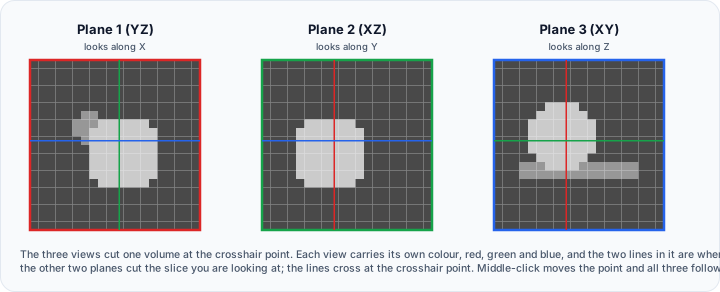
Hold Alt and move the mouse in any slice view to dynamically update the crosshair position without clicking. This allows rapid exploration of the volume.
Linked Slice Views
Enable Link Slice Views from the View tab to synchronize zoom and pan across all slice views. When linked:
- Zooming in one view zooms all views equally
- Panning in one view pans all views by the same amount
This is useful when comparing the same region across different orientations.
3D View Navigation
The 3D view provides interactive visualization of volumes, surfaces, meshes, measurements, and primitives (ROIs).
Camera Controls
| Action | Control |
|---|---|
| Rotate | Left-click + drag |
| Pan | Middle-click + drag |
| Zoom | Mouse wheel, or right-click + drag |
| Reset the view | Press R |
| Open an object's menu | Right-click on it without dragging |
Standard View Orientations
Quickly orient the camera to standard anatomical or engineering views:
| Key | View Direction |
|---|---|
| X | Right side (+X) |
| Shift + X | Left side (-X) |
| Y | Front (+Y) |
| Shift + Y | Back (-Y) |
| Z | Top (+Z) |
| Shift + Z | Bottom (-Z) |
| I | Isometric (diagonal) |
These shortcuts are available when the 3D view has focus.

Setting the Center of Rotation
By default, the camera rotates around the scene center. To rotate around a specific point:
- Position your mouse over the point of interest.
- Press C to set the center of rotation and bring that point to the middle of the 3D view.
- Rotate the view—the camera now orbits around that point.
This is particularly useful when examining detailed features on a surface model.

Projection Modes
Toggle between perspective and parallel projection:
- Perspective — Objects appear smaller with distance (realistic)
- Parallel — Objects maintain size regardless of distance (technical)
Press V to toggle between modes, or access the setting from View → Camera → Camera Settings.

Window/Level Adjustment
Window and Level control how intensity values are mapped to displayed grayscale:
- Level — The center intensity value (brightness)
- Window — The range of intensities displayed (contrast)
Using the Window/Level Panel
- Navigate to View → Window/Level to open the control panel.
- Select a Preset for common tissue types:
- CT Bone, CT Soft Tissue, CT Lung, etc.
- Or adjust manually:
- Drag the Level slider to shift brightness
- Drag the Window slider to change contrast
- Click Auto to calculate optimal values from the data
- Click Full Range to display the complete intensity range
Lookup Tables
Lookup Tables (LUTs) map intensity values to colors instead of grayscale:
- In the Window/Level panel, expand the Lookup Table dropdown.
- Select a color map (e.g., Rainbow, Hot, Cool, Jet).
- The slice views update to show the colored representation.
Color maps are useful for:
- Highlighting intensity gradients
- Visualizing analysis results
- Creating presentation images
3D Clipping
Clipping allows you to hide portions of the 3D scene to reveal internal structures.

Enabling the Clipping Box
- Navigate to View → 3D Clipping.
- Click Enable to activate clipping.
- Click Show Box to display the clipping region boundaries.
Adjusting the Clipping Region
With the clipping box visible:
- Drag the face handles to resize the clipping region along each axis.
- Drag the edges or corners to resize multiple faces simultaneously.
- Objects outside the clipping box are hidden.
Clipping Options
| Option | Effect |
|---|---|
| Invert | Shows content outside the box instead of inside |
| Reset | Returns the clipping box to encompass all visible objects |
Use clipping to create cross-section views of surfaces and volume meshes. Position the clipping box to cut through the region of interest, revealing internal structure.
Scene Orientations
Volvicon supports different orientation conventions for medical and engineering applications.
Changing Orientation Presets
- Navigate to View → Scene → Orientations.
- Select from available presets:
| Preset | Convention |
|---|---|
| Standard | Engineering orientation |
| Classic | Traditional 3D coordinate system |
| Medical 1 | Radiologist convention (patient facing viewer) |
| Medical 2 | Neurologist convention (patient facing away) |
The orientation affects:
- Axis labels in all views
- View direction names (Plane 1 (YZ), Plane 2 (XZ), Plane 3 (XY))
- Slice scrolling direction
Cine Loop Playback
The Cine Loop feature plays the stored 4D frame sequence of the active volume object:
- Navigate to View → Scene → Cine Loop.
- The playback panel opens with controls:
- Play/Pause — Start or stop automatic playback
- First/Previous/Next/Last — Navigate frame by frame
- FPS — Adjust playback speed
- Frame slider — Jump to specific positions
Cine loop is useful for:
- Examining 4D datasets (time series)
- Creating animations for presentations
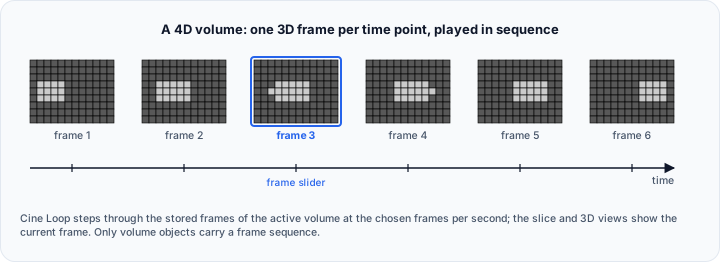
In the current release, 4D playback is limited to volume objects. Masks, surfaces, and volume meshes do not provide synchronized 4D playback.
If the active volume geometry is changed after 4D import, Volvicon clears the stored cine frames and keeps the current active volume image.
Voxel Information Display
Enable real-time voxel information to see intensity values under your cursor:
- Navigate to View → Slice Views → Voxel Information.
- Choose Status Bar, Mouse Hover, or Both.
- As you move the mouse over slice views, the selected display location shows:
- Voxel coordinates
- Intensity value at the cursor location
This is valuable for:
- Identifying appropriate threshold values
- Verifying intensity ranges
- Locating specific coordinates
Customizing Object Display
Surface Representation
Change how surfaces and volume meshes are displayed:
| Mode | Description |
|---|---|
| Solid | Filled surfaces with lighting |
| Solid Edges | Filled with visible triangle edges |
| Wireframe | Triangle edges only |
| Points | Vertices only |
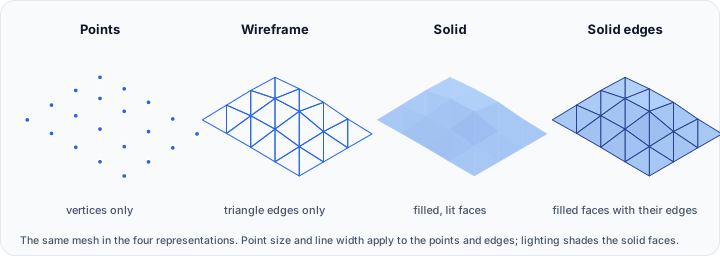
Toggle representations from View → 3D View or using keyboard shortcuts:
- S — Solid
- E — Solid Edges
- W — Wireframe
- Q — Points
Surface Shading
Control lighting calculations for surfaces:
| Algorithm | Appearance |
|---|---|
| None | Flat, unlit appearance |
| Flat | Uniform shading per triangle |
| Gouraud | Smooth shading across vertices |
| Phong | Smooth with accurate highlights |
| PBR | Physically-based realistic rendering |
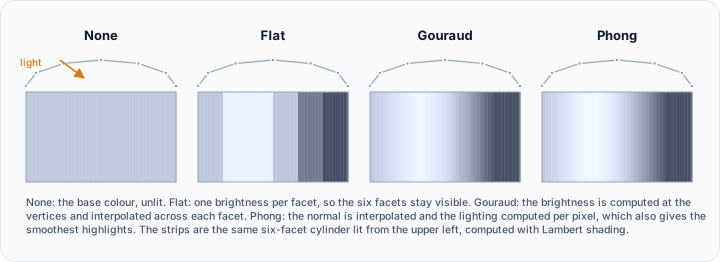
Access shading options from View → 3D View → Surface Shading.
Scene Helpers
Scene helpers provide visual references in the 3D view:
| Helper | Shows | Where |
|---|---|---|
| Toggle Outline | Bounding box around visible objects | Additional → Object Widgets → object type |
| Toggle Corner Outline | Corner markers only | Additional → Object Widgets → object type |
| Slice Planes | Where 2D views intersect the volume | Slice Planes |
| Axes Planes | Reference planes along principal axes | Axes Planes |
Enable them from View → 3D View. The outlines live under Additional → Object Widgets, which carries one submenu per object type.
Practical Exercise
Practice these navigation techniques:
- Load a volumetric dataset and set the layout to Conventional.
- Enable the crosshair and middle-click in different views to explore the volume.
- Adjust Window/Level using both the panel and interactive dragging.
- Enable 3D clipping and adjust the box to reveal internal structures.
- Practice standard views using keyboard shortcuts (X, Y, Z, I).
- Change surface representation to wireframe and back to solid.
Keyboard Shortcut Reference
Slice Views
| Shortcut | Action |
|---|---|
| Mouse wheel | Scroll slices |
| Middle-click + drag | Pan |
| Right-click + drag | Zoom |
| R | Reset view |
| Middle-click | Set crosshair position |
| Alt + move | Dynamic crosshair |
3D View
| Shortcut | Action |
|---|---|
| Left-click + drag | Rotate |
| Middle-click + drag | Pan |
| Mouse wheel or Right-click + drag | Zoom |
| R | Reset view |
| C | Set center of rotation and center it on screen |
| V | Toggle perspective/parallel |
| X / Shift+X | Right / Left view |
| Y / Shift+Y | Front / Back view |
| Z / Shift+Z | Top / Bottom view |
| I | Isometric view |
| S / E / W / Q | Surface representation modes |
Next Steps
With navigation mastered, continue to:
- Working with Volume Data — Learn image processing and transformation
- Threshold Segmentation — Create segmentation masks