Creating 3D Surface Models
Surface models represent the boundary of segmented structures as triangle meshes. These meshes enable high-quality 3D visualization, export for 3D printing, CAD integration, and further geometric analysis. This tutorial covers the workflow from mask to polished surface model.
Estimated time: 25 minutes
Prerequisites:
- Completed segmentation tutorials
- A refined mask ready for surface generation
Surface models derived from medical imaging should be reviewed by qualified professionals before clinical or manufacturing use. The accuracy of derived models depends on image quality and segmentation precision.
Understanding Surface Meshes
A surface mesh consists of:
- Vertices — Points in 3D space
- Triangles (Faces) — Polygons connecting three vertices
- Edges — Line segments connecting vertices
- Normals — Vectors indicating face orientation

Surface quality is characterized by:
- Triangle count — More triangles = finer detail but larger files
- Triangle quality — Well-shaped triangles process better
- Watertightness — Closed surfaces with no holes
- Manifold topology — Each edge shared by exactly two faces
Generating Surfaces from Masks
Using Mask To Surface
The primary tool for converting segmentation masks into triangle mesh surfaces:
- Select the mask in the Scene Tree (or it will process the active mask).
- Navigate to Segmentation → Convert → Mask To Surface.
- The Mask To Surface panel opens with configuration options.
Quality Presets
Choose a quality level that balances mesh quality and processing time:
| Preset | Quality | Use Case |
|---|---|---|
| Optimal | Best quality, full resolution | Final publication-ready models |
| High | High quality with minimal optimization | High-fidelity visualization |
| Medium | Balanced quality and performance | Most general-purpose applications |
| Low | Lower quality, faster processing | Quick previews and real-time visualization |
| Custom | Manual parameter control | Fine-tuned optimization |
Select a preset or choose Custom for full control over individual parameters.
Configuration Options (Custom Quality)
When using Custom quality, you can configure:
Resolution Reduction (Optional)
Reduce mesh complexity before surface generation:
- XY resolution — Reduction factor in XY plane (1× to 999999999×)
- Z resolution — Reduction factor in Z direction (1× to 999999999×)
Useful for very large masks to improve performance.
Filter Shells (Optional)
Remove small disconnected components:
- Number of largest shells — Retain only the largest N shells by area (1 to 999999999)
Helps eliminate noise and isolated fragments.
Smoothing (Optional)
Polish the surface mesh:
| Parameter | Description |
|---|---|
| Iterations | Number of smoothing passes (10-9999, default: 20) |
| Smooth factor | Smoothing strength where lower = more smoothing (0.000-1.000, default: 0.010) |
| Feature angle (°) | Threshold for edge sharpness; small values preserve features, higher values smooth more (0°-90°, default: 85°) |
Higher iterations and lower factor values produce smoother surfaces but may lose detail.
Triangle Reduction (Optional)
Reduce the polygon count for smaller file sizes:
- Reduction percent (%) — Target reduction (1%-99%, default: 50%)
A 50% reduction removes half the triangles while maintaining overall geometry.
Target Objects
Select which masks to convert:
- Active mask — The currently selected mask only
- Selected masks — All masks selected in the Scene Tree
- Visible masks — All masks currently visible in views
- All masks — Every mask in the project
- 3D preview of visible mask object(s) — Use pre-calculated 3D preview meshes (faster)
Step-by-Step Workflow
- Select target mask(s) in the Scene Tree or use the dropdown.
- Choose Quality:
- For final output: Select Optimal or High
- For quick preview: Select Low or Medium
- For custom tuning: Select Custom
- If using Custom quality:
- Enable Resolution Reduction if mask is very large
- Enable Filter Shells to remove disconnected noise
- Enable Smoothing to polish boundaries (typical: 20 iterations, 0.050 factor)
- Enable Triangle Reduction to reduce file size (typical: 50%)
- Click Apply to generate the surface mesh.
- Review the result:
- New surface object appears in the Scene Tree
- 3D view shows the generated mesh
- Rotate and inspect from multiple angles
Surface Quality vs. Performance
| Consideration | Impact |
|---|---|
| Triangle count | Affects file size and rendering speed |
| Smoothing iterations | Higher = smoother surface, slower generation |
| Decimation (reduction) | Higher % = smaller files, less detail |
| Resolution reduction | Lower resolution = faster processing |
For 3D printing: Use Optimal quality with minimal decimation. For web visualization: Use Medium with 50-75% decimation. For real-time VR: Use Low with 75-90% decimation.
Post-Processing Surfaces
After initial generation, consider applying additional surface operations:
- Smooth (Surface → Smooth) — Additional smoothing iterations
- Reduce (Surface → Reduce) — Further polygon reduction
- Remesh (Surface → Remesh) — Improve triangle quality
- Fill Holes (Surface → Fill Holes) — Close any remaining gaps
- Diagnostics and Fixes (Surface → Diagnostics and Fixes) — Check and repair mesh integrity
These tools are available in the Surface tab of the ribbon.
Surface Optimization
After generation, surfaces often benefit from additional processing.
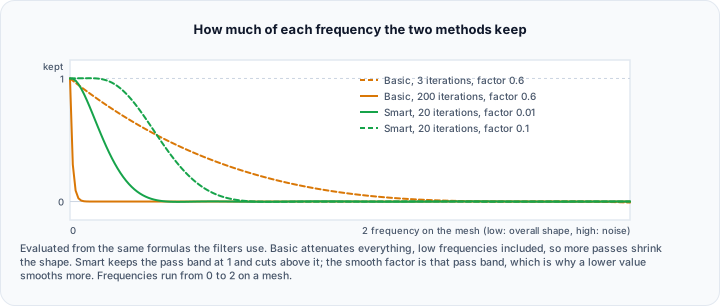
Smoothing Surfaces
Reduce surface noise and improve appearance:
- Select the surface.
- Navigate to Surface → Edit → Smooth.
- Configure:
- Smoothing method — Basic (Laplacian) or Smart (Windowed Sinc)
- Iterations — Number of smoothing passes
- Relaxation factor — Smoothing strength
- Click Apply.
| Algorithm | Characteristics |
|---|---|
| Basic | Fast, may cause shrinkage |
| Windowed Sinc | High-quality, preserves features |

Reducing Triangle Count (Decimation)
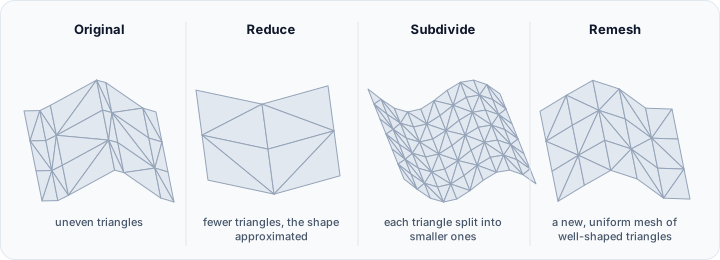
Reduce file size while preserving shape:
- Navigate to Surface → Edit → Reduce.
- Configure:
- Target reduction — Percentage to remove
- Feature angle — Preserve edges sharper than this angle
- Click Apply.
Remeshing
Improve triangle quality and uniformity:
- Navigate to Surface → Edit → Remesh.
- Configure:
- Method — Adaptive or regular
- Quality — Mesh optimization level
- Density — Target density of the remeshed surface relative to the input
- Click Apply.
Remeshing creates more uniform triangles, which improves downstream processing and simulation.
Surface Repair
Ensure mesh quality for export and 3D printing.

Diagnostics and Fixes
Analyze and repair common issues:
- Navigate to Surface → Edit → Diagnostics and Fixes.
- Run diagnostics to identify:
- Non-manifold edges
- Holes in the surface
- Degenerate triangles
- Inconsistent normals
- Select issues to fix.
- Click Apply Fixes.
Fill Holes
Close gaps in the surface:
- Navigate to Surface → Edit → Fill Holes.
- Configure:
- Maximum hole size — Only fill holes smaller than this
- Click Apply.
Most 3D printers require watertight, manifold meshes. Always run diagnostics and fix issues before exporting for printing.
Surface Visualization
Render Properties
Customize surface appearance:
- Select the surface.
- Navigate to Surface → General → Render Properties.
- Configure:
- Color — Surface color
- Opacity — Transparency (0-1)
- Representation — Solid, wireframe, points
- Material — Ambient, diffuse, specular properties
Representation Modes
Switch display modes from the View tab or keyboard:
| Mode | Key | Description |
|---|---|---|
| Solid | S | Filled surface |
| Solid Edges | E | Filled with visible edges |
| Wireframe | W | Edges only |
| Points | Q | Vertices only |
Multi-Surface Visualization
When working with multiple surfaces:
- Assign distinct colors to each surface for clarity.
- Adjust opacity to see through overlapping structures.
- Use visibility toggles in the Scene Tree to show/hide surfaces.
Exporting Surfaces
Export Formats
| Format | Extension | Use Case |
|---|---|---|
| STL | .stl | 3D printing, CAD import |
| OBJ | .obj | 3D graphics software |
| PLY | .ply | Scientific visualization |
| 3MF | .3mf | Advanced 3D printing |
| IGES/STEP | .igs, .stp | CAD applications |
| U3D | .u3d | PDF embedding |
| VRML/WRL | .wrl | Web and presentations |
Export Workflow
- Select the surface(s) to export.
- Navigate to File → Export → Surface Model.
- Choose the format.
- Configure format-specific options:
- Binary vs ASCII — Binary files are smaller
- Choose destination and click Export.
3D Printing Checklist
Before exporting for 3D printing:
- Surface is watertight (no holes)
- No non-manifold edges
- Normals are consistent (all pointing outward)
- Triangle count is reasonable (< 1-2 million for most printers)
- Dimensions are correct (check scale and units)
- Wall thickness is sufficient for printing
Creating Primitive Surfaces
Generate geometric primitives for reference or modeling:
- Navigate to Surface → General → Create.
- Select primitive type:
| Primitive | Parameters |
|---|---|
| Box | Dimensions, center position |
| Sphere | Radius, center position |
| Cylinder | Radius, height, orientation |
| Cone | Radius, height, apex position |
| Plane | Dimensions, orientation |
| Torus | Major/minor radius |
- Configure parameters.
- Click Create.
Primitives are useful for:
- Reference geometry
- Boolean operations with extracted surfaces
- Implant planning and design
Boolean Operations on Surfaces
Combine surfaces using set operations:
- Navigate to Surface → Edit → Boolean.
- Select two input surfaces.
- Choose operation:
| Operation | Result |
|---|---|
| Union | Combined outer boundary |
| Intersection | Only overlapping regions |
| Difference | First minus second |
- Click Apply.
For complex intersections that fail with standard Boolean:
- Navigate to Surface → Edit → Voxel Boolean.
- This method converts surfaces to voxels, performs the operation, and converts back.
- More robust but may lose fine detail.
Practical Exercise: Complete Surface Workflow
Part 1: Generate Initial Surface
- Open a project with a refined mask (e.g., bone segmentation).
- Navigate to Segmentation → Convert → Mask To Surface.
- Configure:
- Quality: Optimal
- Smoothing iterations: 20
- Smooth factor: 0.06
- Reduction percentage: 50
- Click Apply.
- View the result in the 3D view.
Part 2: Optimize the Surface
- Select the generated surface.
- Navigate to Surface → Edit → Smooth.
- Apply Smart smoothing with 20 iterations.
- Navigate to Surface → Edit → Reduce.
- Reduce by 50% (Reduction percent = 50).
Part 3: Verify and Repair
- Navigate to Surface → Edit → Diagnostics and Fixes.
- Run diagnostics.
- Fix any identified issues.
- Verify the surface is watertight.
Part 4: Export for 3D Printing
- Navigate to File → Export → Surface Model.
- Select STL format.
- Choose Binary mode for smaller file size.
- Export to your desired location.
Best Practices
Surface Quality
- Generate from well-refined masks
- Use adequate smoothing to eliminate voxel artifacts
- Verify watertightness before export
- Check triangle count is appropriate for use case
Performance
- Decimate large surfaces for faster rendering
- Use lower-quality previews during exploration
- Generate final quality only for export
Workflow Efficiency
- Save projects before generating surfaces
- Name surfaces descriptively
- Keep original masks for re-generation if needed
Troubleshooting
Surface has holes
- Mask may have gaps—check and fill in Edit Mask
- Use Fill Holes tool on the surface
- Re-generate with different settings
Surface is too coarse/smooth
- Adjust smoothing parameters
- Reduce decimation for more detail
- Use Remesh for uniform triangle distribution
Export fails
- Check for non-manifold geometry
- Verify surface is watertight
- Try a different export format
Slow generation
- Crop the mask to region of interest first
- Use Flying Edges method for large data
- Increase decimation ratio
Next Steps
Continue your learning with:
- 3D Visualization Techniques — Advanced rendering
- Volume Mesh for Simulation — Create FEA meshes
- Measurements and Statistics — Quantify surface properties