Quality Analysis
Quality analysis tools provide quantitative assessments for manufacturing quality control, geometric validation, and defect detection. This tutorial covers wall thickness measurement, deviation analysis for comparing geometries, curvature analysis, and void/inclusion detection.
Estimated time: 35 minutes
Prerequisites:
- Completed surface generation tutorials
- A project with masks and/or surfaces for analysis
Quality analysis results should be validated against established standards and interpreted by qualified professionals. These tools support quality assessment workflows but do not replace formal inspection procedures.
Analysis Workflow Overview
All analysis tools in the Analyze tab follow a consistent workflow:
- Select analysis type — Choose Wall Thickness, Deviation, Curvature, etc.
- Configure input — Select mask or surface to analyze
- Run Analysis — Compute results
- Visualize results — Color-mapped display on geometry
- Review statistics — Examine numerical summary
- Export results — Save data and reports
Wall Thickness Analysis
Wall thickness analysis measures material thickness across an object by calculating distances from each surface point to the opposite boundary.

Applications
- 3D printing verification
- Cast part inspection
- Implant design validation
- Minimum thickness compliance
Step-by-Step Workflow
-
Access the tool:
- Navigate to Analyze → Analyses → Wall Thickness Analysis.
-
Select analysis mode:
- Mask — Analyze from mask 3D preview
- Surface — Analyze from triangle mesh
-
Create an analysis:
- Click Select analysis to open the Analysis Editor.
- Click New Analysis to create a new analysis.
- Name the analysis descriptively.
- Click Load to load it.
-
Configure settings:
Setting Description Actual Object Mask or surface to analyze Surface Quality Preview quality for a mask analysis: Optimal, High, Medium, or Low. Use Optimal for reported numbers Method Ray casting or Shrinking sphere Max. Wall Thickness (mm) Upper limit of the search. 0 searches without a limit Search Angle (deg) Cone half-angle used by Shrinking sphere -
Run the analysis:
- Click Load to make the selected analysis the active one.
- Click Run Analysis.
- Wait for the computation to finish.
-
Review results:
- Color-mapped thickness appears on the geometry
- Histogram shows thickness distribution
- Statistics table shows min, max, mean, std dev
Interpreting Results
| Color (default) | Meaning |
|---|---|
| Red | Thin regions |
| Green | Medium thickness |
| Blue | Thick regions |
| Below range | Thinner than minimum displayed |
| Above range | Thicker than maximum displayed |
Adjusting Visualization
- Drag histogram sliders to filter displayed range
- Change LUT to use different color schemes
- Show Maximum/Minimum to mark extreme locations
- Pick Point to query thickness at specific locations
To highlight thin regions that may fail quality requirements, set the histogram upper slider to your minimum acceptable thickness. Only regions below this value will be colored.
Deviation Analysis
Deviation analysis compares two objects to identify geometric differences, useful for:
- Comparing manufactured parts to CAD models
- Measuring deformation or wear
- Validating scan-to-scan alignment
- Assessing segmentation consistency
Supported Comparisons
| Reference | Test | Use Case |
|---|---|---|
| Surface | Surface | CAD comparison, scan alignment |
| Mask | Mask | Segmentation comparison |
| Mask | Surface | Verify surface accuracy |
Step-by-Step Workflow
-
Access the tool:
- Navigate to Analyze → Analyses → Deviation Analysis.
-
Create an analysis:
- Click Select analysis to open the Analysis Editor.
- Click New Analysis to create a new analysis.
- Name the analysis descriptively.
- Click Load to load it.
-
Configure inputs:
- Actual object — The baseline (e.g., CAD model)
- Reference object — The object to compare (e.g., scan)
-
Configure settings:
Setting Description Surface Quality Mask 3D preview quality (only for masks) Method Signed or unsigned Visualization settings LUT, Above max. or Below min. range colors -
Run Analysis.
-
Review results:
- Color map shows deviation magnitude
- Signed results (default): Red = test inside reference, Blue = outside
- Statistics show overall deviation metrics
Deviation Metrics
| Metric | Description |
|---|---|
| Min. deviation | Smallest deviation anywhere |
| Max. deviation | Largest deviation anywhere |
| Mean | Average deviation |
| Standard Deviation | Deviation variability |

Creating Tolerance Reports
- Set histogram range to your tolerance (e.g., ±0.5 mm).
- Review percentage of surface within tolerance.
- Export statistics and screenshots for documentation.
Curvature Analysis
Curvature analysis quantifies surface shape characteristics, identifying flat, curved, convex, and concave regions.
Curvature Types
| Type | Description | Interpretation |
|---|---|---|
| Gaussian | Product of principal curvatures | Sign indicates surface type |
| Mean | Average of principal curvatures | Overall curvature magnitude |
| Maximum | Larger principal curvature | Strongest curvature |
| Minimum | Smaller principal curvature | Weakest curvature |
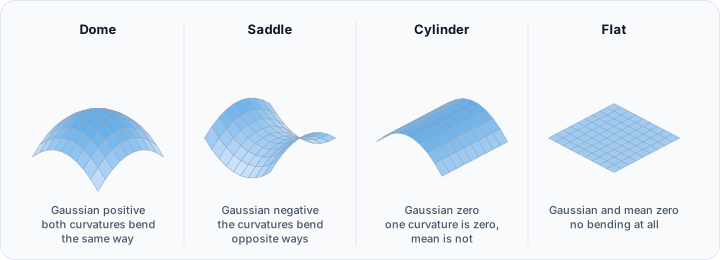
Gaussian curvature interpretation:
- Positive: Convex (dome-like) or concave (bowl-like)
- Negative: Saddle-shaped
- Zero: Flat or cylindrical
Step-by-Step Workflow
-
Access the tool:
- Navigate to Analyze → Analyses → Curvature Analysis.
-
Create an analysis:
- Click Select analysis to open the Analysis Editor.
- Click New Analysis to create a new analysis.
- Name the analysis descriptively.
- Click Load to load it.
-
Configure:
- Select actual object (mask or surface)
- Choose curvature method
- Set visualization settings
-
Run Analysis.
-
Interpret results:
- Sharp features show high curvature
- Flat regions show near-zero curvature
- Edges and corners show curvature discontinuities
Applications
- Identifying stress concentration points
- Locating anatomical landmarks
- Assessing surface smoothness
- Guiding mesh refinement
Extrema Analysis
Extrema analysis finds local maximum and minimum points along a specified direction, useful for:
- Locating highest/lowest points
- Finding landmarks for alignment
- Measuring extent in specific directions
Step-by-Step Workflow
-
Access the tool:
- Navigate to Analyze → Analyses → Extrema Analysis.
-
Create an analysis:
- Click Select analysis to open the Analysis Editor.
- Click New Analysis to create a new analysis.
- Name the analysis descriptively.
- Click Load to load it.
-
Configure:
- Select actual object (mask or surface)
- Choose to find maxima, minima, or both
- Select the direction axis (X, Y, Z, or custom)
- Set visualization settings
-
Run Analysis.
-
Review results:
- Extreme points are marked on the geometry
- Coordinates are reported in statistics
Gray Value Analysis
Gray value analysis maps intensity values from volume data onto surface geometry, correlating material density with geometry.
Applications
- Bone density visualization on surface models
- Material composition analysis
- Correlating structure with imaging properties
Step-by-Step Workflow
-
Access the tool:
- Navigate to Analyze → Analyses → Gray Value Analysis.
-
Create an analysis:
- Click Select analysis to open the Analysis Editor.
- Click New Analysis to create a new analysis.
- Name the analysis descriptively.
- Click Load to load it.
-
Configure:
- Select actual object (mask or surface) to analyze
- Select the source volume
- Set visualization settings
-
Run Analysis.
-
Review results:
- Surface colored by underlying intensity
- Statistics show intensity distribution on surface
Void/Inclusion Analysis
Detect and characterize internal defects within objects.
Defect Types
| Type | Description |
|---|---|
| Void | Internal empty space (porosity) |
| Inclusion | Foreign material inside object |
Step-by-Step Workflow
-
Access the tool:
- Navigate to Analyze → Analyses → Void/Inclusion Analysis.
-
Create an analysis:
- Click Select analysis to open the Analysis Editor.
- Click New Analysis to create a new analysis.
- Name the analysis descriptively.
- Click Load to load it.
-
Configure detection:
Setting Description Volume Object Select the source volume object Mask Object Select the result mask object (optional) Surface Quality Mask 3D preview quality Analysis Settings Edit detection method related settings -
Run Analysis.
-
Review results:
- Detected defects are labeled and colored
- Statistics include:
- Distribution histogram of the target metric
- Individual label/defect statistics
- Overall descriptive statistics
- Whole mask statistics
Defect Characterization
Each detected defect includes:
| Property | Description |
|---|---|
| Volume | Defect size |
| Location | Centroid coordinates |
| Bounding box | Spatial extent |
| Sphericity | Shape factor (1.0 = perfect sphere) |
Filtering and Sorting
- Sort defects by size, location, or sphericity
- Filter to show only defects above a size threshold
- Export defect table for further analysis
Detection accuracy depends on image resolution and contrast. Small defects near the resolution limit may be missed or merged. Validate results against known standards.
Exporting Analysis Results
Statistics Export
- Right-click the statistics table.
- Select Copy to Clipboard.
PDF Reports
Generate formatted reports:
- Press Export to export the analysis result.
- Configure report contents:
- Analysis histogram images with color scale
- Statistics tables
- Project metadata
- Measurements
- Snapshots
- Scene objects for the 3D‑embedded PDF
- Generate and save the PDF.
Copy to Measurements
Transfer analysis annotations (min/max points) to the Measurements tool:
- Enable Show max. and Show min. in analysis.
- Click Copy to Measurements.
- Points appear in the Measurements list for inclusion in reports.
Practical Exercise: Quality Inspection Workflow
Scenario
Inspect a cast part for minimum wall thickness and dimensional accuracy.
Part 1: Wall Thickness
- Load or create a segmentation of the part.
- Navigate to Wall Thickness Analysis.
- Create a new analysis "Part_WallThickness".
- Run the analysis with 20 mm max. wall thickness.
- Identify regions below minimum thickness (e.g., < 2 mm).
- Document locations of thin areas.
Part 2: Deviation Analysis
- Import the reference CAD model (STL or STEP).
- Align the scan to the CAD using registration tools.
- Navigate to Deviation Analysis.
- Create analysis comparing scan to CAD.
- Run with ±1 mm tolerance.
- Identify out-of-tolerance regions.
- Calculate percentage within tolerance.
Part 3: Void Detection
- Ensure the part interior is properly segmented.
- Navigate to Void/Inclusion Analysis.
- Configure minimum void size (e.g., 0.5 mm³).
- Run detection.
- Review defect count and sizes.
- Determine if porosity is within specification.
Part 4: Report Generation
- Capture screenshots of each analysis with color scales.
- Export statistics result data.
- Generate PDF report with all findings.
Best Practices
Analysis Setup
- Use Optimal quality for final analysis results
- Set appropriate search distances/ranges
- Document analysis parameters for reproducibility
Interpretation
- Consider measurement uncertainty
- Compare against established tolerances
- Validate with reference samples when possible
Reporting
- Include color scale legends
- Document analysis parameters
- Provide statistical summaries alongside visualizations
Troubleshooting
Analysis takes too long
- Reduce quality setting for exploration
- Crop data to region of interest
- Simplify surface mesh
Unexpected results
- Verify input object selection
- Check that objects are properly aligned
- Review parameter settings
Color mapping unclear
- Adjust histogram range sliders
- Try different lookup tables
- Enable/disable signed deviation
Next Steps
Continue with advanced topics:
- Volume Mesh for Simulation — FEA mesh generation
- AI-Powered Segmentation — Automated segmentation
- Python Scripting Fundamentals — Automate analysis