Volume Mesh Statistics
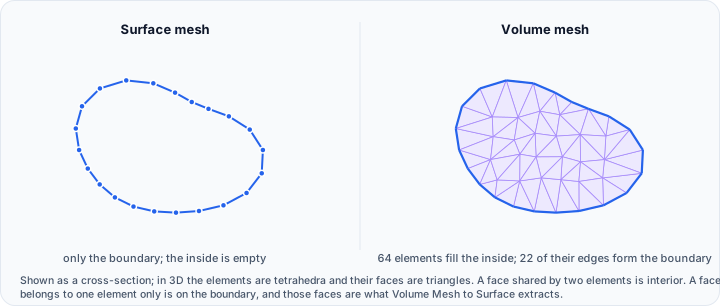
The Volume Mesh Statistics tool calculates geometric and topological statistics for volume mesh objects. Volume meshes are 3D tessellations composed of volumetric elements such as tetrahedra, hexahedra, or other cell types.
Accessing the Tool
- Navigate to the Measure tab in the ribbon
- Click the Volume Mesh Statistics button in the Statistics section
Overview
Calculate statistics for the active or all visible volume meshes. Select an individual volume element in the 3D view to inspect its properties.
User Interface
Options
| Control | Description |
|---|---|
| Target | Select the analysis target |
| Select statistics | Open dialog to choose which statistics to calculate |
Target Options
| Option | Description |
|---|---|
| Active volume mesh object | Calculate statistics for the active volume mesh |
| Visible volume mesh object(s) | Calculate statistics for all visible volume meshes |
| Volume element selection | Calculate statistics for the selected volume mesh element |
Left-click on the volume mesh in the 3D view to select an element. Hold the Alt key to enable spinning, zooming, and panning while in selection mode.
Output Tables
| Table | Description |
|---|---|
| Statistics | Calculated statistics for the target |
| Individual visible volume mesh statistics | Per-mesh breakdown when multiple volume meshes are visible |
Toolbar
| Button | Description |
|---|---|
| Export... | Export the calculated statistics to disk |
Available Statistics
Volume mesh statistics include:
Geometric Statistics
- Volume (mm³) — total volume of all elements
- Surface Area (mm²) — area of external faces
- Bounding Box dimensions
- Centroid position (X, Y, Z)
Topological Statistics
- Number of Points — total vertices
- Number of Cells — total volumetric elements
- Number of Tetrahedra — tetrahedral elements
- Number of Hexahedra — hexahedral elements
- Number of Wedges — wedge/prism elements
- Number of Pyramids — pyramid elements
- Number of Faces — total faces
- Number of External Faces — boundary faces
Element Quality Metrics
- Element Volume (min, max, mean, std dev)
- Aspect Ratio statistics
- Jacobian statistics
- Skewness statistics
- Edge Length (min, max, mean)
Shape Statistics
- Elongation
- Flatness
- Sphericity
Workflow
Basic Volume Mesh Analysis
- Ensure a volume mesh is active or visible
- Open the Volume Mesh Statistics tool
- Select the target (Active mesh, Visible meshes, or Element selection)
- Click Select statistics to choose which metrics to calculate
- Statistics are computed and displayed in the table
Inspect Individual Elements
- Set Target to "Volume element selection"
- Click on an element in the 3D view
- View the selected element's properties in the statistics table
- Hold Alt to pan/zoom/rotate without selecting
Compare Multiple Meshes
- Make multiple volume meshes visible
- Set Target to "Visible volume mesh object(s)"
- View combined statistics and per-mesh breakdown
- Compare quality metrics across meshes
Use Cases
Finite Element Analysis Preparation
Verify mesh quality before FEA simulation. Check element aspect ratios, Jacobian values, and skewness to ensure numerical stability.
Mesh Quality Validation
Validate volume mesh quality after generation or import. Identify problematic elements that may need refinement.
Volume Calculations
Calculate precise volumes for parts, cavities, or other 3D regions represented by volume meshes.
Export
Click Export... to save calculated statistics to a file for reporting or further analysis.
Related Tools
- Surface Statistics — Statistics for surface meshes
- Mesh Quality Analyzer — Detailed quality analysis for meshes
- Volume Statistics — Grayscale statistics for volumes